How to Generate, Download, and Check Credits in Pictory 3
Check the preview, generate the final file, and keep an eye on your AI Credits. This guide also covers what to try when audio, scenes, or exports don’t look right.
How do you generate and download your video?
Play the full preview, wait for edits to save, and apply any outstanding AI voiceover changes. Select Generate video, review the offered export, start generation, and select Download when the result is ready.
Step 1: Check the full preview
Play it and check facts, scene order, captions, framing, and audio.
Step 2: Let your edits save
Wait for edits to save and apply any outstanding AI voiceover changes.
Step 3: Select Generate video
Review the offered export.
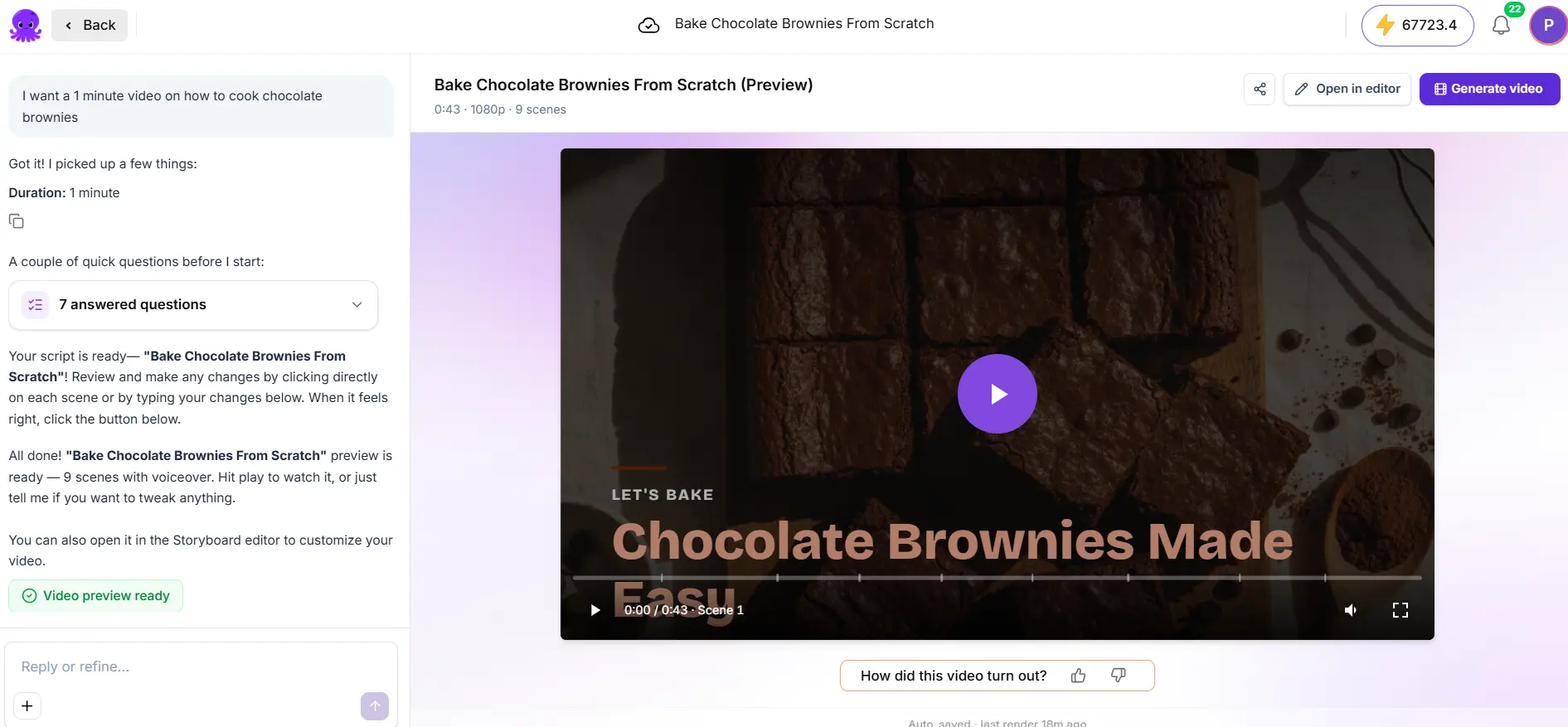
Step 4: Start generation
Start generation and follow the progress.
Step 5: Download
When the result is ready, select Download.
Step 6: Play the file locally
Play the downloaded file before you publish. Check the opening and ending, pronunciation, music levels, avatar playback, and animation.
A completed file reflects the version used to generate it, so generate again after further edits. Downloading a completed file and starting another generation are different actions.
How do you check your credits?
Open AI credits in the header to see the balance and usage shown for your account. Select Usage history for activity details. AI creation, AI revision, AI voices, AI Studio, transcription, avatars, and video generation use AI Credits.
If an action is blocked because you don’t have enough credits, select Update your plan or Buy credit packs when they’re offered, and review the available pack or plan details. After your account updates, return to the saved project and retry.
Where do you find notifications and updates?
Open the notification bell and select a completion or status update to return to its project. Open What’s new from the account menu for release announcements. Whether you get a browser alert depends on browser permissions and whether the app is open, so check the project directly if you missed one. A completion notice means the result is ready to review.
What if audio or scene content is wrong?
- Narration is missing or uses an earlier script. Check its status and select Apply Changes. Also check volume and mute settings.
- A recording sounds wrong. Confirm the selected view contains the original speech.
- Text or a visual is missing. Open Scene layers and check whether the element is hidden, covered by another layer, duplicated, or set to appear later.
- Captions look wrong. Check the narration or transcript text before you correct the captions.
What if generation fails or the export differs?
Read the error before you retry. Check that edits have saved, voiceover is up to date, source media is accessible, and your account has enough allowance for the action. Then confirm the final file was generated after your latest edits.
Compare the same scene and time in the preview and the download. If the issue repeats, keep the project and the downloaded file available. Give support the project title, failed step, error message, approximate time, and affected scene or playback time. For upload failures, include the file type and size, and avoid repeatedly submitting an unchanged failing request.
Try it on your next video
Bring a brief or a source and review the story before it renders.
Related Academy guides
Academy guide.
Academy guide.
Academy guide.
Academy guide.
The hub for everything in Pictory 3.
Frequently asked questions
How do I download my video from Pictory 3?
Play the full preview, let edits save, and apply any outstanding voiceover changes. Select Generate video, review the offered export, and start generation. When the result is ready, select Download, then play the downloaded file locally and check it before you publish it anywhere.
Where can I see my AI Credits?
Open AI credits in the header to see the balance and usage shown for your account. Select Usage history for activity details. AI creation, AI revision, AI voices, AI Studio, transcription, avatars, and video generation all use AI Credits, so check the balance before a long session.
What if I don’t have enough credits?
If an action is blocked because you don’t have enough credits, select Update your plan or Buy credit packs when they’re offered, and review the available pack or plan details. After your account updates, return to the saved project and retry the action.
Why does my download differ from the preview?
A completed file reflects the version used to generate it, so it may predate your latest edits. Confirm the file was generated after your last edit, apply any outstanding voiceover changes, and compare the same scene and time in the preview and the download.
What should I send support if generation keeps failing?
Send the project title, the failed step, the error message, the approximate time, and the affected scene or playback time. For upload failures, include the file type and size. Keep the project and any downloaded file available, and avoid resubmitting an unchanged failing request.