Pictory 3 starts with an idea, an approved script, source files, or URLs. The agent guides you through setup, prepares the script and scenes, and creates a preview. You refine it by chat or in the editor, then generate the final video to download.
Step by step: create your first video
Step 1: Describe the video
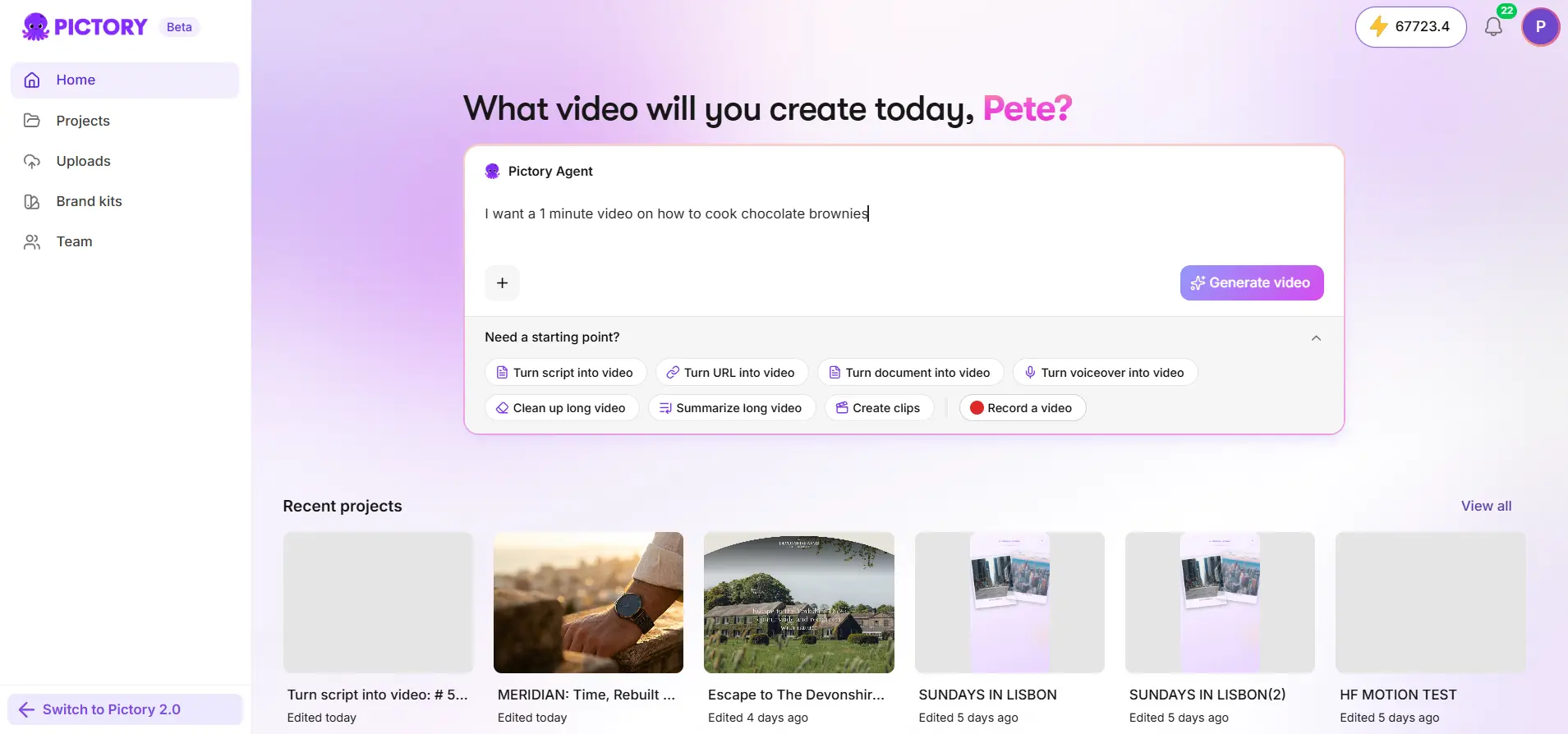
On the home page, describe the topic, audience, purpose, and desired length in the agent input. Add any source files or URLs.
Step 2: Answer the setup questions
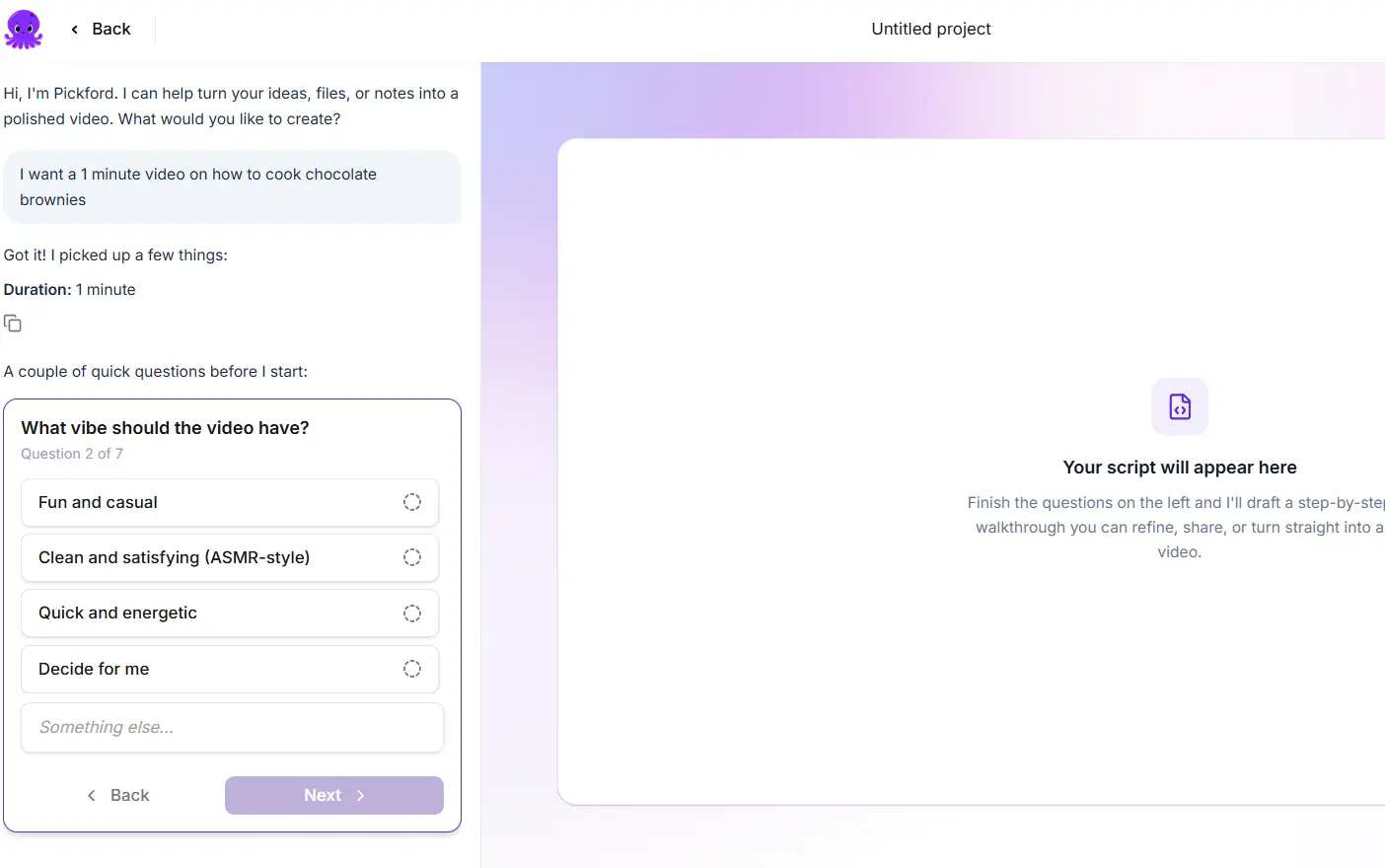
Choose the voiceover, visual sources, aspect ratio, layout preset, and brand kit as prompted. Select Decide for me where it’s offered.
Step 3: Review the setup summary
Check the summary, then select Create script.
Step 4: Review the script and scenes
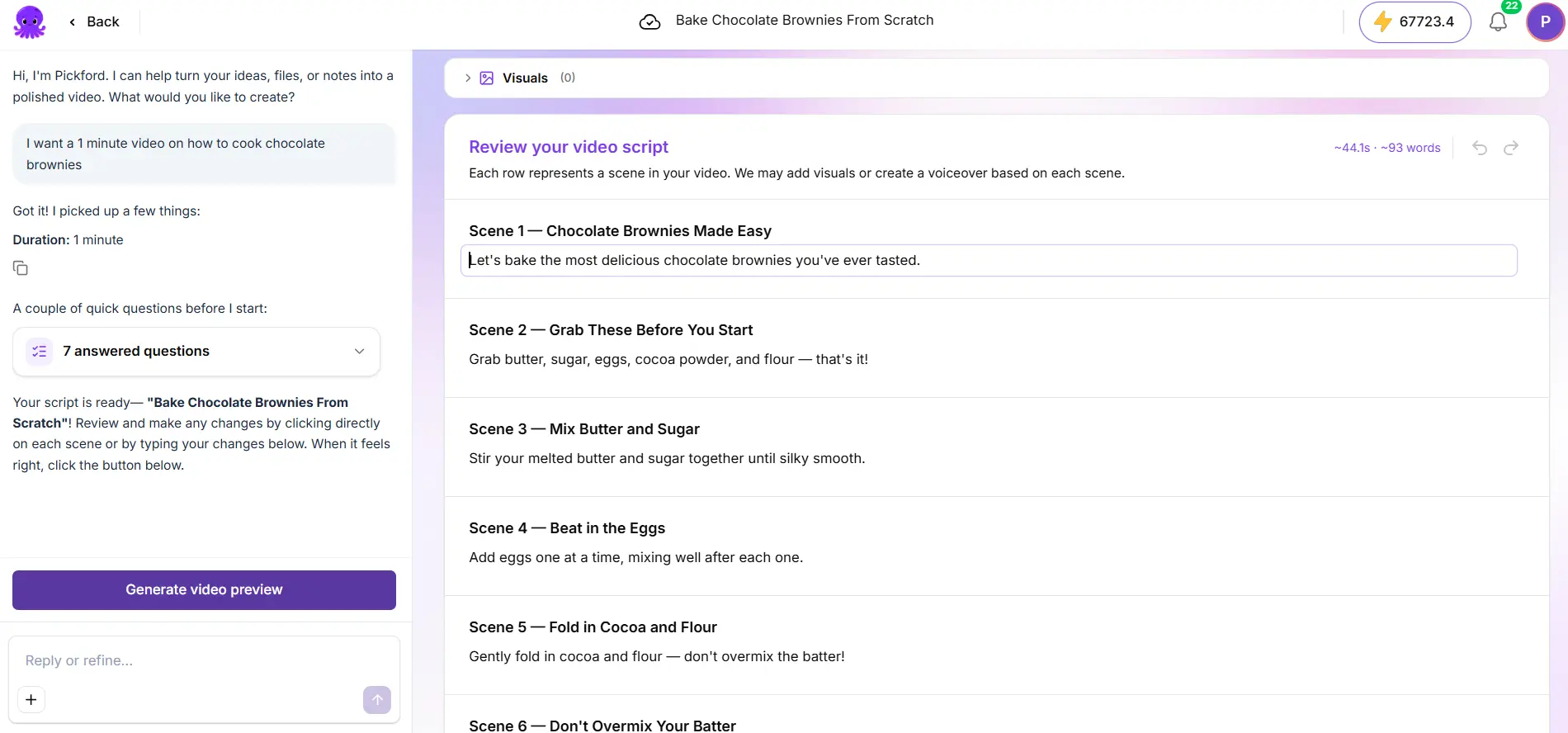
Read each scene and check its proposed visuals. Correct the story before you generate the preview.
Step 5: Generate the preview
Generate the preview and play it from beginning to end.
Step 6: Refine by chat or in the editor
Ask the agent for refinements, or select Open in editor for direct edits.
Step 7: Generate and download
Wait for edits to save and apply any outstanding voiceover changes. Then select Generate video to create the downloadable file.
What makes a useful brief?
Name the audience, purpose, length, tone, and format, and say how you want it to end. Here is a brief the agent can work with:
Can you create a video without spoken narration?
Yes. Ask for a silent or music-led video with short on-screen text, then choose No voiceover. Preview each scene to check reading time. A video visual can contain its own audio, so check clip sound too if you want the result fully silent.
If you used Pictory 2
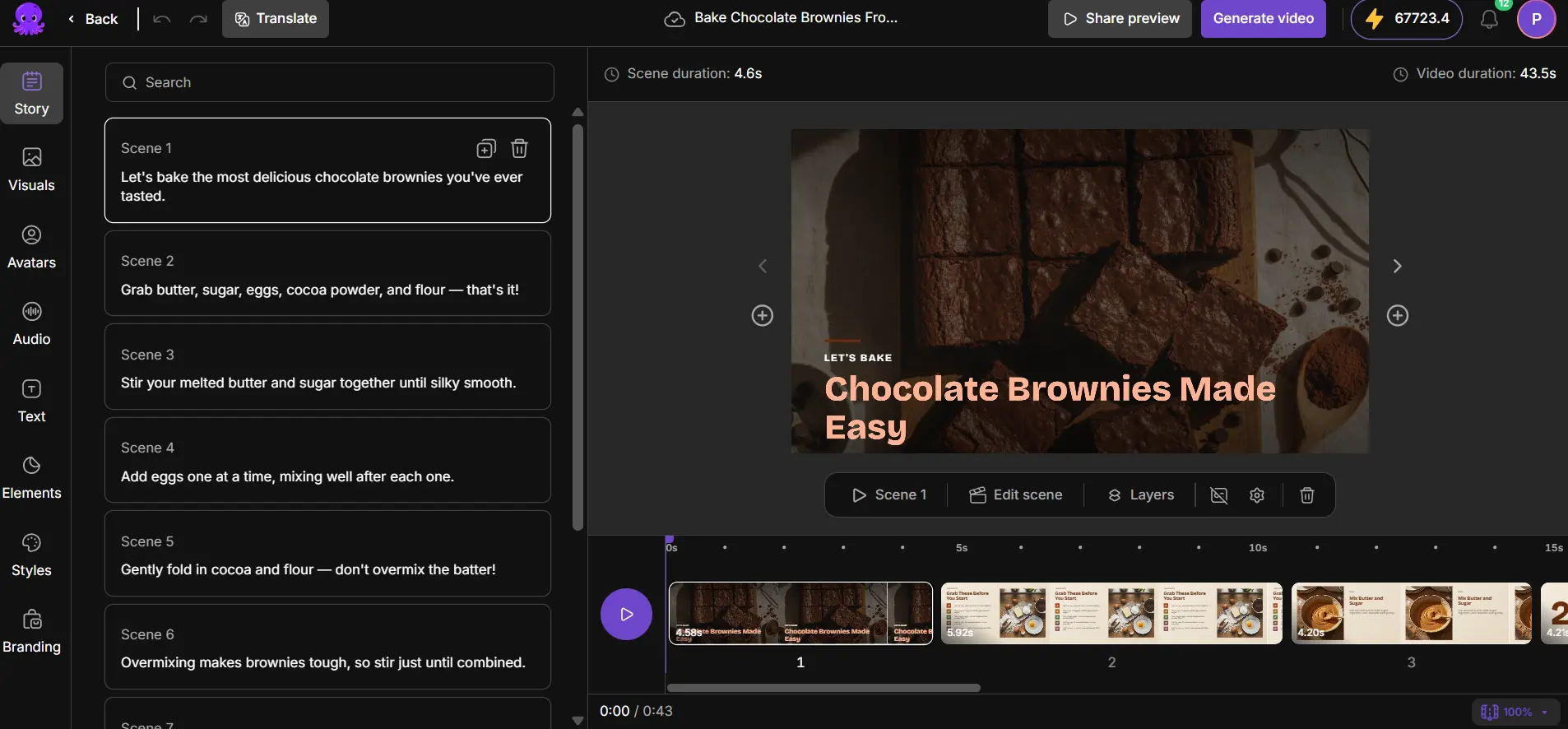
Pictory 3 lets you fine-tune your videos. In the editor, select a scene, then open the panel you need: Story, Visuals, Avatars, Audio, Text, Elements, Styles, or Branding. Story text is what the voice speaks. Captions follow narration, while decorative titles are separate text.
Open existing projects from Projects and use the editing experience available for that project. Opening Pictory 3 doesn’t automatically convert an older video.
Tips for better results
- Put the length, audience, and purpose in your first message. The agent has less to ask.
- Set up a brand kit first. See Use brand kits and layout presets in Pictory 3.
- Not sure about the voice? Choose Decide for me. You can change it later in Audio.
- Read the script before you generate the preview. Correcting the story is quicker than correcting a finished video.
Good to know
- Documents and URLs share a limit of five sources per creation request.
- A finished file reflects the version used to generate it. Generate again after further edits.
- AI creation, revision, voices, and video generation use AI Credits. See Generate, download, and check credits in Pictory 3.
Want the full walkthrough of every step? Read How to create a video with Pictory 3, or see what’s new in Pictory 3.