

Background music adds emotion, energy, and atmosphere to your video. It helps set the tone and keeps viewers engaged. Pictory AI makes it easy to add royalty free background music and adjust it so it blends smoothly with your narration or visuals.
This guide shows you how to add background music inside Pictory AI.
What the Background Music Tools Do
The music tools allow you to:
• Browse a large library of royalty free tracks
• Preview music before adding it
• Apply music to your entire video
• Adjust volume and balance
• Replace or remove tracks at any time
These features help you create a polished and professional sound for any type of video.
Step 1: Open the Audio Tab
Begin by selecting your project and opening the editing workspace. Click the Audio tab on the left side of the editor.
You will see three sections:
• Voiceover
• Music
• Uploads
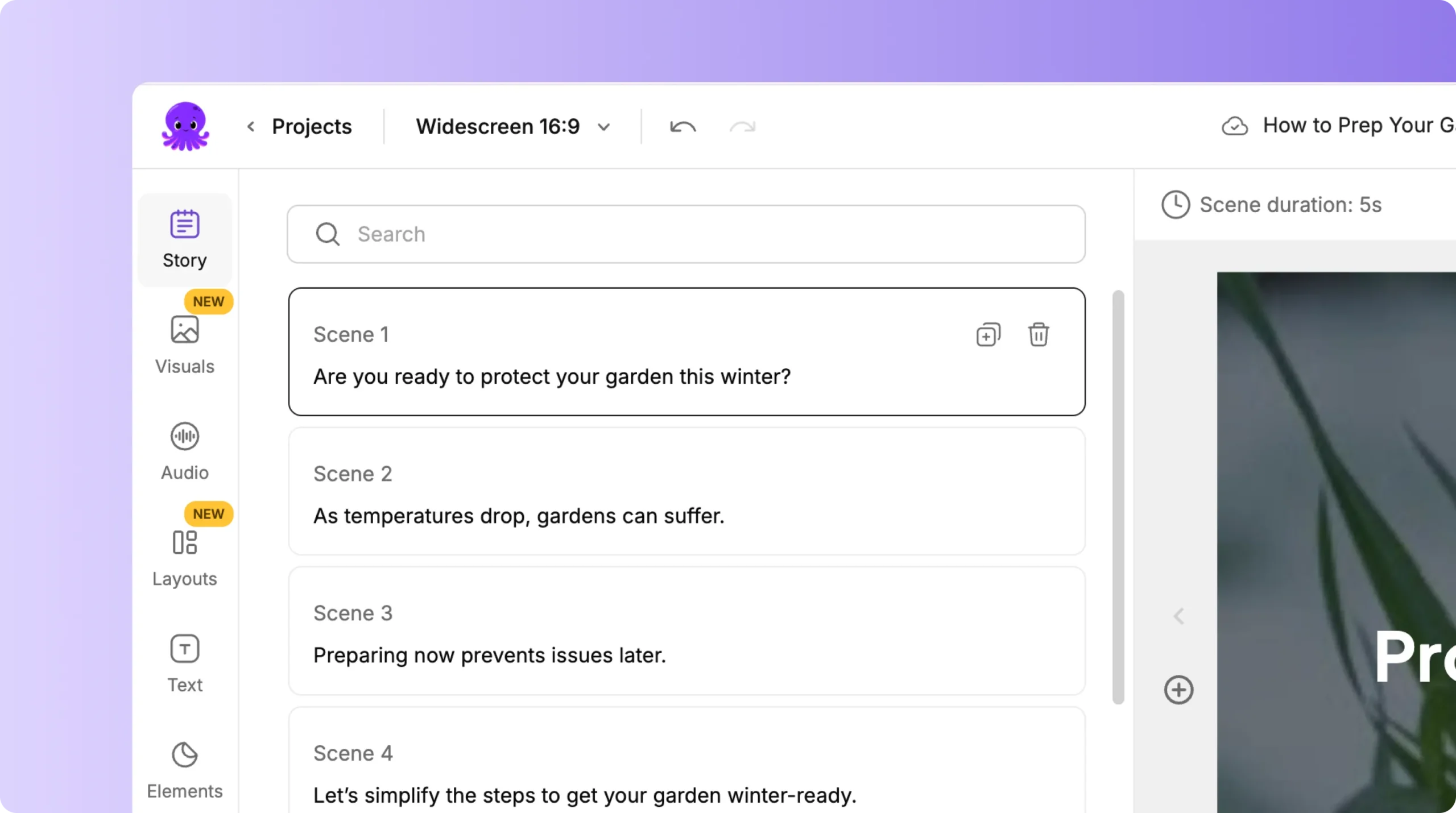
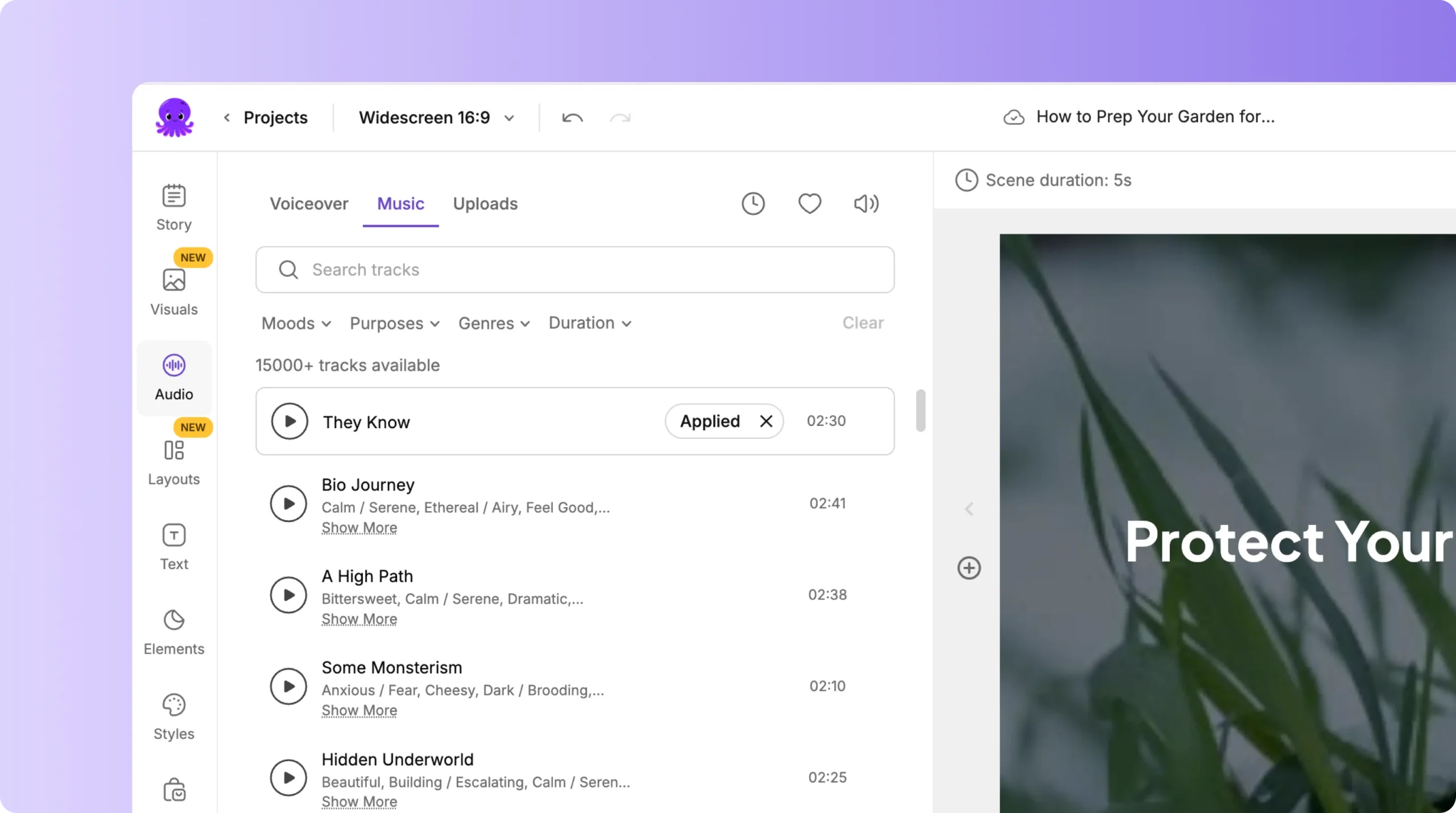
Choose the Music section to add background audio.
Step 2: Browse the Music Library
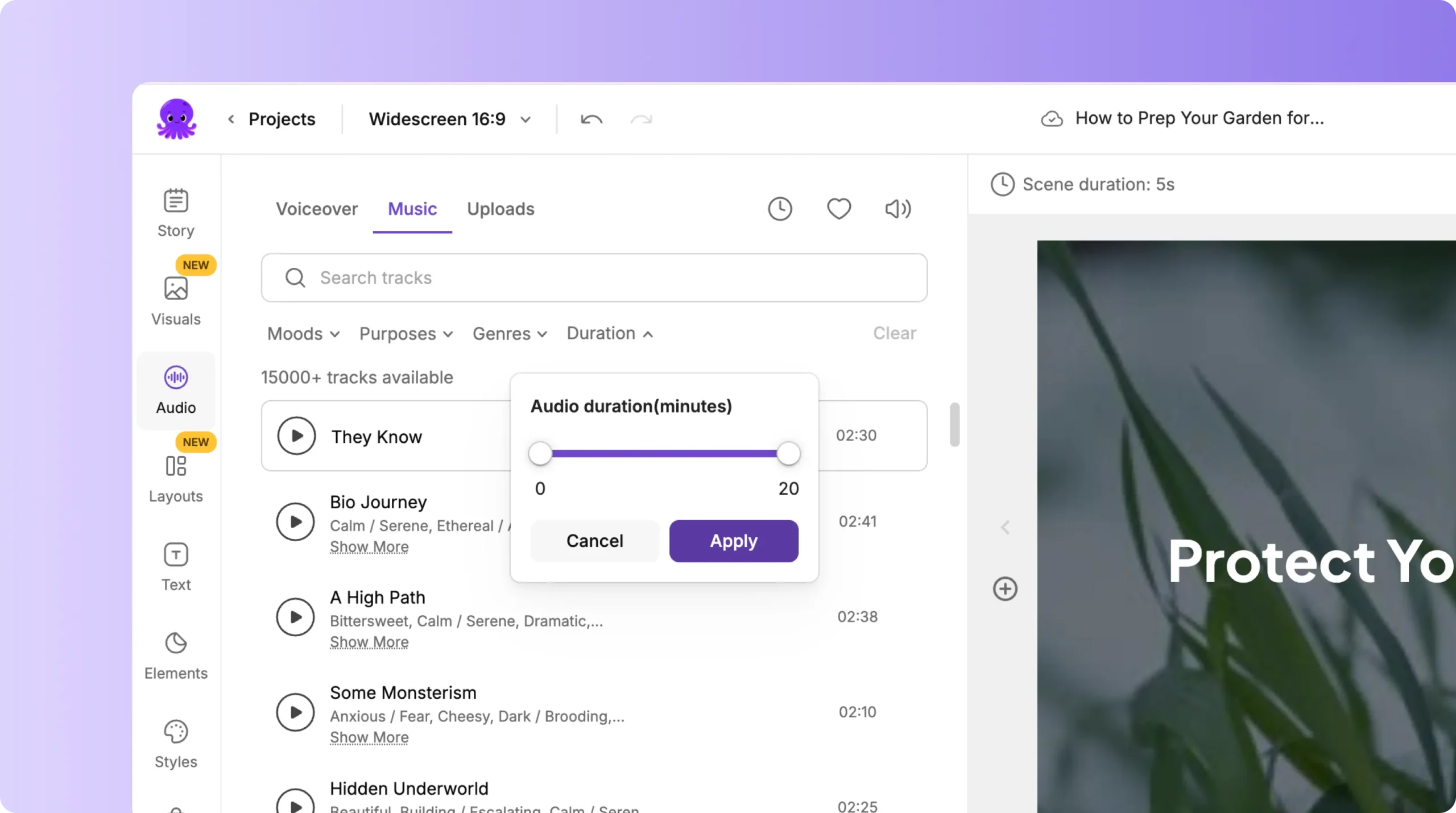
Pictory’s library includes tracks suitable for many styles, including:
• Corporate
• Upbeat
• Inspirational
• Dramatic
• Calm
• Tech
• Cinematic
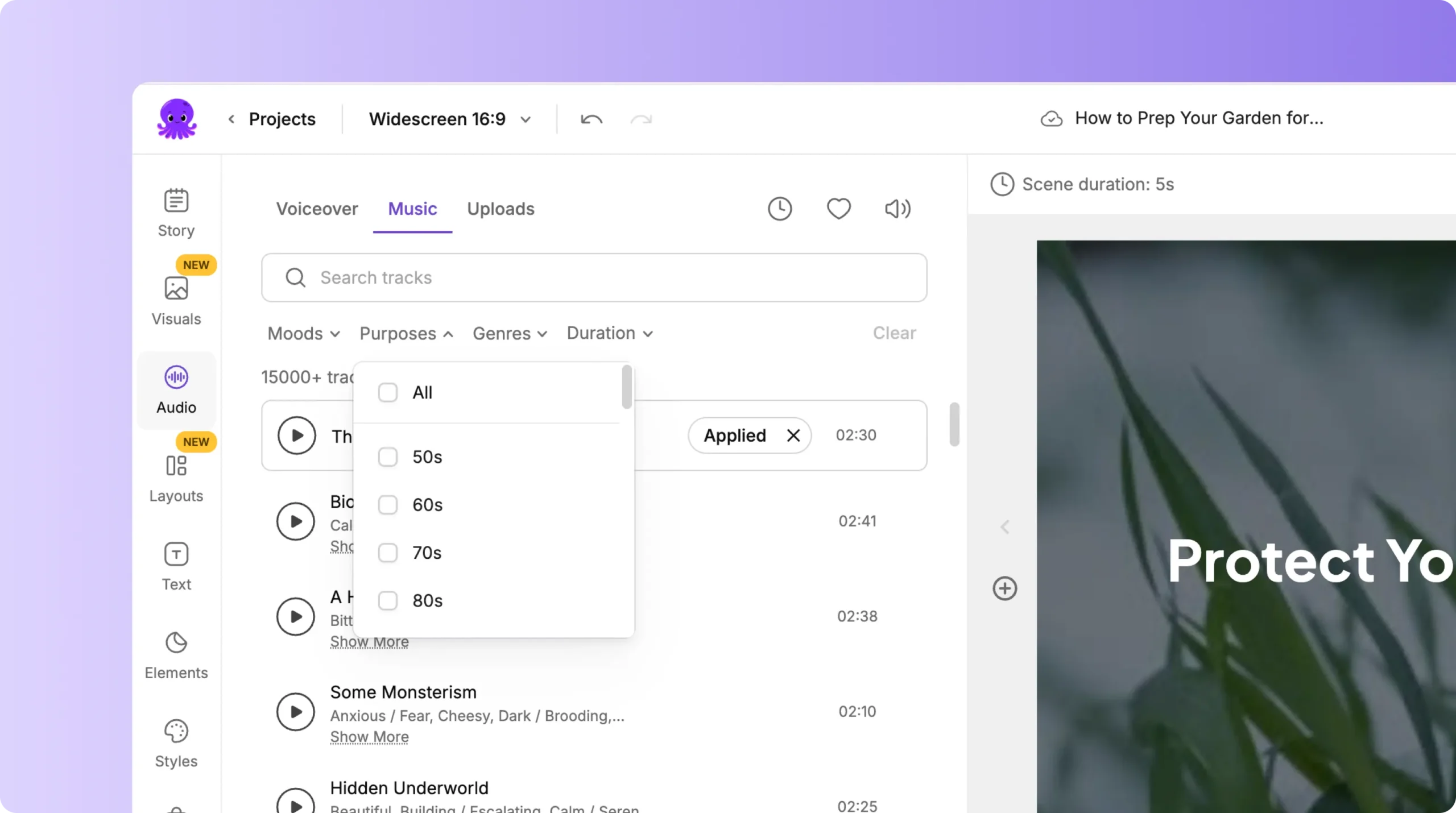

Scroll through the categories or use keywords to find a track that matches your video’s tone.
Step 3: Preview Music Tracks
Click any track to preview it. This allows you to check:
• Energy level
• Mood
• Tempo
• Fit with your message
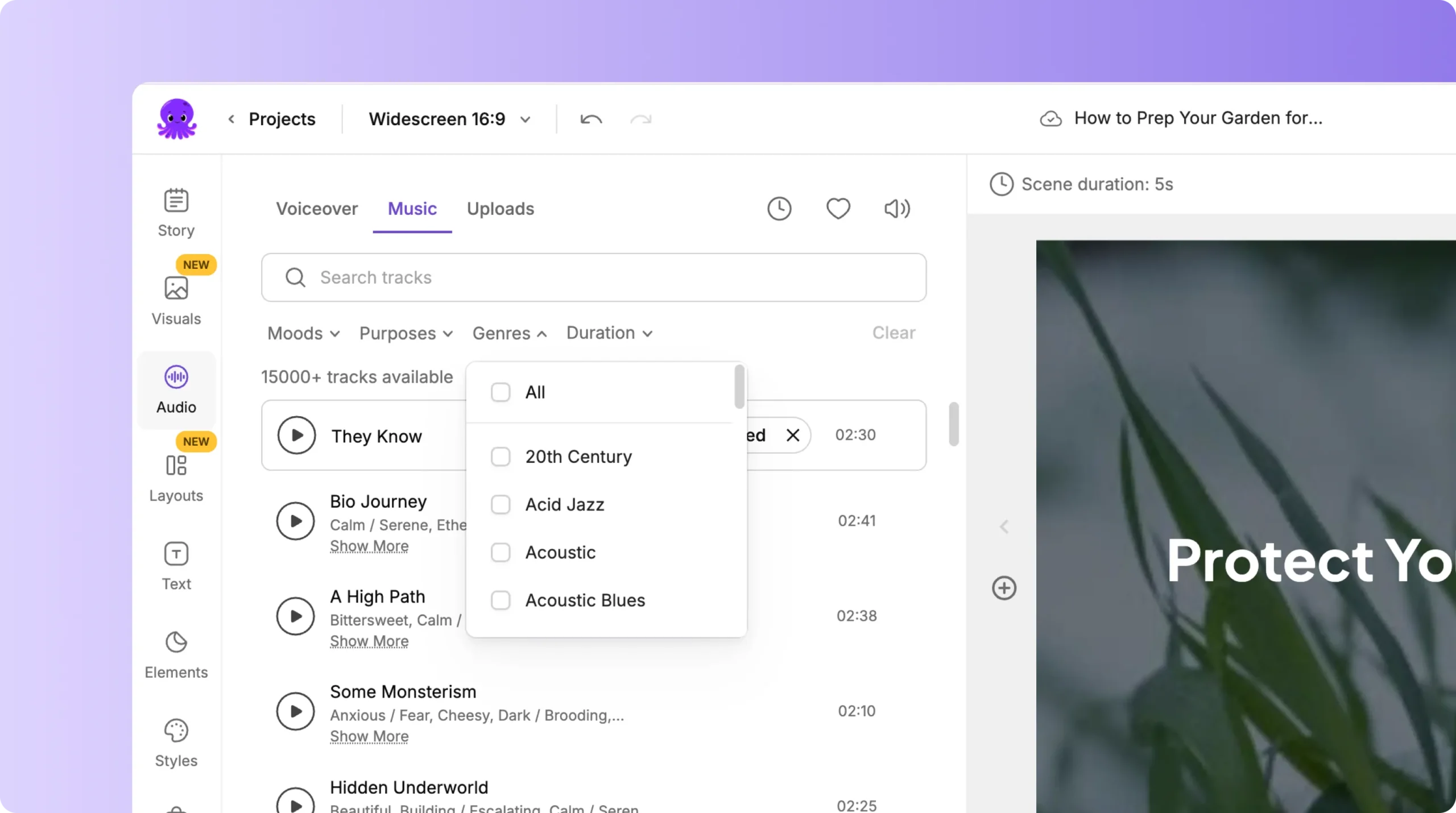
Preview multiple tracks before choosing one. This helps you find the best sound for your content.
Step 4: Apply Background Music to Your Video
Once you find a track you like:
Click Apply
The music is added to your entire video automatically
Your video preview updates instantly
You can replace the track at any time.
Step 5: Adjust Music Volume
After adding music, adjust the volume so it does not overpower your narration.
Use the volume slider inside the Audio tab to:
• Reduce music volume under voiceovers
• Increase volume for silent or text only videos
• Find the right balance between clarity and emotion
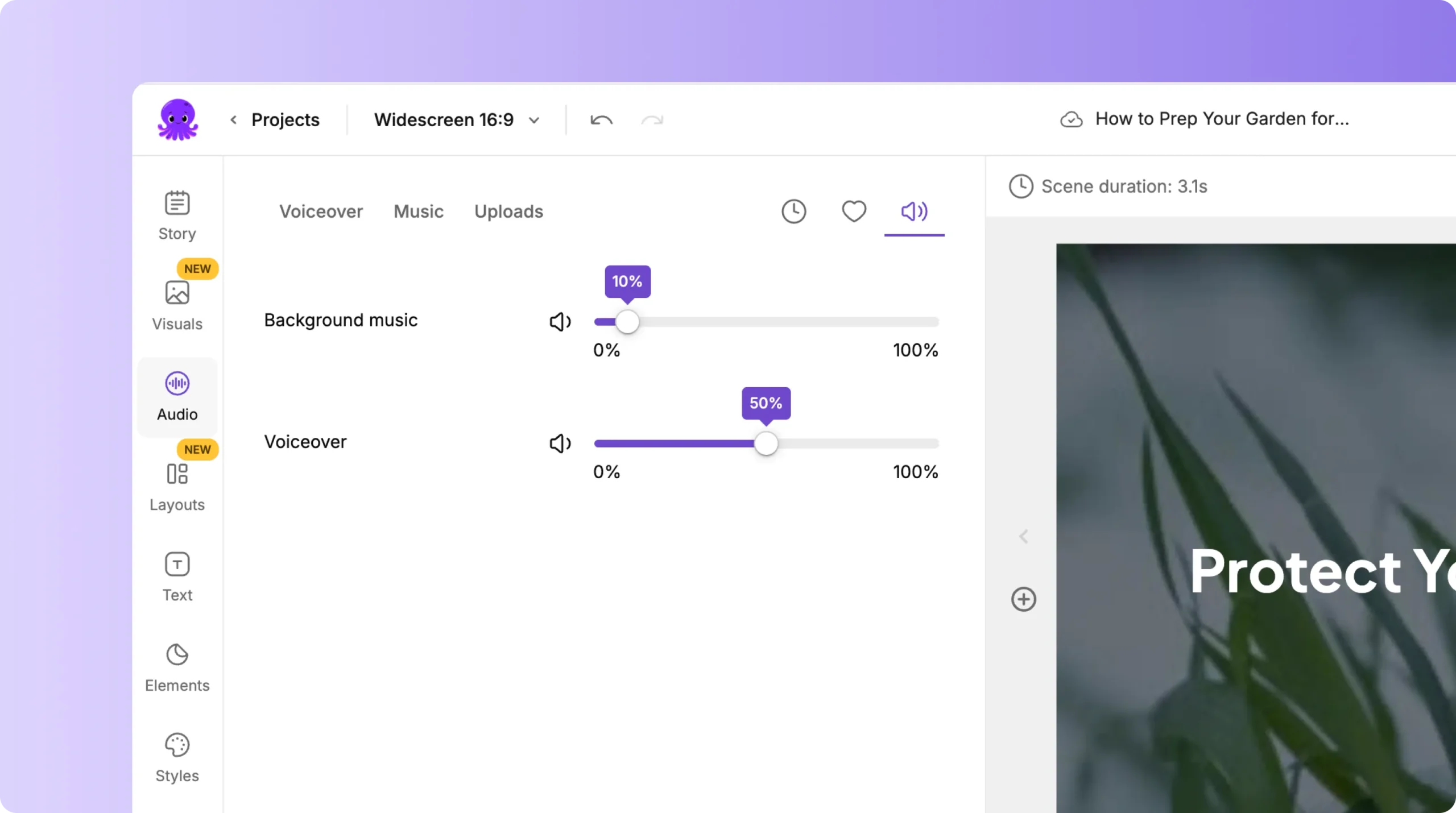
Good audio balance makes your video sound professional.
Step 6: Upload Your Own Background Music
If you prefer to use custom music or licensed audio:
Open the Uploads section in the Audio tab
Click Upload Audio File
Select your music track
Apply it to your video
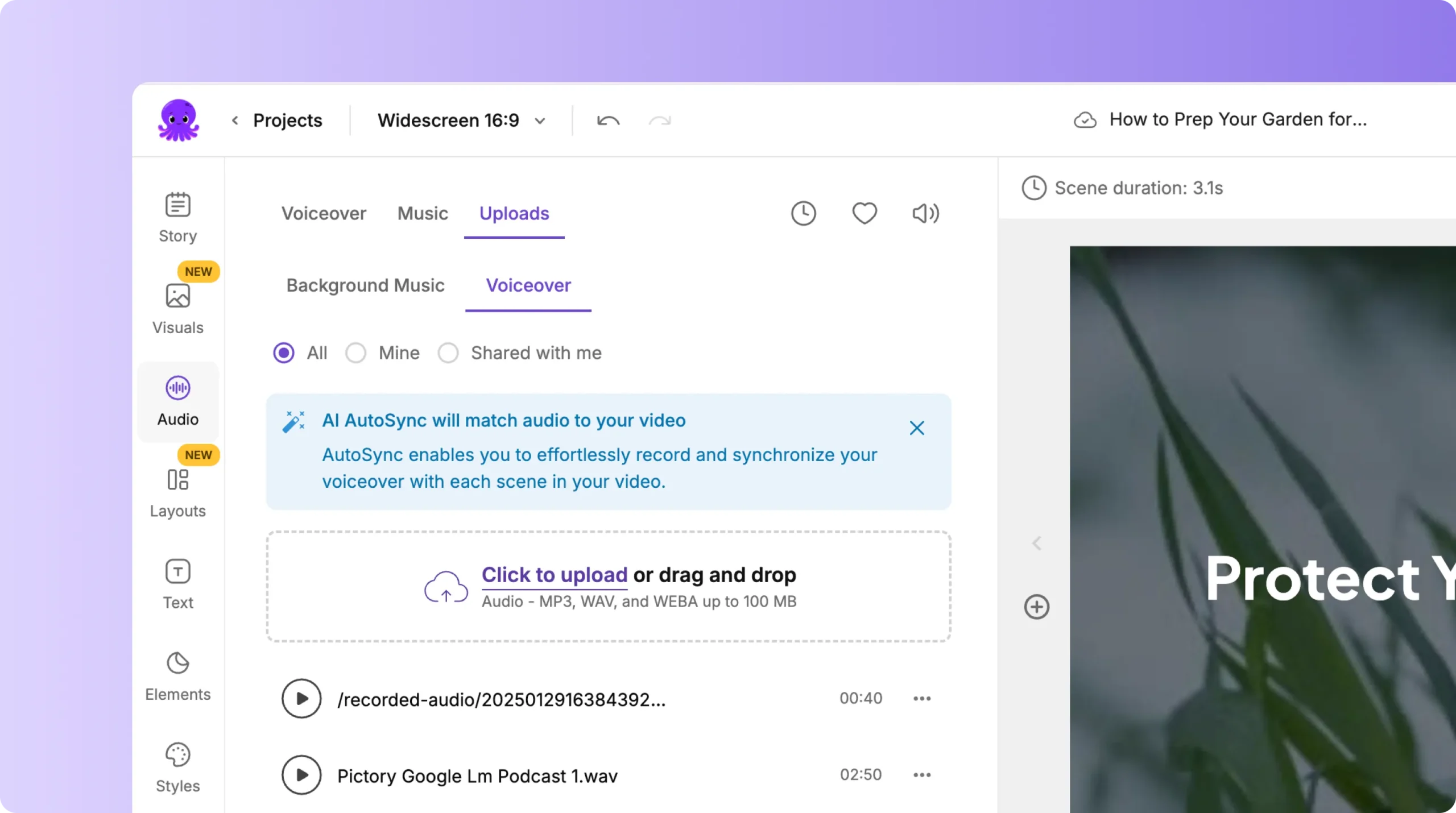
This is ideal for brand themes, podcast intros, or custom soundtracks.
Step 7: Replace or Remove Music Anytime
You can change the background music as often as you need.
To replace music:
• Choose a new track
• Click Apply
To remove music:
• Select the current track
• Click Remove
Your video keeps all visuals and voiceovers intact.
Step 8: Preview and Export Your Final Audio Mix
Before exporting:
Click Preview Video
Listen to the full project
Confirm music is balanced and smooth
Adjust volume or replace tracks if needed
Export your video
A final preview ensures your music enhances the message instead of distracting from it.
Add Emotion and Energy With Background Music in Pictory AI
Background music helps your video feel polished and engaging. With Pictory AI, you can browse royalty free tracks, upload your own music, and balance audio quickly. Whether you are creating marketing content, training videos, or social media clips, the right music helps your story stand out.
Start adding background music to your next video using Pictory AI.


