

The Search and Replace tool inside Pictory AI helps you quickly fix repeated mistakes, update names, correct spelling, or adjust terminology across your entire transcript. Instead of editing line by line, you can make global changes in seconds. This tool is especially helpful for long videos, interviews, tutorials, and screen recordings where repeated phrases need correction.
This guide shows you how to search and replace text inside the Transcript Editor in Pictory AI.
What the Search and Replace Tool Does
The Search and Replace tool lets you:
• Find specific words or phrases
• Replace them instantly across the full transcript
• Correct common transcription errors
• Update terminology or product names
• Standardize phrases used in your video
This feature saves time and ensures your text remains accurate and consistent.
Step 1: Upload Your Video or Audio
Start by uploading your file using the AI Video Editor or Audio to Video workflow. Pictory will:
• Process the file
• Transcribe the audio
• Open the Transcript Editor
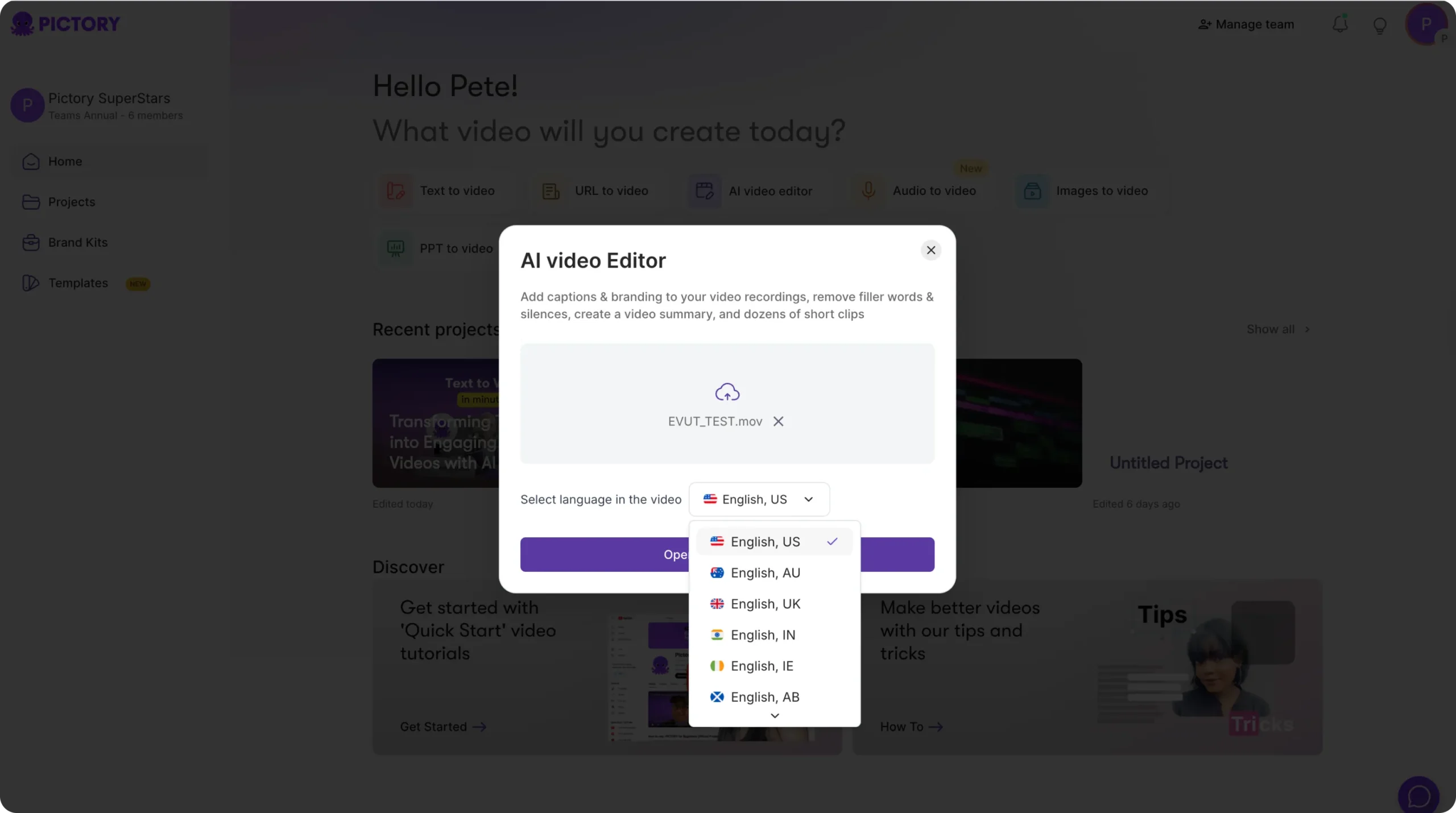
Once the transcription is complete, you can begin making edits.
Step 2: Open the Transcript Editor
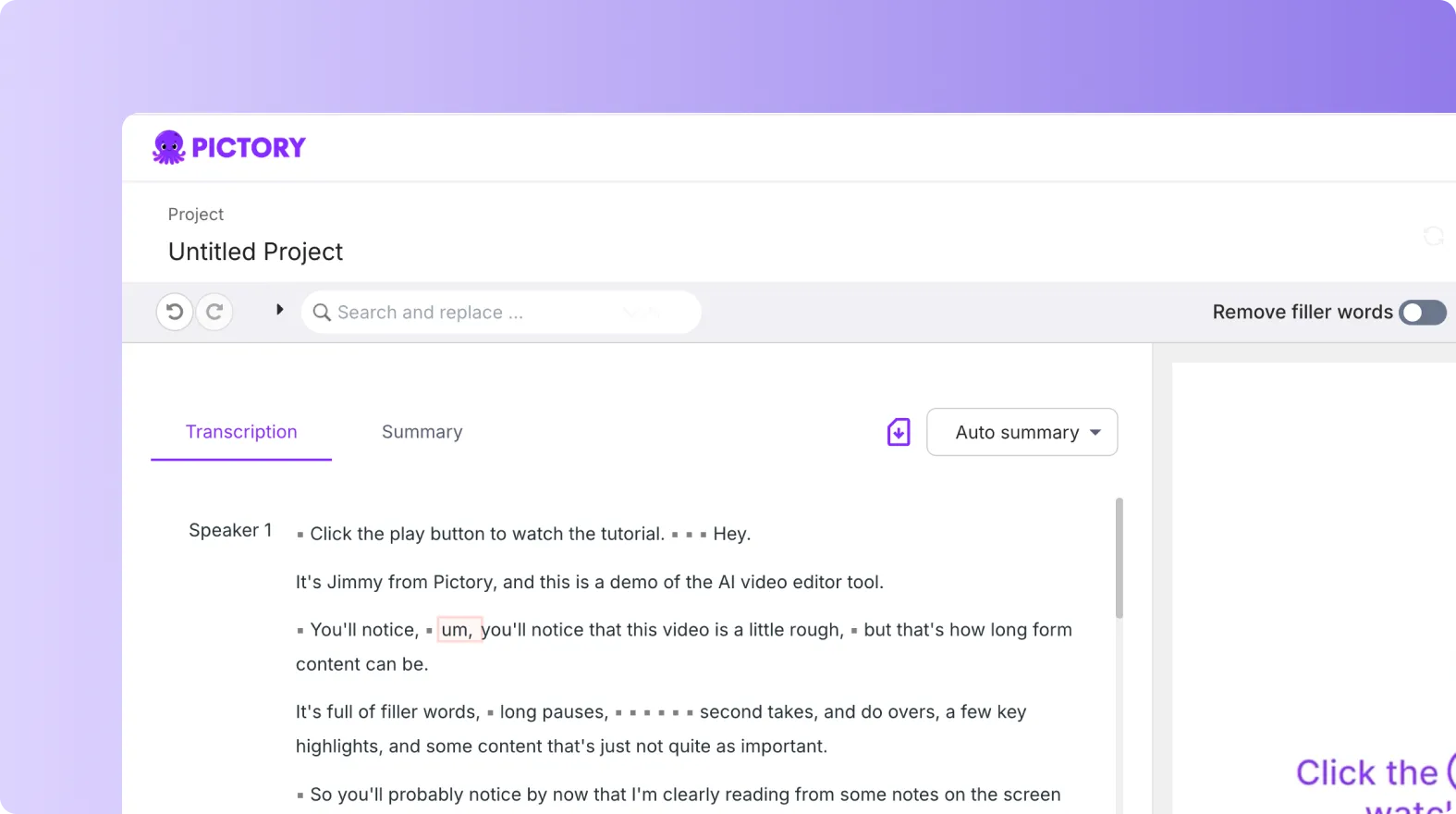
You will see your transcript displayed on the left side and your video preview on the right. This workspace includes all editing tools including Search and Replace.
Step 3: Open the Search and Replace Tool
Look for the Search and Replace icon inside the Transcript Editor. Click it to open the tool.
A small panel will appear with two fields:
• Search
• Replace

This is where you type the text you want to find and the text you want to update it with.
Step 4: Enter the Text You Want to Search For
Type the word or phrase you want to locate into the Search field.
Pictory highlights all matching results in the transcript.
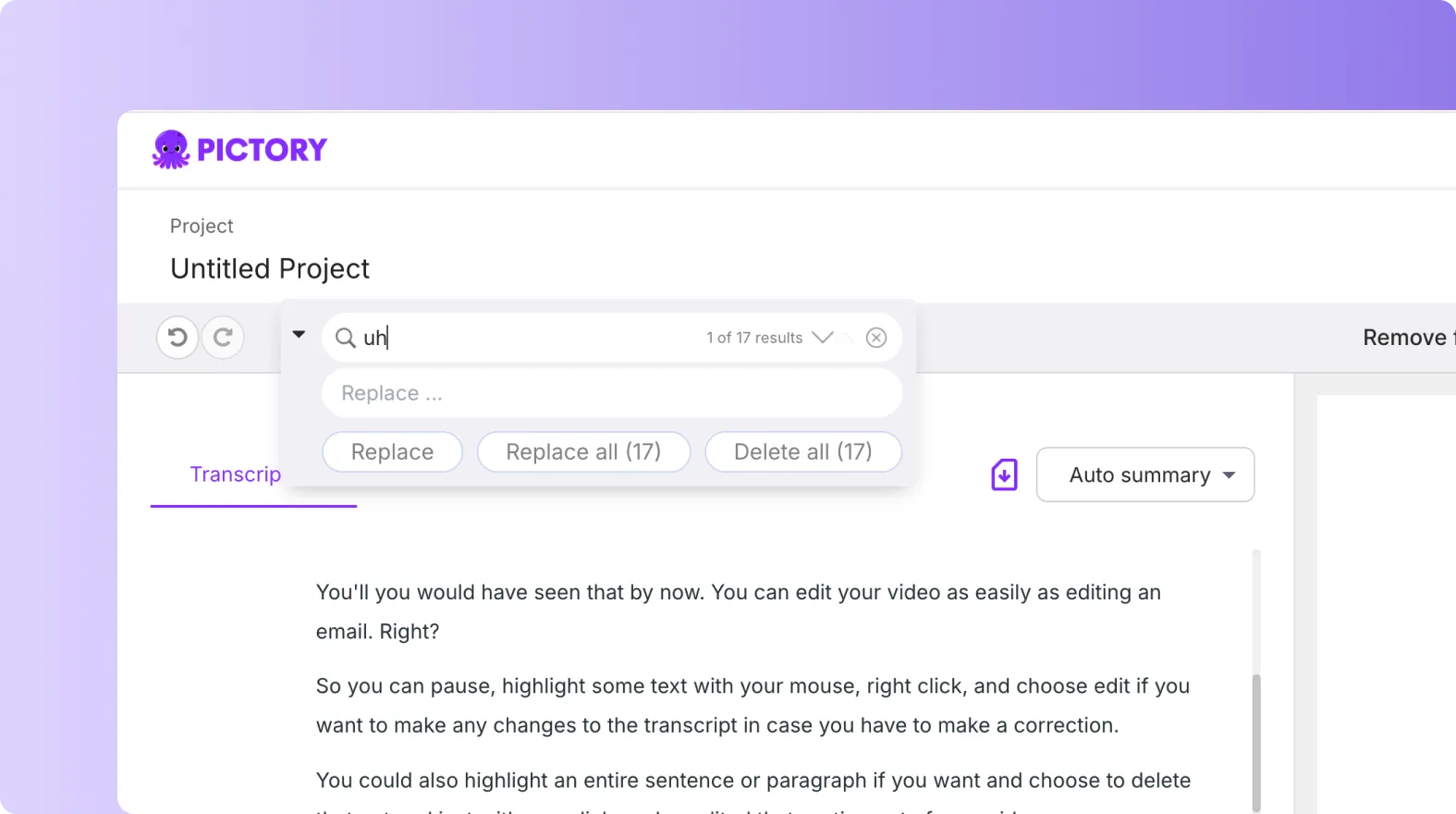
This helps you review how many times the term appears before replacing it.
Step 5: Choose What to Replace It With
Next, type the new word or phrase in the Replace field.
This is the updated text that will appear everywhere in your transcript after the change is made.
Double check spelling to avoid unwanted errors.
Step 6: Replace One Time or All Occurrences
You have two options:
• Replace a single occurrence
• Replace all occurrences throughout the transcript
Use Replace if you want to update only one match. Use Replace All if the entire transcript needs updating.
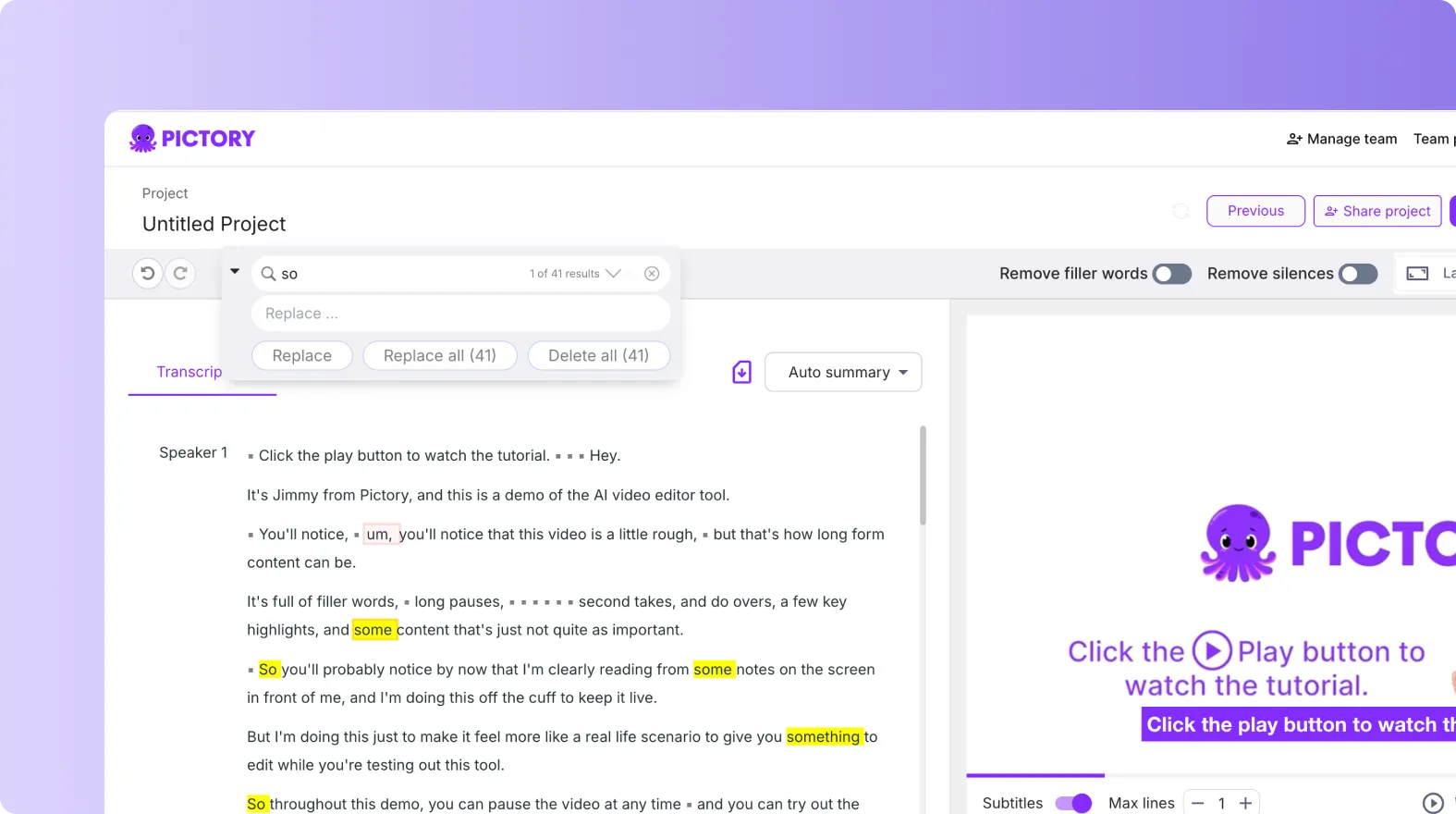
Pictory updates your transcript instantly.
Step 7: Review the Updated Transcript
After running Search and Replace:
• Scroll through your transcript
• Check that your replacement text appears correctly
• Confirm that no unintended changes were made
• Make manual edits if needed
This ensures your script stays accurate and natural.
Step 8: Continue Editing or Move to Storyboard
Once your text is corrected:
• Click Customize Video
• Move into the storyboard
• Continue editing visuals and scenes
• Apply branding and style settings
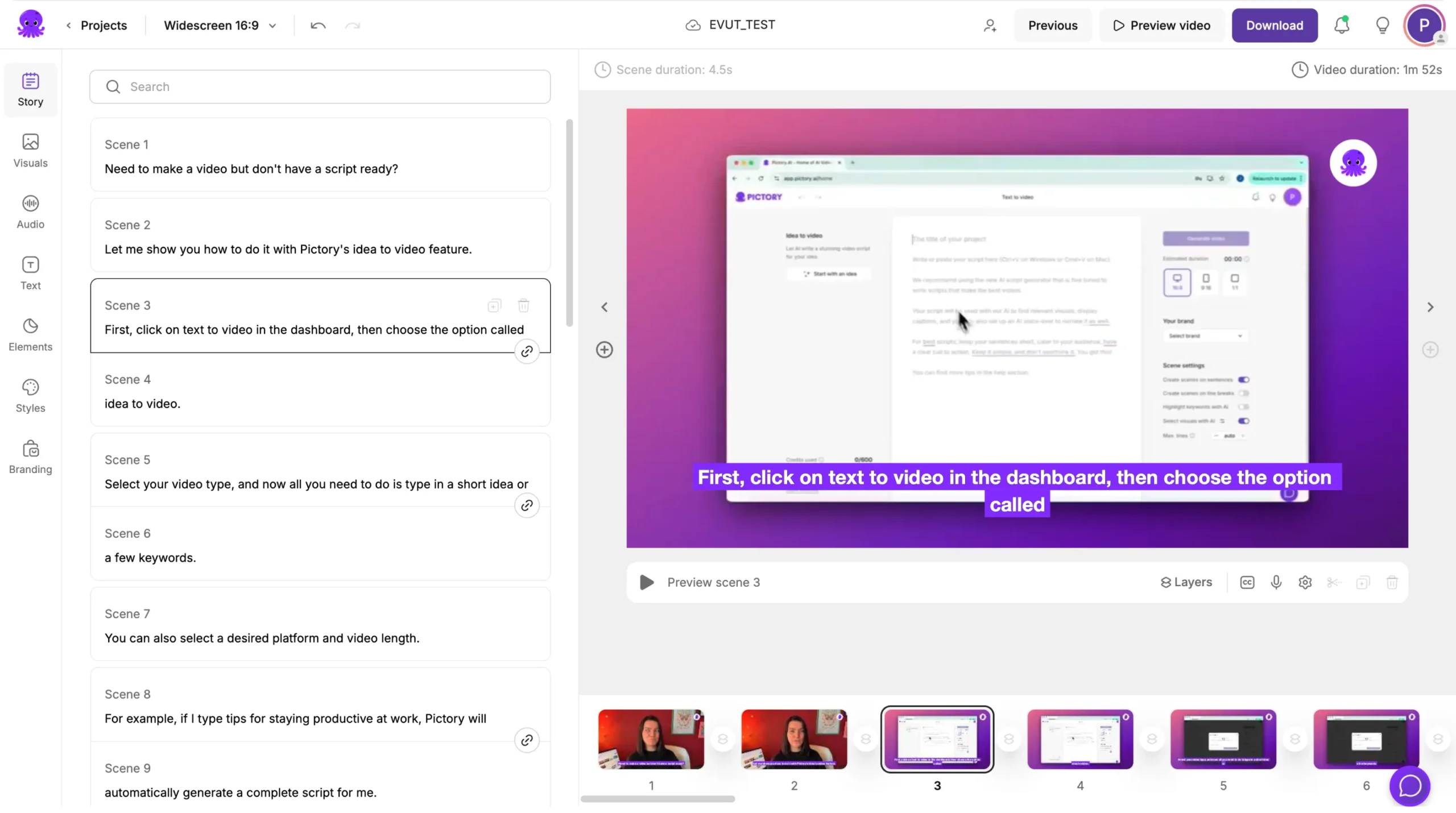
Your updated transcript will carry through to captions, voiceovers, and visuals.
Step 9: Export Your Video
When your editing is complete:
Click Preview Video
Confirm that your updated text appears correctly
Click Download Video
Choose your desired aspect ratio
Your final video will reflect all Search and Replace changes.
Edit Faster With the Search and Replace Tool in Pictory AI
The Search and Replace tool helps you clean up transcripts quickly and accurately. It eliminates repetitive editing and ensures your video uses correct terminology, spelling, and phrasing. This tool is essential for long videos, repeated phrases, or projects that require precise wording.
Start improving your transcripts today using Search and Replace inside Pictory AI.


