
Subtitles help viewers follow your message, improve accessibility, and make your videos more engaging on platforms where sound is often off by default. Pictory AI gives you full control over subtitle styling, allowing you to adjust appearance, readability, and design across all scenes.
This guide shows you how to use Subtitle Styling inside Pictory AI.
What Subtitle Styling Does
Subtitle Styling controls how your auto generated captions look on screen. You can adjust:
• Text font
• Text size
• Text color
• Background highlight color

• Line spacing
• Maximum number of subtitle lines
• Subtitle placement
• Subtitle theme styles
These controls help you create subtitles that match your brand and stay readable across all visuals.
Step 1: Open Your Project and Go to the Transcript Editor
Start by uploading or opening your video in Pictory. If you used the AI Video Editor or Audio to Video workflow, Pictory automatically creates subtitles when it transcribes your audio.
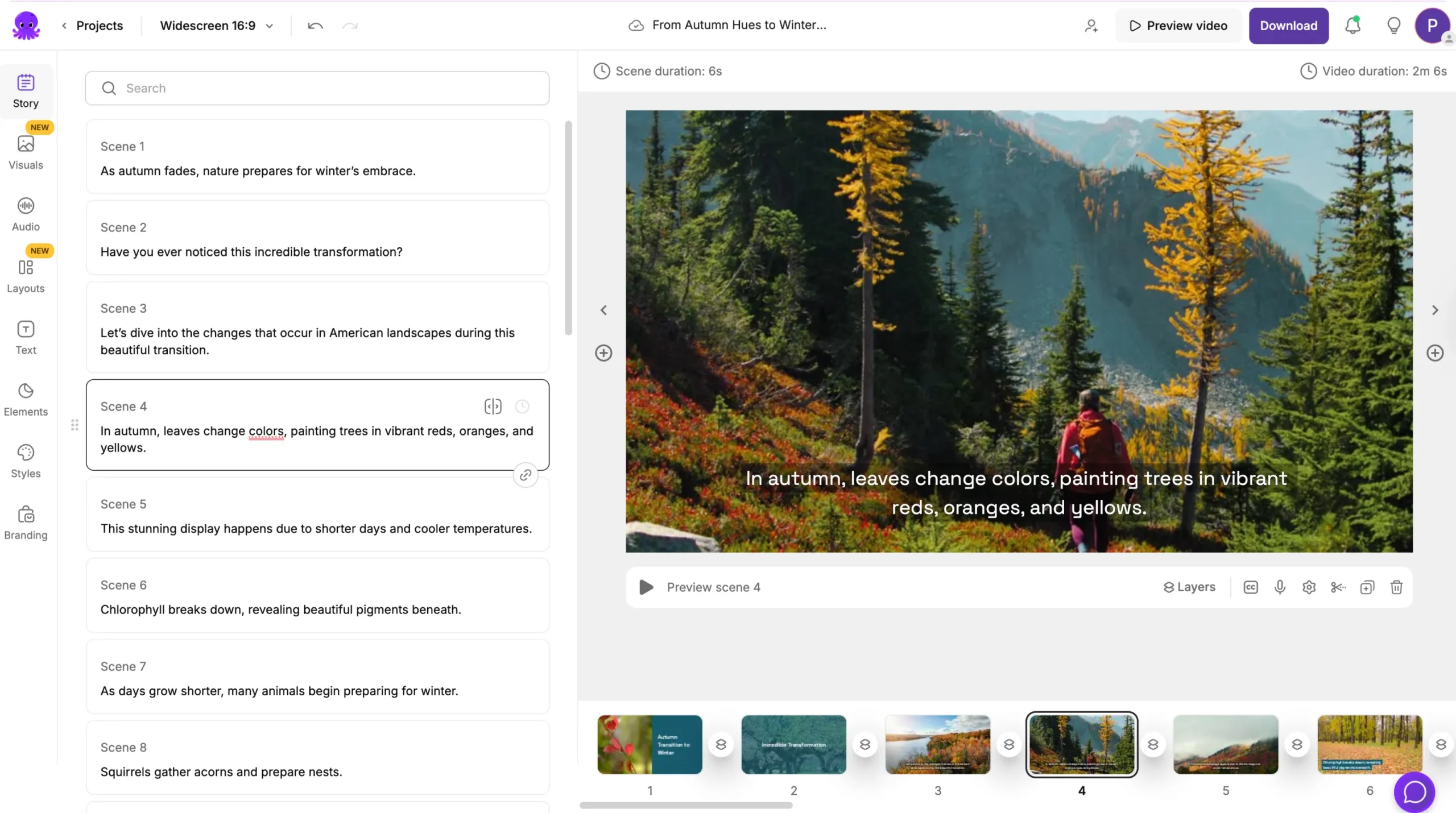
Once the transcription is ready, the Transcript Editor appears. This is where subtitle styling begins.
Step 2: Open Subtitle Styling Controls
Inside the Transcript Editor, locate the subtitle controls on the right side beneath the video preview.
Here you can adjust:
• Subtitle style theme
• Subtitle font
• Subtitle sizing
• Subtitle positioning
• Subtitle line limit
These tools update your subtitles in real time as you apply changes.
Step 3: Choose a Subtitle Style Theme
Pictory includes multiple subtitle style themes such as:
• Navy Blue
• Sleek
• Clean
• Bold
• Classic

Click a theme to preview how it looks on your video. Themes update default fonts, background colors, and spacing.
This helps you quickly find a subtitle style that reflects your brand or content tone.
Step 4: Adjust Subtitle Font and Text Size
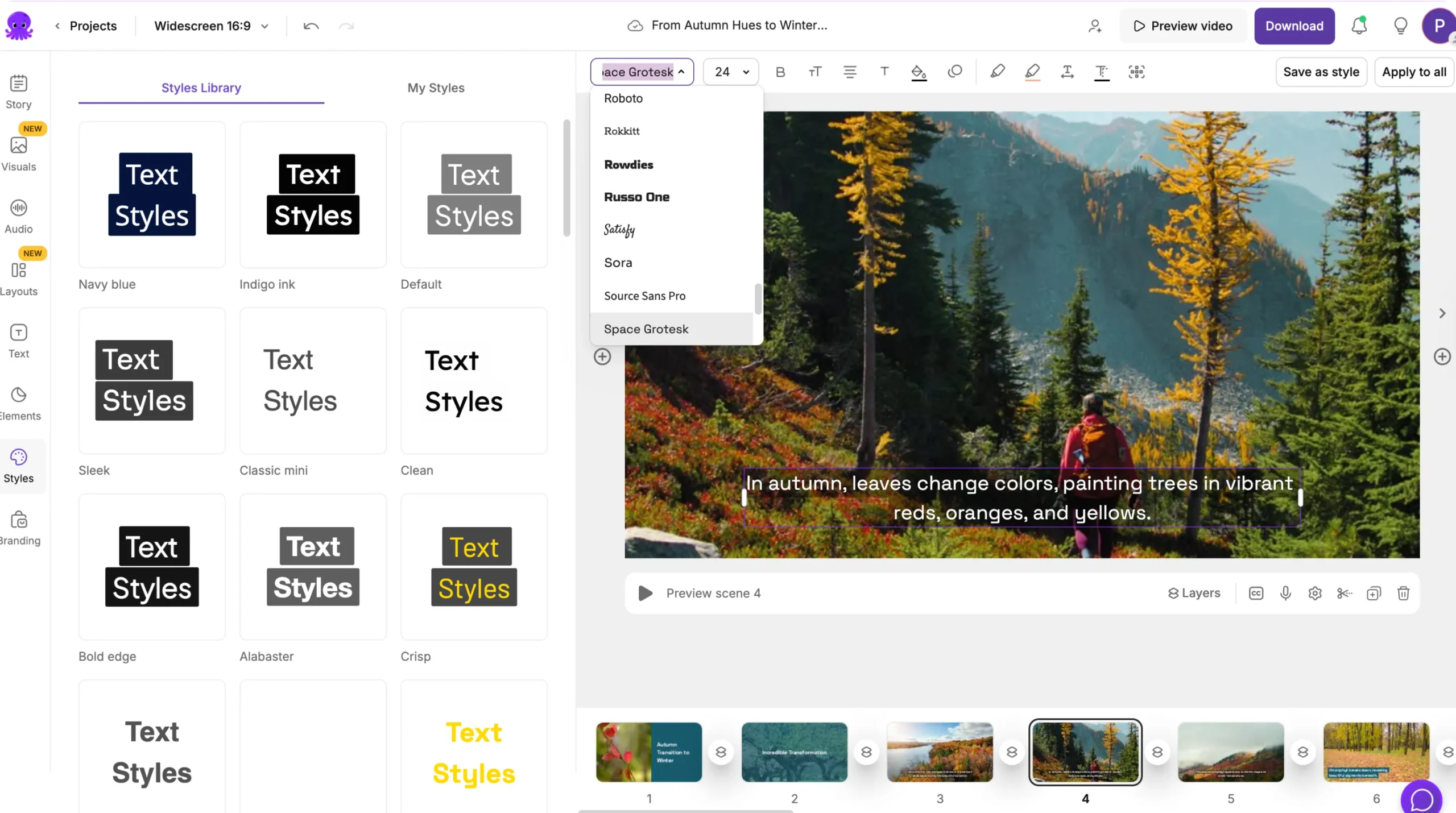
You can customize fonts to match your branding or improve readability.
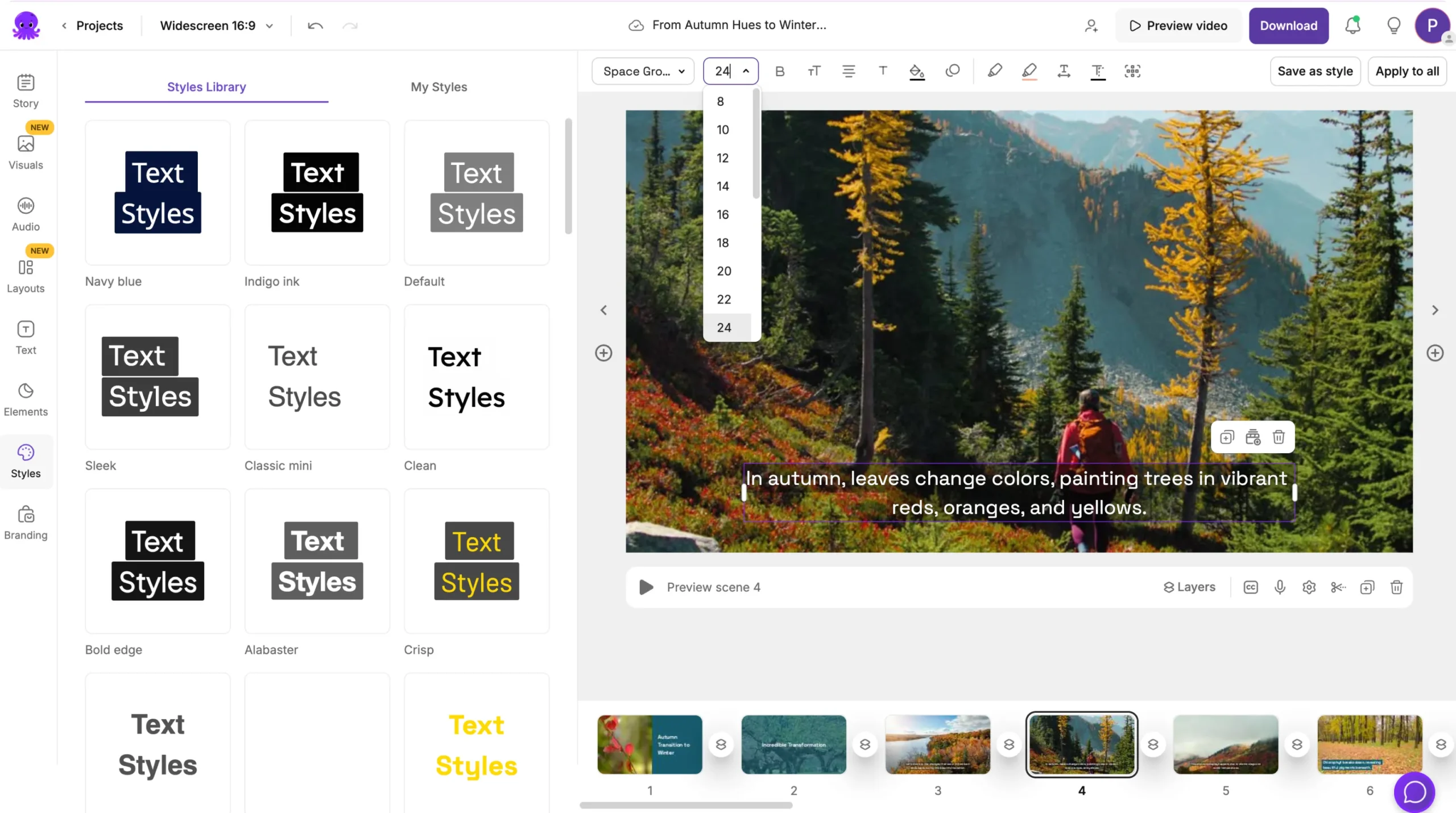
Use the subtitle toolbar to adjust:
• Font family
• Font size
• Bold or non bold text

Larger fonts improve readability on mobile devices. Smaller fonts work well for widescreen training or corporate content.
Step 5: Change Subtitle Colors and Background
To improve clarity, adjust your text color or background highlight color.
You can:
• Use light text on dark visuals
• Use dark text on bright visuals
• Add a semi transparent background highlight
• Remove background if visuals are simple and clean


These changes help subtitles stay readable on complex scenes.
Step 6: Adjust Subtitle Placement
Pictory allows you to reposition subtitles within the frame.
You can move them:
• Lower third (standard)
• Upper third (useful for screen recordings)
• Centered lower area
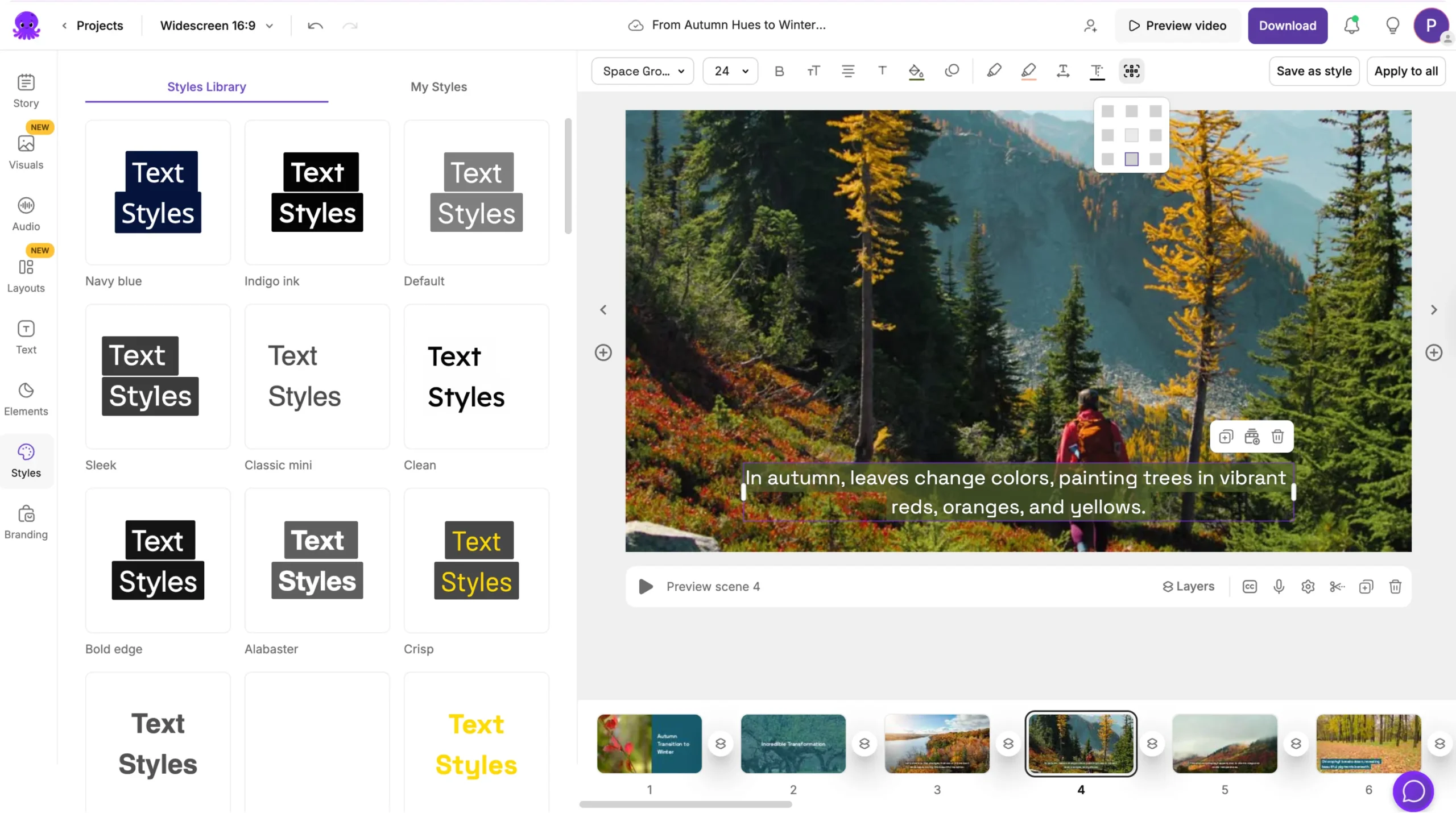
Choose the position that avoids overlap with key visuals or screen demonstrations.
Step 7: Set Maximum Subtitle Lines
You can control how many lines appear in each subtitle block. This helps you maintain good readability.
Typical settings include:
• One line for short, punchy content
• Two lines for natural spoken dialogue
• Three lines for dense explanations
Adjusting line limits helps keep your subtitles clean and uncluttered.
Step 8: Preview Your Subtitles on Each Scene
Click Preview Video to see how your subtitles appear throughout the video.
Check for:
• Readability
• Placement issues
• Overlapping elements
• Color contrast
• Consistency in formatting
Make any necessary adjustments before exporting.
Step 9: Finalize and Export Your Styled Subtitles
Once your subtitles look correct:
Click Download Video
Choose your aspect ratio
Export your project
Your subtitle styles will be included in the final file
This ensures your video is ready for YouTube, TikTok, Instagram, LMS platforms, or corporate systems.
Create Clear, Readable Subtitles Using Subtitle Styling in Pictory AI
Subtitle Styling helps you build videos that are accessible, easy to understand, and visually consistent. With full control over text, colors, placement, and style themes, you can create high quality captions that improve viewer experience on any platform.
Start styling your subtitles in Pictory AI to make your videos more engaging and professional.


