

The Stock Library in Pictory AI gives you access to a large collection of professional images and video clips that you can use in any project. These visuals help you improve the quality of your scenes, support your message, and create polished videos without recording or designing your own footage.
This article explains how to browse, search, preview, and apply stock visuals inside the Pictory editor.
What the Stock Library Includes
Pictory’s Stock Library provides a wide selection of copyright safe media that you can add to your scenes. The library includes:
• Stock video clips
• Stock images
• Categorized media for easy browsing
• Searchable keywords
• High resolution content for all video types
You can use these visuals in training videos, marketing content, explainers, internal communications, product demos, and any other video workflow.
How to Access the Stock Library
Open your project in the Pictory editor.
Select the scene you want to update.
Click the Visuals tab on the left side of the workspace.
Make sure “Library” is selected under the Visuals tab.
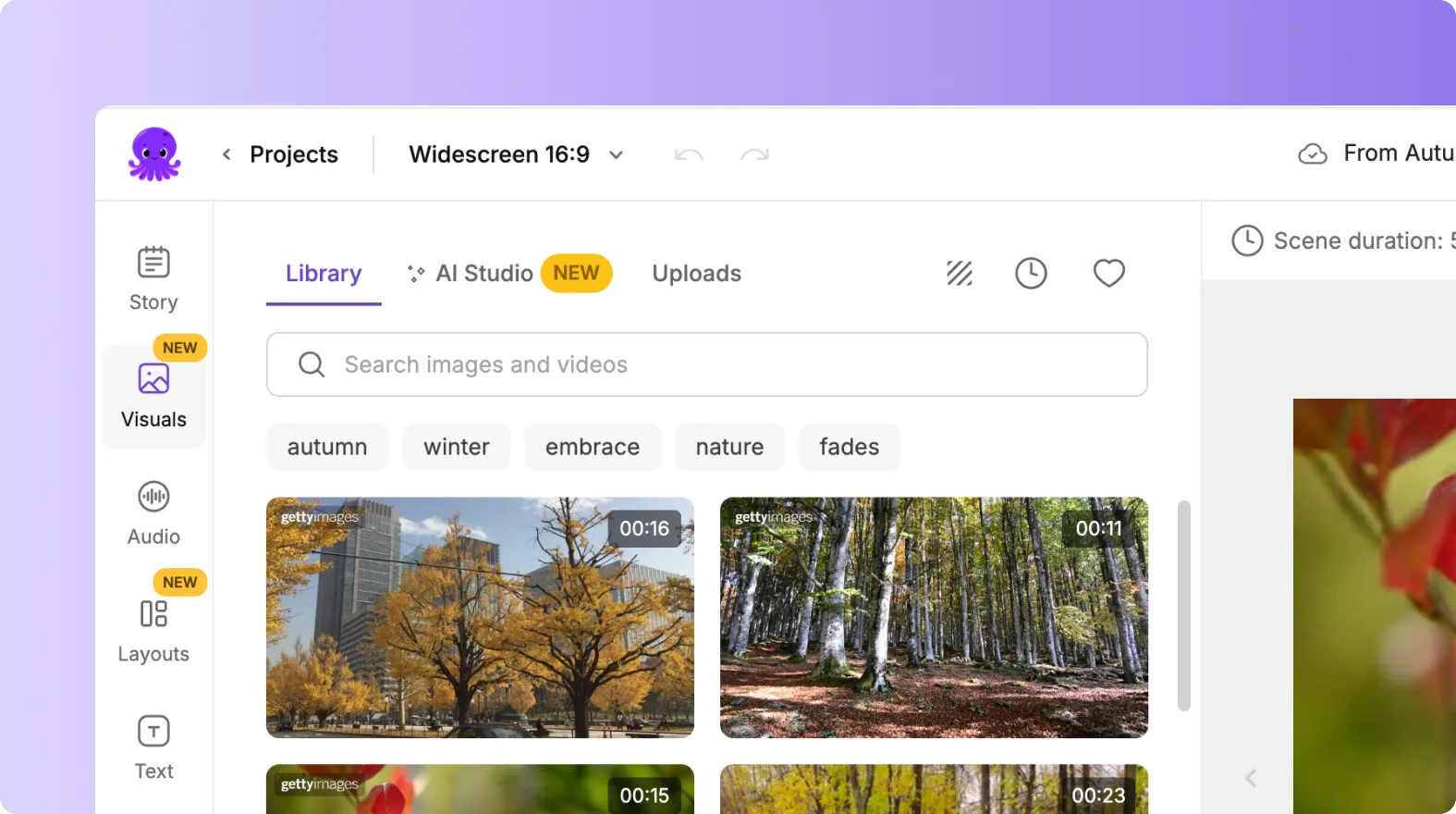
The Stock Library will load automatically.
How to Search for Stock Visuals
Use the search bar at the top of the Library panel to find visuals that match your scene.
Type keywords such as:
• “Business team”
• “Laptop screen”
• “Training”
• “Nature”
• “Technology”
• “Fitness”
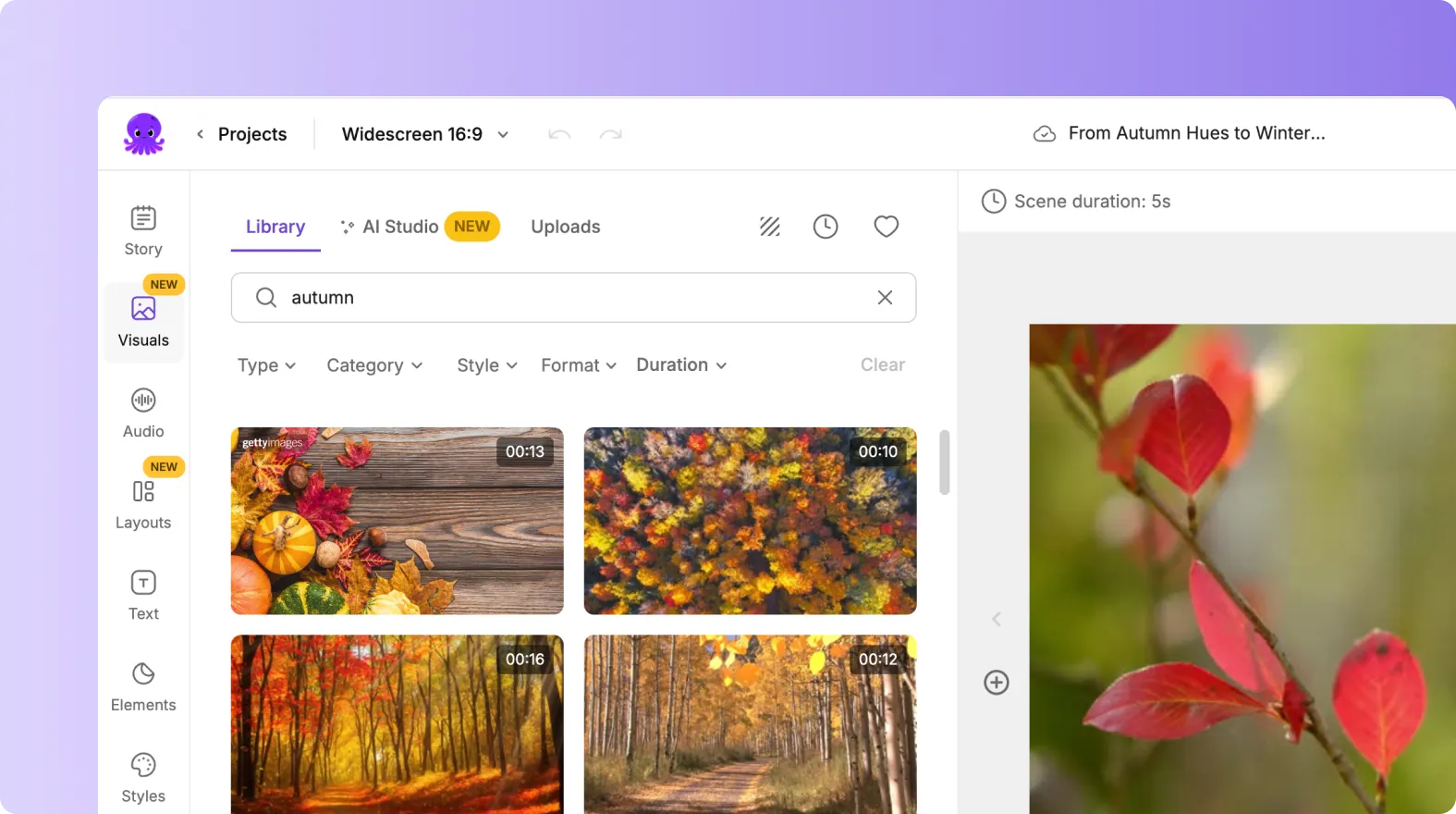
Pictory will show all relevant images and video clips based on your search.
This helps you find visuals that support your script efficiently.
How to Preview Visuals Before Applying
Hover over a visual to preview it. This allows you to check:
• Movement and motion
• Tone and color
• Relevance to your message
• Whether the visual matches your style
Previewing ensures you select the best visual for your scene.
How to Apply Visuals to Your Scene
When you find a visual you like:
Click the image or video clip.
It will apply instantly to your selected scene.
The scene preview on the right will update immediately.
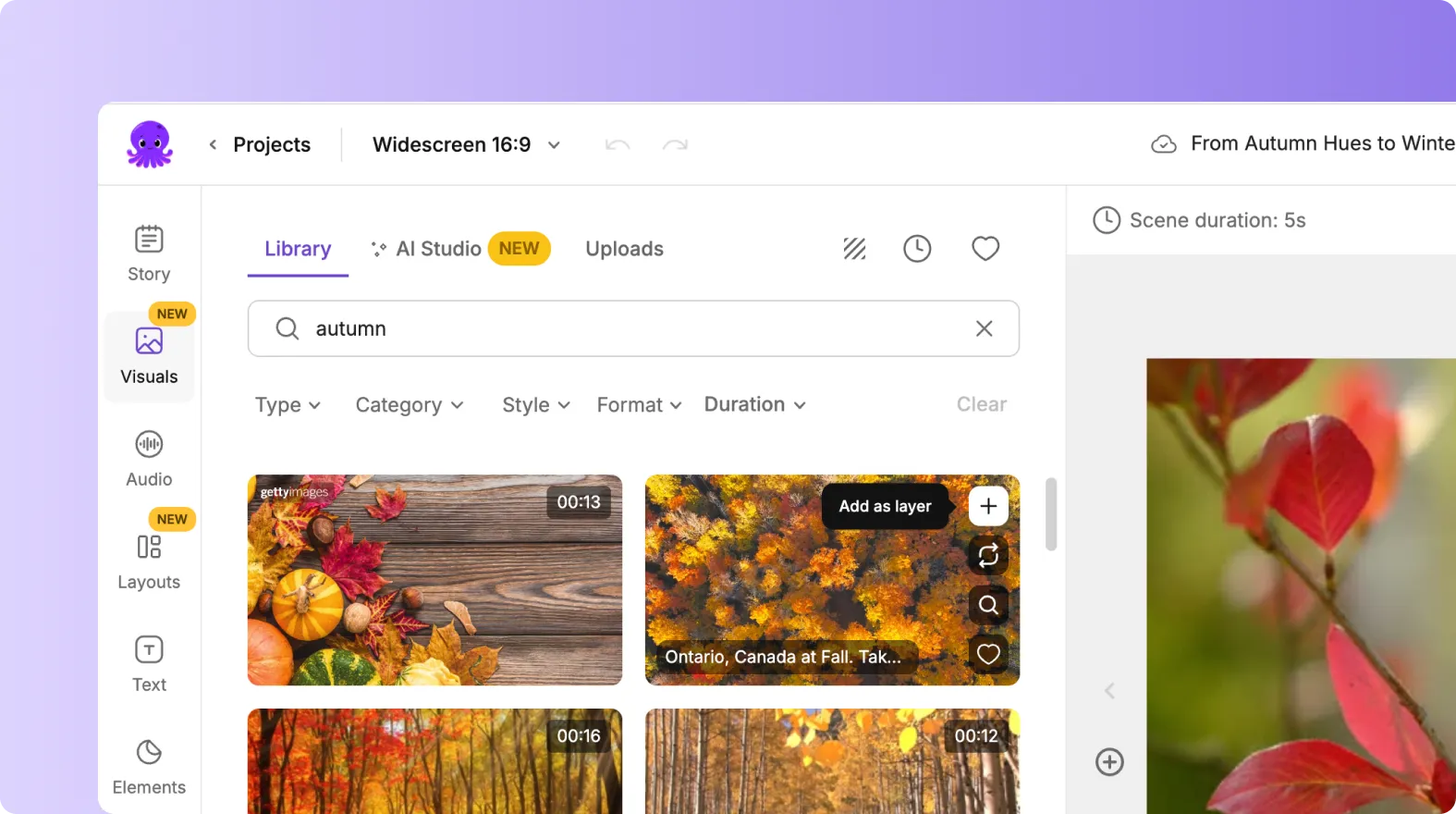
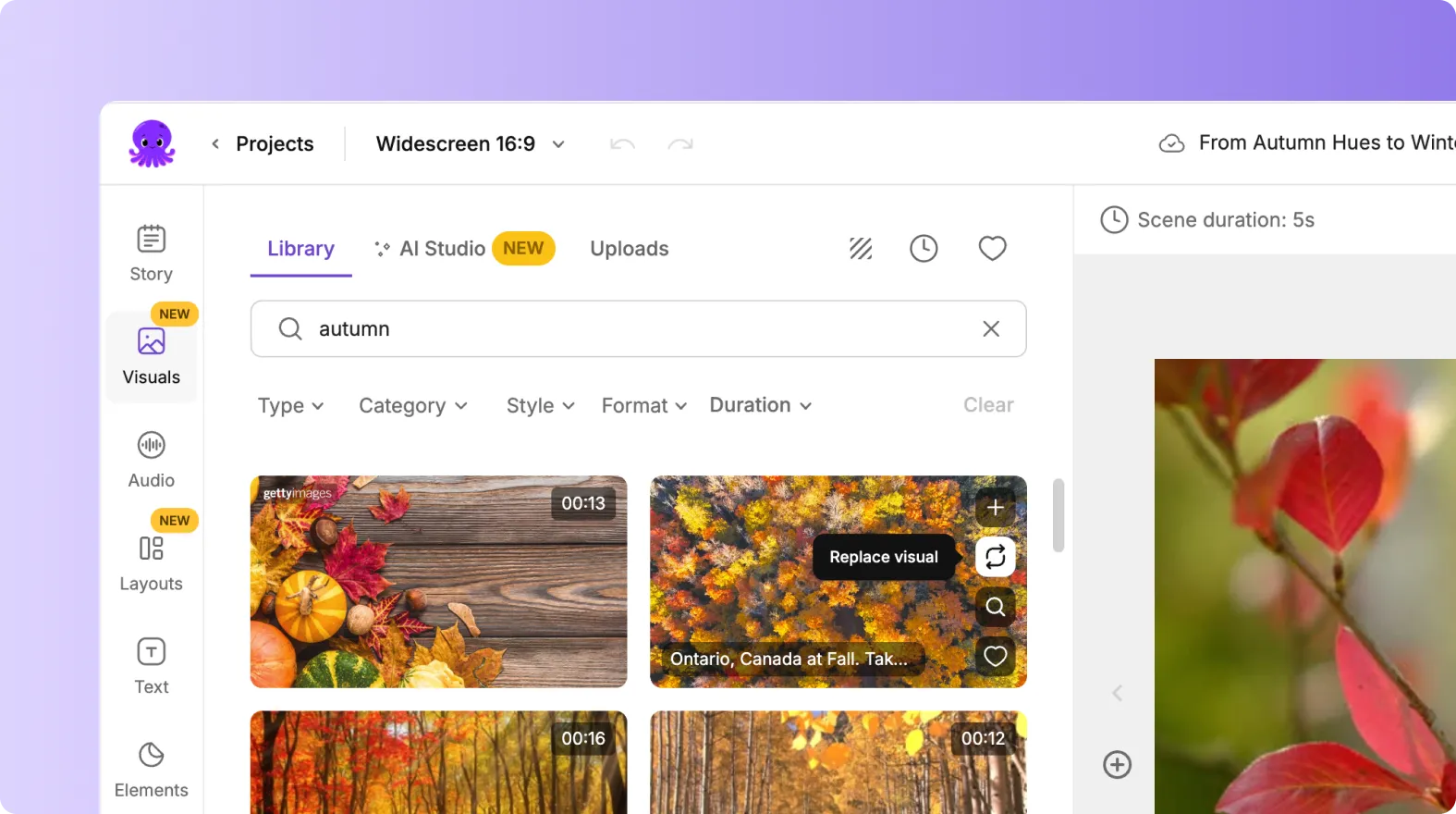
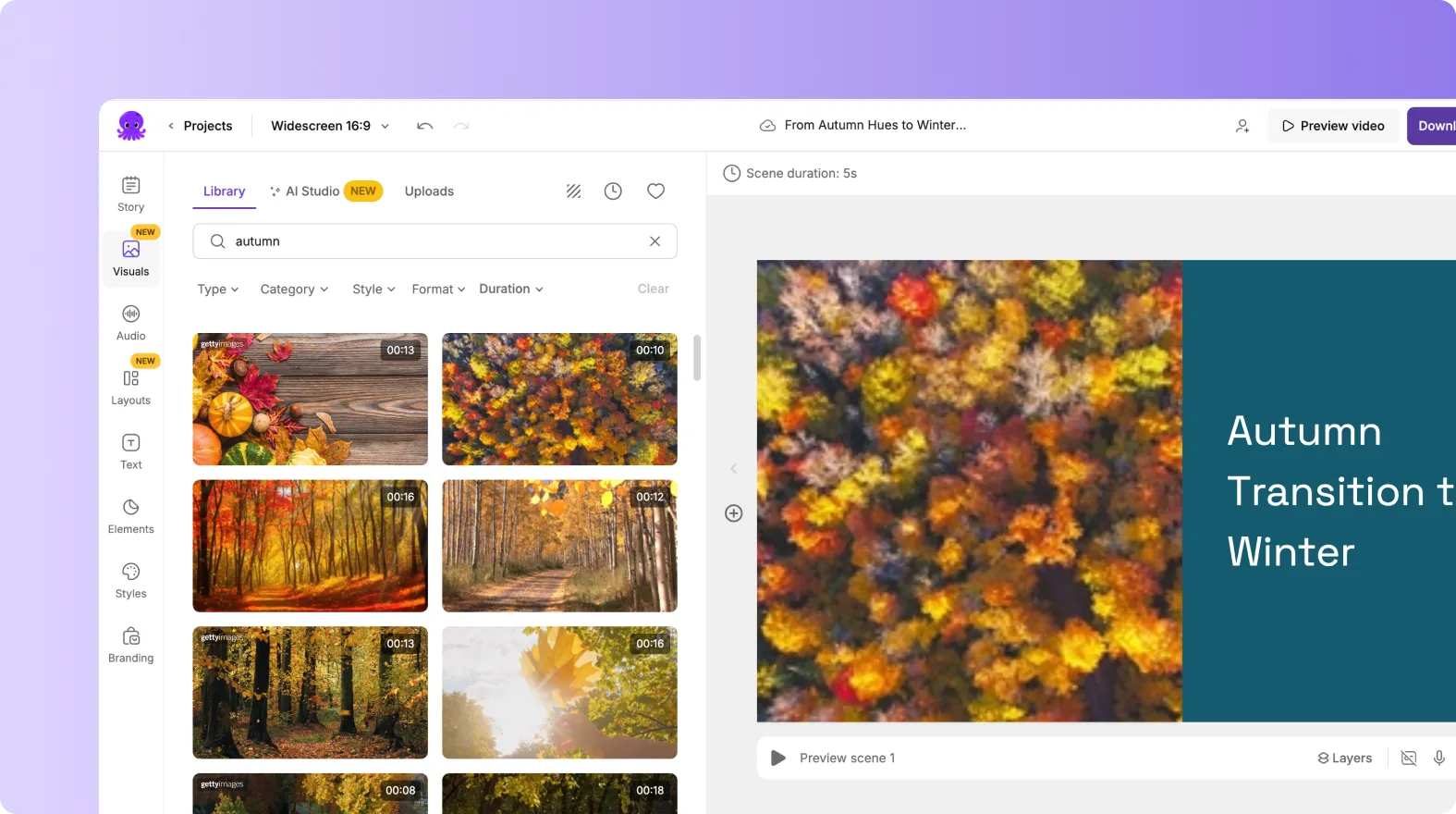
You can replace visuals at any time by selecting a new one.
How to Adjust Visuals After Applying
After switching visuals, check your scene for:
• Proper text contrast
• Balanced framing
• Clear visibility of key elements
• Compatibility with your layout
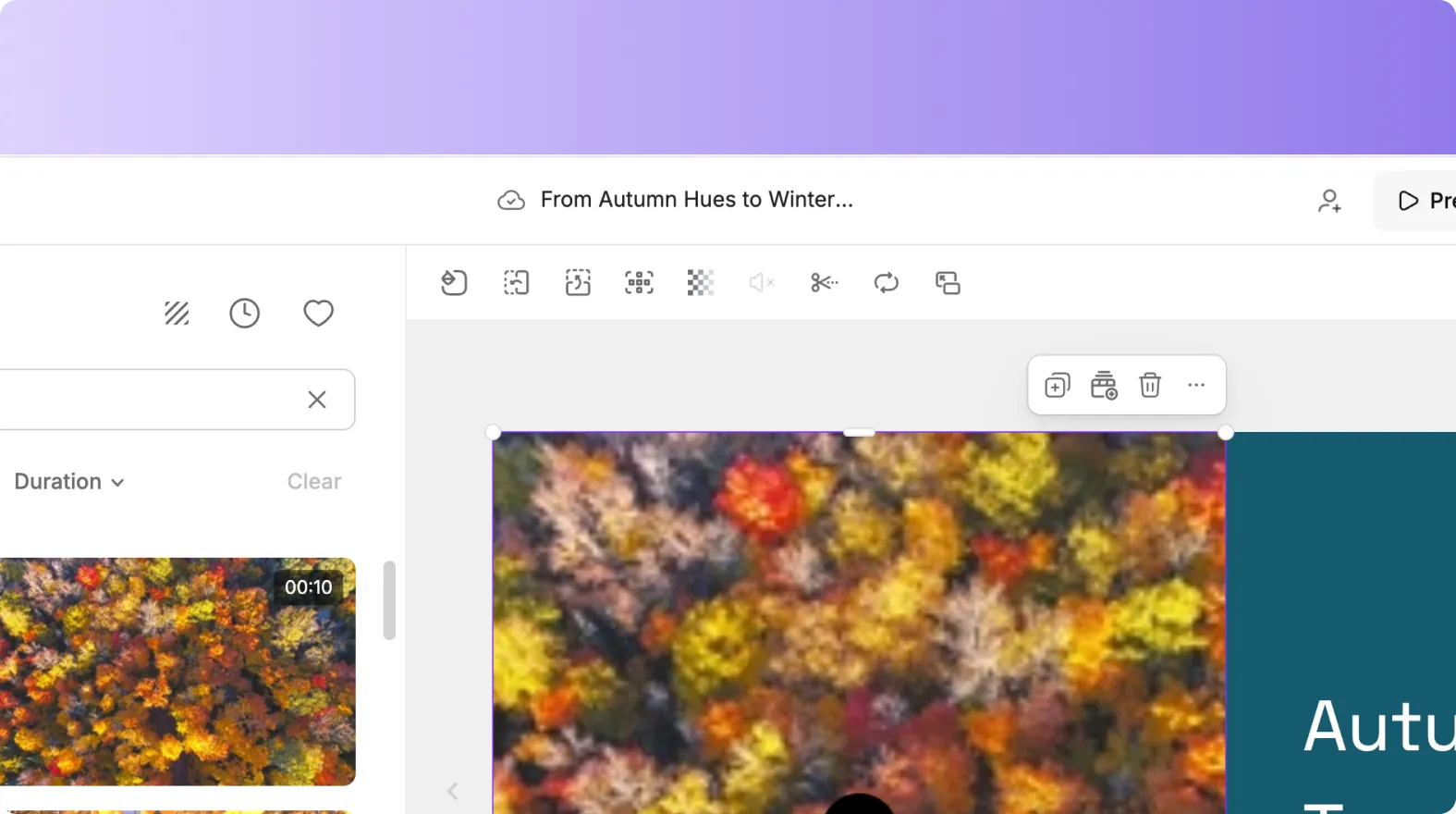
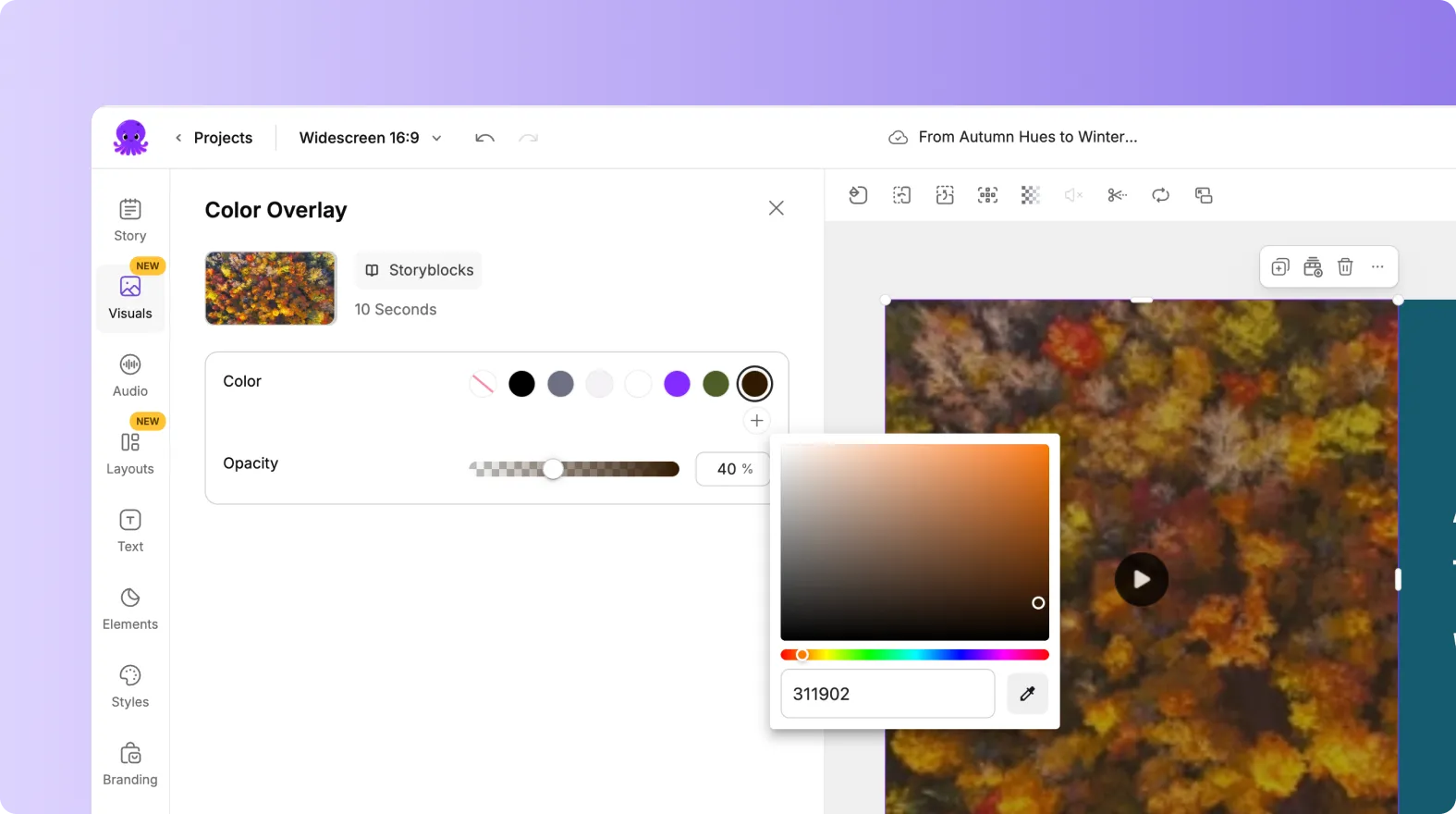
If a visual feels too busy or too empty, switch to another option using the Library or Uploads tab.
Using Stock Visuals With Your Own Uploads
You can mix stock media with your own content. This is useful for:
• Product demos
• Tutorials
• Educational content
• Branded videos
To upload your own media, select the Uploads tab in the Visuals section.
Using both stock and custom visuals together gives you flexibility and control.
Replacing Visuals When Changing Aspect Ratios
If you switch aspect ratios, some visuals may not fit well. Use the Stock Library to replace visuals that look stretched, cropped, or unbalanced.
Search again based on the new format to find visuals that work better in vertical, square, or horizontal layouts.
Preview Your Video Before Publishing
Before exporting:
Click Preview Video.
Watch how your visuals flow from one scene to the next.
Make final adjustments in the Visuals tab if needed.
Export your final video.
Previewing helps ensure your visuals feel consistent and supportive of your message.
Use the Stock Library to Create High Quality Videos
The Stock Library helps you enhance your videos with professional visuals. With simple keyword searches, fast previews, and instant application, you can build engaging scenes without needing your own footage. Whether you are creating explainers, social videos, marketing content, or training materials, the Stock Library gives you the resources to elevate your video quality quickly.
Start improving your next project by exploring the Stock Library in Pictory AI.


