TL;DR
AI avatars are digital presenters that narrate your video scripts without you appearing on camera. This guide covers what AI avatars are, how to add one to any video in Pictory, how to customize its look and voice, and which use cases they work best for, from marketing clips to training content. If you need a consistent on-screen presenter at scale, this is the workflow for you.
Getting on camera for every video you publish isn’t realistic for most teams. It’s time-consuming, requires a decent setup, and ties your output to whoever’s available to record. Pictory’s AI avatar generator handles all of that: a digital presenter appears on screen, narrates your script with automatic lip sync, and is ready to use the moment you open the editor.
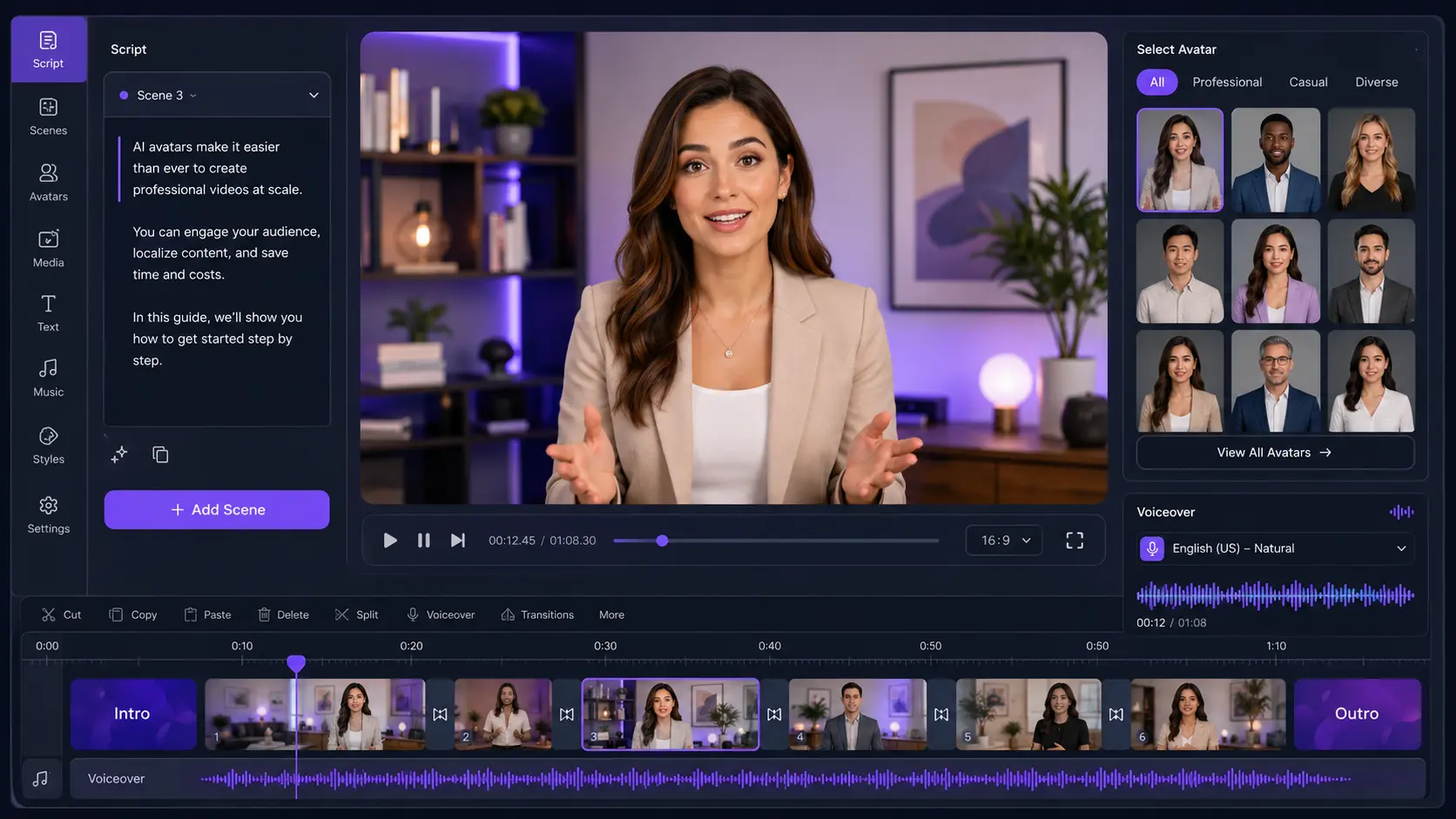
What Is an AI Avatar?
An AI avatar is a digitally generated human presenter that can deliver any script on screen without a camera, actor, or studio. You type your script, select an avatar, and the AI produces a video of that presenter speaking your words, with matching lip movements, natural expressions, and an AI-generated voice.
In 2026, AI avatars include micro-expressions, natural speech patterns across dozens of languages, and customizable appearances that range from library presenters to personal digital twins. Major organizations use them for training, marketing, and internal communications at a volume that would have required full production teams just a few years ago.
Inside Pictory, avatars work as a layer in the video editor. They sit inside your scenes alongside visuals, captions, and audio, and lip sync is generated automatically when you export.
Why Use AI Avatars in Your Videos?
They let you produce presenter-led video at the speed of writing rather than the speed of filming.
Publish without filming yourself
No studio, no lighting setup, no wardrobe decisions. Write your script, pick an avatar, and your video has a presenter every time.
Update the script, not the recording
Edit the text in a scene and regenerate. No reshooting, no syncing new footage, no re-editing. This is especially valuable for training content that changes regularly.
Reach audiences in any language
Change the script language and apply a matching voice. The same avatar delivers your content in multiple languages without re-recording or hiring additional talent. See how multilingual voiceovers work in Pictory.
The same presenter, every video
Your chosen avatar looks and sounds the same across every video you publish. No variation from day to day, no background noise, no bad hair days.
What Types of AI Avatars Does Pictory Offer?
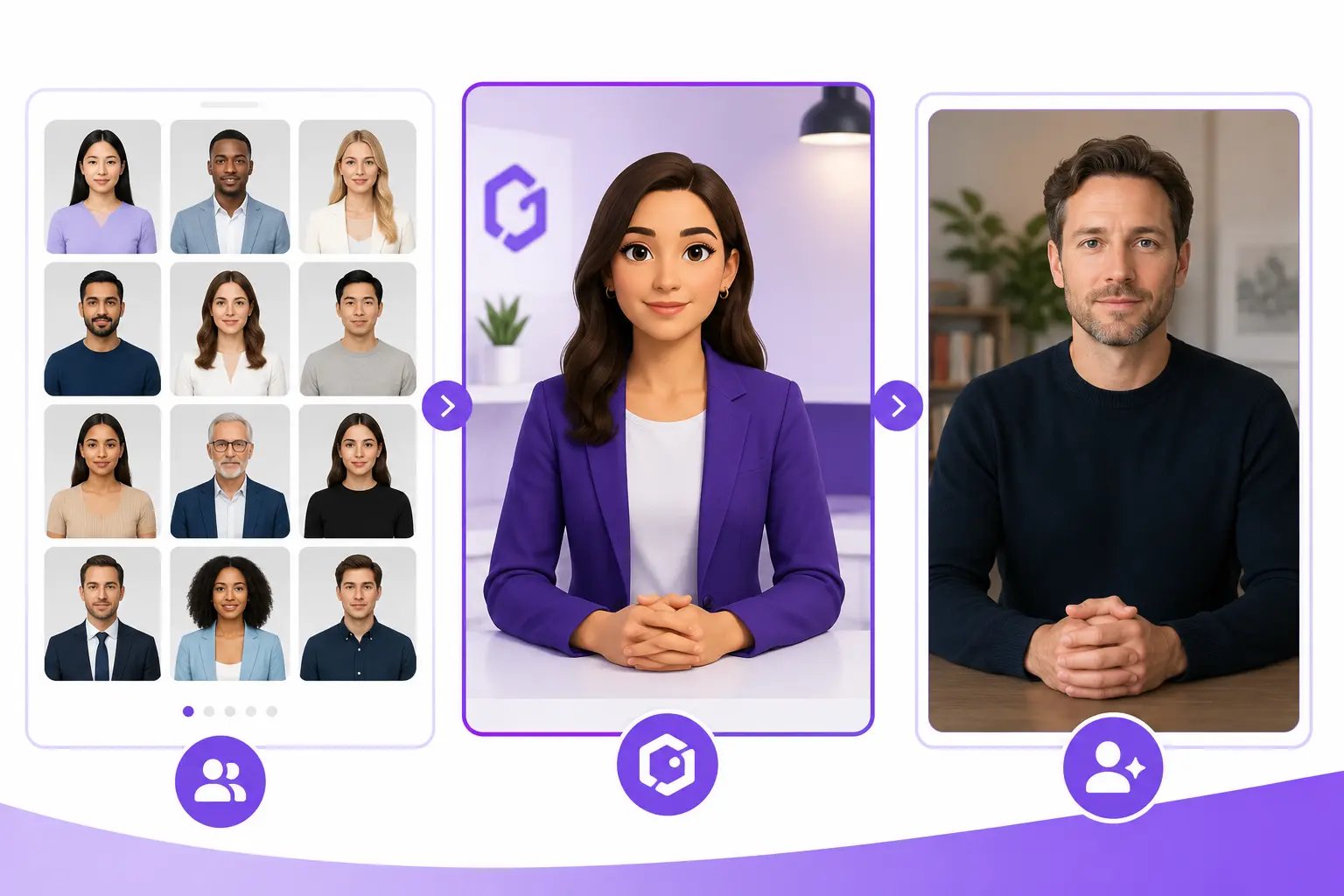
Pictory gives you three ways to get a presenter into your video.
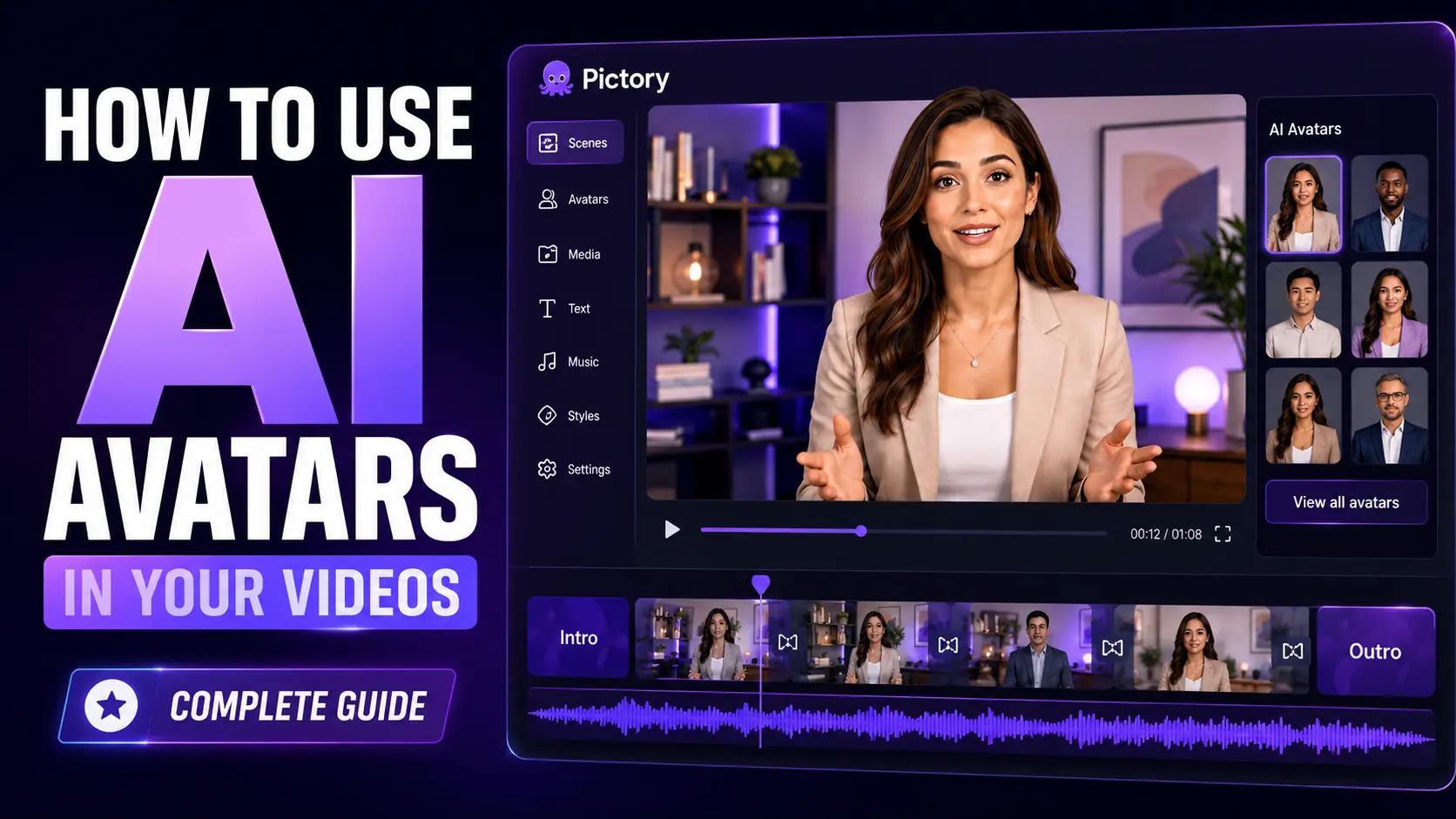
Library avatars are ready-made digital presenters with different appearances, styles, and personas. Browse the Avatars tab in the editor, click one to apply it, and it’s in your scene immediately. Many offer multiple outfit variations so you can match the look to your content.
Custom AI avatars let you create a branded presenter tailored to your needs, a consistent, unique character across all your videos without using a stock presenter.
Avatar Clones take personalization further. Using a photo, video, and voice sample, Pictory creates a digital twin that looks and sounds like a real person, without them needing to record every video. For the full setup process, see the Pictory Academy guide to creating personal avatar and voice clones.
How to Add an AI Avatar to Your Video in Pictory
Avatars are available in every Pictory video project. You don’t need a separate workflow. Just open your editor and follow these steps. For the full walkthrough with screenshots, see How to Create Videos Using AI Avatars in Pictory on the Academy.
Open your video project in the Pictory editor
Start from any workflow: Script to Video, URL to Video, PPT to Video, or any other entry point. Avatars are available inside the editor regardless of which workflow created the project.
Select the Avatars tab in the left sidebar
The Avatars tab sits alongside Story, Visuals, Audio, Layouts, Text, and Styles. Click it to open the avatar library and browse the available presenters.
Choose an avatar and apply it to your scene
Click any avatar in the library to place it in the current scene. It appears on the canvas immediately and becomes editable. Many avatars offer multiple outfit variations. Select the one that fits your video’s tone and audience.
Resize and position the avatar
Drag the avatar to move it. Use the resize handles or preset sizes (Small, Medium, Large) to control how much space it takes up. You can also choose a circle or original frame shape, and add a colored border to match your branding.
Select the avatar’s voice
Open the Looks and voice panel. Click the voice preview button to hear options. Browse and select a voice that fits your content, or apply your voice clone if you’ve set one up through the ElevenLabs integration. The avatar narrates based on the text in each scene.
Apply the avatar to all scenes or selected scenes
You can show or hide the avatar on a per-scene basis. Use it for your intro and closing scenes, or apply it across every scene. This is useful when you want the avatar for key explanations but not throughout sections with dense visuals.
Preview and download
Click Preview video to review your scenes. When you’re satisfied, click Download. Pictory generates the final video with lip sync applied automatically on export. You don’t need to trigger it separately.
Tips for Getting the Best Results from AI Avatars
AI avatars work best when the rest of the video is set up to support them. A few adjustments at the scene level make a consistent difference to the finished output.
Keep scene text concise. Avatars narrate the text in each scene. Long, dense paragraphs produce long, dense narration. Short, clear sentences read better on screen. Aim for one or two ideas per scene.
Position avatars where they won’t block key visuals. A corner placement, bottom left or bottom right, keeps the presenter visible without covering charts, screenshots, or product imagery. Circle framing works well for smaller placements.
Use avatars selectively, not on every scene. High-impact moments, introductions, key points, calls to action, benefit most from a human presence. Dense data slides or visual demos often work better without one.
Match the avatar’s style to your audience. Pictory’s library includes presenters with different appearances and outfits. A corporate training video calls for a different look than a social media explainer. A good match strengthens the credibility of the content.
Apply brand styling consistently. Use the border color and container options to keep your avatar’s frame consistent with your Brand Kit colors. Consistency across scenes makes the final video look intentional and polished.
A study of 250+ professionals found no significant difference in knowledge transfer between AI avatar videos and human presenter videos, with viewers completing the AI version around 20% faster. Source: VideoAI.me, AI Avatars Complete Guide 2026
What Are AI Avatars Best Used For?
AI avatars suit any video format where a human presence helps but repeated filming isn’t practical.
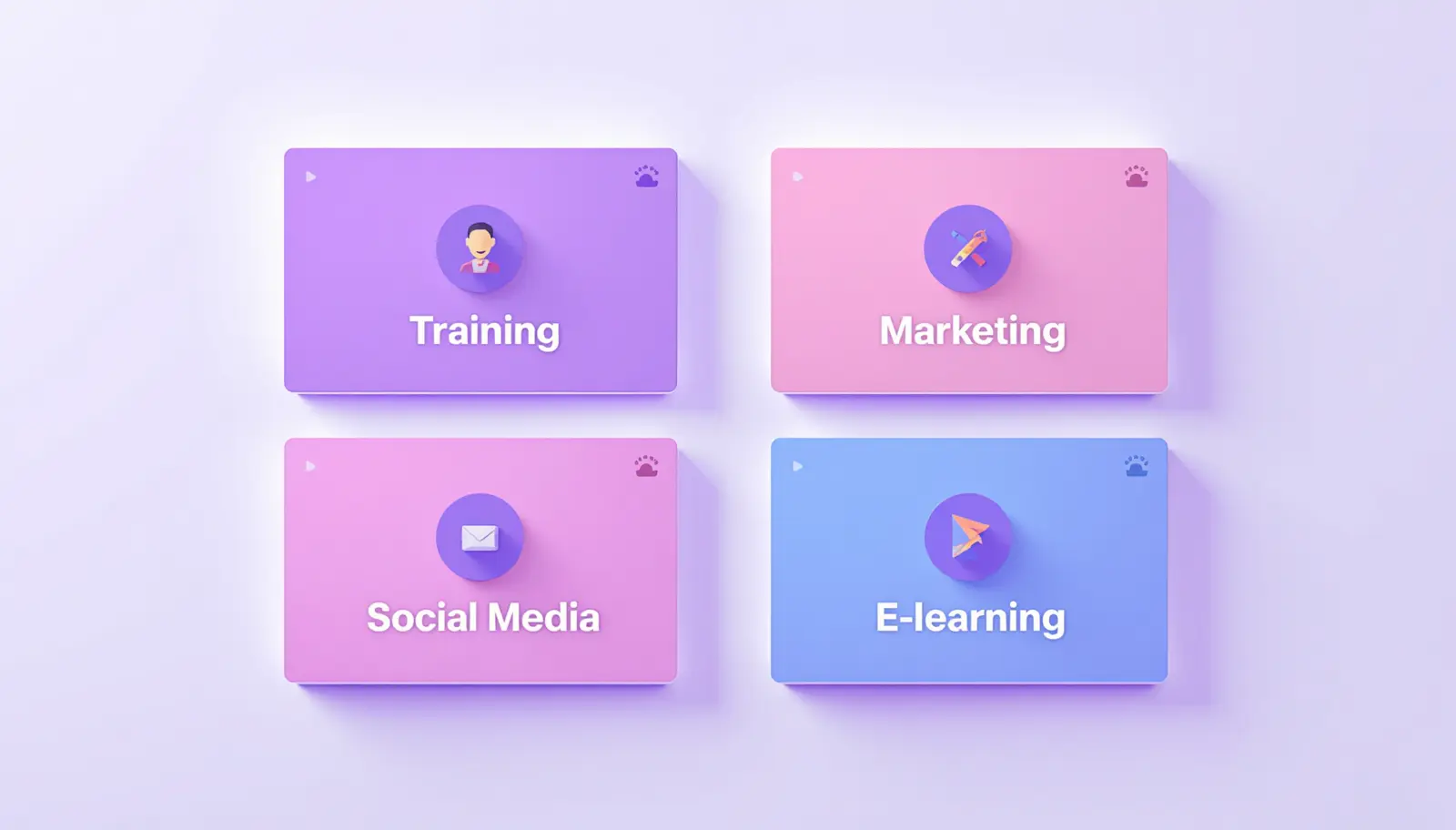
Training and onboarding
Update policy, process, or compliance training without reshooting. Change the script, regenerate the narration, and republish the same day. Organizations report creating training videos up to 90% faster using AI avatars than traditional production methods.
Marketing explainers and product videos
A presenter-led explainer converts better than text overlays alone. Avatars give your product videos a human face without the cost of hiring talent or scheduling shoots. Pair with a Script to Video workflow to go from brief to finished video fast.
Social media content at scale
Produce a week’s worth of talking-head clips in a morning. The same avatar delivers your content consistently across platforms. Use the video clip generator to cut highlights and shorts from longer avatar-led videos.
E-learning and educational content
Instructors can scale their teaching presence across more modules without recording each one individually. A consistent avatar presenter helps learners build familiarity with the course style and tone.
Add a presenter to your next video today
Pictory’s AI avatars are ready inside the editor. No setup, no camera, no scheduling.
Is Using an AI Avatar Right for Your Videos?
AI avatars are well suited to video where you need a human presence on screen but filming regularly isn’t practical. If you’re a marketer producing videos across multiple formats, an L&D team updating training content monthly, or a social media manager publishing daily, the time savings are significant. A single avatar setup covers every video you make going forward.
They work less well for content where the presenter’s delivery and off-script moments are part of the value: interview formats, vlog-style content, or anything where being the real person on camera is what the audience is there for. In those cases, filming yourself remains the better choice.
For most business video, explainers, training, product walkthroughs, announcements, Pictory’s AI avatar generator gives you everything in one place: presenter, script, visuals, Brand Kit, and download. No switching between tools, no production overhead, and no scheduling a shoot.
Ready to put a presenter in every video?
Try Pictory’s AI avatar generator and see how fast professional presenter-led video can be.
FAQ: AI Avatars
What is an AI avatar in video?
An AI avatar in video is a digitally generated human presenter that delivers your script on screen without a camera or actor. You choose the avatar, write your script, and the AI produces a video with the presenter speaking your words, complete with lip sync, natural expressions, and an AI voice. In Pictory, avatars are added directly inside the video editor as a layer on top of your scenes.
Can I create an AI avatar of myself in Pictory?
Yes. Pictory’s Avatar Clone feature lets you create a digital version of yourself using a photo, video, and voice sample. Once created, your clone can present any script in your voice and with your likeness, without you needing to record each video individually. See the Academy guide to creating avatar and voice clones for the full setup process.
Does Pictory lip sync the avatar automatically?
Yes. Lip sync is generated automatically when you download your video. You don’t need to trigger it or configure it separately. While you’re editing, you’ll see a notice that lip sync will be applied on export. Preview your video, click Download, and Pictory handles the rest.
Can I use an AI avatar with any Pictory workflow?
Yes. The Avatars tab is available in the editor for every Pictory workflow: Script to Video, URL to Video, PPT to Video, Audio to Video, and the AI Video Editor. Once you’re in the editor, click the Avatars tab in the left sidebar and apply your presenter to any scene, regardless of how the project was started.
How do I choose the right AI avatar for my video?
Match the avatar’s appearance and outfit to the tone of your content and the expectations of your audience. Corporate training videos work best with professional-looking presenters in business attire. Social or educational content can use more casual styles. If brand consistency matters, a custom avatar or an Avatar Clone gives you a single, recognizable presenter across all your content.
![[Article] Promo Video: How to Make One That Converts](https://pictory.ai/wp-content/uploads/2026/09/blog-video-promo-300x169.webp)