You’ve probably seen Pixverse clips in the wild. They’re the punchy 5-second social opens with cinematic camera moves and stylized light. The question isn’t whether Pixverse works. It’s what it costs, when to reach for it, and how to fit it into a real video, not a demo. Pictory runs Pixverse natively inside AI Studio, so this guide walks you through Pixverse AI end to end, including the credit maths and prompt patterns that actually save you money.
TL;DR
Pixverse is an AI video model that turns text prompts or reference images into short cinematic clips, usually 5 to 10 seconds long. Pictory runs Pixverse 5.5 inside AI Studio at 1.6 credits per second, so a 5-second clip costs about 8 credits. You get the model, the storyboard, the voiceover, and the export in one place, with no second subscription to manage.

What Pixverse AI actually is
Pixverse is a text-to-video and image-to-video model that generates short cinematic clips from a written prompt or a reference image. The clips typically run 5 to 10 seconds, and the platform offers 20 plus cinematic camera controls, style presets, and native audio in newer releases. It sits in the same category as Veo, Sora, Kling, and Runway, and it’s built for speed and stylized short-form output rather than long narrative video.
The model’s calling card is turnaround. Short clips render in about 30 to 60 seconds, which is why Pixverse pulls in around 60,500 monthly US searches. That speed matters when you’re testing 10 versions of an ad hook, not shooting one flagship film.
What can you actually make with Pixverse?
Pixverse fits jobs that need short, visually strong clips at high iteration speed. If you’re a marketer without a video team, that’s most of what you make.
Typical uses:
- Ad opens and hooks. Six seconds of cinematic motion to stop the scroll.
- Product B-roll. A close-up of your product in a real context you can’t easily shoot.
- Social loops. Reels, Shorts, TikTok opens, and LinkedIn video posts.
- Storyboard filler. Cover shots when your talking-head footage needs breathing room.
- Concept mockups. Pitch decks and campaign concepts before you commit to a shoot.
What Pixverse is not built for: dialogue-heavy scenes, broadcast-quality product films, or anything longer than about 10 seconds per clip without stitching. If you need those, reach for Veo 3.1 or plan a shoot.
How much does Pixverse cost?
Pixverse runs a credit-based subscription model. A free tier gives you 60 daily credits, enough to test the model. Free outputs are watermarked and capped at lower resolutions. Reported paid plans on Pixverse’s own site range from roughly 10 to 199 dollars a month depending on tier, though this is a fast-moving space and figures vary by source. Check Pixverse’s pricing page directly for current numbers before committing to a plan.
Inside Pictory, Pixverse 5.5 costs 1.6 credits per second of video. A 5-second clip is about 8 credits, a 10-second clip is 16, and there’s no separate subscription to manage.
Here’s how that compares to the other video models in Pictory’s AI Studio:
- Pixverse 5.5: 1.6 credits per second. Best for speed and cost.
- Veo 3.1 Fast: 10 credits per second. Cinematic quality at a mid-tier price.
- Veo 3.1: 20 credits per second. Superior cinematic output for hero shots.
The practical takeaway: Pixverse lets you iterate. Ten Pixverse takes cost roughly the same as one Veo 3.1 take. If you’re still finding the concept, that ratio matters.
How to generate a Pixverse clip inside Pictory
Pictory’s AI Studio runs Pixverse directly. You don’t need a separate account, and the clip lands in your project ready to use. Here’s the full flow. See the Academy guide to AI Studio for a walkthrough of the full generation interface.
Open a project and go to Visuals
Start any project type, then open the Visuals tab in the left sidebar of the editor.
Open AI Studio and toggle to Videos
AI Studio sits inside Visuals. Switch the mode toggle from Images to Videos so you’re generating motion, not stills.
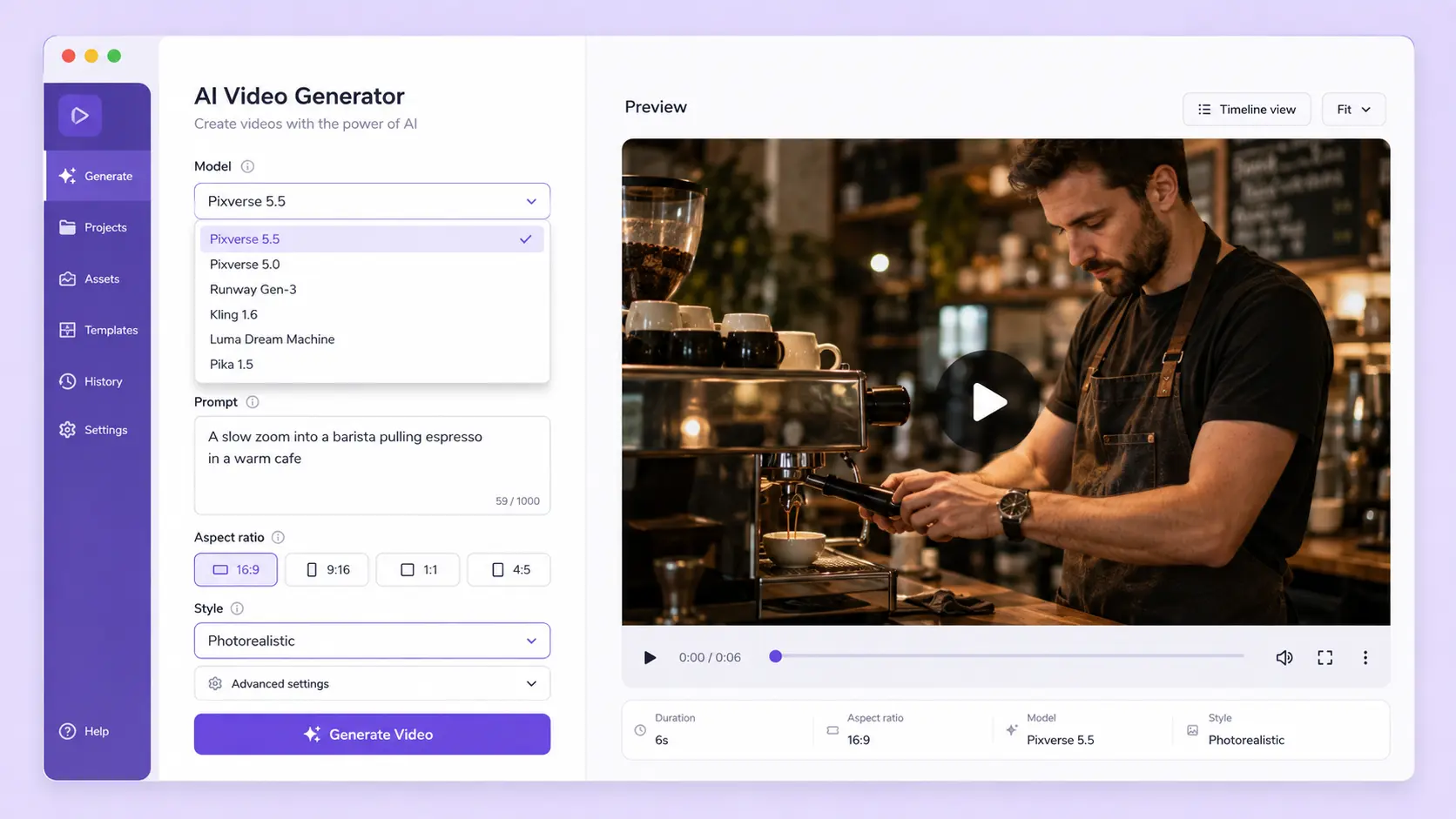
Pick Pixverse 5.5
Choose Pixverse 5.5 in the model selector. Set clip length to 5, 8, or 10 seconds and aspect ratio to 16:9, 9:16, or 1:1.
Write the prompt (or ask AI for one)
Describe the scene: subject, action, setting, camera move, and style. If you’re stuck, tap “get a prompt for this scene” and the model drafts one from your scene text.
Generate, then add to your scene
Once the clip renders, add it to the current scene, replace the existing visual, save it to Uploads, or download it. You can also regenerate with the same prompt if the first take misses.
The clip lands in your storyboard alongside your captions, voiceover, and brand assets. If you need to swap it out later, right-click the scene thumbnail and duplicate, replace, or delete.
Prompt patterns that work (and ones that waste credits)
Good Pixverse prompts follow a pattern: subject plus action plus setting plus camera move plus style. Vague prompts burn credits on takes you’ll throw away.
Prompts that work:
- “A slow zoom into a barista pulling espresso in a warm cafe, morning light, cinematic.”
- “Aerial shot moving over a coastal cliff at sunset, gentle drift, color-graded like a nature documentary.”
- “Close-up of hands typing on a laptop, soft desk lamp, shallow depth of field, subtle bokeh.”
Prompts that waste credits:
- “A person doing marketing.” (No subject specificity, no motion, no setting.)
- “An epic scene.” (Adjectives without content.)
- “Two people having a conversation with detailed facial expressions.” (Dialogue and complex face motion still misfire on short-form video models.)
When to reach for Pixverse vs Veo 3.1 vs Nano Banana
Pictory ships a full model roster in AI Studio, and picking the right one for the job matters more than the model itself. Here’s the rule of thumb:
Limitations to plan around
Pixverse is fast and cheap, but you’re trading those wins for a real quality ceiling. Know it before you commit a campaign to it.
- Resolution. Output tops out at 1080p, where Kling 3.0 and other newer models ship native 4K, according to fast.io’s 2026 review.
- Clip length. Individual clips run 5 to 10 seconds. Longer sequences require stitching in the storyboard.
- Motion drift. Complex hand movement, fast subject motion, and dialogue lip-sync still misfire.
- Retry cost. Every take costs credits, even the ones you throw away. Most creators need two to five generations to land a usable clip, so your real cost per keeper is a multiple of the base rate.
- Native audio. Pixverse V6 adds native audio, but it’s not yet reliable for dialogue. Treat generated audio as a feature to test, not a feature to trust.
Run Pixverse inside a full video workflow
AI Studio, storyboard, voiceover, brand kit, and export in one place. No second subscription.
Verdict: who Pixverse fits, and who it doesn’t
Pixverse is the right pick if you’re a marketer, social manager, or small business owner who needs to move fast. The ad-testing use case is where it earns its keep. You can generate 10 hook variants for the price of one Veo 3.1 take, pick the best two, and ship. Product B-roll, concept mockups, and social opens all sit in the same zone. If your job is to make more video with less budget, Pixverse belongs in your stack.
It’s not the right pick for broadcast production, dialogue scenes, or hero-tier brand campaigns where a client will scrutinise every frame. The 1080p ceiling and short clip length are real. If you need a 30-second cinematic ad open with lip-synced dialogue, plan a shoot or reach for Veo 3.1. Trying to force Pixverse into that job wastes credits and time.
The practical recommendation: run Pixverse inside Pictory rather than on its own. You skip the second subscription and keep your credit budget in one place. Generated clips drop straight into a storyboard with captions, voiceover, and brand assets already applied.
Generate your first Pixverse clip today
Open AI Studio and try Pixverse alongside your storyboard, voiceover, and brand kit.
FAQ: Pixverse AI
Is Pixverse AI free to use?
Yes, Pixverse offers a free tier with 60 daily credits, though output is limited to lower resolutions and carries a watermark. Paid plans on Pixverse’s site start around 10 dollars a month. Inside Pictory, you can run Pixverse 5.5 during your Pictory free trial without a separate Pixverse subscription.
Can I use Pixverse videos commercially?
Paid Pixverse plans include commercial use rights. Free tier output typically doesn’t, and it’s watermarked. If you’re generating Pixverse clips inside Pictory on a paid plan, commercial use is included in your Pictory subscription. Always check your current plan terms before shipping work to a client.
How long can a Pixverse clip be?
Individual Pixverse clips run 5, 8, or 10 seconds. If you need a longer sequence, generate multiple clips and stitch them in your storyboard. Pictory’s timeline lets you link scenes, adjust transitions, and layer voiceover across the full run without going back to Pixverse for each cut.
What’s the difference between Pixverse and Sora 2?
Pixverse is optimized for speed and stylized short-form video at low cost per clip. Sora 2 produces longer, more narratively coherent clips but is more expensive per generation and slower. For social opens and ad hooks, Pixverse usually wins. For story-driven scenes, Sora 2 has the edge.
Do I need a Pixverse subscription if I have Pictory?
No. Pictory’s AI Studio runs Pixverse 5.5 natively using your Pictory credits at 1.6 credits per second. You generate, edit, and export inside one workflow, and there’s no second billing relationship. If you’re a heavy Pixverse user with custom API needs, a direct Pixverse subscription may still make sense.
Related reading
Turn scripts, URLs, and prompts into videos in minutes.
Turn any still image into short cinematic motion.
Cut short clips and highlights from any long video.