![[Article] - How to Add Music to a Video with AI (Free and Paid Options)](https://pictory.ai/wp-content/uploads/2026/06/how-to-add-music-to-video-ai-thumb.webp)
TL;DR
Adding music to a video no longer means opening a separate audio editor or hunting down licensed tracks. AI-powered tools like Pictory let you pick from a library of 15,000+ royalty-free tracks, upload your own audio, or generate an AI voiceover, then sync everything to your scenes automatically. This guide walks through how to do it inside Pictory, what to look for in free tools, and how to pick the right track for your video’s tone.
A silent video is a missed opportunity. Research has shown that 85% of social media videos are watched without sound, and when your video does have audio, the right music keeps viewers watching longer. The challenge has always been finding legal, affordable music and getting it to sync correctly. Pictory solves both problems: 15,000+ royalty-free tracks, auto-sync, and no audio editor required.
Why Background Music Makes or Breaks Your Video
Music shapes how your video lands. It signals to the viewer that the content is produced, professional, and worth their time. A corporate explainer with no background track feels unfinished. A training video with a well-chosen ambient score feels considered. The distinction is psychological, not technical.
The problem most marketing teams and content creators hit is not wanting music. It is sourcing it legally and getting it into the video without adding a separate workflow. Traditional audio editors have a steep learning curve. Stock music sites require you to download files, check licence terms, and manually import them. AI video tools cut all of that out.
Videos with background music generate up to 12% longer view times, based on Pictory data from captions and audio optimisation across platform projects.
What Does AI Actually Do When You Add Music to a Video?
Two things get lumped together here: AI-assisted music and AI-generated music. Both exist, and both are useful, but they work differently.
Library + Auto-Sync
You choose a track from a royalty-free library. The AI applies it to your video, handles fade-in and fade-out timing, and balances the volume against your voiceover automatically. This is how Pictory works: fast, commercially safe, and no audio editing required.
Composed On Demand
An AI model composes a unique track in real time, usually from a mood or style prompt (“upbeat corporate,” “calm ambient”). Tools like ElevenLabs Music or Soundraw work this way. The output is original, but it requires a separate tool and an extra step in your workflow.
For most business video use cases, marketing content, explainers, training videos, social clips, AI-assisted music from a curated library is faster and easier to manage. You need something that fits the tone, clears copyright, and doesn’t interrupt the voiceover. That’s it.
How to Add Music to a Video in Pictory: Step by Step
Pictory is an AI video creation platform built for marketing and content teams. You can add music to any project, whether you started from a script, a URL, an uploaded video, a podcast, or a PowerPoint file. The audio tools live in the same editor, so there is no switching between apps. For a deeper walkthrough of the audio features, see the Pictory Academy guide to adding music and sound.
Create or open a project
From the Pictory home screen, start a new project using any workflow: Script to Video, URL to Video, Audio to Video, PPT to Video, or the AI Video Editor. You can also open an existing project from My Projects. All workflows lead to the same Video Editor, where your audio controls live.
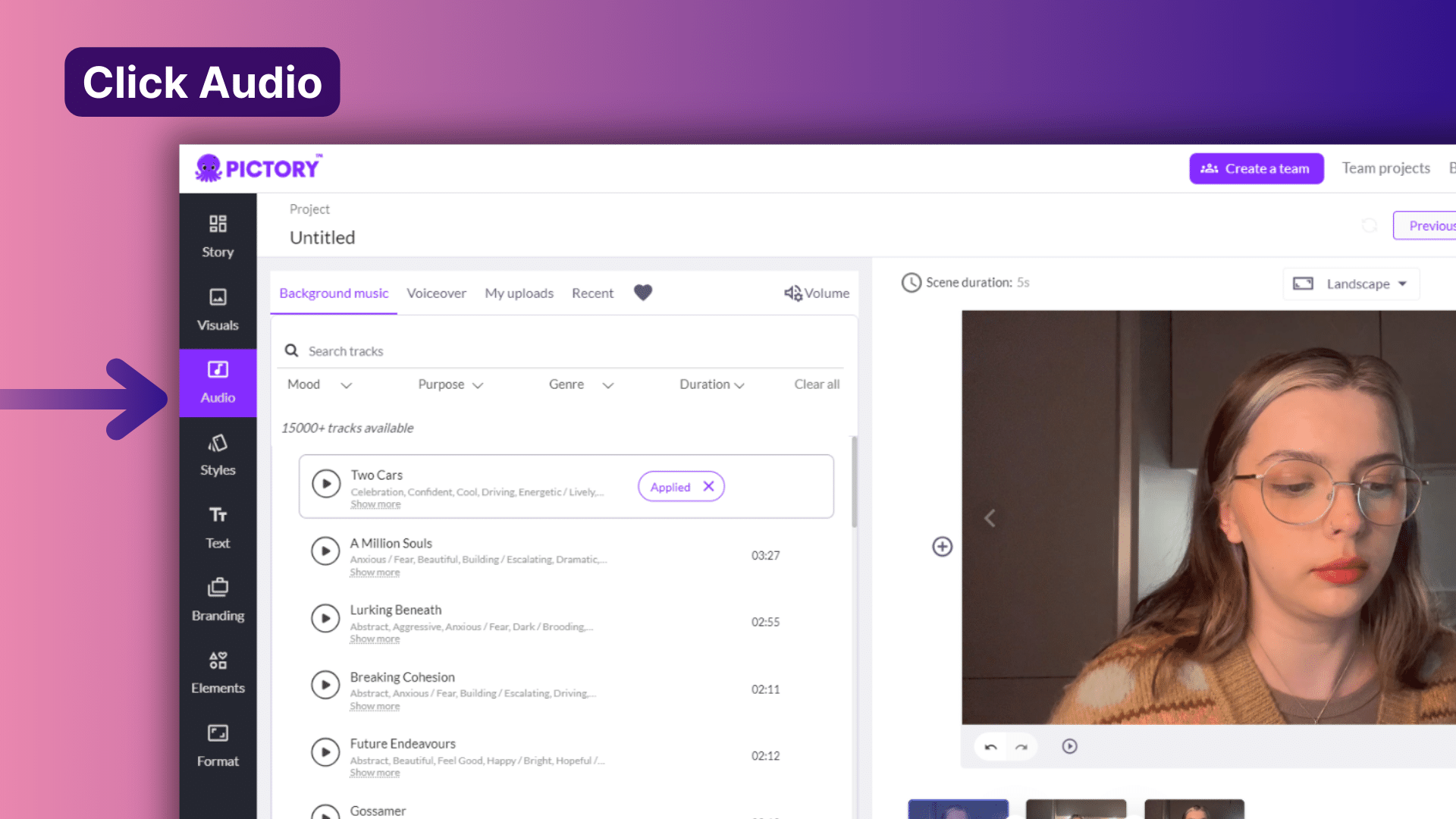
Select the Audio tab in the left sidebar
In the Video Editor, look at the left-hand navigation. You’ll see tabs for Story, Visuals, Audio, Text, Elements, Styles, Branding, and Avatars. Select Audio. This opens the audio panel with three sections: Voiceover, Music, and Uploads.
Browse or search the Music library
Select Music from the Audio panel. Pictory’s library contains over 15,000 tracks from Getty Images, Storyblocks, and Melod.ie, all royalty-free and cleared for commercial use. Search by keyword (e.g. “upbeat,” “corporate,” “calm”) or browse by mood or genre. Each track has a play button so you can preview before applying.
Apply the track to your project
When you find the right track, select it to apply it to your project. Pictory adds the music across all scenes and sets automatic fade-in and fade-out points. You don’t need to drag anything onto a timeline or manually set start and end times.
Or upload your own audio file
If you have a licensed track, a branded jingle, or a pre-recorded voiceover you want to use, select Uploads in the Audio panel and import your file. Pictory accepts standard audio formats. Important: before uploading any track you didn’t create yourself, confirm you hold commercial rights. Pictory’s library handles that automatically, but uploaded files are your responsibility.
Adjust the volume balance
In the Audio panel, set the music volume relative to your voiceover. A good starting point for most business videos: music at around 20 to 30% of the voiceover level. If the voiceover is the focus, you want the music to support it without competing. The Pictory Academy guide to balancing voice and music levels covers this in detail. Preview the full video before downloading to check the balance feels right.
Preview, then download or share
Select Preview Video from the top toolbar to watch the full video with your audio applied. When you’re happy with it, select Download Video to export, or use the Share Preview option to send a review link to a teammate or stakeholder before you finalise.
Free vs. Paid Options: What Do You Actually Get?
Free tools exist, and some are fine for low-stakes projects. The real differences show up around commercial licensing and watermarks. Here’s how the main options compare:
The music library, auto-sync, and commercial clearance are available on every Pictory plan including the free trial. The difference between Starter and Professional is mostly volume and voiceover depth. If you’re publishing regularly and need watermark-free exports and higher monthly minutes, Professional is the right tier. Start with the free trial to test the full audio workflow before committing.
How to Choose the Right Music for Your Video
Having access to 15,000 tracks doesn’t help if you don’t know what to pick. These are the choices that actually move the needle for business video.
Match tempo to video pace. Fast-cut marketing videos and social clips work well with upbeat, higher-tempo tracks. Explainer videos, training content, and tutorials benefit from something neutral or gently corporate. The music should be present but not distracting. When in doubt, search “corporate background” or “neutral ambient” in Pictory’s library and you’ll find options that sit comfortably under a voiceover.
Keep the music under the voiceover. A practical guide: set your music volume to around 20 to 30% of the voiceover level. If you can clearly make out both the words and the music beat when you preview, the music is too loud. The viewer should feel the tone, not hear the song.
Match the genre to the platform. Marketing videos headed for LinkedIn or a company website work best with understated corporate tracks. Short-form content for social (Instagram Reels, TikTok clips produced via Pictory’s video clip generator) can handle something more energetic. Training and L&D teams producing course content benefit from calm, minimal background audio that doesn’t compete with instructional narration.
Always check commercial rights before uploading your own track. Pictory’s library is cleared for commercial use on every platform, including YouTube. If you’re importing your own audio file, verify you hold the rights before publishing, or you risk a content ID claim or takedown.
Add music to your next video in minutes
15,000+ royalty-free tracks. AI voiceovers. Auto-sync. All in one editor.
Is Pictory the Right Tool for Adding Music to Your Videos?
Pictory is built for marketers, content teams, and educators who produce professional business video regularly. If you’re the sole content creator at a startup, an L&D professional turning training material into video, or a social media manager trying to keep up with demand without a dedicated video editor, Pictory’s all-in-one approach removes the biggest pain points: sourcing legal music, syncing audio, and learning a new tool.
It’s not the best fit for frame-by-frame audio editing precision, multi-track mixing with five or six independent audio layers, or cinematic productions where you want custom-composed music timed to specific visual beats. For those cases, dedicated audio tools like Adobe Audition or a full-featured DAW give you more granular control.
For most business video workflows, the time saved by having your script, visuals, voiceover, and music inside one editor, with no file management, no licence checking, and no audio software to learn, is what makes Pictory worth using. Start a free trial and test it on a project you’re working on now.
FAQ: Add Music to Video
Keep reading
Start adding music to your videos today
No audio software. No copyright risk. No separate subscriptions. Just professional video, fast.
![[Article] Promo Video: How to Make One That Converts](https://pictory.ai/wp-content/uploads/2026/09/blog-video-promo-300x169.webp)