
Balancing voice and music levels is important for creating a professional, easy to understand video. If the music is too loud, it distracts from your message. If the voice is too quiet, viewers may miss important information. Pictory AI gives you simple controls to adjust both audio layers so they blend smoothly.
This guide shows you how to balance voice and background music levels inside Pictory AI.
Why Balancing Audio Matters
Good audio balance improves the viewer experience. Correct audio levels help you:
• Ensure narration is clear
• Keep background music supportive, not overwhelming
• Maintain consistent volume across scenes
• Create a polished and professional sound
Balancing both layers is essential for training videos, marketing content, social posts, and product demos.
Step 1: Open the Audio Tab
Inside your project, click the Audio tab on the left side of the editor. You will see separate controls for:
• Voiceover
• Music
• Uploads
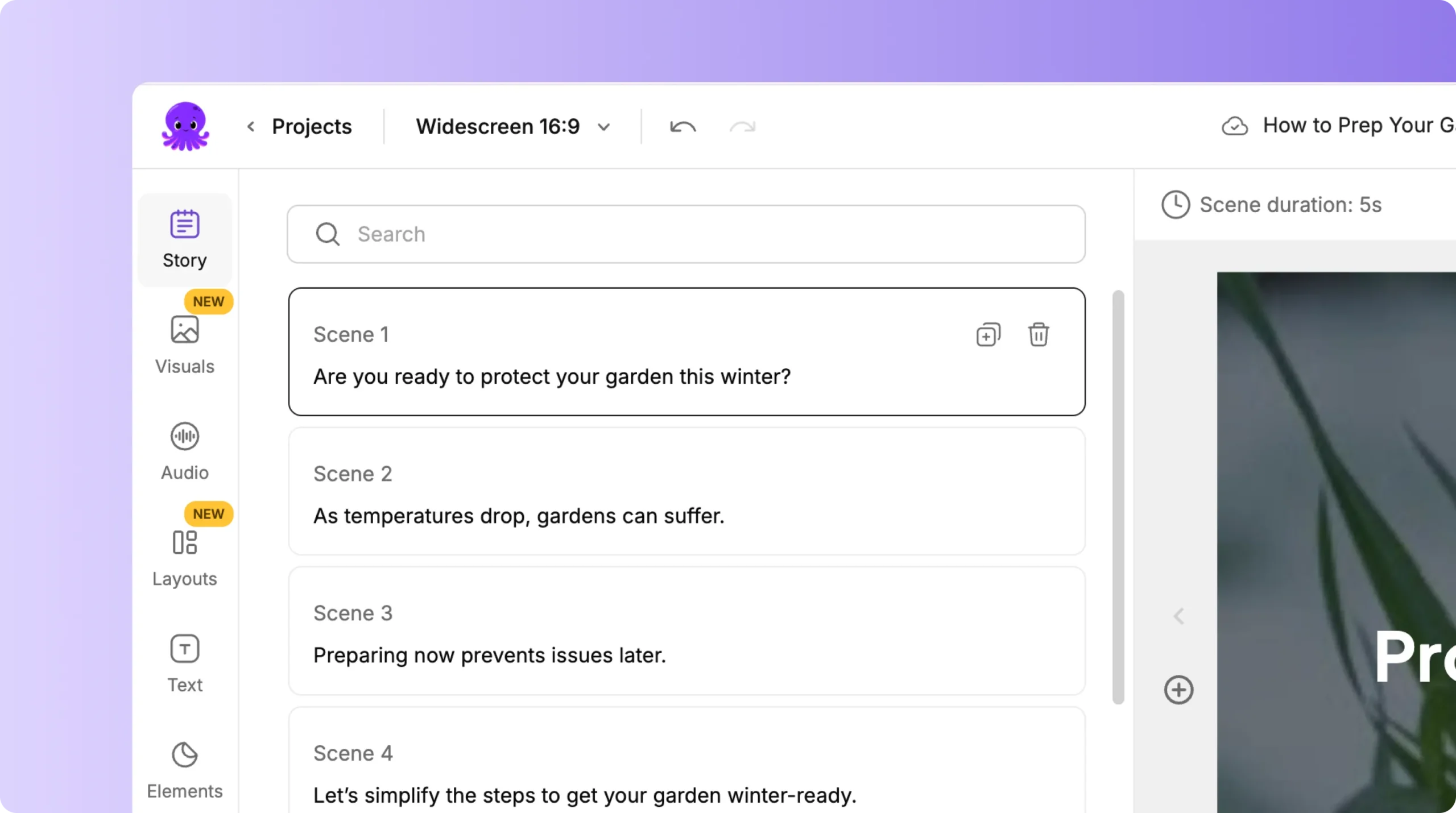
Volume adjustments happen inside the Voiceover and Music sections.
Step 2: Adjust Voiceover Volume
If you are using an AI voiceover or an uploaded voice recording, you can control its volume directly.
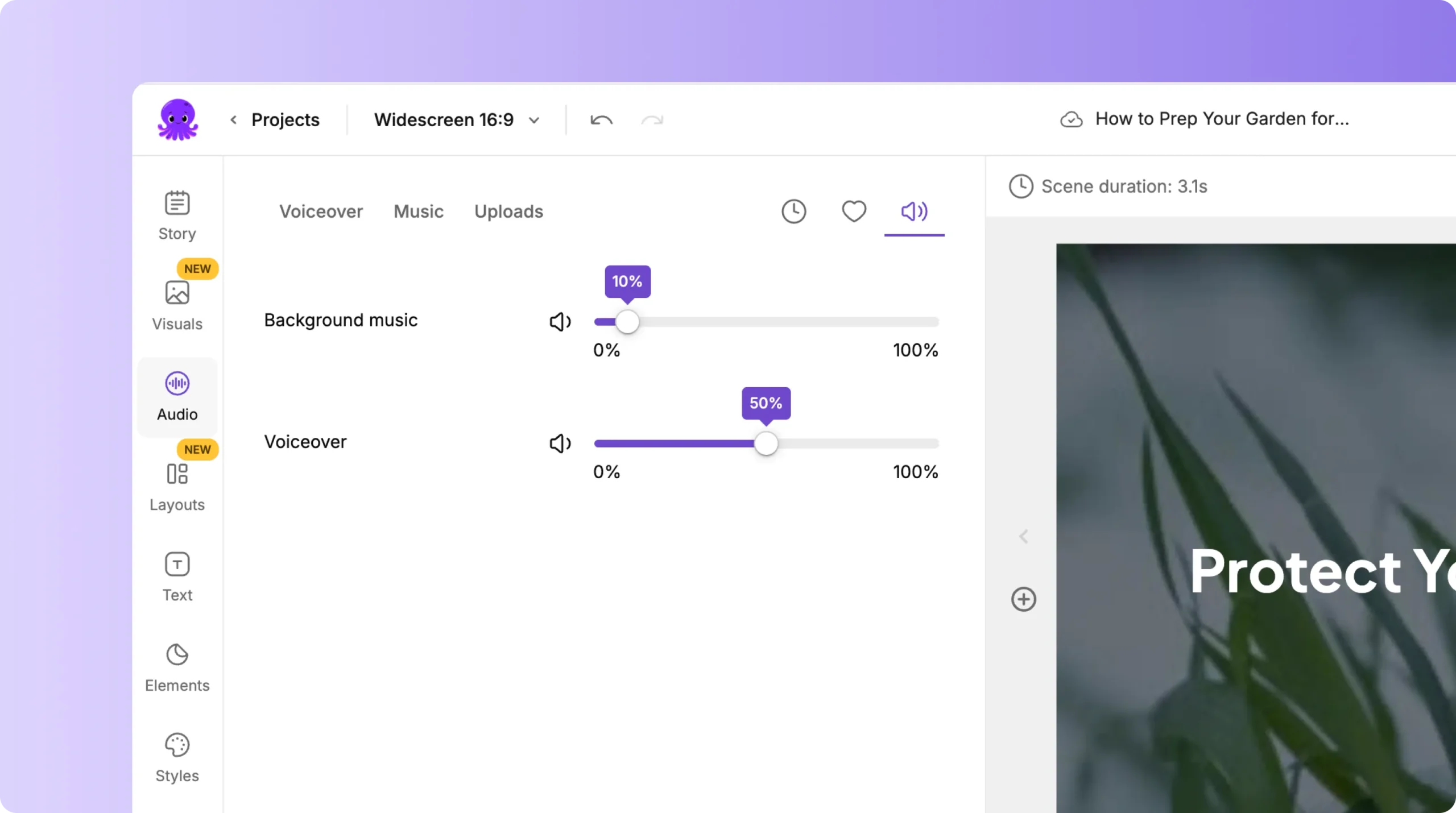
In the Voiceover section:
- Find the voice volume slider
- Increase volume if the narration is too quiet
- Reduce volume if the narration peaks or sounds harsh
The goal is to make the voice easy to understand without distortion.
Step 3: Adjust Background Music Volume
Open the Music section to control your background track.
Use the music volume slider to:
• Lower music volume under spoken narration
• Increase music volume for silent or text only scenes
• Create a smooth audio balance across your video
Most videos sound best with background music set lower than the voiceover.
Step 4: Use Preview to Test Your Audio Mix
Click Preview Video to listen to how your audio sounds together. Check for:
• Clear voiceover
• Music that supports rather than distracts
• Consistent volume from scene to scene
If something sounds off, return to the Audio tab and adjust the sliders.
Step 5: Rebalance After Changing Music or Voiceovers
If you replace your background music or update your voiceover, rebalance the audio again. Different tracks have different loudness levels. Use the sliders to reset the balance so your mix stays consistent.
Step 6: Final Preview Before Exporting
Before downloading your final video:
- Click Preview Video
- Listen through the entire project
- Confirm that music and voice levels sound balanced
- Export your finished video
A final check ensures your audience hears your message clearly on any platform.
Create Clear Audio Mixes With Balanced Voice and Music Levels in Pictory AI
Balancing your voiceover and background music helps your viewers stay focused and improves overall video quality. Pictory AI makes it simple to adjust audio levels, preview your mix, and refine it until it sounds just right. Whether you use AI narration or custom recordings, a balanced audio mix creates a more professional final result.
Start improving your video sound today with Pictory AI’s audio balancing tools.


