You’ve got a webinar recording, a Zoom call, or a podcast episode. Somewhere in there sits the blog post, the LinkedIn carousel, the summary clip, or the subtitle file you actually need. A transcript is the shortest path from audio to any of those, and Pictory’s AI Video Editor generates one free during your trial, with tools to clean it up and repurpose it right in the same workspace. Here’s how to get one for free, what accuracy to expect, and what to do with the text once you have it.
TL;DR
A transcript generator turns the audio in your video or recording into editable text. Free tools like Pictory’s AI Video Editor and Audio to Video flow handle files up to 5 GB or 180 minutes. You get a clean, searchable transcript in minutes, plus tools to strip filler words, silence gaps, and export subtitles for repurposing.
What a transcript generator does
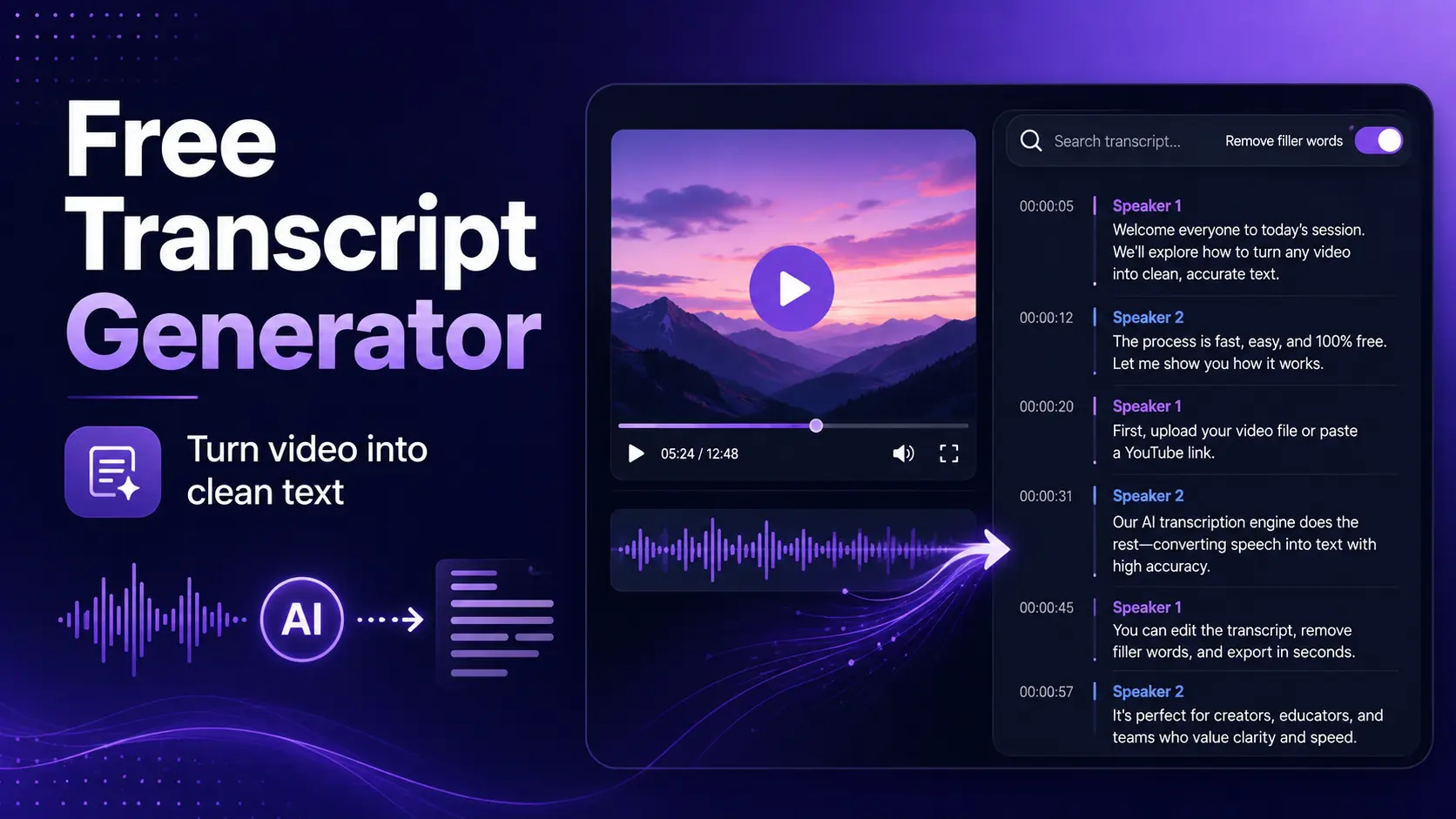
A transcript generator runs speech-to-text on a video or audio file and returns editable text, usually with speaker labels and timestamps. Modern tools also let you search, replace, and clean the output in the same place you play back the file. The good ones export to SRT, VTT, TXT, or ZIP so the transcript works everywhere you need it.
You feed in the file, wait a few minutes, and get text. What changes between tools is the accuracy, the file size cap, the language coverage, and how much cleanup work you still have to do afterward.
When you need a transcript (and when you don’t)
Transcripts pay for themselves fast when the recording is going to earn its keep in multiple formats. They’re a waste of your time when the recording is single-use.
Worth transcribing:
- Webinars and virtual events you want to repurpose into blog posts, clips, or carousels.
- Podcast episodes that need show notes, chapter markers, and SEO indexing.
- Long-form YouTube videos where captions and a text version lift discoverability.
- Customer interviews, sales calls, and user research where you’ll search across sessions.
- Training videos and course lectures that need searchable text for learners.
Not worth it:
- A 90-second voice memo you’ll never revisit.
- Standup meetings where the decisions matter more than the words.
- Any recording where you already have written notes covering the same ground.
Three ways to get a free video transcript
You’ve got three practical free routes. Each fits a different job.
Pictory AI Video Editor
Upload up to 5 GB or 180 minutes. Auto-generated transcript with speaker markers, plus toggles to remove filler words and silences. Export text, subtitles as a ZIP, or a summary video. Free during trial.
YouTube auto-captions
If the video is on YouTube, open the transcript panel under the video and copy the text. Free, instant, no upload. Accuracy runs low on accents, technical terms, or overlapping speech, so plan for cleanup.
Native OS dictation
Play the audio into your Mac or Windows dictation tool while it types. Free but slow, and no speaker separation. Only viable for clips under a few minutes.
For anything over 10 minutes, or anything you’ll repurpose, the AI Video Editor route wins. The other two make sense for quick one-offs or when your file is already on YouTube.
How to transcribe a video in Pictory, step by step
Pictory handles both video and audio files through the same transcript workflow. The AI Video Editor takes video, and Audio to Video takes audio files. Both produce the same editable transcript.
Pick your entry point
On the Pictory home page, choose AI Video Editor for a video file or Audio to Video for MP3 or WAV. Both flows end up in the same transcript editor.
Upload the file
Drag and drop or browse from your computer. Files up to 5 GB or 180 minutes are supported. Select the spoken language in the clip.
Let AI transcribe
Processing runs in the background. For a 30-minute file, expect a few minutes. You can head back to Home and work on something else while it finishes.
Clean the transcript
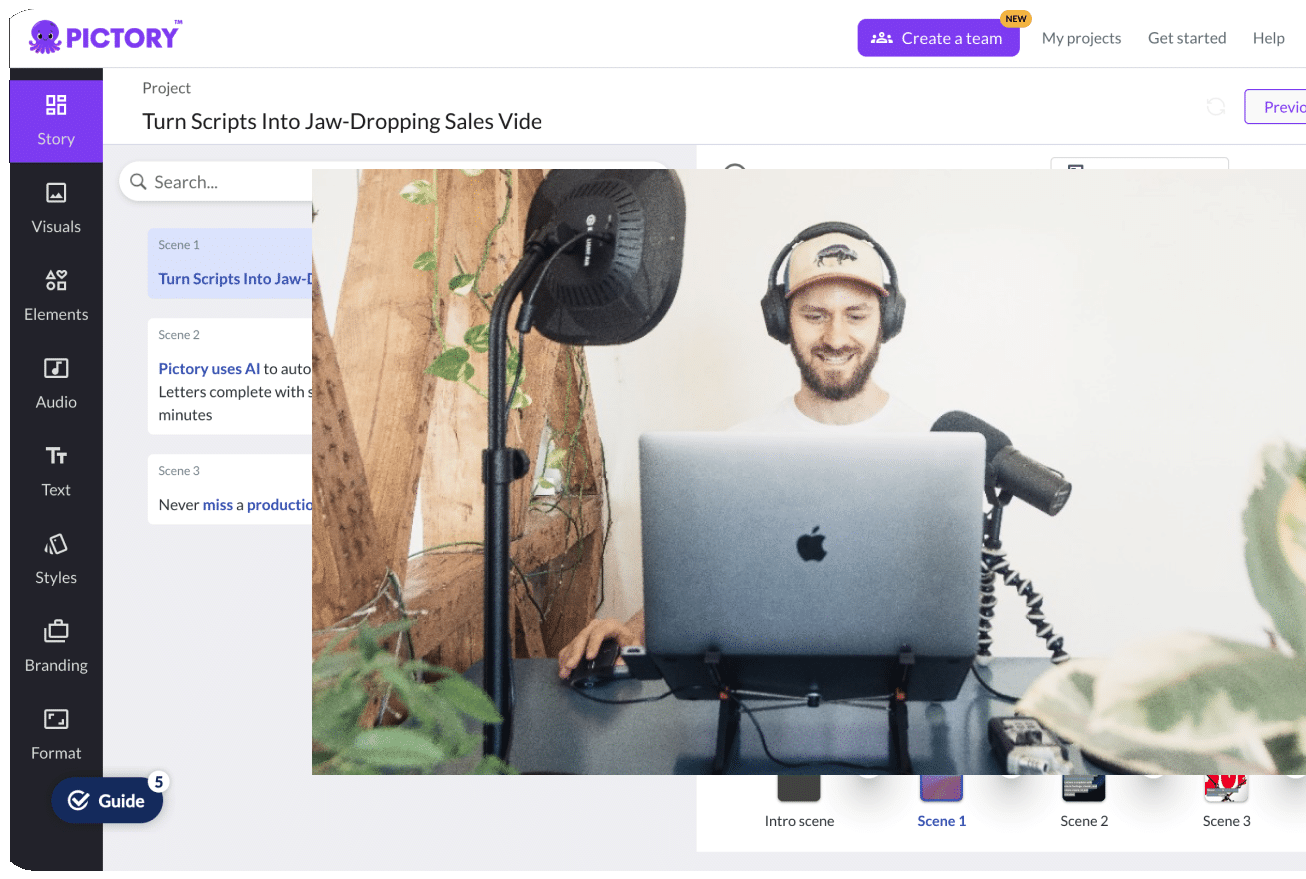
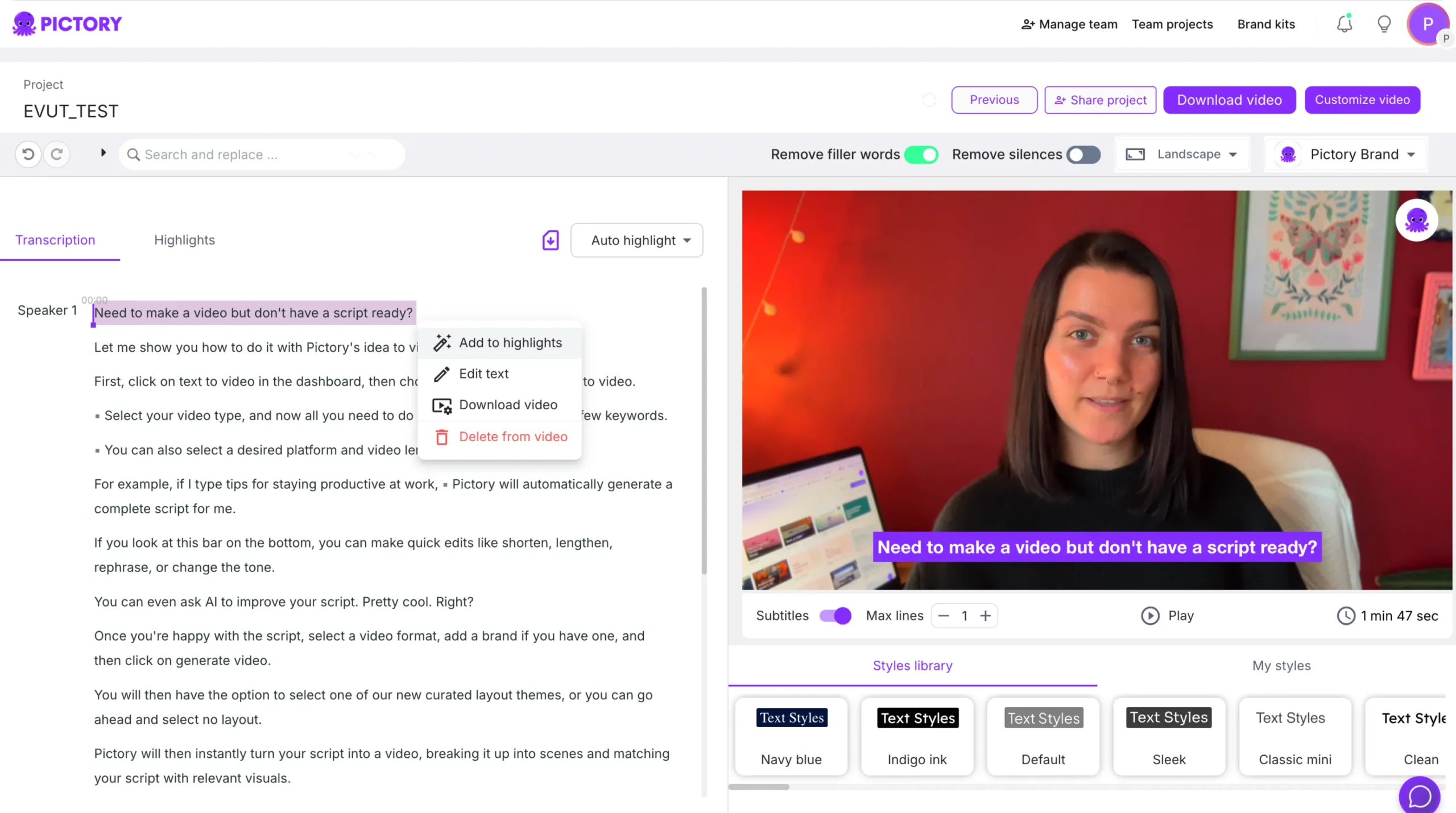
The transcript editor opens with two tabs: Transcription and Highlights. Use search and replace to fix recurring errors. Toggle Remove filler words and Remove silences to strip ums and awkward gaps. See the Academy guide to search and replace for the full workflow.
Export or repurpose
Download subtitles as a ZIP, copy the text, or move to Customize Video to turn the transcript into a full storyboard with visuals and voiceover.
How accurate is AI transcription in 2026?
Accuracy depends on the audio, not just the tool. Clean recordings with one speaker and no background noise deliver near-professional results. Multi-speaker calls, accents, and background music drop the numbers fast.
AI transcription hits 90 to 96 percent accuracy on clear audio, and 85 to 92 percent on noisy or multi-speaker recordings. Human transcribers reach 99 percent plus but cost 60 to 600 times more. Source: NovaScribe 2026 benchmark.
Three things break accuracy in real recordings:
- Background noise. Music, chatter, kids in the next room. Record in the quietest space you can.
- Overlapping speakers. Two people talking at once produces garbled output. Mute when you’re not speaking on calls.
- Domain vocabulary. Product names, medical terms, and technical jargon get misheard. According to published vendor case studies, custom vocabulary reduces domain-specific errors by 40 to 60 percent.
In Pictory, the Remove filler words toggle strips ums and ahs from the output. Remove silences trims dead air. Both make the transcript feel more polished before you even start editing.
What to do with a transcript once you have it
The transcript is a starting point, not the end product. Here’s where marketers and creators get the most value:
- Blog post. Turn a 30-minute webinar into a 1,500-word article by cutting to the arguments and quoting the speaker.
- LinkedIn carousel. Pull five to seven quotable moments and format each as a slide.
- Subtitle track. Export the ZIP and upload the SRT or VTT file to YouTube, LinkedIn, or your video host.
- Short-form clips. Send the transcript into Pictory’s Summary Video Generator to auto-cut a 30-second, 1-minute, 2-minute, or 5-minute highlight.
- Show notes and chapter markers. Use the timestamps in the transcript to build podcast show notes and YouTube chapters.
- Internal knowledge base. Make sales calls and customer interviews searchable across the team.
Transcript formatting best practices
Raw AI output isn’t ready to publish. Five formatting moves take a transcript from data to a document people will read.
- Add speaker labels. Every transcript with more than one voice needs clear speaker names, not just Speaker 1 and Speaker 2.
- Timestamp the arguments. Add timestamps at the start of new topics so readers can jump.
- Break into paragraphs. AI output arrives as a wall of text. Break at topic changes and speaker changes.
- Fix names and jargon in one pass. Use search and replace on your product names, competitor names, and technical terms before you do line edits.
- Keep some filler for authenticity. Stripping every “you know” makes an interview sound clinical. Keep a few for warmth, especially in podcast and interview transcripts.
Get a clean transcript from any video
Upload up to 5 GB. Edit, remove filler words, and export subtitles in one place.
Verdict: who benefits most, and where AI still falls short
A free AI transcript generator earns its keep for marketers, course creators, internal comms teams, and anyone who records more than one long-form video a month. The math is straightforward: a 30-minute webinar becomes a blog post, a carousel, a subtitle track, and three short clips. The transcript is the connective tissue. If you’re producing that kind of stack, you need one of these tools in your workflow.
Free AI transcription still falls short for legal depositions, medical records, and any use case where the last one percent of accuracy carries real weight. A courtroom transcript needs a certified human. So does a clinical trial recording. If you’re in a regulated field where every word matters, pay for a human transcriber. Keep the AI version as a first draft for internal reference only.
For the marketing and content jobs that make up most of what you’ll ever transcribe, Pictory’s free tier is the practical starting point. Upload the file, get the text, edit inside the same tool, and export whatever format you need.
Drop your first file in
Upload up to 5 GB, get a clean transcript, and repurpose it without leaving the tool.
FAQ: Transcript Generator
Is Pictory’s transcript generator really free?
Yes, during your free trial. You can transcribe video and audio files up to 5 GB or 180 minutes long, edit the transcript, and export subtitles without paying. Longer-term use runs on a Pictory subscription that also unlocks the full storyboard editor, brand kit, voiceover library, and AI Studio.
What file formats and sizes are supported?
Pictory accepts common video formats through the AI Video Editor and audio formats through Audio to Video. Files can run up to 5 GB and 180 minutes. If your file is longer, split it into segments before uploading. Language selection is required at upload, and English handles best.
How accurate is AI video transcription?
Modern AI transcription hits 90 to 96 percent accuracy on clear audio with one speaker, and 85 to 92 percent on noisier multi-speaker recordings. Custom vocabulary, quiet recording conditions, and one-at-a-time speaking all lift the numbers. Human transcription still leads at 99 percent plus for cases where accuracy carries legal weight.
Can I edit the transcript before downloading?
Yes. The transcript editor gives you search and replace, filler word removal, silence removal, and free-form text editing. You can fix names, tighten sentences, and add or remove speaker markers before you export. Every edit updates the exported transcript, subtitle file, and any storyboard you build from it.
Can I export subtitles as SRT or VTT?
Pictory exports subtitles as a ZIP file containing the standard formats you need for YouTube, LinkedIn, and video hosts. Download the ZIP from the project menu, unpack it, and upload the subtitle file to your host. If you’re editing inside Pictory, you can also burn subtitles directly onto the video before export.
Related reading
Transcribe, edit, and restyle any video from one workspace.
Turn podcast or interview audio into a full video with visuals.
Cut short clips from any long recording in seconds.
![[Article] Promo Video: How to Make One That Converts](https://pictory.ai/wp-content/uploads/2026/09/blog-video-promo-300x169.webp)