You have a product shot, a portrait, or a folder of event photos, and you need a video. Photo to video AI closes that gap in about two minutes, with no shoot and no editor. Pictory does it two ways: single-photo animation in AI Studio, or a full slideshow built from a batch of stills. This guide covers both, plus the prompts and models that hold up.
TL;DR
Photo to video AI models add motion to still images. You upload a photo, describe the movement, and the AI generates a short video clip, usually 5 to 10 seconds. Pictory runs Pixverse 5.5, Veo 3.1, and Veo 3.1 Fast in AI Studio for single-photo animation. There’s also an Images to Video flow for slideshows with music and voiceover. This guide covers both workflows, real credit costs, and which model to pick.
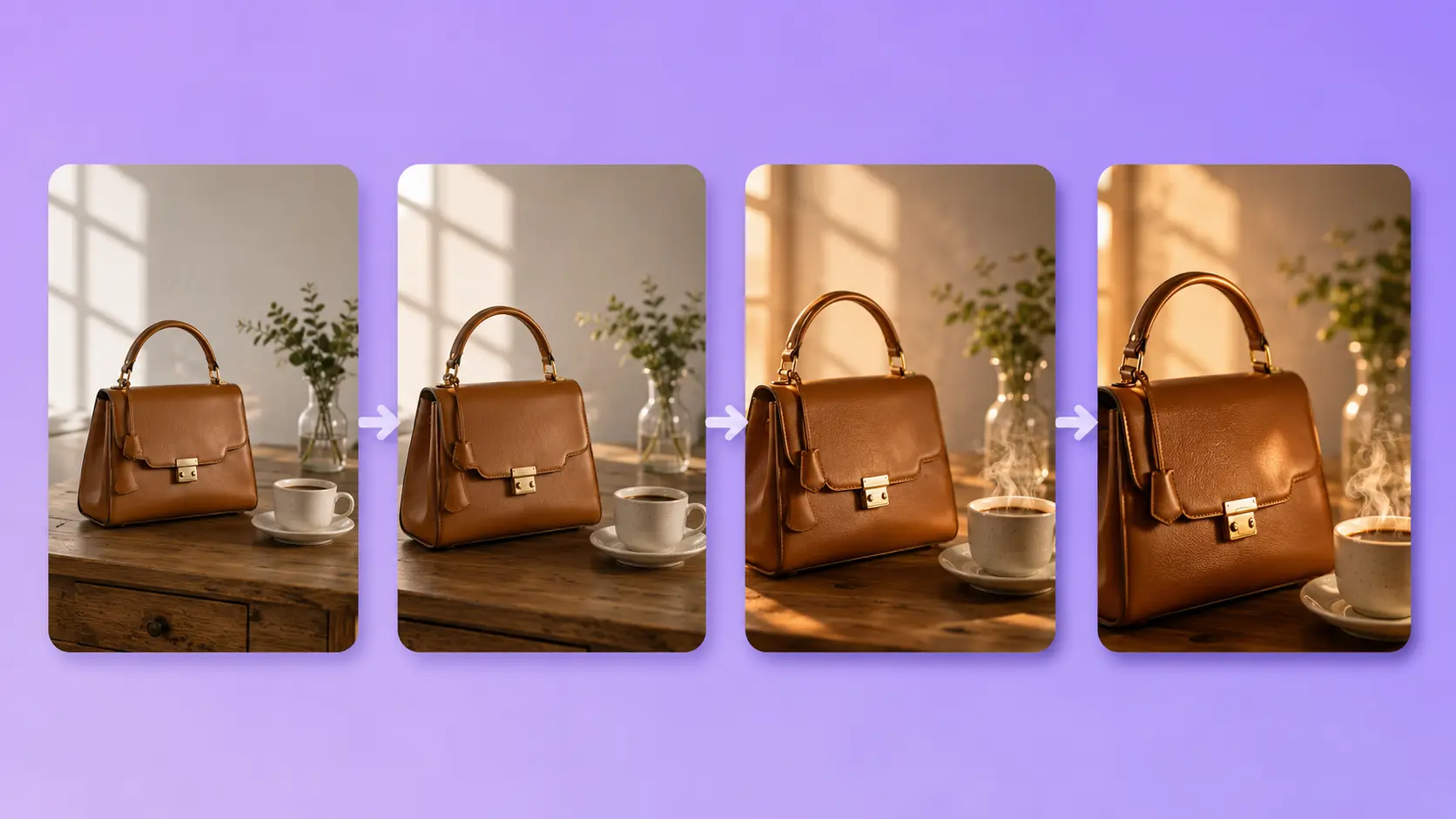
What photo to video AI does
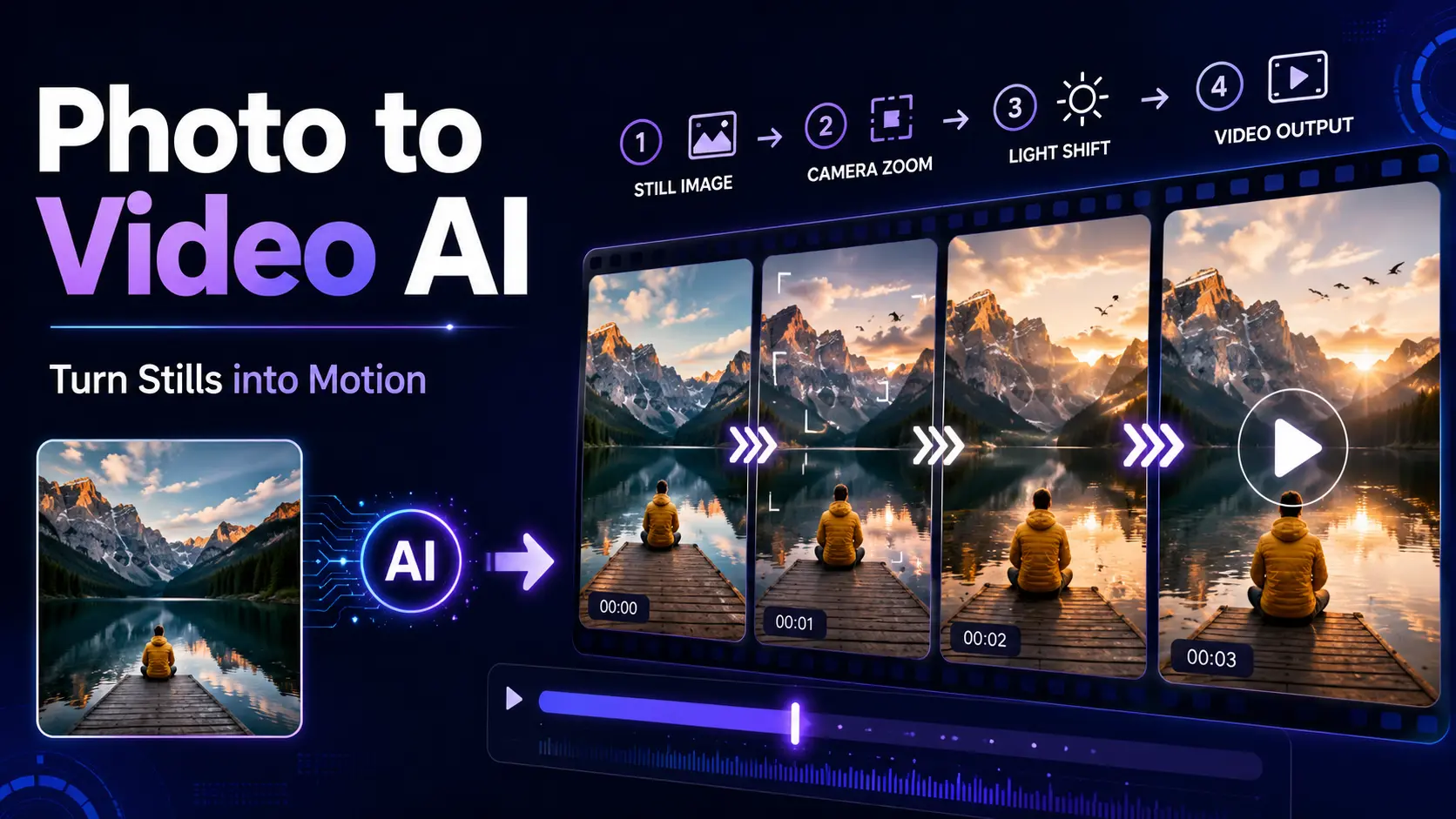
Photo to video AI takes a still image and adds motion, either to the camera, the subject, or the scene. You upload a photo, describe the movement you want, and the model generates a short clip, usually 5 to 10 seconds long. The output is a real video file you can drop into a project, post to social, or embed on a page.
This is not the same thing as a slideshow maker. A slideshow pans across a stack of stills. Here the motion is generated, so the camera can push in, the subject can turn their head, and the light can shift in ways the original photo never captured.
Two workflows: single-photo animation vs multi-photo slideshow
Pictory handles both jobs but through different flows. Which one you use depends on how many photos you’re working with and what you want the finished video to feel like.
AI Studio (Videos mode)
Upload one image, describe the motion, and generate a 5 to 10 second clip. Best for product hero shots, portraits and social opens.
Images to Video flow
Drop a batch of photos, set duration per image, add music and voiceover, and export a full sequence. Best for event recaps, portfolios, and property tours.
One photo for a hero moment, a stack of photos for a story. You can mix the two as well: animate your best few shots first, then bring those clips into the storyboard alongside the remaining stills and a voiceover.
How to animate one photo inside Pictory
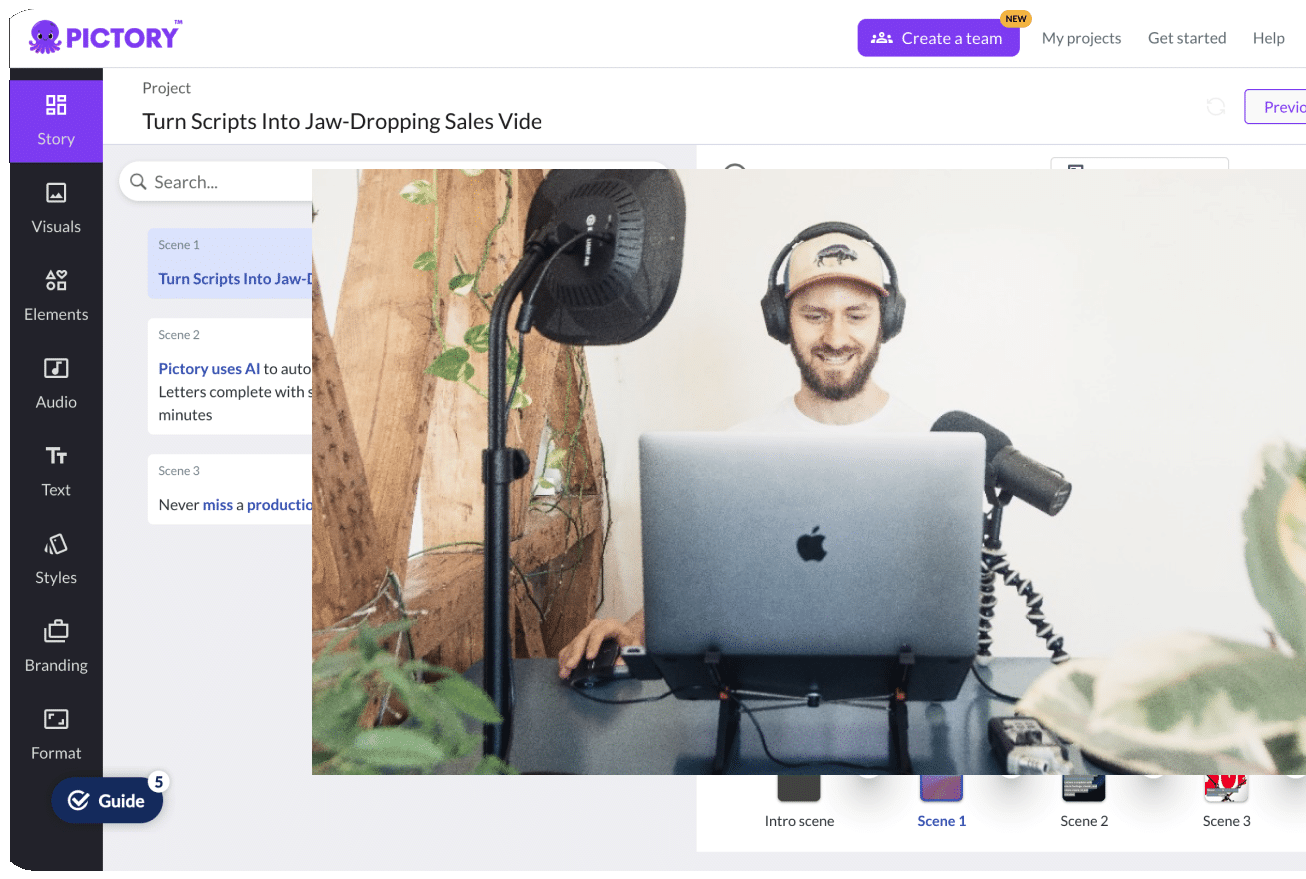
The single-photo workflow lives in AI Studio, inside the Visuals tab of any project. Six steps take you from upload to a finished clip. For the full walkthrough with screenshots, there is a step-by-step guide to using AI Studio for visual generation in Pictory Academy.
Open AI Studio in the Visuals tab
Start any project, open the Visuals tab in the editor’s left sidebar, and select AI Studio.
Toggle to Videos mode
Switch the mode toggle from Images to Videos so you’re generating motion, not a still.
Upload your reference image
Add the photo you want to animate. High-resolution originals produce cleaner results than compressed social exports.
Pick a model, clip length, and aspect ratio
Choose Pixverse 5.5, Veo 3.1 Fast, or Veo 3.1. Set clip length to 5, 8, or 10 seconds. Pick 16:9, 9:16, or 1:1 for aspect ratio.
Describe the motion
Write what should move: “slow zoom in on the product” or “subtle head turn to the left.” Keep it to one clear motion per generation.
Generate and add to your scene
Once the clip renders, add it to the current scene, save to Uploads, or download it. Regenerate if the motion misfires.
Real credit maths: a 5-second clip on Pixverse 5.5 costs about 8 credits. Same clip on Veo 3.1 Fast costs 50. On Veo 3.1, it’s 100. Pick your quality tier based on where the clip is going, not just how it looks in the preview.
How to build a photo slideshow video
If you’re working with a batch of photos, the Images to Video flow is the faster route. It’s built for sequences: real estate tours, event recaps, portfolios, or product launches with multiple SKUs.
Drag your files into the upload area, reorder them in the list, and set the duration per image (the default is 5 seconds). Hit Generate Video and Pictory builds a storyboard, then drops you into the full editor where you can add music, voiceover, transitions and a brand kit before export. Academy has the detailed version: how to turn images into a video with Pictory AI.
One caveat: the Images to Video flow sequences your stills with transitions, it does not add generated motion to each photo. If you want a camera push on individual shots, animate those in AI Studio first, then bring the clips and your remaining stills into the storyboard together.
Prompt patterns for realistic photo motion
Describe one clear motion and the models behave. Ask for several at once and the output goes mushy. The same rule applies on the image side, so the Academy guide to writing good image prompts for Pictory AI Visual Studio is worth reading alongside this section.
Camera motion prompts (safest starting point):
- “Slow zoom in on the subject, cinematic pace.”
- “Gentle pan left across the scene.”
- “Slight dolly forward, keeping focus on the product.”
Subject motion prompts (higher risk, higher reward):
- “Subtle head turn to the left, soft smile.”
- “Wind moves gently through hair.”
- “Steam rises from the cup, slow drift upward.”
Prompts to avoid:
- “The person starts walking and waves at the camera.” (Too many motions.)
- “Everything moves dramatically.” (No direction.)
- “The subject talks to the camera.” (Lip sync still misfires on most models.)
Which model to pick for photo to video
All three video models in Pictory’s AI Studio handle image to video. Pick based on where the clip is going and what your credit budget allows. For background on the cheapest of the three, we covered PixVerse 5.5 in Pictory AI Studio when it launched.
Practical use cases for marketers and creators
Photo to video AI pays off wherever you have strong stills but need motion for the feed. Six cases where that shows up most:
- Real estate listings. Property photos animated into a short walkthrough, which gives a listing motion without booking a videographer.
- Product launches. Hero product shots animated into 5-second social opens for Instagram Reels, TikTok, and LinkedIn.
- Event recaps. Turn a folder of event photos into a 60-second highlight for the day-after email.
- Testimonial b-roll. Animate a client’s headshot as cover footage over their written quote.
- LinkedIn posts. A five-second animated clip gives you a native video asset without a shoot, on a feed that consistently pushes native formats over links.
- Memorial and family videos. Old photographs animated into short tribute clips for services, milestones, and personal projects.
Turn your photos into video today
Animate a single image in AI Studio or build a full sequence from a batch of stills.
Limitations to plan around
Photo to video AI has real ceilings. Know them so you can pick the right tool for the job.
- Clip length caps. Individual clips run 5 to 10 seconds. Longer sequences need stitching.
- Face motion drift. Portraits with heavy subject motion sometimes warp. Stick to subtle head turns or smiles rather than dramatic expressions.
- Hand movement. Complex hand motion is still the hardest thing for video models to get right. Avoid prompts where hands are the focus.
- Text in image. Text on signs, packaging, or screens often distorts during generation. If text needs to stay legible, animate a version without it and overlay the text in the editor.
- Reference quality. Low-resolution or heavily compressed source images produce lower-quality output. Use the highest-quality original you have.
Verdict: who this fits, and who should skip it
Photo to video AI suits product marketers, real estate agents, social media managers and small ecommerce operators. If you already have a decent photography workflow but no video budget, this is the cheapest way to close the gap. Turning a static post into a five-second animated clip costs you a prompt and a couple of minutes.
Skip it for broadcast work, dialogue-heavy scenes, and anything a client will scrub through frame by frame. Lip-synced conversation and complex multi-subject action are still beyond it. If that is the brief, plan a shoot.
For everything else the workflow is fast enough to change what you ship this week. Upload a photo, describe the motion, generate the clip, drop it in the storyboard. If you want script, voiceover and captions layered on top, run the clip through the Pictory AI video generator.
FAQ: Photo to Video AI
Can I animate a portrait photo without it looking distorted?
Yes, if you keep the motion subtle. Head turns, gentle smiles, and camera zoom work well. Dramatic expressions, fast movement, and complex hand motion still misfire on most models in 2026. Start with a camera zoom or a subtle head motion, then push further only if the first result holds up.
What image formats work best for photo to video AI?
JPG, PNG, and WebP all work. What matters more than format is resolution and quality. High-resolution originals produce cleaner motion than compressed social exports. If your source is a screenshot or a low-resolution web image, expect lower-quality output regardless of which model you pick.
Is photo to video AI free to try?
Pictory’s free trial includes credits you can spend on AI Studio, which covers photo to video generation. That’s enough to test single-photo animation and try the Images to Video slideshow flow before committing. Paid plans give you a larger monthly credit allowance for regular use.
How long can I make a clip from one photo?
Single-image clips run 5, 8, or 10 seconds in Pictory’s AI Studio. If you need longer, generate multiple clips from the same photo with different motions, then stitch them together in the storyboard. That approach also gives you more editorial control than trying to force one long clip.
Can I use photo to video AI commercially?
Yes, on Pictory’s paid plans. Commercial use is included in the standard subscription, so clips generated in AI Studio can go into ads, client work, and paid campaigns. Free trial output is usually fine for testing, but check current terms before shipping paid work.
Related reading
How to generate the source images you will animate, straight from a text prompt.
Prompt structure that carries over directly to describing motion.
The other route into video, for when you are starting from a script rather than a photo.
Sources and editorial note
Credit costs and model options reflect Pictory AI Studio at the time of publication and are subject to change. Check your plan for current allowances.
Two third-party statistics were removed from this article before publication. A widely repeated claim that listings with video receive 403 percent more inquiries could not be traced to a primary source. It is attributed variously to the National Association of Realtors, PropertyNest, REA Group and DigitalSherpa, and the earliest traceable instance appears on a vendor page from 2014. A LinkedIn engagement comparison was also removed because the figures did not match the Socialinsider 2026 benchmark data they were attributed to.
![[Article] Promo Video: How to Make One That Converts](https://pictory.ai/wp-content/uploads/2026/09/blog-video-promo-300x169.webp)