![[Blog] - AI Image to Video: The Complete 2026 Guide](https://pictory.ai/wp-content/uploads/2026/07/blog-ai-image-to-video-guide.webp)
Uploading a still photo and watching it come to life used to require expensive motion graphics software or a video editor. Pictory changes that: upload a photo, pick a motion style, and get a finished video with voiceover, captions, and music built in, all in one place. This guide covers how image to video actually works, which tools fit different workflows, and how to animate your first photo today.
TL;DR
AI image to video turns a still photo into a moving clip by predicting motion between frames. Generative models like Veo 3.1 and Kling 3.0 create the raw motion, but you still need voiceover, captions, and music to turn that clip into a video people will watch. Pictory handles that finishing work, so you can animate a photo and publish a complete video in one place, without a credit card to start.
What does AI image to video actually mean?
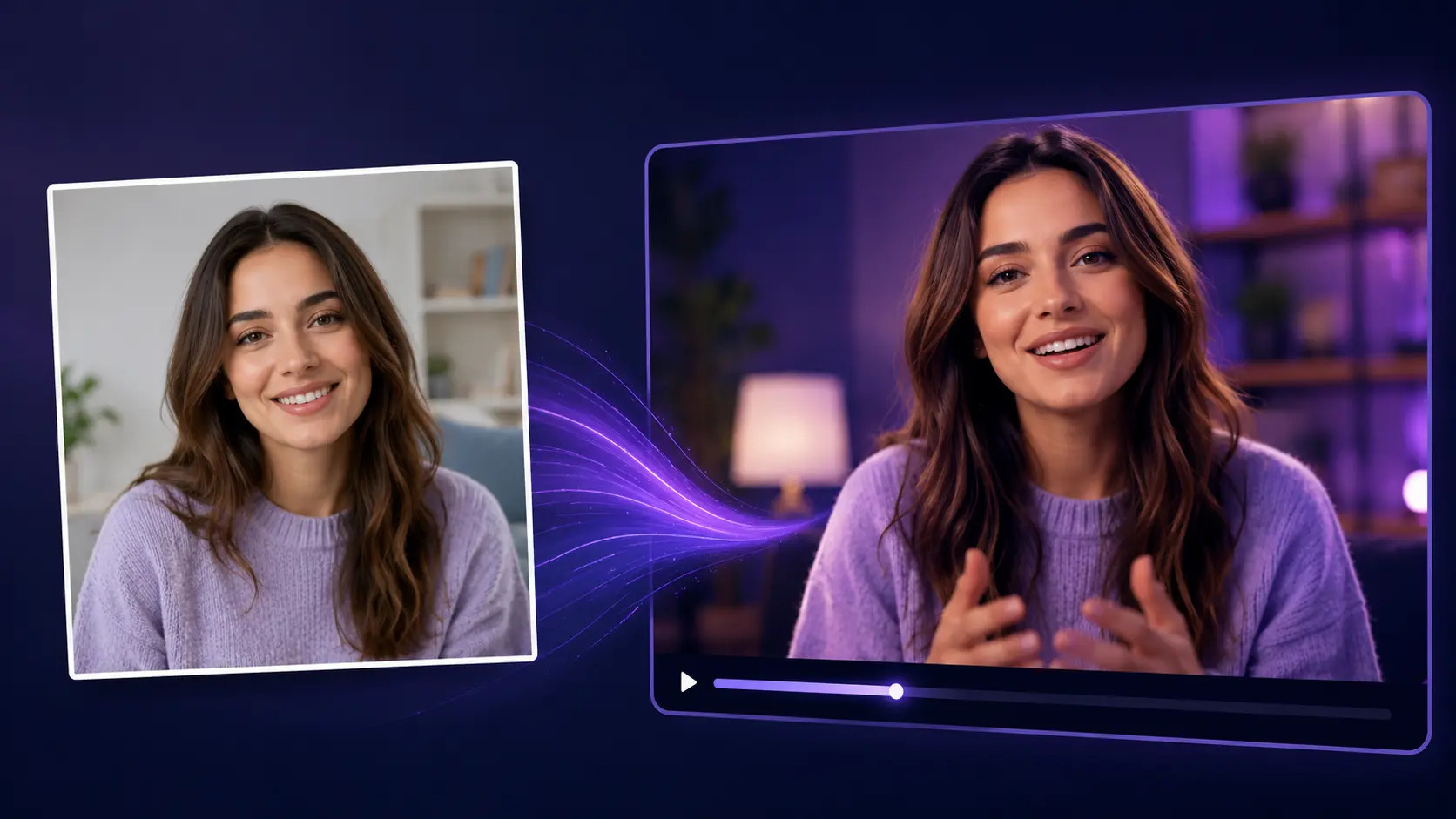
AI image to video is the process of feeding a single photo into a model that generates a short clip of motion around it. The model doesn’t edit the photo. It predicts new frames that come before and after it, so the subject appears to breathe, move, or shift within a scene lasting a few seconds.
This differs from text-to-video, where the model builds a scene from a written prompt with no reference image. It’s also different from text to image, which creates a still picture rather than motion. Image to video sits between the two: you supply the starting point, and the AI supplies the movement.
Marketers use it to bring product photos and portraits to life for social feeds. Educators use it to turn a diagram or a headshot into a short explainer clip. Either way, the goal is the same: get more from a single photo than a caption ever could.
How does AI turn a photo into a video?
The model reads your photo as a starting keyframe, then predicts a chain of frames that follow it, estimating how pixels should shift in each one. Depth and motion data guide the direction, so a wave moves forward and a scarf blows sideways, not the reverse.
Under the hood, most 2026 models work in three passes. First, the system maps depth: which parts of the photo are near, and which are far. Second, it assigns motion vectors: small arrows that tell each region how to shift over the next few seconds. Third, it renders new frames along those vectors and smooths the transitions so the clip doesn’t flicker or warp.
Newer models push this further: Veo 3.1 now generates native 4K clips with synchronized audio, while Kling 3.0 renders native 4K at 60fps in clips up to 15 seconds long.
That precision is why raw motion still isn’t a finished video. You get a clip, not a story with a voice, a message, and a call to action.
How to turn an image into a video, step by step
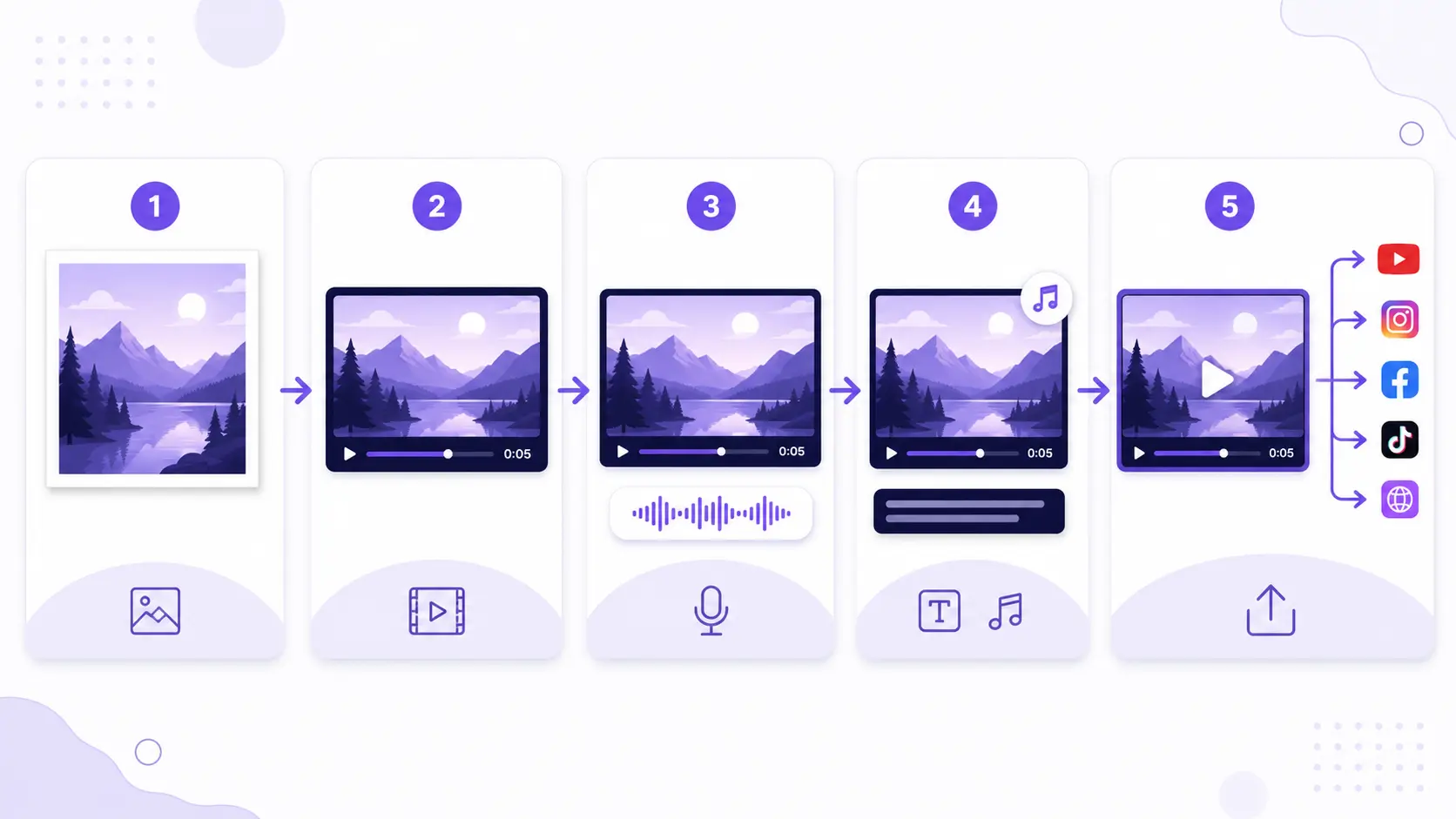
Here’s the workflow inside Pictory’s image to video tool, from a single photo to a finished, published clip.
Upload your photo
Drop in a product shot, portrait, or graphic. Pictory reads the frame and flags the areas it can animate.
Generate the motion clip
Choose a motion style, camera pan, subtle drift, or zoom, and Pictory renders a short clip from the still image.
Add a voiceover and captions
Type a script or paste an existing one. Pictory generates a natural voiceover and syncs captions to it automatically.
Layer in music and branding
Pull from Pictory’s royalty-free library to add music to your video, then drop in your logo, colors, and fonts.
Export and resize for every platform
Export square, vertical, or widescreen versions in one pass, ready for Instagram, TikTok, YouTube, or a landing page.
Which AI image to video tool should you pick?
The 2026 generative models are strong at motion, but each one stops at the clip. None of them add a voiceover, sync captions, or finish a video ready to post. Here’s where each tool actually fits.
If you want the raw motion and the finished, branded video, without stitching six tools together, Pictory’s image to video tool covers both ends in one workspace.
Animate your first photo today
Upload an image, add a voiceover, and export a finished video in minutes.
Can you make image to video for free?
Yes. Several tools let you animate a photo at no cost. Canva’s image to video feature is included free on every Canva plan, and Pictory offers a free trial with no credit card needed, so you can test a full photo-to-video workflow before you pay for anything.
The trade-off with most free tools is scope. A free tier usually caps clip length, resolution, or how many exports you get each month. If you only need one animated post a week, that’s fine. If you’re producing video daily for a channel or a course, you’ll hit the ceiling fast and need a plan built for volume.
How do you get better results from a still image?
Start with a sharp, well-lit photo and a clear subject. Blurry backgrounds, cluttered frames, and low resolution confuse the motion model and produce warped or shaky clips. A clean shot with one obvious focal point animates far more naturally.
A few habits make a bigger difference than any setting:
Shoot in higher resolution than you think you need. Motion models stretch and reframe pixels, so extra detail gives them more to work with.
Leave room around your subject. A tight crop limits how far the camera can pan or zoom without cutting something off.
Pick a motion style that matches the photo. A portrait suits a slow drift or subtle zoom. A landscape or product shot can handle a wider pan.
Keep clips short. Three to six seconds of motion looks intentional. Longer clips from a single photo often drift into distortion.
Turning image clips into finished, shareable videos
A moving clip isn’t a video yet. It’s a scene without a voice, a message, or a reason to watch past the first second. That’s where most image to video projects stall.
Short-form video already carries a real edge: it earns 2.5 times more engagement than long-form content across social platforms. That gap only pays off if the clip has a hook, a voiceover, and captions people can follow with the sound off.
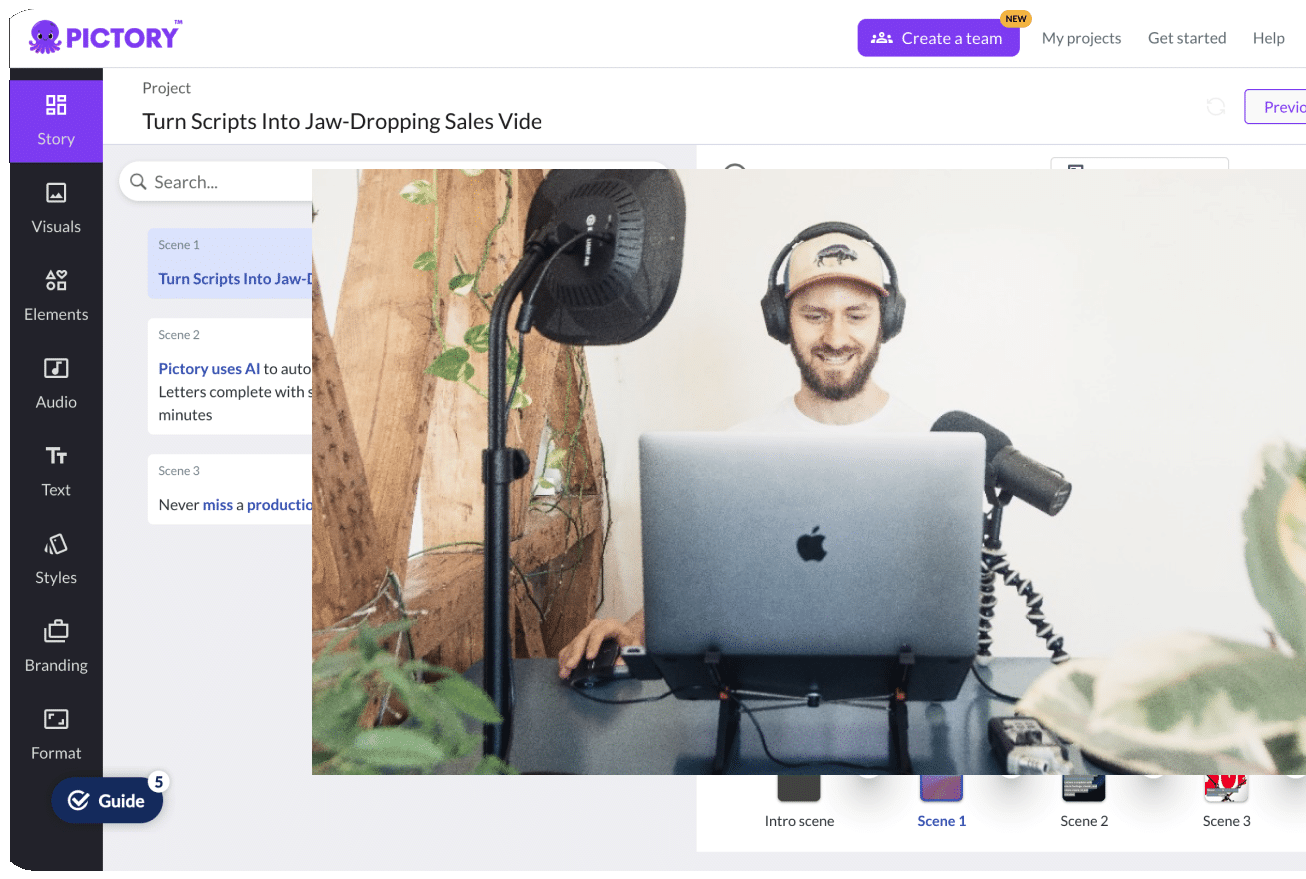
Pictory’s AI video editor takes an animated clip and turns it into that finished piece: trim it, add a script-driven voiceover, sync captions, and drop in a music bed. From there, you can pull the same clip apart into a handful of formats. Pictory’s guide to repurposing content with AI walks through stretching one photo-based video into a Reel, a YouTube Short, and a static carousel post, all from the same source file.
It’s worth the extra step. 91% of businesses now use video as a core marketing tool, and the ones getting results treat each clip as one asset among many, not a one-off post.
Is AI image to video right for you?
Image to video is the right fit for a marketer running social content solo, without hiring an editor or booking a shoot. It gives you a way to turn product photos and headshots into scroll-stopping clips fast. Pair it with a voiceover and captions, and a single photo can carry a full campaign across three or four platforms.
It’s a weaker fit if you need long, complex scenes with multiple characters interacting, or footage that has to match an exact script beat by beat. Generative motion models still work best on short clips built from one clear image, not full narrative sequences.
For most marketers and educators, the fastest path is to animate the photo, then finish the video in one place. That’s what Pictory is built for: fast, scalable, and affordable video from a single image.
Turn your next photo into a finished video
Animate it, add a voiceover, and publish across every platform from one workspace.
FAQ: AI Image to Video
What’s the difference between AI image to video and text to video?
Image to video starts from a photo you already have, and the AI adds motion around it. Text to video builds a scene from scratch, based only on a written prompt, with no source image guiding the result.
How long can an AI-generated image to video clip be?
Most tools generate clips between three and 15 seconds from a single photo. Kling 3.0 supports clips up to 15 seconds at high frame rates, though shorter clips of three to six seconds usually look the most natural.
Do I need editing skills to animate a photo with Pictory?
No. Pictory is built for people without editing backgrounds. You upload a photo, pick a motion style, and Pictory handles the voiceover, captions, and export, so you get a finished video without touching a timeline.
Can I add voiceover and music to an AI image to video clip?
Yes. Once you animate a photo in Pictory, you can add a script-based voiceover, sync captions automatically, and layer in music from the built-in library, all in the same workspace where you created the clip.
Is a free AI image to video generator good enough for business use?
Free tiers work for occasional, single-platform posts. Businesses posting regularly across channels usually need higher resolution, more monthly exports, and voiceover or captioning, which is where a paid plan pays for itself.
Related Posts