Making a birthday video used to mean an hour of dragging photos into iMovie and hoping the timing lined up with the song. In 2026, free and AI-powered tools like Pictory do most of that work, whether you want a simple photo slideshow or a video with an AI voiceover reading your message aloud. You can put together a polished, sentimental video in under 40 minutes, whether it’s a 1st birthday or a milestone 50th. Here’s the exact workflow, plus which tools work best for what.
QUICK ANSWER
To make a birthday video with photos, pick 15 to 30 favorite pictures, choose a background song, and use a video maker to combine them with captions and transitions. Free options like Canva, CapCut, and iMovie cover the basics. AI tools like Pictory can generate the video from a script if you want narration or an intro clip. Most birthday videos take 20 to 40 minutes to assemble, and the ideal length is between 90 seconds and three minutes.
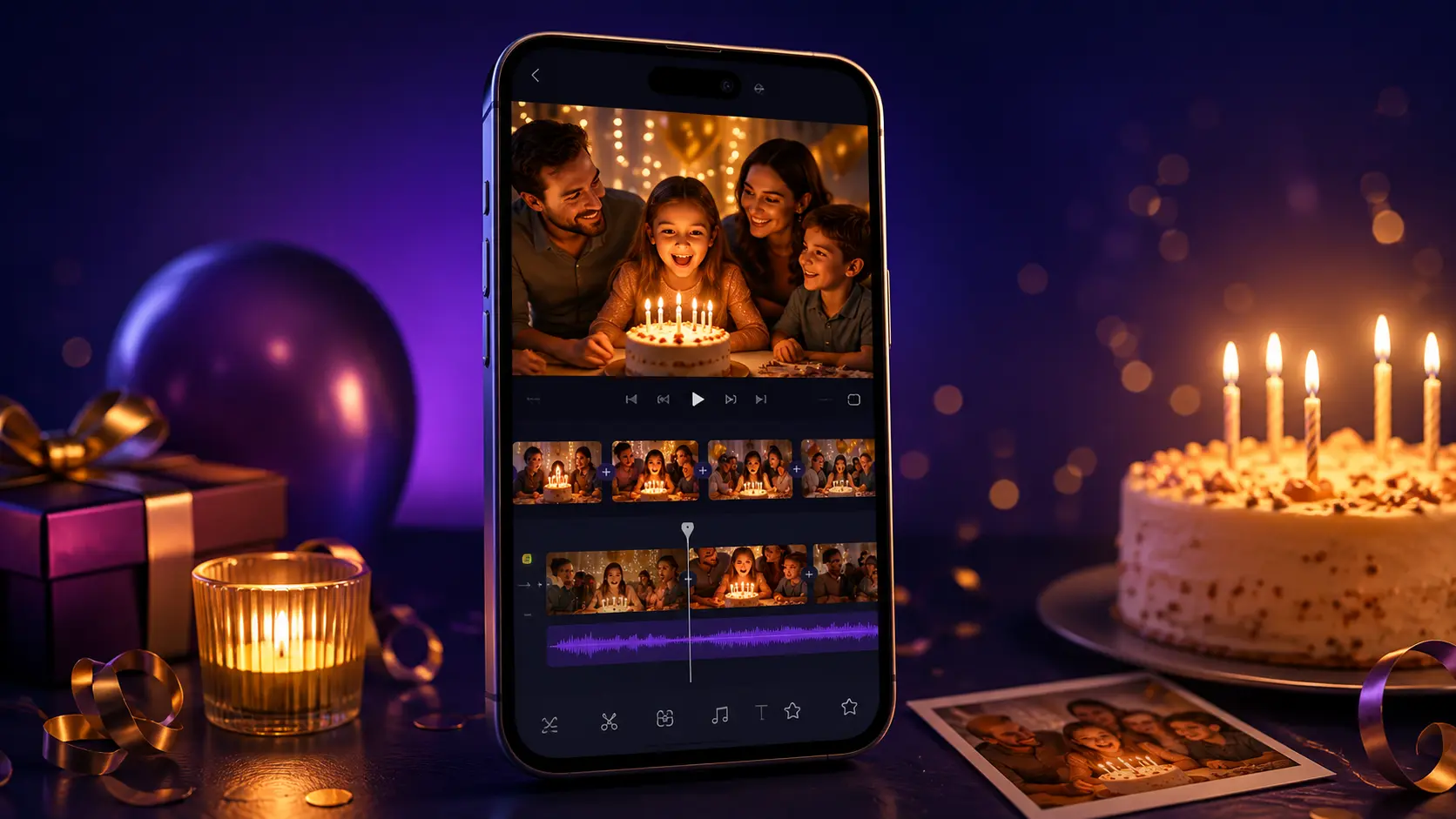
What you’ll need to make a birthday video
The good news is you already have most of it. Before opening a video maker, gather a few things so you’re not switching tabs mid-project.
- 15 to 30 photos of the birthday person. Fewer than 15 feels thin. More than 30 usually overstays the song.
- A background song. Royalty-free if you’ll post publicly, any song for private sharing.
- A video maker. Free (Canva, CapCut, iMovie) or AI-assisted (Pictory, InVideo, Animoto).
- 20 to 40 minutes of your time.
- Optional: short written messages from friends and family, an old birthday photo of the person as a baby, or a favorite quote of theirs.
How to make a birthday video with photos in six steps
The workflow is the same across every tool. What changes is how much the AI does for you.
Gather your photos and put them in order
Chronological order is the safest bet: baby photos, childhood, teen years, adulthood. For younger birthdays, group by theme (family, friends, hobbies) instead. Save everything to one folder before you upload.
Write short captions or messages
One line per photo, five to eight words each. Names, dates, or a quick memory work. Save the longest message for the last frame.
Pick the right song
Upbeat for a happy celebration, nostalgic for a milestone, or funny for a friend who’ll appreciate the joke. Match the song mood to the age of the person and the tone of the photos.
Choose a video maker
Free options like Canva or CapCut work for most birthdays. AI tools like Pictory add narration and generate scenes automatically. Pick based on what you want the finished video to look like.
Upload, arrange, and add the song
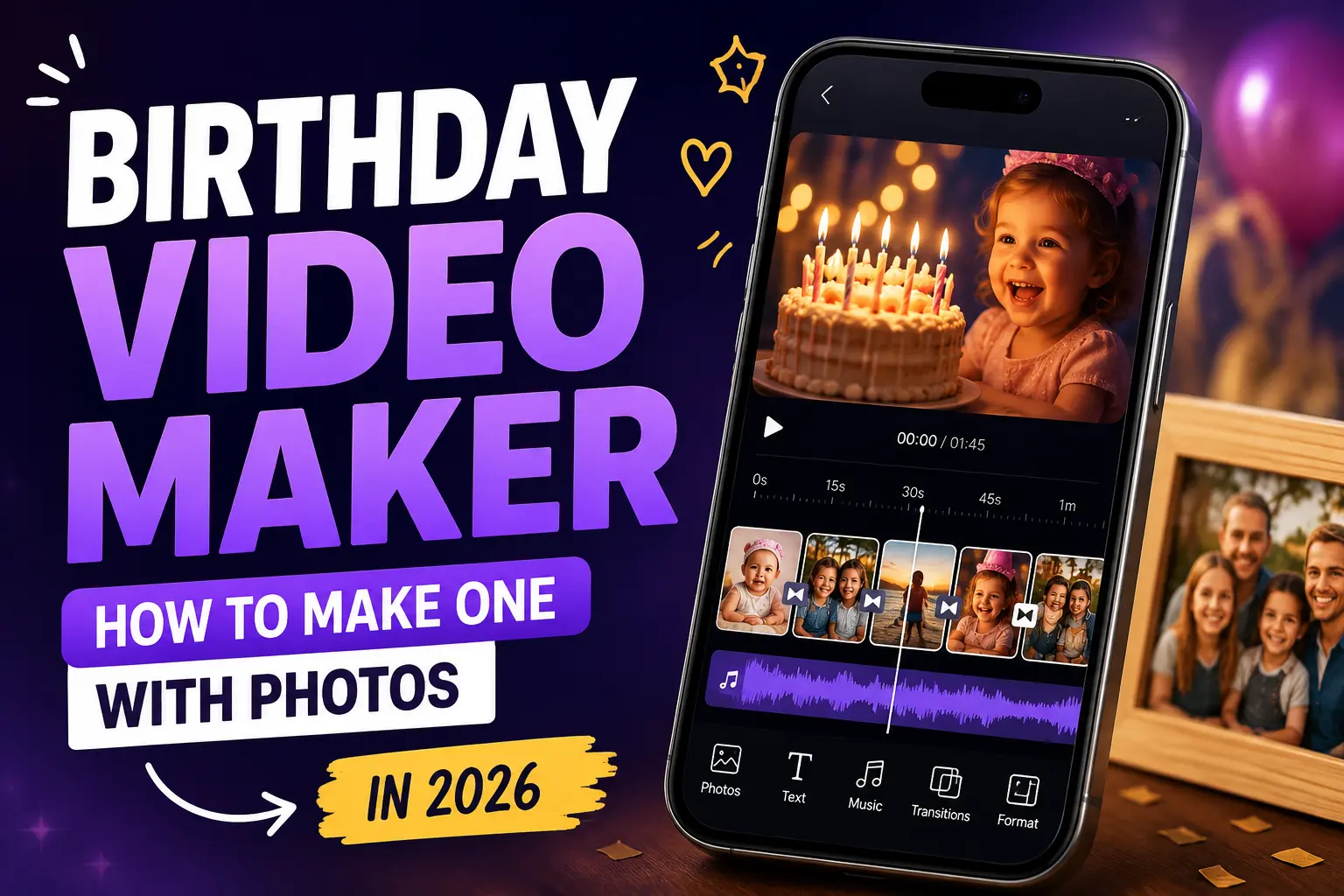
Drop your photos in order, paste each caption, and drag the song onto the audio track. Most tools auto-fit photo timing to the song length. Adjust individual photos if you want a specific one to hold longer.
Preview, export, and share
Watch the full video before exporting. Check that captions are readable and the ending lands. Export in 16:9 for a TV or laptop viewing, 9:16 for phones, or 1:1 for a group chat. Share directly or upload to WhatsApp, iMessage, or a private YouTube link.
Best free birthday video maker tools
Free tools cover the birthday-video use case well. You don’t need a paid subscription unless you want AI narration, higher export quality, or specific commercial-use rights. Here are the five that hold up.
Canva
The best-known free option. Canva has dozens of birthday video templates, a large music library, and a browser-based editor with no install required. The free tier limits some templates and exports, but for a personal birthday video, it’s more than enough. Works on desktop and mobile.
CapCut
Best for adding filters, transitions, and animated text. CapCut runs on desktop, phone, and browser, and the free tier includes commercial-friendly music. If you want the video to feel like the ones on Instagram Reels or TikTok, CapCut is the closest match to that visual style.
iMovie
If you’re on a Mac or iPhone, iMovie is already installed and it’s genuinely free with no watermark. The interface hasn’t changed much in years, but the drag-and-drop photo workflow is fast and the built-in trailer templates work well for birthday videos.
Kapwing
Best browser-based option if you don’t want to install anything. Kapwing includes birthday templates and a music library, though free exports carry a small watermark in the corner. Fine for private sharing, less ideal for a public social post.
Google Photos Movie Maker
If most of the photos already live in Google Photos, the built-in Movie Maker will assemble a slideshow with music in a few taps. Limited creative control, but the fastest option if you don’t want to move files around.
Best AI birthday video makers
AI tools go a step further than the free editors. Instead of dragging each photo, you write a short message or paste a caption and the AI arranges photos, adds music, and generates narration or an intro clip. Best if you want the video to feel more polished or you want the birthday person to hear a warm voiceover message.
Pictory
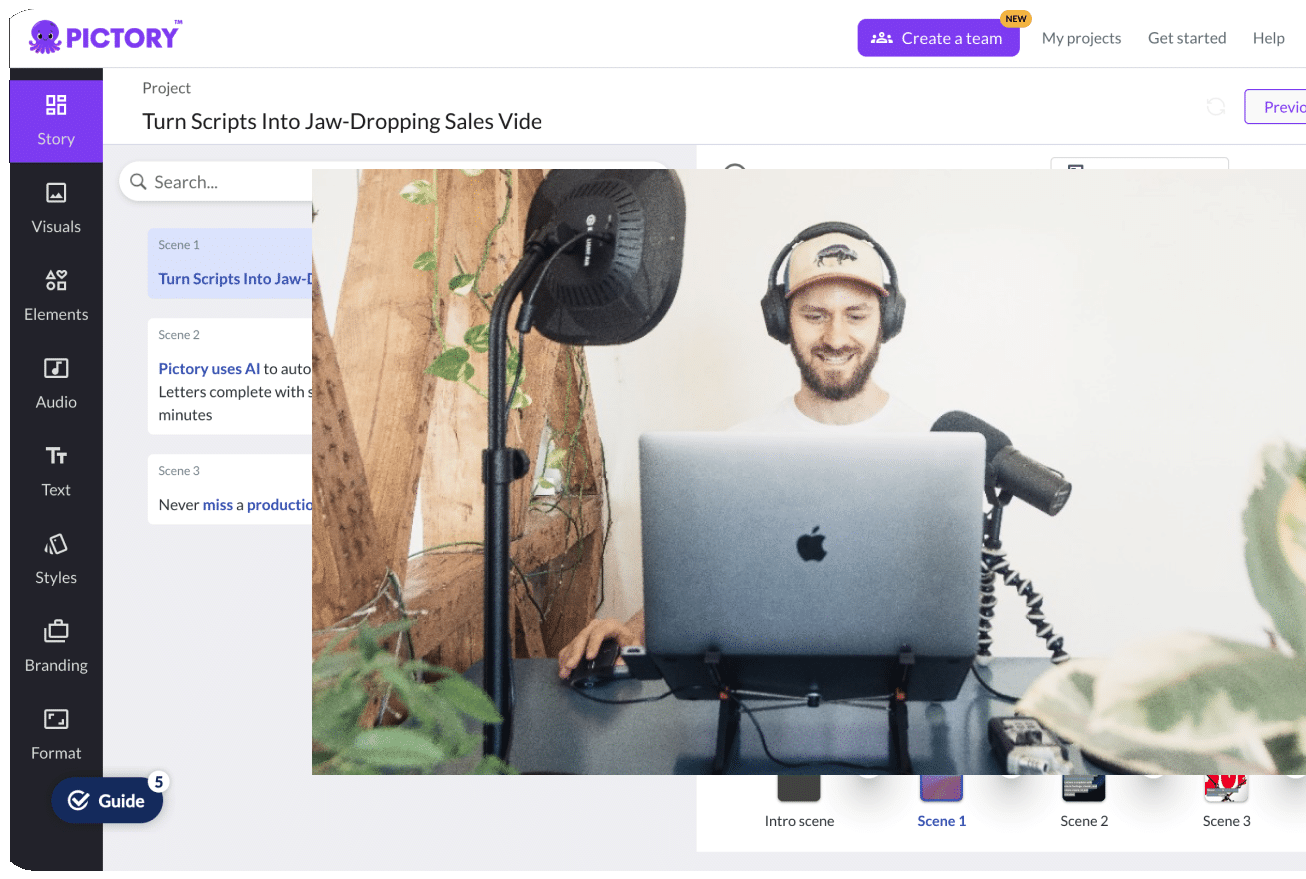
Turn a written birthday message into a full video with an AI voiceover, matching visuals, and captions. Upload your photos through Pictory’s image to video tool, add a script, and pick from 170+ voices. Best if you want narration in the video or you want to add a professional intro before the photo slideshow. See the Academy guide to generating AI voiceovers for the full walkthrough. Pictory offers a free trial to try it before subscribing.
InVideo
Birthday templates with AI script assist. Good middle ground between a fully manual editor and a fully generative AI tool. Free tier includes a watermark.
Animoto
Template-first AI editor. Fastest option if you want a birthday video in under 10 minutes with minimal customization. Free tier is limited but usable for a personal video.
How to add music to a birthday video without copyright issues
Music is what makes a birthday video work. But if you’re planning to post the video on YouTube, Instagram, or TikTok, the song matters legally as well as emotionally.
For private sharing on WhatsApp, iMessage, email, or a family group chat, using a copyrighted song is usually fine. No platform is scanning family videos for takedowns.
For public posting on YouTube, Instagram, or TikTok, use royalty-free music. Copyrighted songs will get the audio muted, the video removed, or ad revenue redirected. The good news: free royalty-free options are plentiful.
- YouTube Audio Library: free, safe to use on YouTube, hundreds of tracks by mood. (note – must be logged in to YT Studio to access the library)
- Pixabay Music: free with no attribution required, safe for social use.
- Epidemic Sound: paid but affordable, huge library, best quality.
- Artlist: paid, curated for video creators, strong emotional and cinematic tracks.
10 birthday video ideas by age and occasion
Not every birthday video should look the same. Here are 10 formats that work for different ages, relationships, and settings.
- 1st birthday year-in-photos: monthly milestones set to a soft lullaby.
- Kids birthdays (ages 5-12): funny moments with animated stickers and text.
- Milestone throwback (18, 21, 30, 40, 50): decade-by-decade photo montage.
- 50th or 60th birthday message compilation: family and friends filmed on their phones, edited together with photos.
- 90th or 100th birthday life video: old and new photos across the whole life.
- Surprise birthday video: friend and family messages compiled for someone unable to gather in person.
- Long-distance birthday: single video message from far away, with photos of shared memories.
- Employee birthday: team appreciation video from coworkers.
- Parent birthday from kids: handmade drawings scanned in with family photos.
- Pet birthday: yes, this is a real category, and yes, it works.
Tips for making a birthday video that stands out
A few small choices make the difference between a video the birthday person watches once and one they save.
- Keep it under three minutes. Attention drops fast, even for the birthday person. Two minutes is the sweet spot.
- Start with your strongest photo. Set the tone in the first two seconds.
- Match song energy to photo pacing. Upbeat song, faster photo transitions. Slow ballad, hold each photo longer.
- Add captions for muted-autoplay platforms. Instagram and LinkedIn play videos on mute by default. Captions save the moment.
- End with a personal message from you. Even a single line (“Happy birthday, Mum, love you”) makes the difference.
- Vary photo angles and eras. A mix of close-ups, group shots, and different periods keeps attention.
How do you pick the right birthday video maker?
Start with what you already have and what you want the finished video to look like.
Want AI narration and photo animation in your birthday video?
Pictory turns your written message and photos into a video with an AI voiceover and matching visuals.
FAQ: Birthday Video Maker
What’s the best free birthday video maker?
Canva is the best free birthday video maker for most people because it includes dozens of birthday templates, a large music library, and a browser-based editor with no install required. CapCut is a strong runner-up, especially for adding filters and animated text. Both have free tiers with limits on export quality or watermarks on some templates.
How do I make a birthday video with music?
Upload your photos to a video maker like Canva, CapCut, or Pictory. Add captions or text messages if you want them. Then drop in a background song from the tool’s built-in music library. For sharing on YouTube or Instagram, use royalty-free music to avoid copyright takedowns. For private sharing on WhatsApp or iMessage, any song usually works.
Can I use AI to make a birthday video?
Yes. AI birthday video makers like Pictory, InVideo, and Animoto can turn a written birthday message into a video with matching photos, music, and AI narration. Write a short script or upload your photos and captions, and the AI arranges them into a finished video in minutes. Best if you want narration or a polished look without editing.
How long should a birthday video be?
The ideal birthday video length is 90 seconds to three minutes. Shorter videos hold attention better and are easier to share on messaging apps and social feeds. If you’re including messages from multiple friends and family, aim for five to eight seconds per person. Longer videos work for milestone birthdays where you want a full life recap.
Can I use any song for a birthday video?
For private sharing on WhatsApp, iMessage, or email, copyrighted songs usually work without issues. For public posting on YouTube, Instagram, or TikTok, use royalty-free music to avoid takedowns or muted audio. Free royalty-free sources include the YouTube Audio Library, Pixabay Music, and Freesound. Paid options like Epidemic Sound offer larger libraries with better production quality.
Ready to make one?
Upload your photos, write a short message, and let Pictory build the video with voiceover, music, and captions.
Related Posts
![[Article] Promo Video: How to Make One That Converts](https://pictory.ai/wp-content/uploads/2026/09/blog-video-promo-300x169.webp)