TL;DR
URL to video is the fastest way to repurpose your existing web content into a branded, ready-to-publish video. You paste a link, AI extracts the key ideas, generates a script and storyboard, adds visuals and voiceover, and you export. This guide covers every step in Pictory, from pasting your first URL through to applying your brand kit and downloading the final file.
You’ve written the blog post. The product page is live. The case study took three weeks. The problem is that written content rarely travels far enough, and 91% of businesses now use video as a marketing tool, while most content teams are still producing everything as text. You paste a URL and Pictory’s AI turns it into a narrated, captioned, branded video in minutes. This guide walks through every step.
What Is URL to Video?
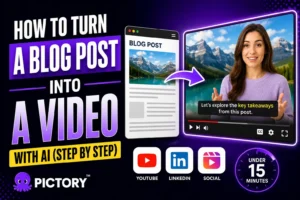
URL to video is an AI workflow that reads a webpage, extracts the key content, generates a script and storyboard, and assembles a complete video with visuals, captions, and voiceover, all from a single link.
You paste a URL. The AI reads the page, identifies the most important points, and writes a video script based on what it finds. That script gets broken into scenes, each scene gets matched with stock or AI-generated visuals, captions are added automatically, and an AI voiceover narrates the whole thing. The result is an editable video draft you can brand, adjust, and download.
It works on blog posts, product pages, news articles, landing pages, and most publicly accessible web content. The one limitation: the AI can only work with what the page actually contains. Pages with very little written copy, or content locked behind a login, won’t give it much to extract. For content-rich pages, it’s one of the fastest repurposing workflows available.
Why Should You Turn Existing URLs into Videos?
The content you’ve already published is the starting point, not the ceiling. Short-form video is the top ROI-driving content format for marketers in 2026, ahead of long-form video and every other format. Written content that stays on a page reaches the people who find that page. Video reaches LinkedIn, YouTube, Instagram, and your email list, often a completely different audience.
There’s also a production argument. Companies using AI-driven repurposing reduce production costs by up to 65% while growing output significantly. For a solo marketer or a small content team, that shifts the question from “can we afford to make video?” to “which posts should we turn into video first?”
Adding video to a landing page can increase conversions by up to 80%. AutoFaceless 2026 Repurposing Data
A product page turned into a 60-second explainer video, embedded back on the same page, can lift conversion without any additional ad spend. A blog post turned into a LinkedIn video becomes a lead-generation asset, not just a piece of SEO content.
How to Turn a URL into a Video in Pictory: Step by Step
Pictory’s URL to video workflow has four main stages. For the full walkthrough with screenshots, the Pictory Academy guide covers every step.
Paste your URL and configure your settings
From the Pictory homepage, select URL to Video. Paste your link into the input field. Then set your video type (Explainer, Marketing, Tutorial, etc.), add any extra context about audience or tone, choose your platform, and set your preferred length. Click Generate Script. Pictory extracts the page content and produces a draft script in about 30 seconds for most pages.
Review and edit the script
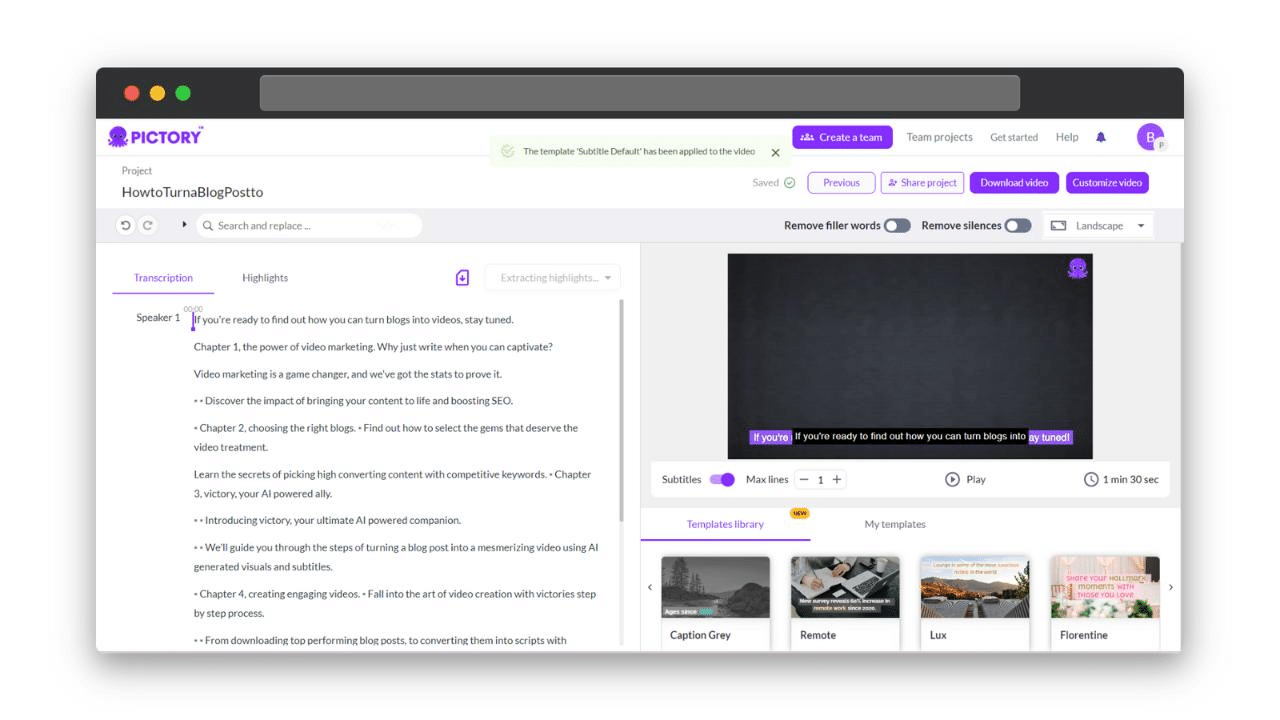
The Script Editor opens with your draft. Read through it: the AI extracts the most prominent points from the page, but you know your audience better. Trim anything that doesn’t serve the video. Tighten sentences to one idea each. Use Ask AI to optimize, rephrase, shorten, or change tone. In the right panel, set your aspect ratio (16:9 for YouTube, 9:16 for Reels and TikTok, 1:1 for square posts), select your Brand Kit, and choose your scene segmentation style. When you’re happy, click Generate Video.
Let the storyboard build
Pictory processes your script into a storyboard. Each line becomes a scene; each scene gets matched with a visual from the Getty Images library or Storyblocks. A progress bar shows completion. You can continue working on other projects in the meantime.
Edit, brand, and export
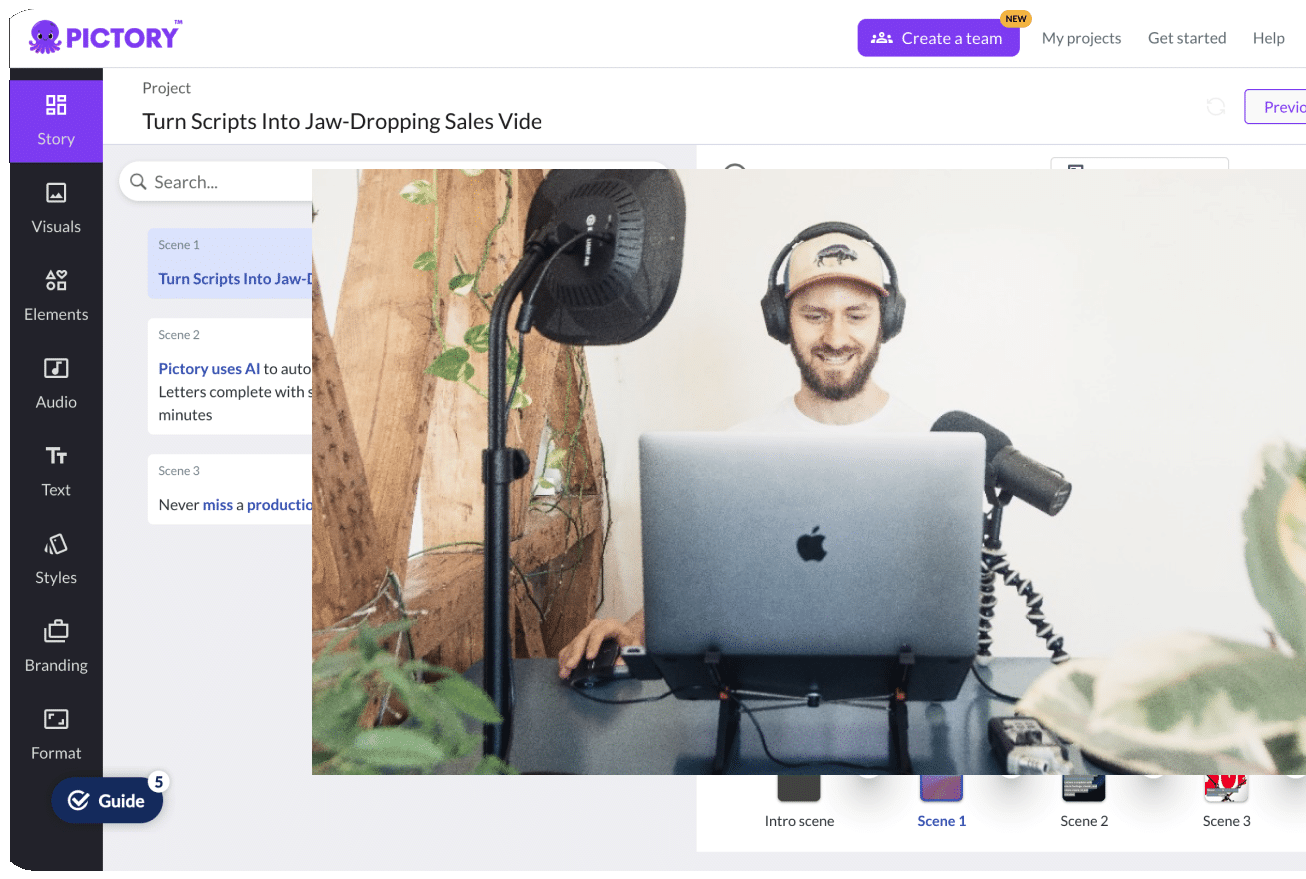
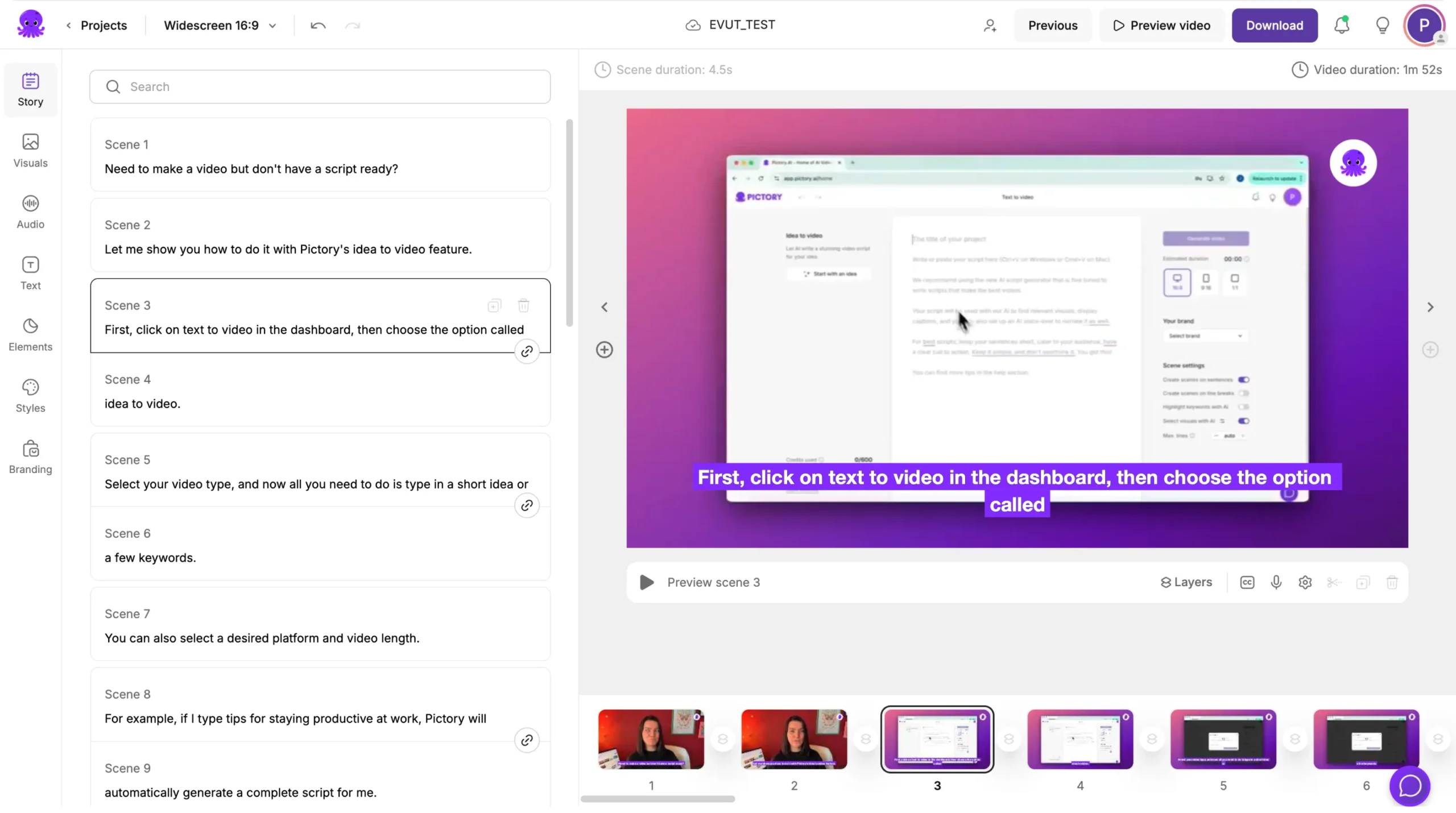
In the video editor, you get a left panel (scenes and script), a right panel (preview), and a bottom timeline with scene thumbnails. Swap visuals in the Visuals tab, adjust the voiceover in the Audio tab, style text overlays in the Text tab, and apply branding in the Branding tab. Preview the full video, then click Download Video to export. Your project saves automatically under My Projects.
What Types of URLs Work Best for Video Conversion?
The quality of your source page shapes the quality of the video draft. Here’s what works well and where to watch out.
Blog posts and long-form articles
Rich written content gives the AI plenty to extract and structure. The more distinct points the post makes, the more natural the scene breaks will be.
Product and feature pages
Benefits, features, and CTAs translate directly into a short video format. Good for turning a product page into a 60-second explainer or ad.
News articles and press releases
These are typically well-structured with a clear opening, key facts, and a conclusion, which maps cleanly onto a short video narrative.
Pages with paywalls or login requirements
Pictory can only extract content that’s publicly visible. If your content is behind a gate, copy the text and use Script to Video instead.
Image-heavy pages with minimal written copy
Not much text for the AI to work from. Add extra context in the optional input field to guide the script generation.
How Do You Get Better Results from the Generated Script?
The AI generates a useful first draft, but the best outputs come from spending a few minutes in the Script Editor. A short review pass makes a real difference to the finished video.
Edit for sentence length. Each sentence in the script becomes a caption in a scene. Long, complex sentences create cluttered captions. One idea per line reads much more clearly on screen.
Trim to what the video needs. The AI often extracts more content than a short video can carry. A two-minute video has room for roughly 250 to 300 words. If your draft is longer, cut the points that matter least for your video audience, even if they’re important in the written piece.
Add a strong opening and closing. AI-generated scripts often start softly. Write a direct opening line that states the problem or the value, something the viewer would stop scrolling for. The closing should have a clear next step.
Use Ask AI selectively. The Ask AI tools (Optimize, Rephrase, Shorten, Lengthen, Change Tone) are useful for specific lines, not for rewriting entire sections. Use them on sentences that feel flat or overly formal.
Add context in the input field. Before you generate the script, the optional context field is worth using. Specify your audience, the angle you want the video to take, or any key points the AI should prioritise. This shapes the extraction before it even starts.
How Do You Brand a URL to Video in Pictory?
To apply branding during the URL to video workflow, select your Brand Kit from the right panel of the Script Editor before clicking Generate Video. Pictory will apply your brand’s visual identity across all scenes from the start, saving time in the editor. To adjust after the storyboard is built, open the Branding tab in the left sidebar and select or update your kit there.
For teams managing multiple clients or product lines, you can create separate Brand Kits under Brand Kits in the left sidebar. Each kit stores its own logo variations, colors, and fonts, so you can switch between them for different video series without manually restyling anything.
Which Editor Tools Should You Use to Refine the Video?
Once the storyboard is built, the video editor gives you seven tabs in the left sidebar. Here’s what each one does in the context of a URL to video project.
Story
Edit scene text, reorder scenes, delete scenes, or change what’s displayed as a caption for each moment in the video.
Visuals
Swap any AI-matched stock clip for a different one from the Getty Images library, or generate custom AI visuals with AI Studio.
Audio
Select an AI voiceover by gender, accent, and tone. Add background music. Or upload your own audio file for narration.
Text
Add headings, subheadings, or body text overlays. Animate them with entry and exit effects like Fade, Typewriter, or Elastic from the top toolbar.
Styles
Apply a consistent visual style across all scenes. Choose from themes like Navy Blue, Sleek, Bold Edge, or save your own custom style.
Branding
Apply your Brand Kit, logo, colors, fonts, to all scenes at once. Shuffle brand color combinations to test alternate pairings.
The bottom timeline shows a thumbnail for every scene. Right-click any thumbnail to duplicate it, link it with the next scene, copy it, paste after it, or delete it. Use the zoom control to navigate longer videos more easily.
Which Other Pictory Workflows Pair Well with URL to Video?
URL to video is one of several content-to-video workflows in Pictory, and the one you choose depends on where your content starts. Once you’ve built one video, it’s easy to scale to other formats.
Best when you already have a written draft or want to paste text directly rather than feed a URL.
Turn a podcast episode, recorded interview, or voiceover file into a video with synced captions and matched visuals.
Upload a PowerPoint (up to 90 slides) and turn each slide into a video scene, with optional speaker notes as narration.
Once you have a longer video, extract highlights automatically for short-form clips to share on LinkedIn, Instagram, or TikTok.
Turn your next URL into a video today
No filming. No production team. Paste a link and Pictory does the rest.
Who Is URL to Video Right For?
URL to video in Pictory is built for content teams who already publish regularly and want a faster route from existing content to video. If you’re a digital marketer managing a blog alongside social and email with no video editor on the team, this workflow changes what’s possible. You can turn every article you publish into a LinkedIn video, a YouTube explainer, or an email campaign asset, all from the same post. The draft is there in minutes; you control how polished it gets.
Pages with very little text, or content that’s heavily visual without descriptive copy, won’t give the AI much to work from. Brand storytelling, emotional narrative campaigns, and thought leadership where your specific voice and delivery matter most are better served by workflows where you write the script yourself, like Script to Video or Audio to Video. Complex technical content may also need some manual visual swaps in the Visuals tab after the storyboard generates.
If your content library is sitting underused, URL to video is the fastest place to start. Run your two or three highest-traffic blog posts through the workflow, review the outputs, and you’ll have a clear read on how far the AI takes you and where your editorial input adds the most value. Most teams get the workflow down to under 20 minutes per video after a couple of runs. Get Started for Free.
Your content library is ready to become video
Paste a URL. Edit the draft. Download in minutes. Pictory is fast, scalable, and built for teams that publish content and want to get more from it.
FAQ: URL to Video
What is URL to video?
URL to video is an AI workflow that turns any publicly accessible webpage into a video. You paste the link, and AI extracts the key written content, generates a script, breaks it into scenes with matching visuals, adds captions, and produces a video you can edit and export, without filming anything or writing a script from scratch.
How long does it take to turn a URL into a video with Pictory?
Script generation typically takes around 30 seconds for most pages. Storyboard creation usually takes one to two minutes depending on the number of scenes. Most users have an editable video draft ready in under five minutes after pasting their URL.
What kind of URLs work with Pictory’s URL to video feature?
Pictory works best with content-rich public pages: blog posts, articles, product pages, news stories, and press releases. Pages behind a login, paywall, or with very little written text may not extract well. For gated content, copy the text and use the Script to Video workflow instead.
Can I add my own branding to a URL to video?
Yes. You can apply a Brand Kit in the Script Editor before generating your video, or from the Branding tab inside the video editor. Your Brand Kit stores your logo, color palette, and fonts and applies them across every scene automatically. You can also shuffle brand color combinations to preview alternate pairings while staying on-brand.
How is URL to video different from Script to Video in Pictory?
URL to video starts from a webpage link and has the AI extract and write the script for you. Script to Video starts from text you’ve already written or pasted. If your content is publicly available on the web, URL to video is faster. If your content is internal, gated, or you want to write the script yourself first, Script to Video gives you more direct control over the narrative from the start.