Turning a script into a polished video usually means juggling separate tools for visuals, voiceover, captions, and branding. Text to video AI collapses that into one step, turning a script or prompt into scenes, narration, and captions automatically. Pictory goes further with a full editor, brand kits, and AI Studio for prompt based visuals, so you can go from text to a published video without leaving one workspace.
TL;DR
Text to video AI turns a script or prompt into a full video, complete with visuals, voiceover, captions, and branding. Pictory pairs this with a full editor, brand kits, and AI Studio for prompt based image and video generation, so you can go from text to a published video in one workspace. Below, you’ll find how it works, a six-step walkthrough, and how Pictory compares to Sora, Pika Labs, and Runway.
What Is Text to Video AI?
Text to video AI converts written content into full videos with scenes, visuals, narration, music, captions, transitions, and branding. These tools combine language models, visual generation models, and audio systems to automate video creation end to end.
Typical text to video platforms offer:
- Script to scene creation
- AI selected or AI generated visuals
- AI voiceover
- Automatic subtitles
- Branding and styling tools
- Video layouts and templates
- Full editing controls
Pictory builds on this by combining text to video workflows with a full editor, brand kits, a stock footage library, and AI Studio for generative visuals.
Text to Video Like Pictory: Why Pictory’s Approach Is Different
Many text to video AI tools generate short clips or visual sequences, but they lack the full editor, brand control, and structured workflow that marketing, training, or educational video production needs.
Pictory stands out because it offers:
- A true script to scene workflow
- Story based editing
- AI voiceovers
- Thousands of stock visuals
- Brand kits for consistent design
- Text animations and styles
- Full visual, audio, and layout control
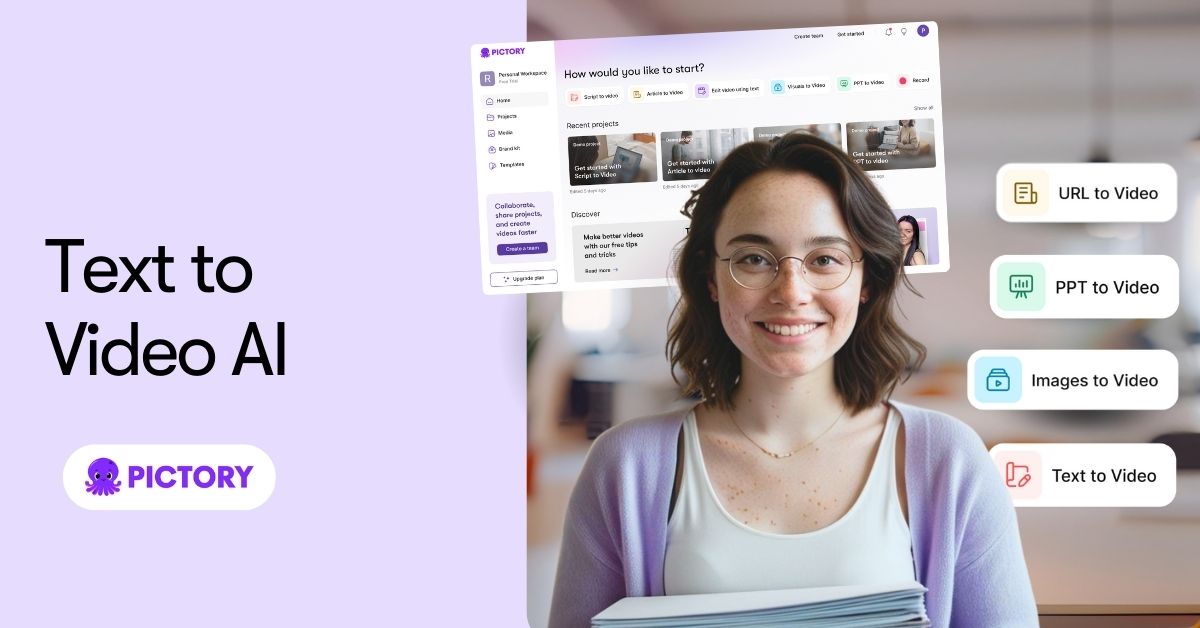
- Multiple creation workflows, including URL to Video, Audio to Video, PPT to Video, and screen recording
That’s usually what people mean when they search “text to video like Pictory”: a production environment, not just a generator.
How Does Text to Video AI Work?
Here’s a simplified breakdown of how text to video systems work:
Text analysis
AI interprets your script or prompt and identifies the intent, keywords, and topics.
Scene creation
The tool splits your script into scene segments based on sentences, structure, or meaning.
Visual generation or selection
Tools either generate visuals, like Sora, or pull from stock libraries. Pictory integrates both stock media and generative visuals through AI Studio.
Narration and captions
Voiceovers and timed captions are generated automatically.
Styling and branding
Fonts, colors, logos, layouts, and transitions are applied.
Rendering
The final video renders in your chosen aspect ratio.
Introducing Pictory AI Studio: Prompt to Video and Prompt to Image Like Sora
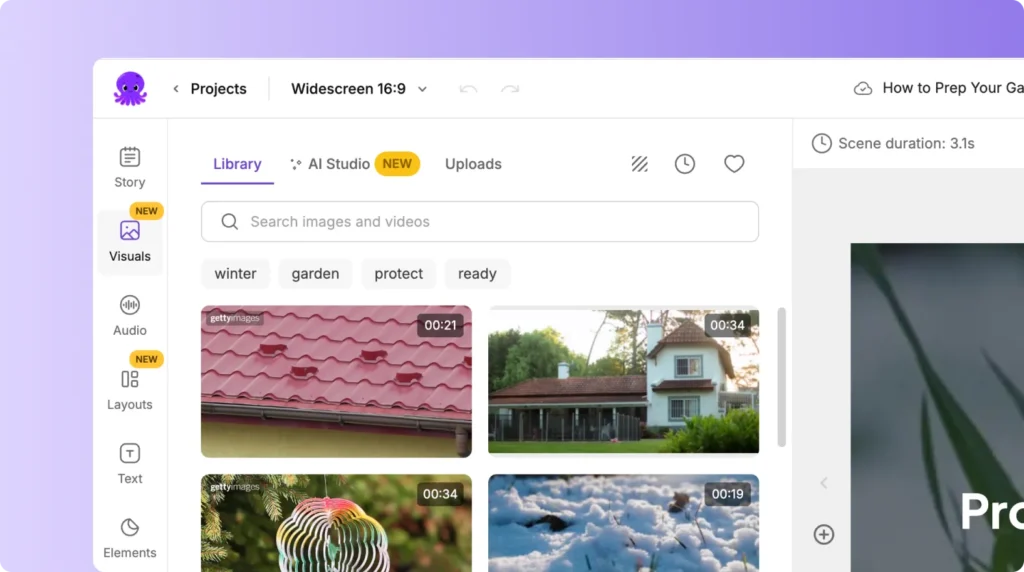
With demand rising for Sora-style generative video, Pictory now includes AI Studio, an integrated prompt based visual generator that lets you create:
- AI generated images from text
- AI generated videos from text prompts via the AI video generator from text
This expands Pictory beyond traditional script to scene workflows and lets you generate custom media inside the same editor. For a full walkthrough, see how to use AI Studio for visual generation in Pictory Academy.
What You Can Do in AI Studio
- Create original AI generated images
- Generate short AI video clips
- Save generated media into your Pictory library
- Add AI generated visuals directly to scenes
- Combine AI clips with script based storytelling
- Download generated images or videos
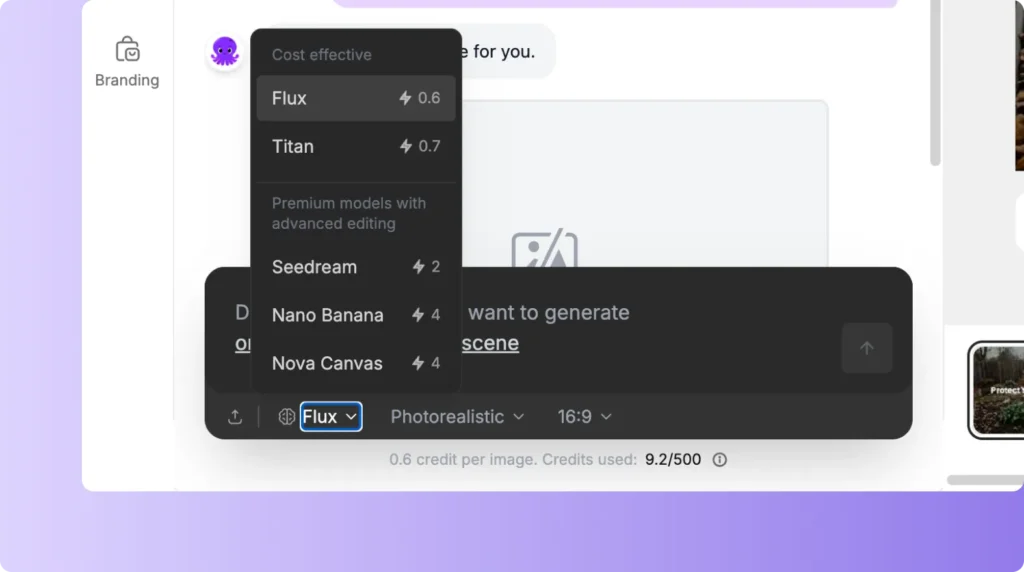
AI Studio works much like Sora, Runway, and Pika Labs, with one advantage: everything integrates directly into Pictory’s full AI video editor.
This means you can pair generative clips with:
- AI voiceovers
- Layouts and themes
- Text animations
- Brand kits
- Music and captions
- Multi scene story structures
It’s Sora-style media generation, built for video production workflows.
How to Create an AI Video from Text Using Pictory (Step by Step)
For a deeper walkthrough with screenshots of each panel, see how to turn a script into a video with Pictory AI in Pictory Academy.
Start a project and select Text to Video
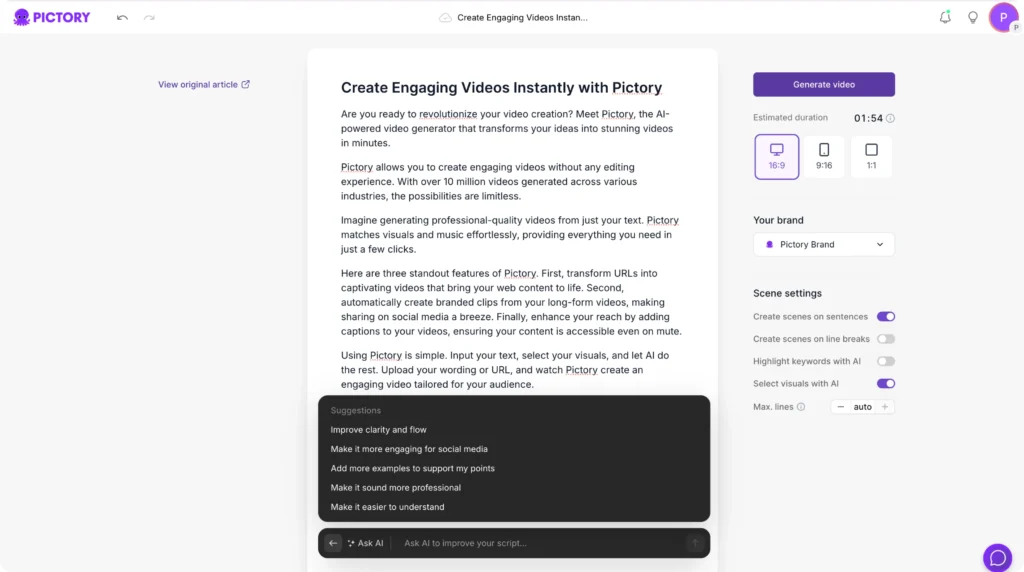
From the home screen, choose Text to Video. Paste your script or write it directly. You can also use the AI script generator if you need help writing it. Before you generate, you can turn on sentence based scenes, line break based scenes, keyword highlights, or AI selected visuals.
Edit your script in the Script Editor
Refine your script with Ask AI, Optimize, Rephrase, Shorten or lengthen, and Change tone. On the right, adjust aspect ratio, brand kit, scene length settings, keyword highlights, and estimated video duration. Select Generate Video when you’re ready.
Choose your theme or layout
Select a visual theme, such as Modern Minimalist, Kinetic, Chic, Wanderlust, Bulletin, or None. This applies fonts, layouts, and baseline styling to every scene.
AI storyboard creation
Pictory automatically converts the script into a scene based storyboard. A progress bar shows status updates like “Creating scenes.”
Edit your video in the AI Video Editor
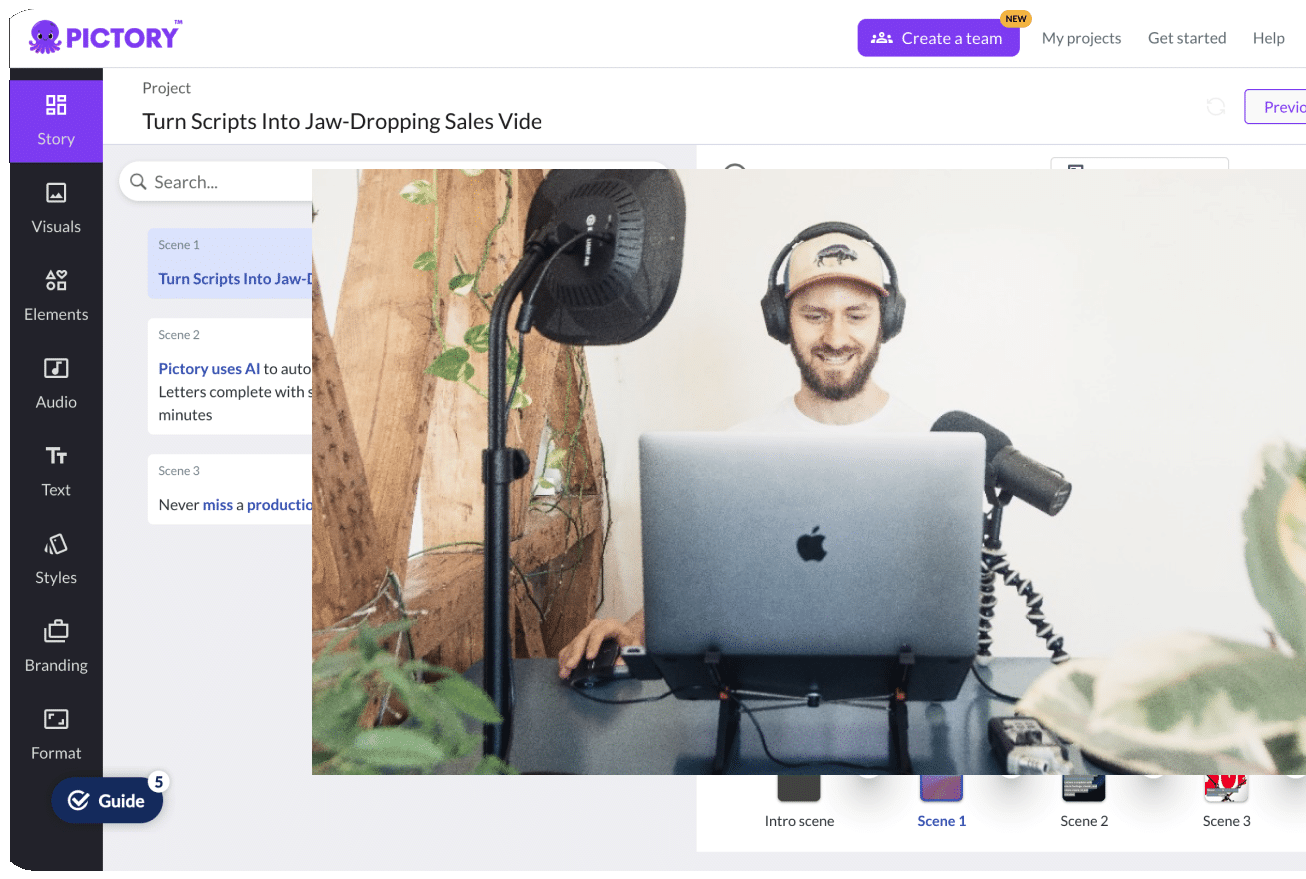
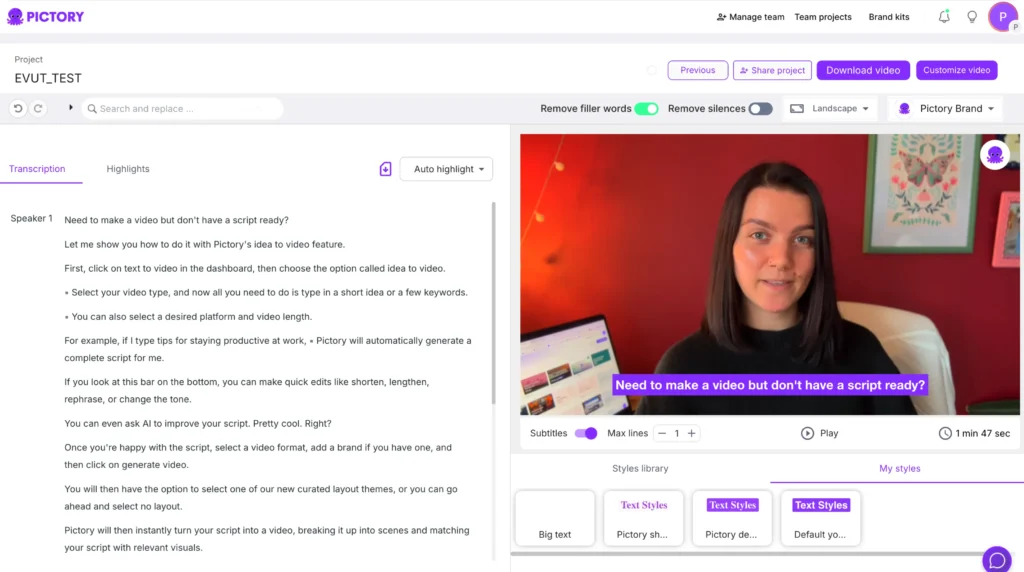
Use the Story tab to modify script text, the Visuals tab to swap stock media, uploads, or AI Studio generated content, and the Audio tab to choose voiceovers or music. Use the Text tab for on screen text, and Elements, Styles, and Branding for professional design. The top toolbar lets you animate text or change fonts, spacing, and colors. Preview or download your video at any point.
Export your final video
Download in your preferred resolution. Your project saves under My Projects, so you can return to refine it later.

Create videos ten times faster with Pictory
Turn your script into a branded video today.
How to Use AI Studio to Generate Visuals from a Text Prompt
You can bring AI Studio visuals straight into your text to video project:
Open the Visuals tab
In your project’s editor, open the Visuals tab to access your media sources.
Select AI Studio
Choose AI Studio from the three visual sources, alongside your stock Library and Uploads.
Choose image or video generation
Toggle between prompt to image and prompt to video, depending on what the scene needs.
Enter a descriptive prompt
Describe the visual you want, or use “get a prompt for this scene” for an AI suggested starting point.
Generate multiple variants
Run the prompt a few times to compare results before committing to one.
Add the result to a scene
Use Add to drop the visual straight into your current scene, or Replace to swap out an existing one.
Save assets to your library
Use Add to uploads to keep the visual on hand for future projects.
This lets you combine script driven storytelling, stock footage, uploaded content, and AI generated visuals, all in one editor.
What Is the Best Text to Video AI Generator?
Here’s how the leading tools compare:
How to Create Text to Video Using AI for Free
You can use Pictory’s free trial or start from pages like text to video generator or free AI script to video generator to build text to video projects with full editing, themes, and stock visuals. Other free tools tend to lack narration, editing, or multi scene structure.
How to Make an AI Video from a Text Prompt
To create a video from a prompt instead of a script:
Start with Idea to Video
Open Idea to Video in Pictory instead of pasting in a finished script.
Choose your video type
Select the format that matches your goal, such as explainer, marketing, or tutorial.
Enter your prompt
Describe the video idea in a sentence or two, the same way you’d brief a writer.
Let AI write the script
Pictory drafts a full script from your prompt, ready to edit.
Generate the storyboard
The script converts into a scene based storyboard automatically.
Edit as needed
Adjust visuals, voiceover, and branding in the editor, then export.
From there, use AI Studio for custom visuals.
Is Text to Video AI Right for Your Workflow?
Text to video AI works best for teams that need to publish consistent, branded video on a regular schedule, marketers repurposing blog content, L&D teams building training libraries, and social media managers turning out short form content without a dedicated editor.
It’s a weaker fit if your priority is a single cinematic shot built around camera motion and physics. For that, a generation focused tool like Sora gives you more creative control over the raw footage itself, though you’ll still need to bring it into an editor for narration, captions, and branding.
For most business video, where consistency, speed, and brand control matter more than cinematic polish, Pictory’s combination of script to scene workflows, AI Studio, and a full editor covers the entire process in one place.
Turn your next script into a video
Fast, scalable, affordable video creation, all in one editor.
FAQ: Text to Video AI
How do I create an AI video from text?
Use a text to video tool like Pictory. Paste your script, choose a theme, generate the storyboard, and edit using visuals, audio, and branding, or start directly from text to video AI.
What is the best text to video AI?
For marketing, educational, and branded video creation, Pictory is the strongest fit. For cinematic generated scenes, Sora leads. You can compare options at best text to video AI.
Does Pictory have a Sora style generator?
Yes. Pictory includes AI Studio, which generates images and videos from text prompts.
How does text to video AI work?
AI analyzes your text, creates scenes, selects visuals, produces voiceovers, adds captions, applies styling, and renders the final video. Tools like the AI video generator from text walk through this process.
How can I create video from text using AI for free?
Use Pictory’s free trial to build full text to video projects with editing and branding tools, starting from pages like text to video or text to video AI free.
What is the difference between Pictory and Sora?
Sora creates raw generated video. Pictory gives you full production: editing, script to scene workflows, brand kits, and AI Studio for generative clips.
Can I add AI generated visuals to Pictory videos?
Yes. AI Studio lets you generate images and videos and add them to your project. Explore this on pages like AI image generator from text and AI video generator.
Related Reading
- Text to Image AI: The Complete Guide to Creating Images From Text Prompts
- The Best AI Script Generators for Video Content Creation
- How to Use AI Avatars in Your Videos: A Complete Guide
![[Article] Promo Video: How to Make One That Converts](https://pictory.ai/wp-content/uploads/2026/09/blog-video-promo-300x169.webp)