How to Turn a Help Article or Web Page Into a Video With Pictory 3
Help articles answer questions, but plenty of people would rather watch than read. Paste the link, say what the video is for, and review the script the agent prepares.
What can you turn into a video?
Paste the direct URL of a help article, blog post, or other web page. The agent extracts the content, and you say what to cover, what to omit, and who the video is for. Pages behind a login wall or paywall may not work.
Step by step: turn a help article into a video
Step 1: Paste the direct article URL
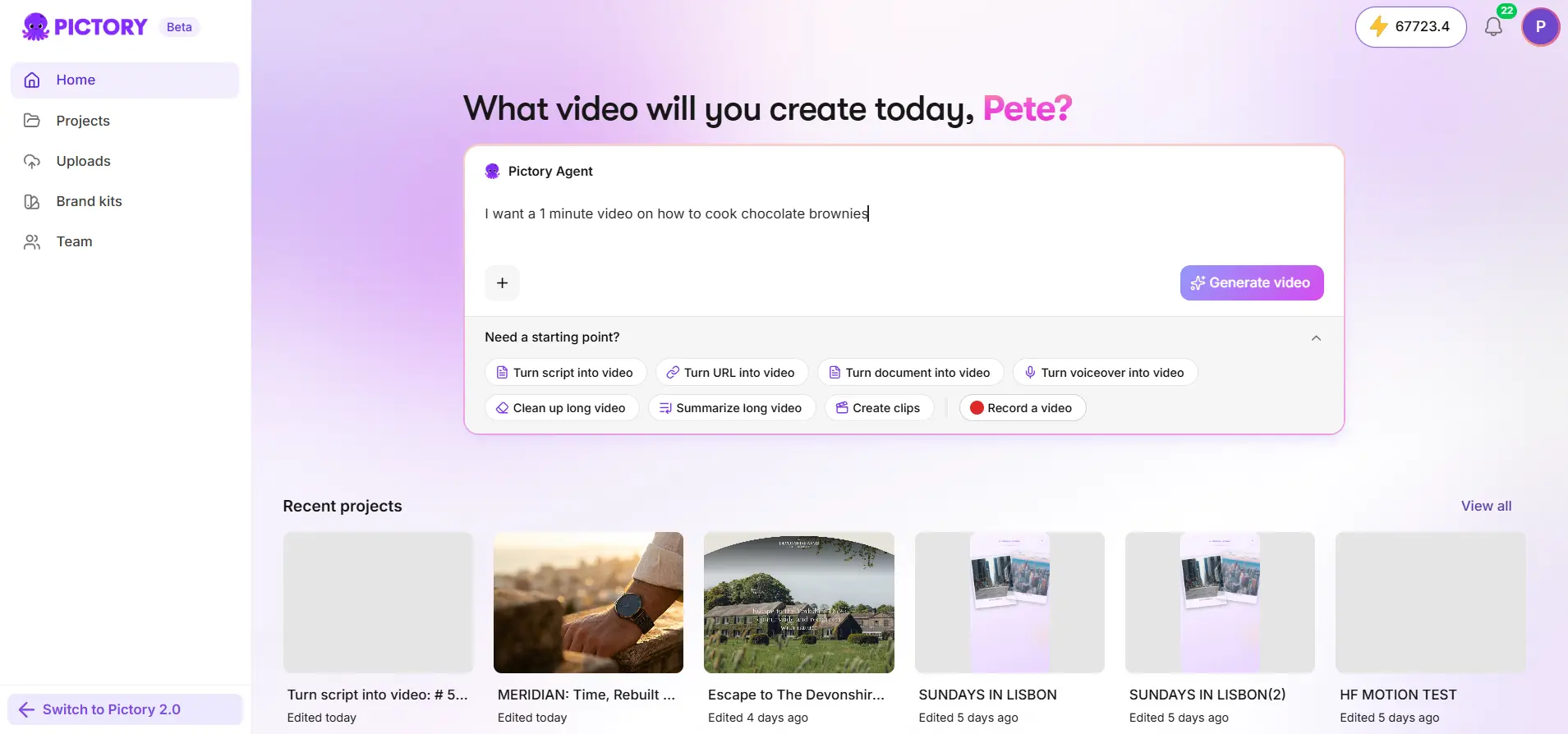
Paste the URL into the agent input, or add it through the attachment menu.
Step 2: Say what the video is for
State what to cover, what to omit, and who the video is for.
- “Turn this help article into a 45-second how-to video for customers. Show each step clearly.”
Step 3: Wait for extraction and answer the setup questions
Choose the voiceover, visual sources, aspect ratio, layout preset, and brand kit.
Step 4: Review the script and source images
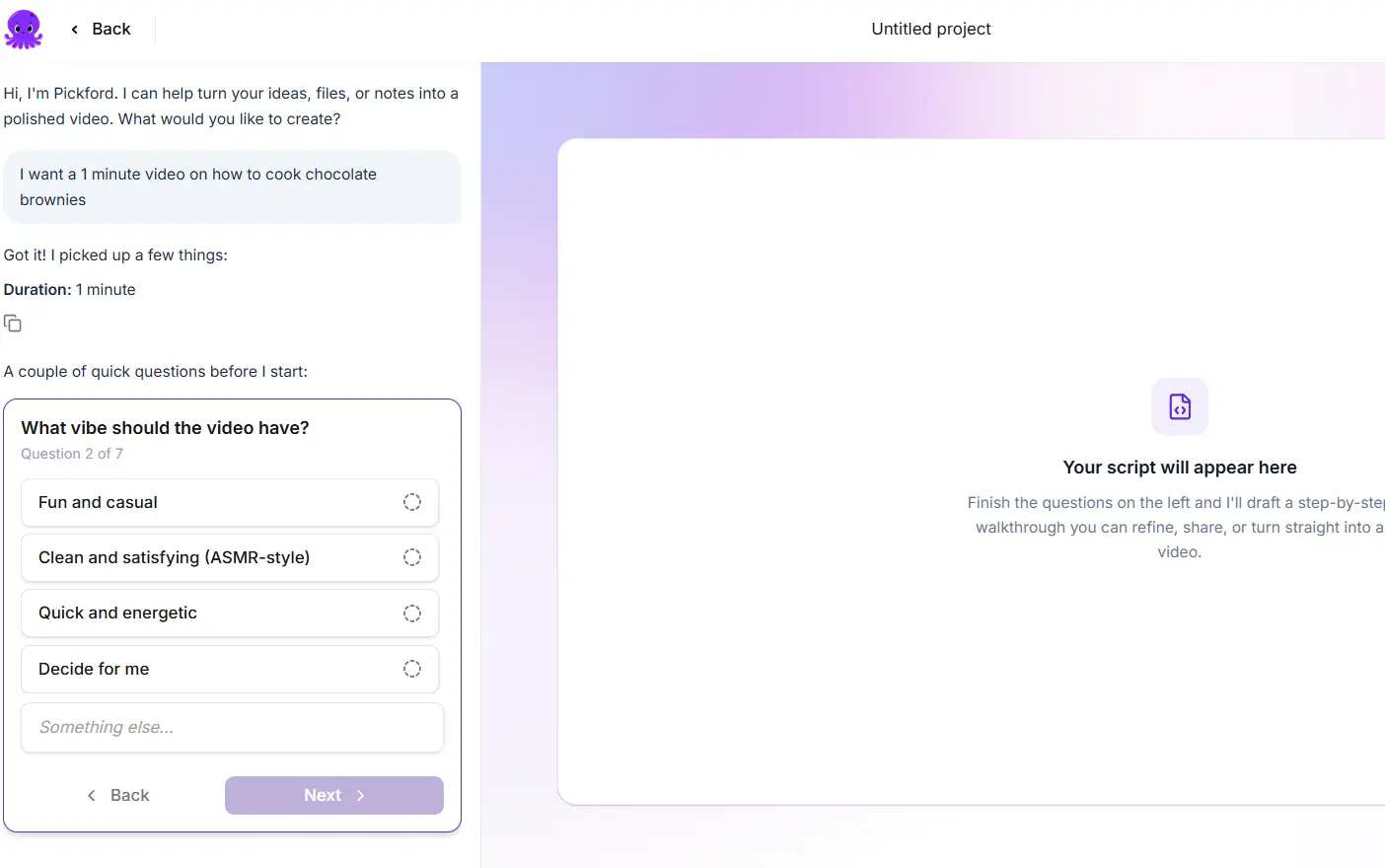
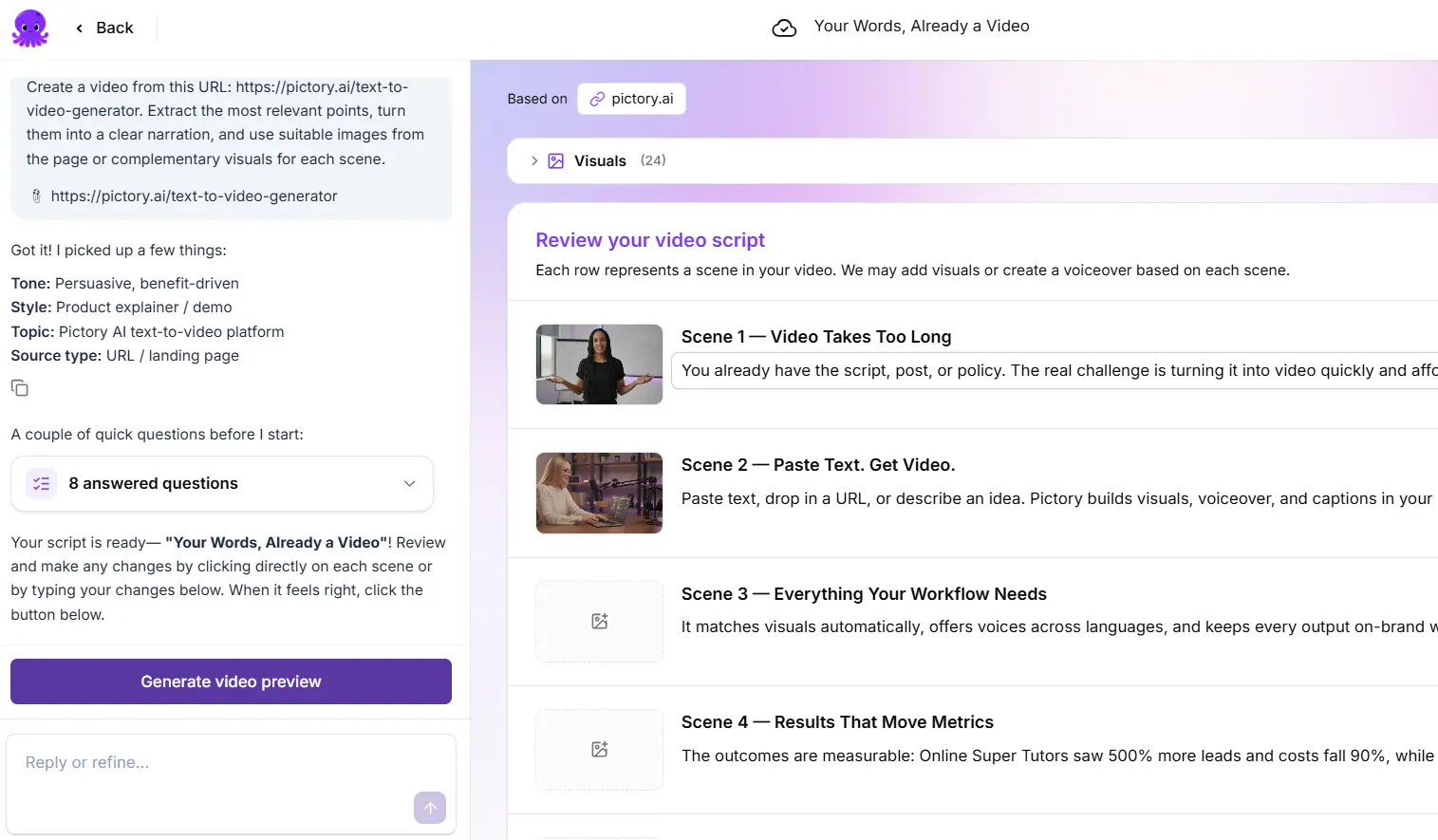
Check each scene, and check the source images the agent selected from the page.
Step 5: Generate the preview
Play it from beginning to end.
Step 6: Refine by chat or in the editor
Ask the agent for focused changes, or select Open in editor.
Step 7: Generate and download
Wait for edits to save, apply any voiceover changes, then select Generate video.
What if the page doesn't load?
A page behind a login wall, paywall, or access restriction may not provide usable content. Paste the relevant text into the agent input, or upload an exported document instead. See the guide on turning a document into a video.
Documents and URLs share a limit of five sources, so you can combine a page with a document. For the document route, read Turn a document into a video.
Tips for help-article videos
- One article, one video. If an article covers several tasks, ask for one task at a time.
- Say whether you want a summary or every step. The two make very different videos.
- Use screenshots of your own product. Add them in Uploads and swap them into the right scenes, because stock footage can't show your interface.
- Check the facts. Compare product names, steps, and numbers with the article before you generate.
Try it on your next video
Bring a brief or a source and review the story before it renders.
Try Pictory free, no credit card required →Related Academy guides
Academy guide.
Academy guide.
Academy guide.
Academy guide.
The hub for everything in Pictory 3.
Frequently asked questions
Can I turn any web page into a video?
You can paste the direct URL of an article or page. A page behind a login wall, paywall, or access restriction may not provide usable content. In that case, paste the relevant text or upload an exported document, and the agent will work from that instead.
How do I choose which parts of the page are used?
State what to cover and what to omit when you brief the agent, and name the audience. For example, ask for the troubleshooting steps only. Review the script and the selected source images before you generate the preview, and correct anything that's off.
Can I combine a web page with other sources?
Yes. Documents and URLs share a limit of five sources per creation request. Tell the agent which source takes priority so the script follows the version you trust, and say what to take from each one, such as the steps from the page and the background from the document.
Where do the images in the video come from?
The agent can select images from the source page, and you can also choose stock visuals or your own uploads in setup. Review the selected source images in the script review, and replace any visual from Visuals in the editor.
Can I put the finished video back in the article?
Yes. Download the file after you generate the video, play it to check it, then add it to your article or help center. Generate again after any edits, because a finished file reflects only the version used to create it.
How to Turn a Help Article or Web Page Into a Video With Pictory 2
Transform any article, blog post, or webpage into a stunning AI-generated video in minutes using Pictory AI’s URL to Video feature. Whether you’re repurposing blog content, summarizing reports, or turning news updates into shareable clips, this tool helps you go from URL to a polished video — fast.
What Is the URL to Video Feature?
Pictory’s URL to Video feature automatically extracts key text from any webpage and turns it into a video script and storyboard. The AI summarizes your content, selects visuals, and adds voiceovers — saving hours of manual editing.
Pictory’s AI will:
- Analyze your provided URL
- Generate a clean, editable video script
- Match visuals, captions, and music
- Build a ready-to-edit storyboard automatically
Perfect for:
- Marketers repurposing blog content for social platforms
- Bloggers and publishers creating video summaries
- Brands turning website content into visual campaigns
- Educators and coaches converting articles into video lessons
Step-by-Step: How to Use the URL to Video Tool
Follow this step-by-step tutorial to create a professional video from any web page.
Step 1: Access the URL to Video Tool
- From your Pictory Home Page, click Text to Video, then select URL to Video.

- Paste a valid web link (e.g., https://yourblog.com/article-title).
- Choose your video type:
- Explainer
- Marketing
- Tutorial
- Internal Communication
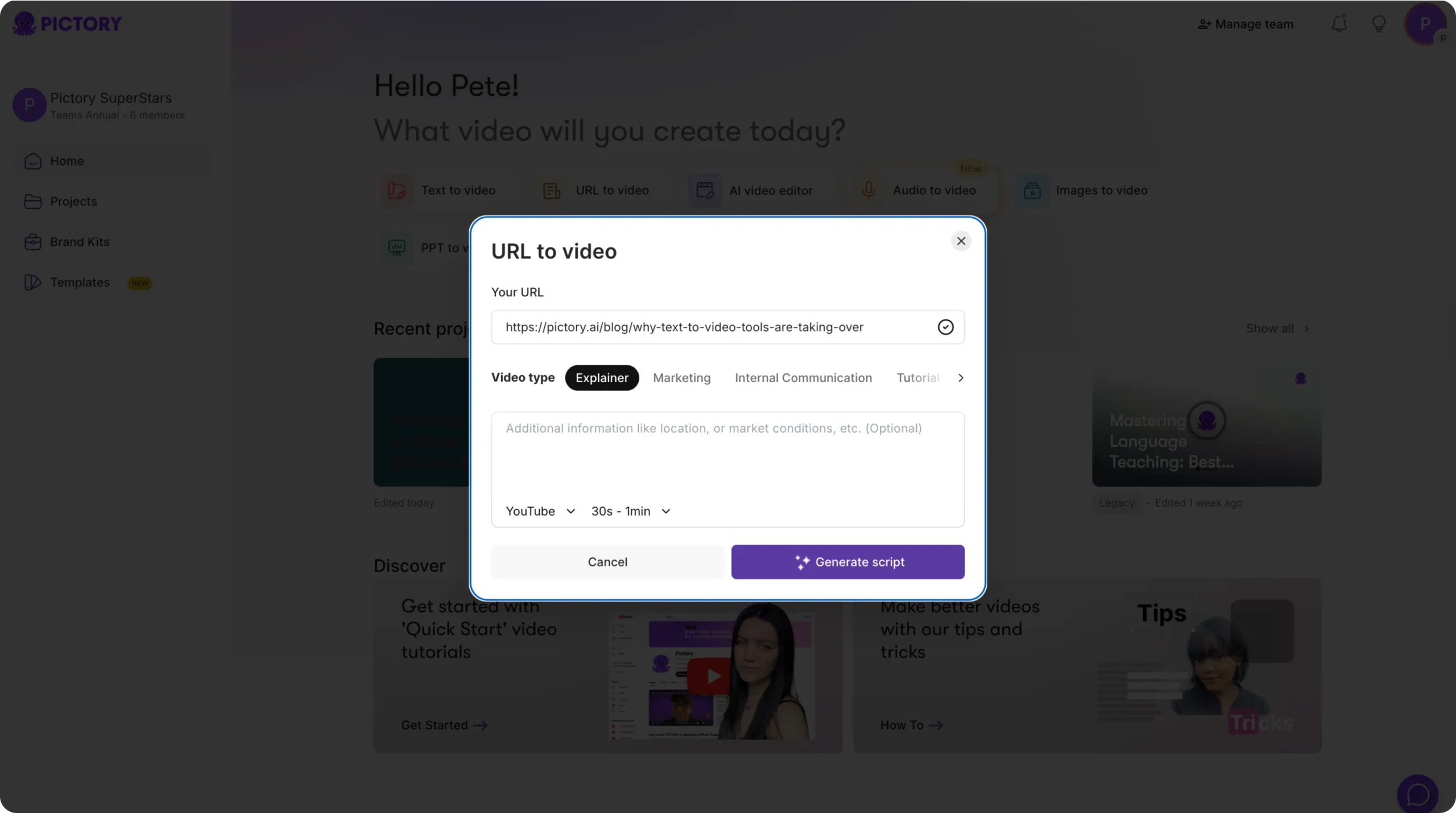
This helps Pictory tailor tone, pacing, and visuals automatically.
Step 2: Generate a Script from the URL
- After pasting your link, click Generate Script.
- Pictory’s AI will extract your page’s main content and create a summarized video script.
- Wait a few moments while the AI processes the page — you’ll see a progress indicator during content extraction.
Once complete, your draft script will appear in the Script Editor.
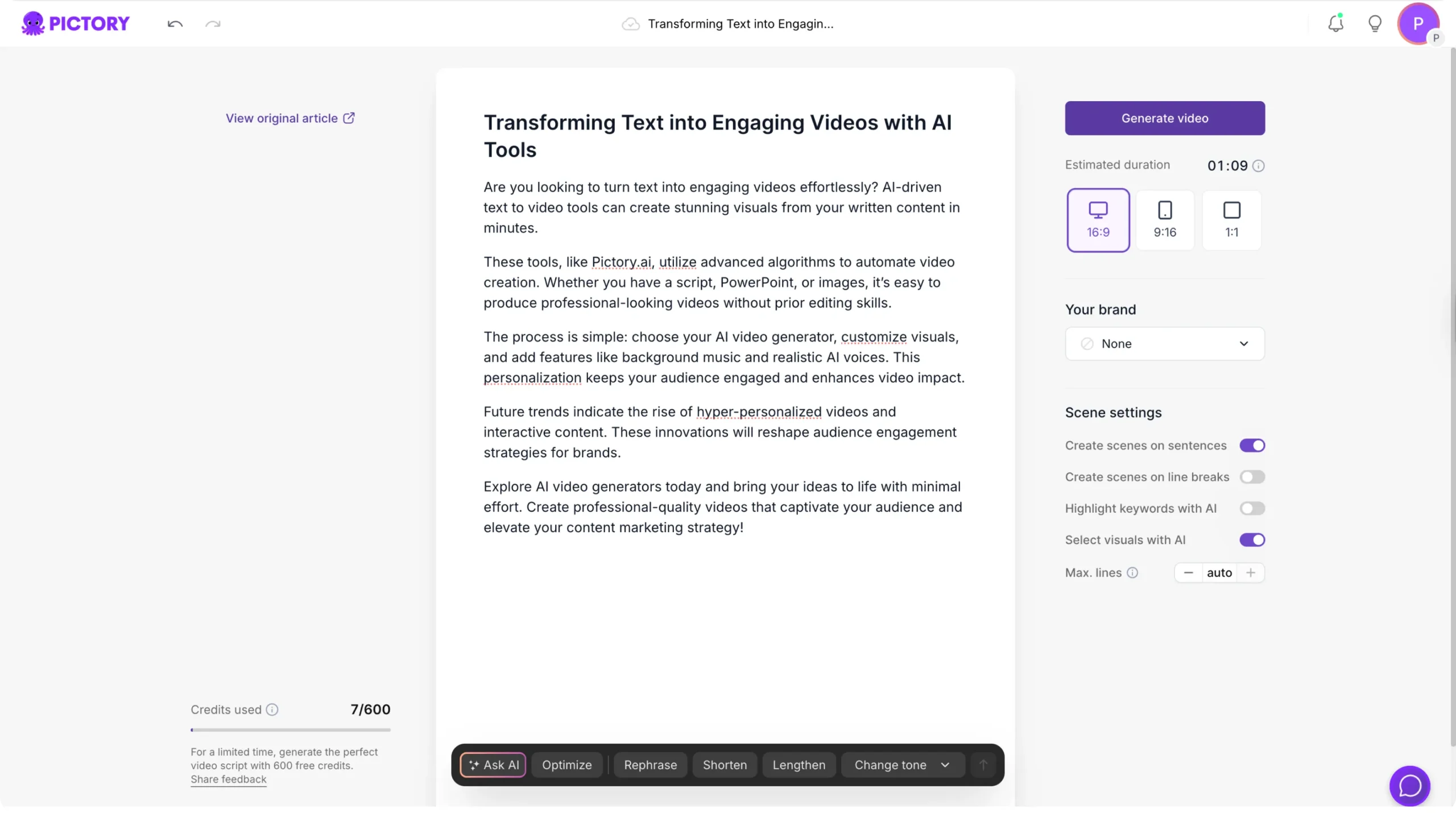
Step 3: Edit Your AI-Generated Script
Inside the Script Editor, you can:
- Edit or rewrite any text directly.
- Use the Ask AI tools to:
- Rephrase or optimize flow
- Shorten or lengthen sections
- Adjust tone (professional, conversational, educational)
Use the Preview Script option to ensure the story flows naturally before moving forward.
Step 4: Configure Scene and Video Settings
In the right-hand panel, set up your preferred options:
- Aspect Ratio: Choose between 16:9 (YouTube), 9:16 (Reels/TikTok), or 1:1 (Square).
- Scene Segmentation: Sentence-based or line-break-based.
- Keyword Highlighting: Emphasize important terms automatically.
- Brand Kit: Apply your brand’s fonts, colors, and logo for consistency.
Once done, click Generate Video.
Step 5: AI Storyboard Creation
Pictory’s AI will now create your storyboard. A loading screen will appear: “Please wait while the video storyboard is being created…”
This process builds visuals and captions matched to each line of your script.
Step 6: Edit and Customize in the Video Editor
Once your storyboard is ready, you’ll enter Pictory’s AI Video Editor.
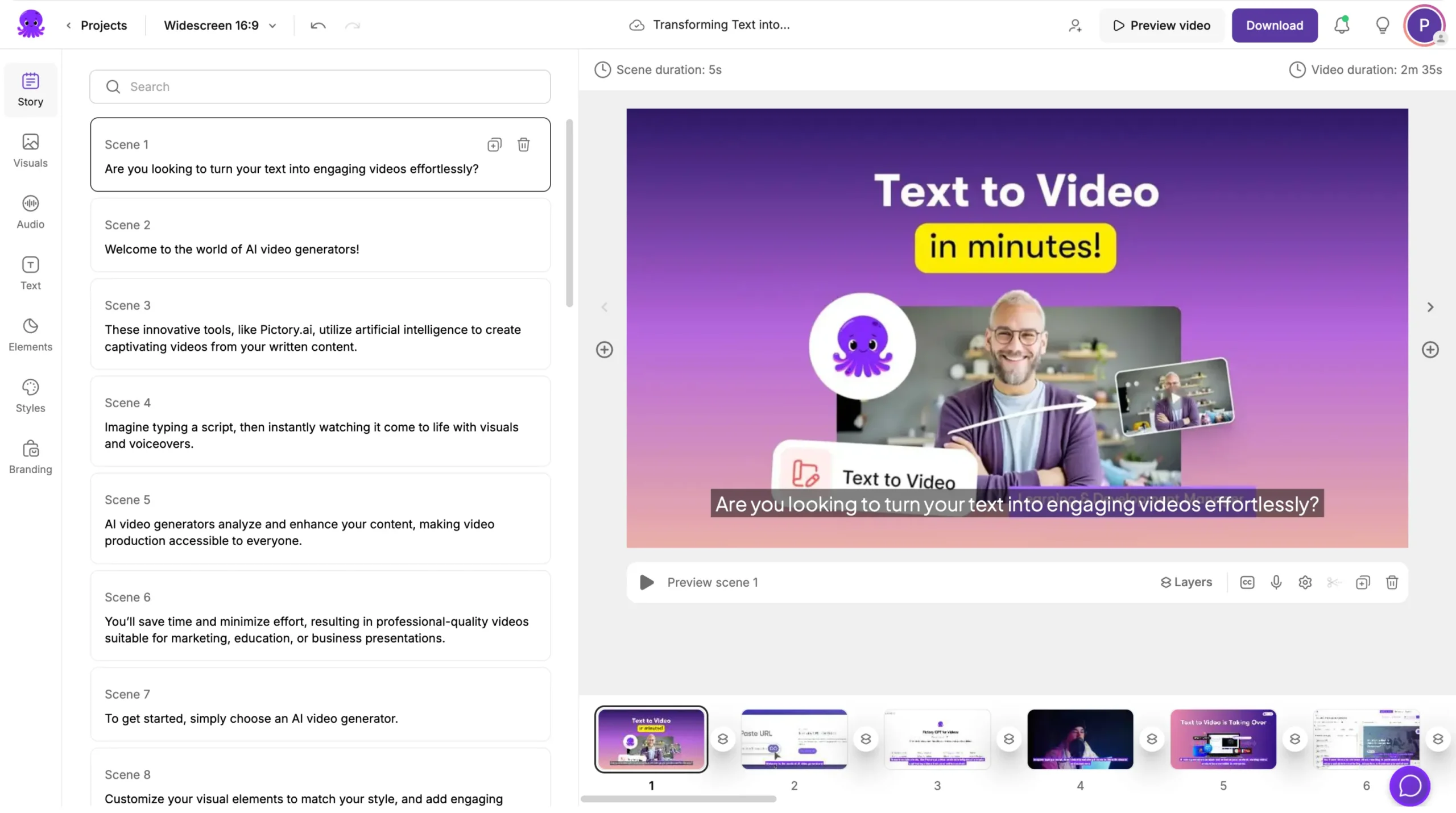
Here’s where you can fine-tune your video:
- Story Tab: Edit text or timing per scene.
- Visuals Tab: Replace visuals using stock clips, AI-generated visuals, or your uploads.
- Audio Tab: Add music or choose AI voiceovers.
- Text & Elements Tabs: Add captions, overlays, icons, and more.
- Branding Tab: Apply your brand kit instantly.
Use Preview Video to review changes in real time.
Step 7: Export and Share Your Video
When you’re happy with your final edit:
- Click Download Video to export.
- Or Share directly to YouTube, LinkedIn, or your preferred platform.
Your video is automatically saved under My Projects for future updates or re-editing.
Pro Tips for Better URL-to-Video Results
- Use clean, content-rich URLs (avoid pages with excessive ads or sidebars).
- Edit your script for clarity — shorter paragraphs convert best to visuals.
- Apply your Brand Kit to ensure all videos follow your brand identity.
- Choose the right aspect ratio based on where you’ll publish (YouTube = 16:9, TikTok = 9:16).
- Always preview before exporting to ensure scenes and captions align.
Why Use Pictory AI for URL to Video
Pictory AI saves you from manually copying, scripting, and editing content. You get:
- AI-driven content summarization
- Automatic script and storyboard generation
- Relevant visuals and captions
- AI voiceovers and music
- Download-ready videos within minutes
Turn every web page you publish into an engaging video asset — instantly.
Frequently Asked Questions
What types of links can I use with URL to Video?
You can use any publicly accessible web page, including blogs, articles, and news posts.
Will Pictory use all the content from my page?
No. Pictory’s AI summarizes and extracts the most relevant sections to create a concise script.
Can I edit the generated script?
Yes. You can edit freely or use Ask AI to rewrite, expand, or simplify your script.
Does it include visuals and voiceovers automatically?
Yes. Pictory selects visuals and voiceovers to match your script tone and theme.
Can I use my own branding?
Absolutely. Apply your Brand Kit in the Branding tab to include your logo, fonts, and brand colors.
Is it possible to make videos in portrait or square formats?
Yes. Choose from 16:9, 9:16, or 1:1 depending on your target platform.