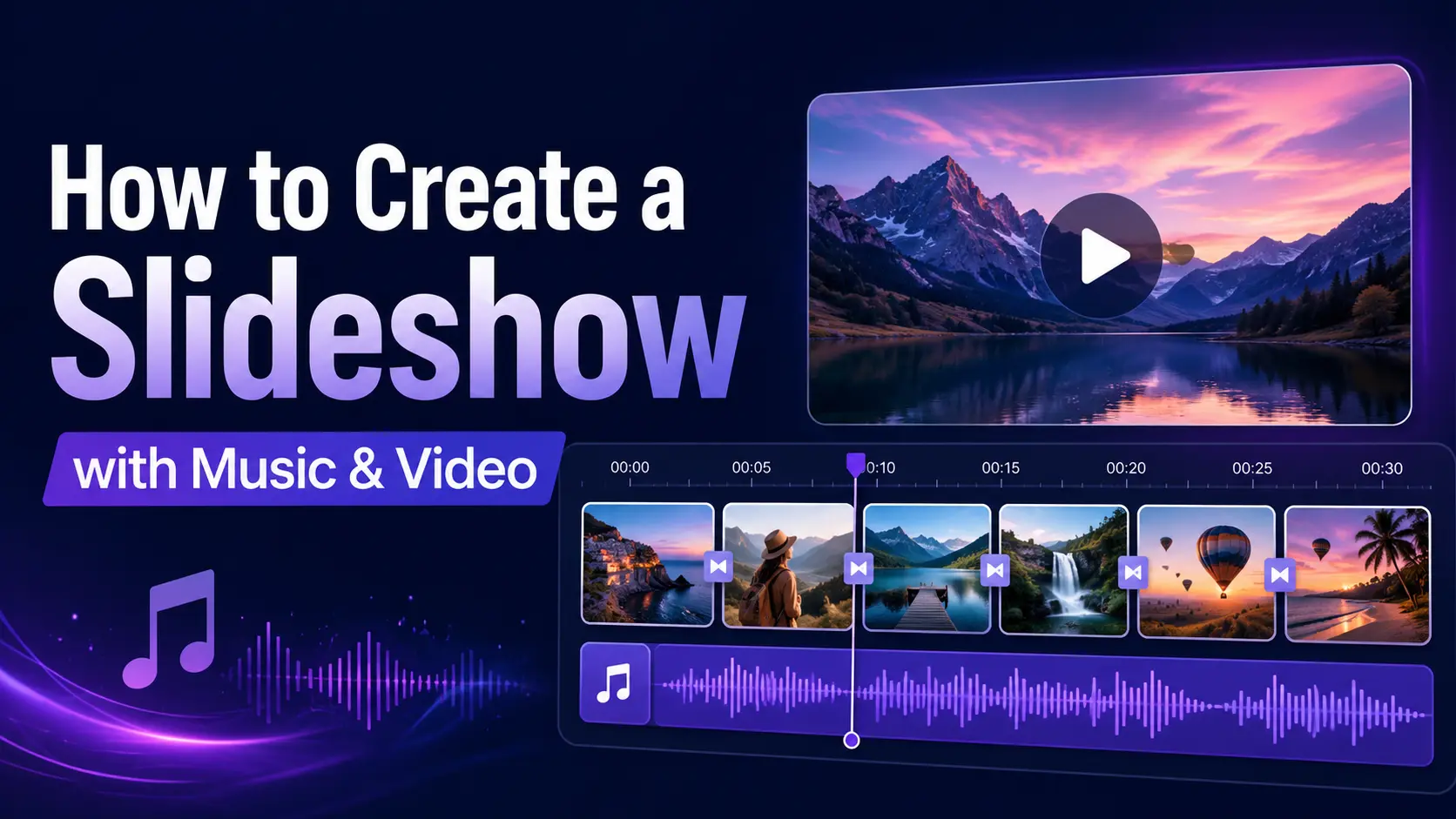
You have 60 photos from an event and a deadline. A slideshow turns them into something people will actually watch, and it takes less time than picking which photos to post individually. Pictory handles the whole job in one place: drop the folder in, set the pacing, pull a track from the licensed music library, and export at whatever ratio you need. Here is the process, plus the music rules that stop your video getting muted.
TL;DR
Upload your photos and clips, put them in order, set each one to roughly four to six seconds, add licensed music, and export. The two things that separate a good slideshow from a boring one are pacing and music rights. Both take minutes to get right and cause real problems when you get them wrong.
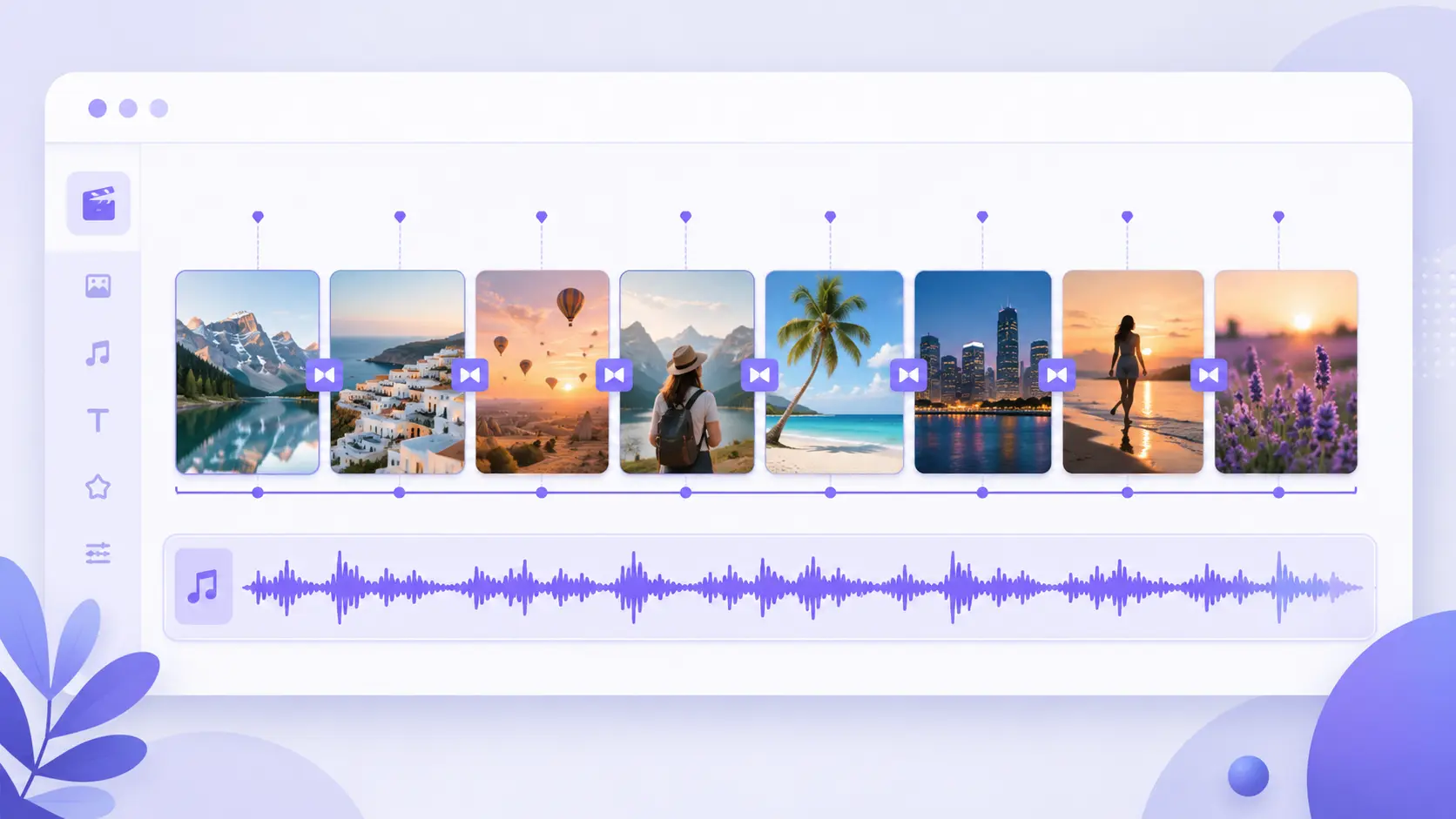
A Slideshow Is Photos and Clips Timed to Music
In video terms, a slideshow is a sequence of images and short clips that plays automatically, usually with music underneath and sometimes with text or narration. You export it as a video file and post it anywhere video goes.
That’s different from the other thing people mean by slideshow: the presentation mode in PowerPoint or Google Slides, where you advance slides manually while talking. If that’s what you’re after, this guide isn’t it, though the section on converting a deck to video near the end may still help.
The video kind is what you want for event recaps, product galleries, before-and-afters, testimonials, and anything where you have images but no footage.
What Do You Need Before You Start?
Three things: your images and clips in one folder, a rough order, and a piece of music you have the right to use. Everything else is decided in the editor. Skipping the ordering step is what turns a 20-minute job into an hour.
On images, resolution matters more than count. A slideshow at 1080p needs images at least 1920 pixels on the long edge, or they’ll look soft when they fill the frame. Phone photos are fine. Screenshots pulled from a website usually aren’t.
Cut ruthlessly before you upload. Forty good photos beat 120 with duplicates, and choosing in a folder is faster than choosing in a timeline.
How Do You Make a Slideshow with Music?
Upload, order, time, score, export. The whole thing runs about 20 minutes for 40 images once you’ve picked your music. For the version with screenshots, see how to turn images into a video in Pictory Academy.
Upload your images and clips
Drag the whole folder in. Mixing short video clips with stills works well and stops a long sequence feeling static.
Set the order before anything else
Drag into sequence. Chronological works for events. For product or portfolio work, open on your strongest image, not your first one.
Set the timing per image
Start everything at five seconds, then shorten the weaker images instead of stretching the good ones. Varying the duration is what stops it feeling mechanical.
Add music and text
Pick a licensed track, then add a title card at the front and a closing card with your call to action. Two text elements is usually enough.
Set the aspect ratio, then export
16:9 for a website or email, 9:16 for social. If you need both, build the one you’ll use most and re-export the other.
How Long Should Each Photo Stay on Screen?
Four to six seconds for most images. Under three and viewers can’t take the image in. Over seven and attention drifts, especially on a phone. Five is a safe default to start from and adjust.
Adjust by information density, not by how much you like the photo. A wide group shot with lots to look at earns six or seven seconds. A simple product close-up is done in three.
Total length matters more than per-image timing. Aim for 60 to 90 seconds for social, up to three minutes for a landing page or an internal recap. If 40 images at five seconds gives you three and a half minutes, cut images instead of speeding everything up.
How Do You Pick Music Without a Copyright Claim?
Use a track licensed for the use you have in mind, which almost never means a commercial song. Popular music in a business video is the single most common reason slideshows get muted, blocked, or demonetized after upload.
Three routes that work:
- A library included with your video tool. Simplest option, and the licensing is normally covered for the use you’d expect.
- A dedicated stock music subscription. Worth it if you publish regularly and want a consistent sound across videos.
- Platform-provided audio. Fine for organic social posts. Check the terms before using it in a paid ad, where rules are usually tighter.
Two things to check whichever route you take: does the license cover commercial use, and does it cover paid advertising? Those are separate permissions and plenty of free tracks include the first without the second.
On mixing, keep the music low enough that any narration or on-screen sound stays clear. Pictory Academy covers the controls in how to add background music to a video. And remember most social video plays muted, so your slideshow has to work as a silent sequence too. If it doesn’t make sense without the music, add text.
Turning an Existing Slide Deck Into a Video
If what you actually have is a PowerPoint deck and not a folder of photos, you don’t need to rebuild it. Converting a PPT to video keeps your layouts and your text, and adds narration and pacing on top.
That route suits training material, conference talks, and internal updates, where the deck already carries the structure. Speaker notes can become the narration, which means the script is written before you start.
The result is a proper video, not a screen recording of someone clicking through slides. It plays on its own, works in an email, and doesn’t need anyone presenting it. Pictory Academy walks the conversion end to end in how to turn a PowerPoint presentation into a video.
Make your slideshow this afternoon
Photos, licensed music, text, and branding in one place.
Verdict: Getting It Right First Time
Spend your time on selection and order. A tight 30-image slideshow in a sensible sequence beats a 90-image one with transitions on every cut. Cutting is the edit that improves a slideshow most, and it costs nothing.
Sort the music licensing before you build, not after. Finding out a track is unusable once the video is finished means re-timing everything to a new one, which is the single most annoying way to lose an hour.
And design for silent playback. Add a title card, add captions to any narration, and make sure the sequence tells its story with the sound off. Most people will watch it that way regardless of how good your track is.
Start with your folder of photos
Ordering, timing, licensed music and export, all in one editor.
FAQ: How to Create a Slideshow
How long should each photo show in a slideshow?
Four to six seconds suits most images, with five as a safe default. Give busy images like group shots slightly longer, and simple close-ups slightly less. Varying the timing rather than using one fixed duration is what keeps it from feeling mechanical.
Can I use any song in my slideshow?
No. Commercial music in a business video regularly gets muted, blocked, or demonetized. Use a licensed library track and check the license covers both commercial use and paid advertising, since those are separate permissions that free tracks often split.
How many photos should a slideshow have?
Enough to fill 60 to 90 seconds for social, which at five seconds each is roughly 12 to 18 images. Longer slideshows suit landing pages and internal recaps. If you have 100 photos, cut rather than speeding everything up.
What size should a slideshow video be?
16:9 at 1920 by 1080 for websites, email, and YouTube. 9:16 at 1080 by 1920 for Reels, TikTok, and Shorts. Build in the ratio you’ll use most, then re-export the other rather than designing twice.
Can you turn a PowerPoint into a slideshow video?
Yes, and it’s usually better than rebuilding from scratch. Converting the deck keeps your existing layouts and text, and speaker notes can become the narration. The output plays on its own, which a presentation file doesn’t.
Keep reading
Convert an existing deck instead of rebuilding it as a slideshow.
Track selection, levels and licensing in more depth.
Make the sequence work for the people watching on mute.
![[Article] Promo Video: How to Make One That Converts](https://pictory.ai/wp-content/uploads/2026/09/blog-video-promo-300x169.webp)