
How to Create a Video With Pictory 3
Describe the video you want, review the story with the agent, and refine the result in the editor. This guide takes you from your first brief to a downloadable file.
How does Pictory 3 work?
Pictory 3 starts with an idea, an approved script, source files, or URLs. The agent guides you through setup, prepares the script and scenes, and creates a preview. You refine it by chat or in the editor, then generate the final video to download.
Step by step: create your first video
Step 1: Describe the video
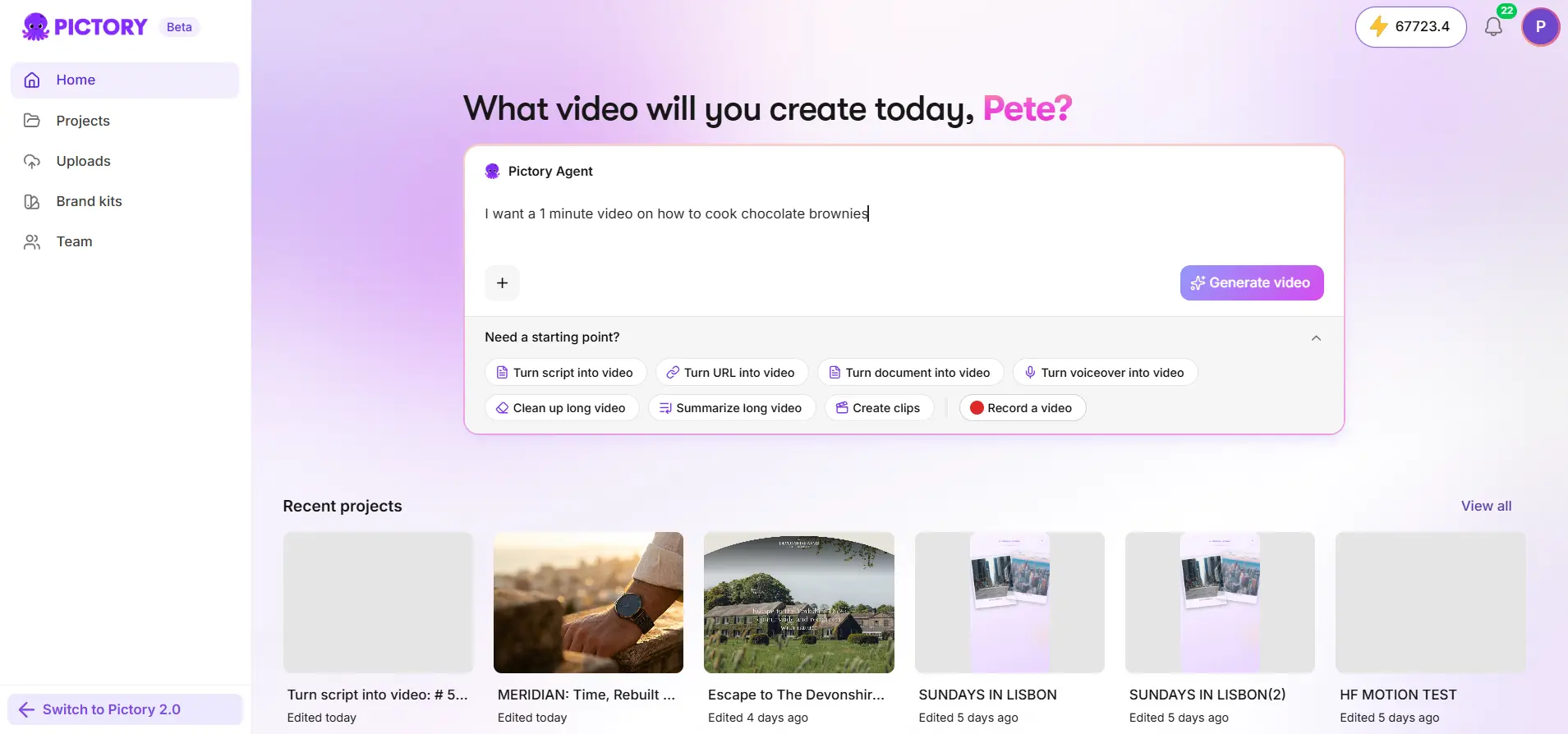
On the home page, describe the topic, audience, purpose, and desired length in the agent input. Add any source files or URLs.
Step 2: Answer the setup questions
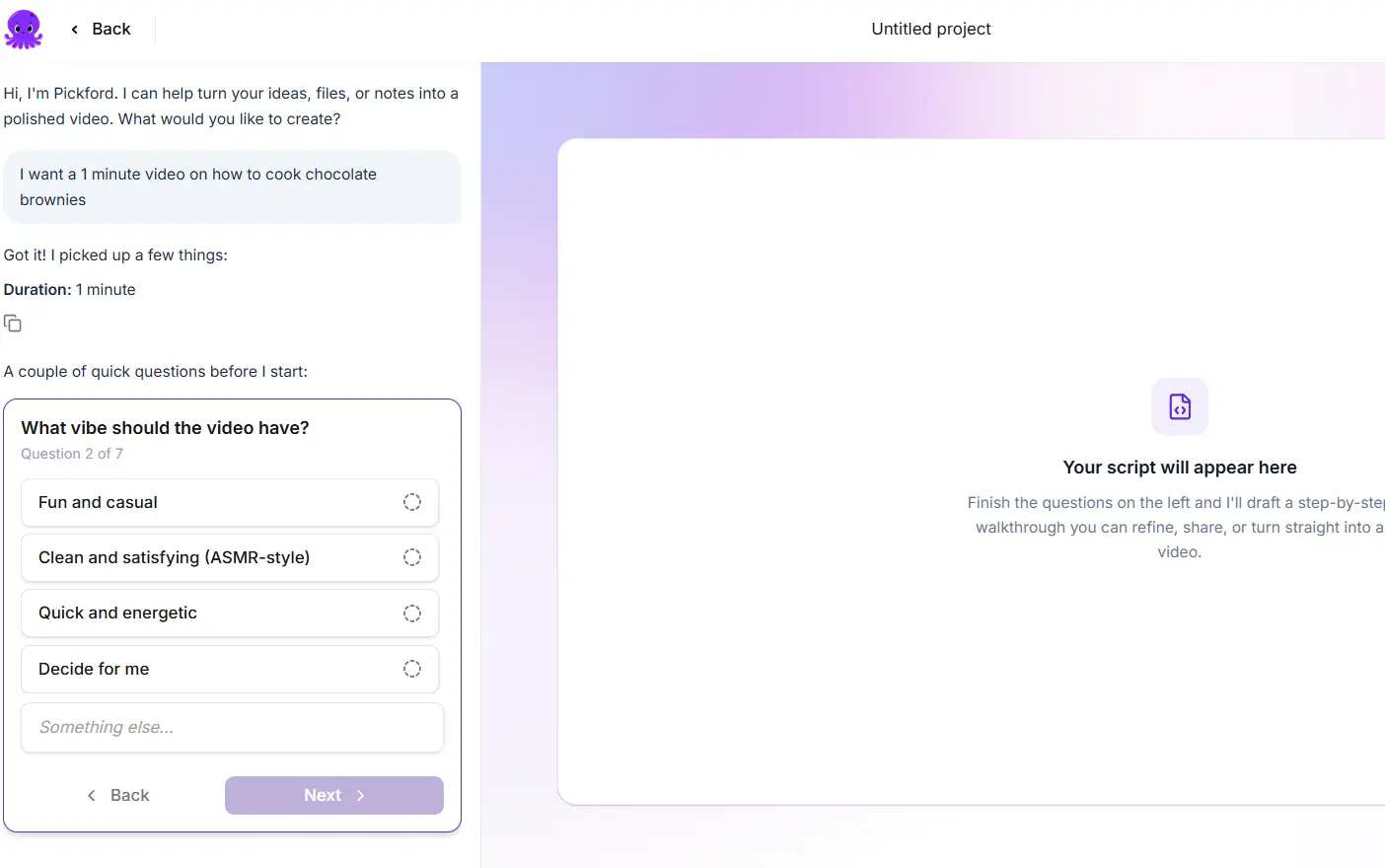
Choose the voiceover, visual sources, aspect ratio, layout preset, and brand kit as prompted. Select Decide for me where it's offered.
Step 3: Review the setup summary
Check the summary, then select Create script.
Step 4: Review the script and scenes
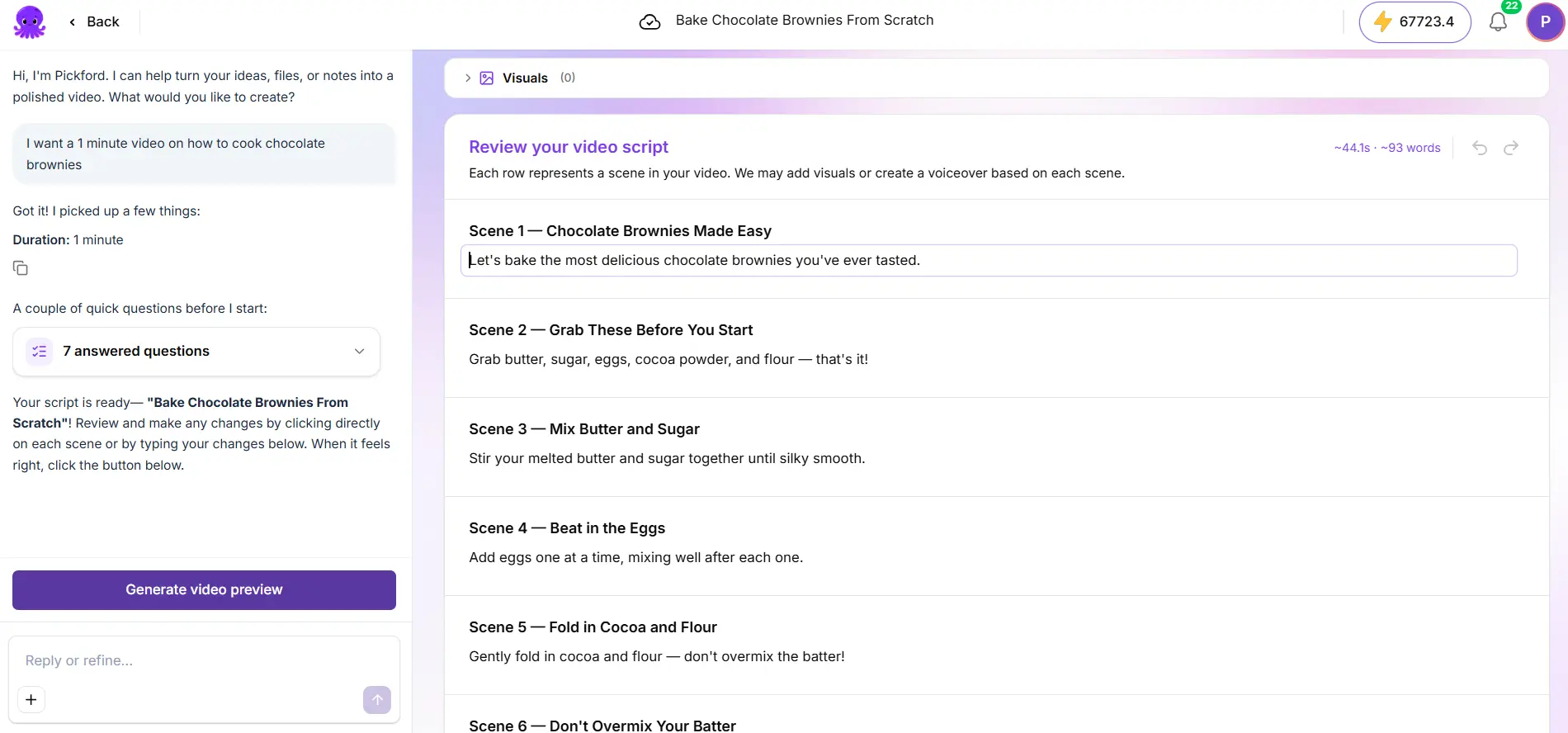
Read each scene and check its proposed visuals. Correct the story before you generate the preview.
Step 5: Generate the preview
Generate the preview and play it from beginning to end.
Step 6: Refine by chat or in the editor
Ask the agent for refinements, or select Open in editor for direct edits.
Step 7: Generate and download
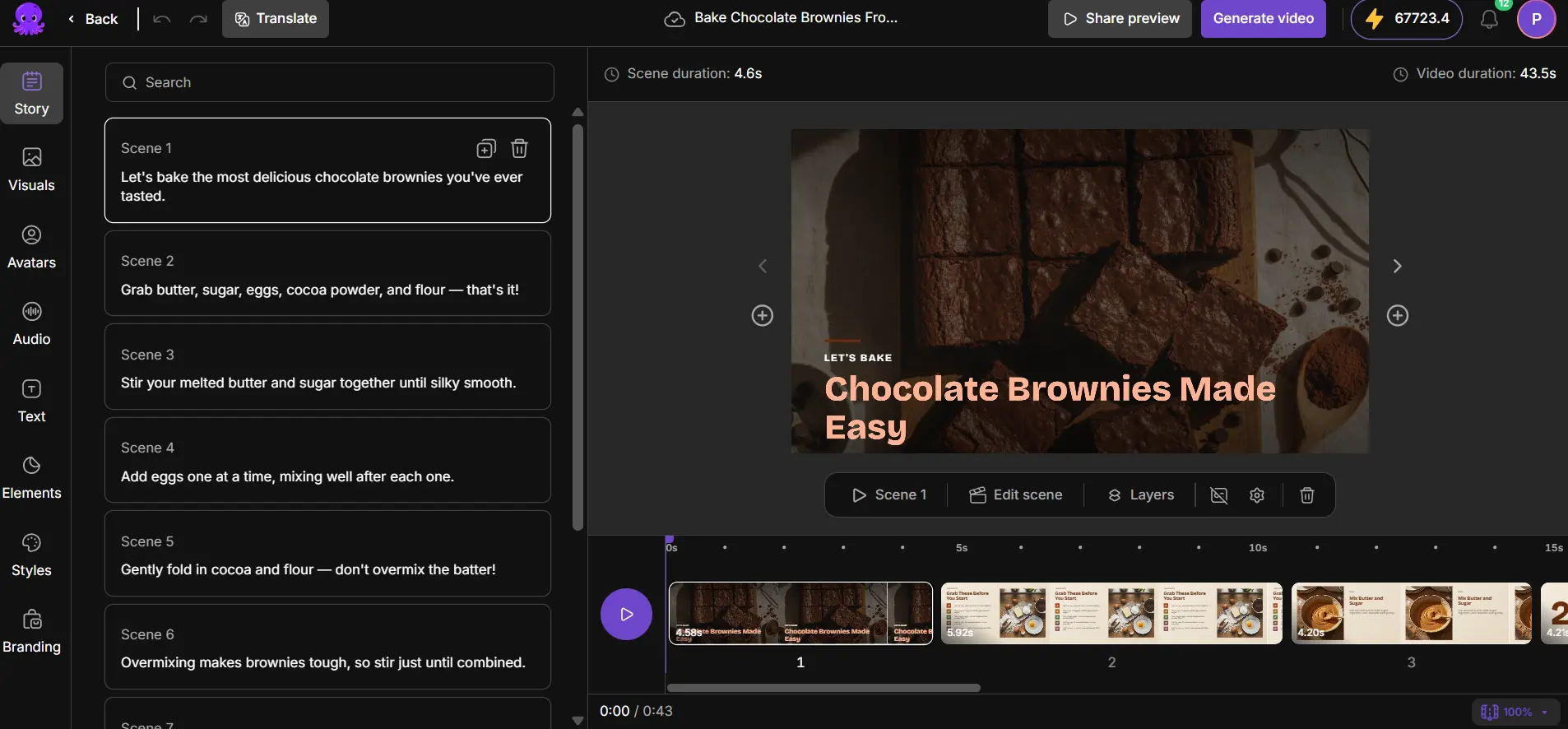
Wait for edits to save and apply any outstanding voiceover changes. Then select Generate video to create the downloadable file.
What makes a useful brief?
Name the audience, purpose, length, tone, and format, and say how you want it to end. Here is a brief the agent can work with:
Can you create a video without spoken narration?
Yes. Ask for a silent or music-led video with short on-screen text, then choose No voiceover. Preview each scene to check reading time. A video visual can contain its own audio, so check clip sound too if you want the result fully silent.
If you used Pictory 2
Pictory 3 lets you fine-tune your videos. In the editor, select a scene, then open the panel you need: Story, Visuals, Avatars, Audio, Text, Elements, Styles, or Branding. Story text is what the voice speaks. Captions follow narration, while decorative titles are separate text.
Open existing projects from Projects and use the editing experience available for that project. Opening Pictory 3 doesn't automatically convert an older video.
Tips for better results
- Put the length, audience, and purpose in your first message. The agent has less to ask.
- Set up a brand kit first. See Use brand kits and layout presets in Pictory 3.
- Not sure about the voice? Choose Decide for me. You can change it later in Audio.
- Read the script before you generate the preview. Correcting the story is quicker than correcting a finished video.
Good to know
- Documents and URLs share a limit of five sources per creation request.
- A finished file reflects the version used to generate it. Generate again after further edits.
- AI creation, revision, voices, and video generation use AI Credits. See Generate, download, and check credits in Pictory 3.
Try it on your next video
Bring a brief or a source and review the story before it renders.
Try Pictory free, no credit card required →Related Academy guides
Academy guide.
Academy guide.
Academy guide.
Academy guide.
The hub for everything in Pictory 3.
Frequently asked questions
What is Pictory 3?
Pictory 3 is Pictory's AI video agent experience. You describe the video you want, add sources if you have them, and answer setup questions. The agent prepares a script, scenes, and a preview, and you refine the result by chat or in the editor before generating.
What can I start a Pictory 3 video from?
You can start from an idea, an approved script, source files, or URLs. Documents, web pages, PowerPoint decks, and audio recordings each have their own setup, covered in the related guides. Documents and URLs share a limit of five sources per creation request.
Can I make a video without narration?
Yes. Ask the agent for a silent or music-led video with short on-screen text, then choose No voiceover. Preview each scene to check reading time. A video visual can carry its own audio, so also check clip sound if you want a fully silent result.
Do I have to use the editor?
No. You can ask the agent for refinements by chat and generate the video without opening the editor. Open the editor when you want direct control over a scene, such as its visuals, audio, text, or branding. Both routes lead to the same Generate video step.
What happens to my older Pictory videos?
They stay in Projects. Opening Pictory 3 doesn't automatically convert an older video. Open an existing project from Projects and use the editing experience available for that project. Duplicate a project first if you want to try a large change safely.
How to Create a Video With Pictory 2
Transform your ideas into engaging, ready-to-share videos in minutes using Pictory AI’s Idea to Video tool. Whether you’re creating explainer videos, marketing content, tutorials, or internal communications, this feature helps you go from concept to video without needing a script or editing experience.
What is the Idea to Video Feature?
The Idea to Video workflow in Pictory AI turns your topic or idea prompt into a fully generated AI script and storyboard. This process is perfect for creators who want to save time brainstorming, writing, and editing.
Pictory’s AI will:
- Analyze your idea prompt
- Generate a custom video script
- Select relevant visuals and voiceovers
- Create an editable storyboard
This is ideal for:
- Marketers creating brand or social media videos
- Educators turning lessons into visual explainers
- Content creators who want AI help writing scripts
Step-by-Step: How to Use the Idea to Video Tool
Follow this guide to go from idea to finished AI-generated video.
Step 1: Access the Idea to Video Tool
- From your Pictory Home Page, select “Text to Video”, then choose “Idea to Video.”
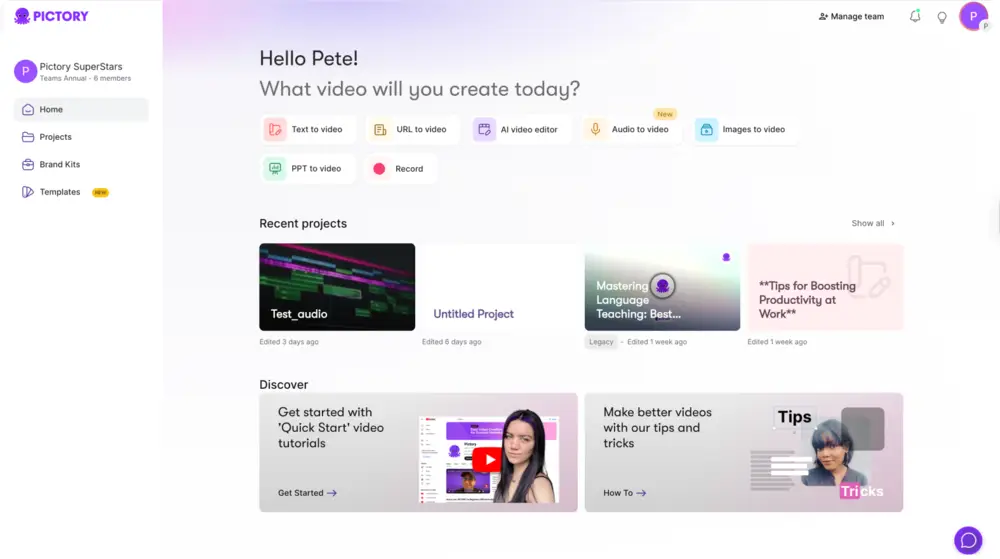
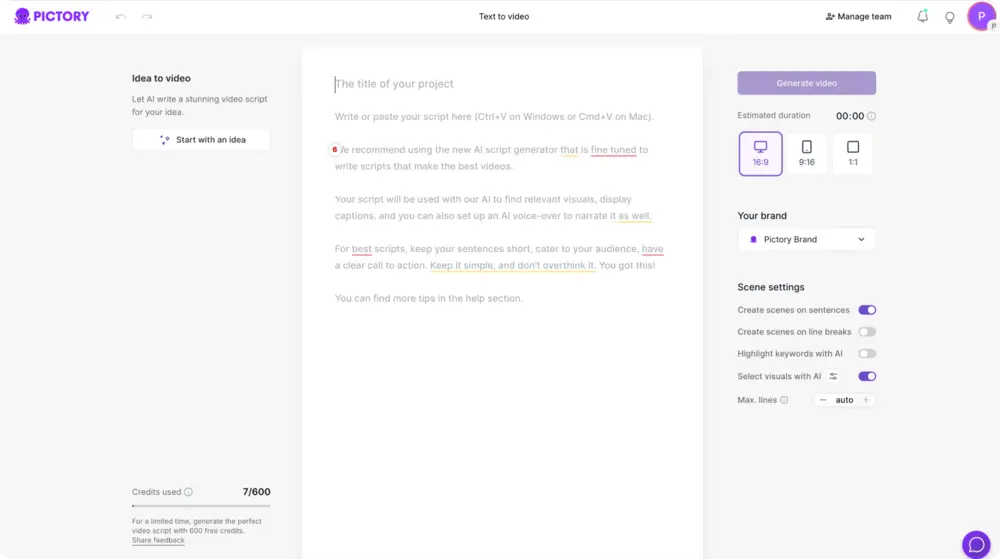
- Enter your topic or short prompt describing what your video will be about.
Example prompts:
- “5 tips to improve your LinkedIn profile”
- “What is sustainable fashion?”
- “How to start a podcast”
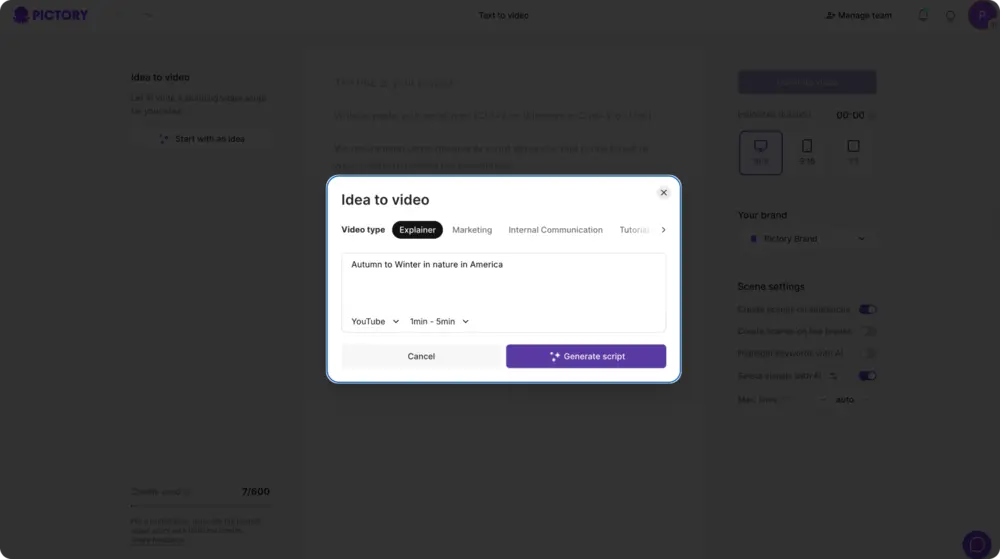
Step 2: Choose Your Video Type
Select the type of video that fits your goal:
- Explainer
- Marketing
- Tutorial
- Internal Communication
Pictory will tailor tone, structure, and visuals based on your selection.
Step 3: Enter Your Idea Prompt
Type a short description or phrase for your idea. You can include your target platform (YouTube, Instagram, LinkedIn) and desired video length.
Click Generate Script to let Pictory’s AI write your draft script automatically.
Step 4: Review and Edit Your AI Script
Once your draft script appears in the Script Editor, you can:
- Edit or rewrite text directly
- Use Ask AI tools to optimize flow, rephrase, shorten, lengthen, or change tone
Step 5: Configure Scene Settings
In the right panel, customize:
- Aspect ratio (16:9, 9:16, 1:1)
- Scene segmentation (sentence or line-break based)
- Keyword highlighting
- Visual auto-selection toggle
- Brand Kit (logo, colors, fonts)

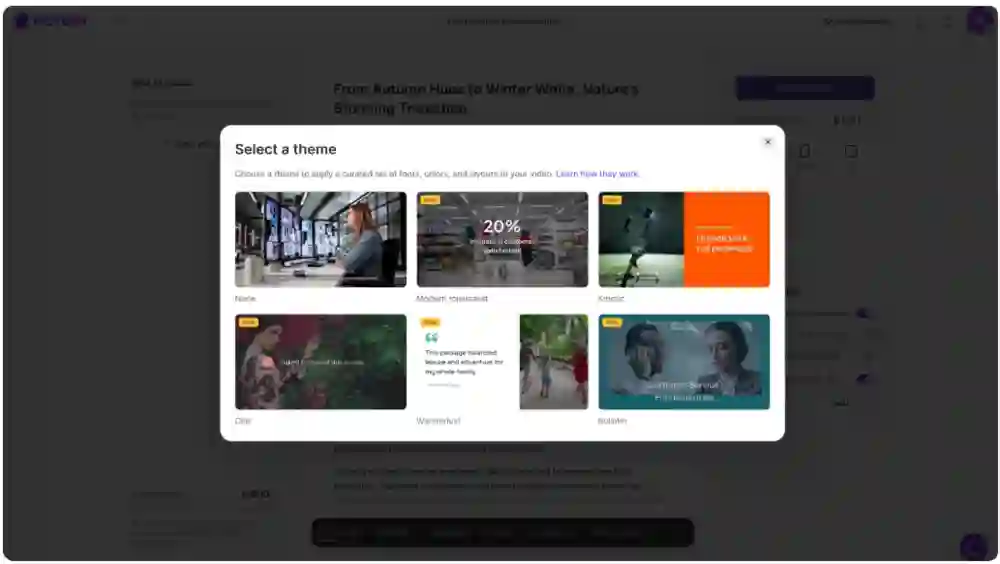
Step 6: Choose a Layout and Theme
Click Generate Video to move into the Choose Layout screen. Select from pre-designed layouts like:
- Modern Minimalist
- Kinetic
- Chic
- Wanderlust
- Bulletin
Each theme applies professional fonts, animations, and color palettes.
Step 7: AI Storyboard Creation
Pictory automatically builds your storyboard. A loading message such as “Creating scenes…” appears while AI generates visuals and captions for each line of your script.
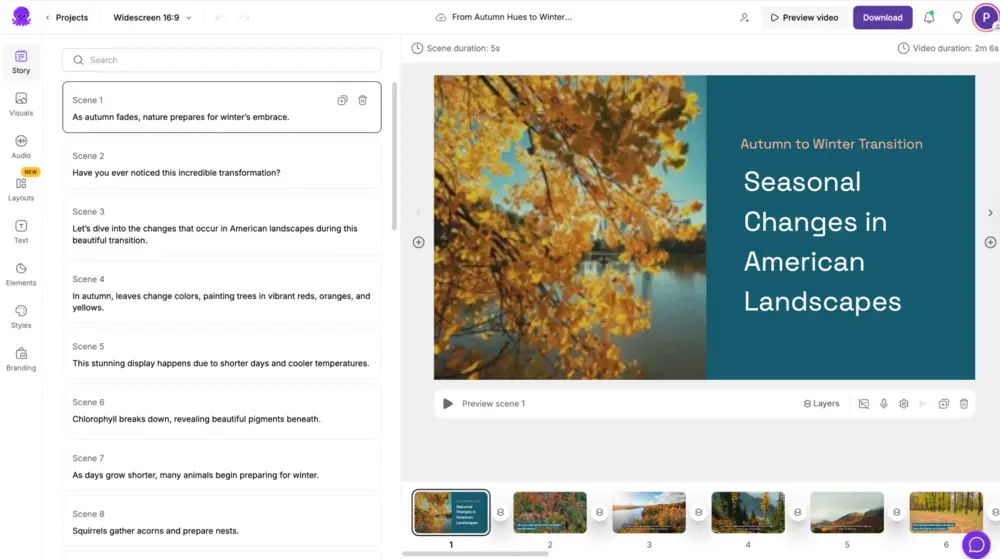
Step 8: Edit and Customize in the Video Editor
Once your storyboard is ready, the AI Video Editor opens. You can:
- Edit scene text and duration
- Replace visuals under Visuals
- Add music and AI voiceovers under Audio
- Insert overlays in Text or Elements
- Apply your Brand Kit under Branding
Use Preview Video to see changes instantly.
Step 9: Export and Share Your Video
Click Download Video to export your finished piece or share it directly to social platforms. Your project is automatically saved under My Projects for future edits.
Pro Tips for Better Idea-to-Video Results
- Start with a clear, specific idea — one topic per video works best.
- Use Ask AI tools to refine and tighten your script.
- Choose the right aspect ratio for your destination platform.
- Apply your Brand Kit for consistent style.
- Always preview before exporting to ensure visuals and captions sync properly.
Why Use Pictory AI for Idea to Video
Pictory AI bridges the gap between brainstorming and professional video production. You’ll get:
- AI-generated scripts from your prompt
- Automatically matched visuals
- Built-in AI voiceovers and captions
- Download-ready videos in minutes
Frequently Asked Questions
Q1. What types of ideas can I turn into videos?
Any concept works — from tutorials and educational explainers to marketing or social media topics.
Q2. Can I rewrite the AI-generated script?
Yes. You can freely edit or use Ask AI to improve clarity, tone, or pacing.
Q3. Does Pictory automatically add visuals and voiceovers?
Yes. Pictory matches visuals to your script and can apply AI voiceovers instantly.
Q4. Can I brand my video?
Yes. Apply your Brand Kit in the Branding tab to add logos, fonts, and colors automatically.
Q5. Can I export in different aspect ratios?
Yes. Choose from 16:9, 9:16, or 1:1 based on your platform.