How an AI video agent works
The agentic AI video workflow, step by step
Seven steps from brief to download, and the points where the agent stops and you decide.
- Seven steps, one action each
- A worked example you can follow
- Where you review and where you change

4.6/5Trusted by over 20,000 teams and institutions worldwide.






What is an agentic video workflow?
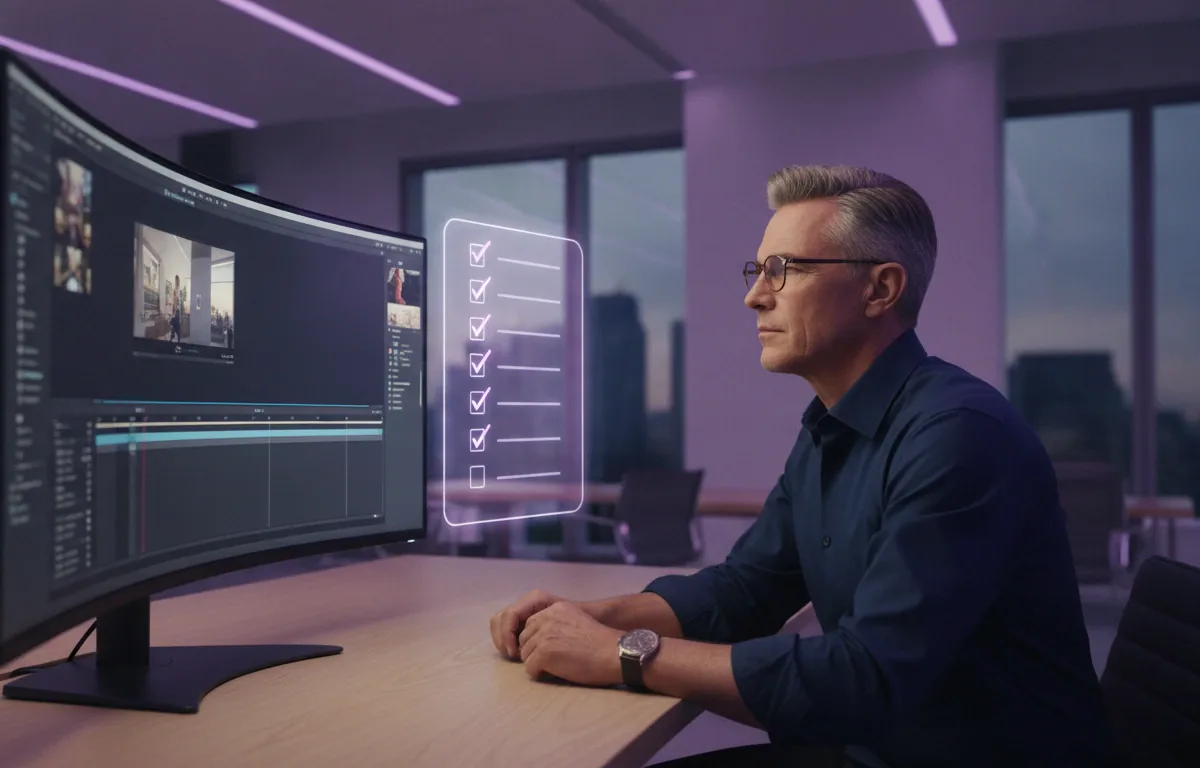
An agentic AI video workflow hands the production steps to an AI agent while you approve at key points. In Pictory 3, you brief the agent, answer setup questions, review the script, check the preview, refine, and generate the final video.
The workflow needs a brief, a source if you have one, and a willingness to review. This page walks through all seven steps, shows a worked example, and marks the points where the agent stops and you decide.
New to the term? Read what is an AI video agent. To see what the agent accepts and what you control, read about Pictory’s AI video agent.
Script approvedReady for the preview
Think of it as a loop. You give direction, the agent does a round of work, you review it, and the agent revises. The loop repeats until the video is right, and nothing is rendered into a downloadable file until you select Generate video.
- YouBriefDescribe the video and add your sources.
- AgentPlanReads the brief and proposes the story and scenes.
- AgentBuildDrafts the script and builds a preview.
- YouReviewCheck the script, scenes and preview.
- AgentRefineMakes the changes you ask for.
Seven steps
How an agentic AI video workflow works
Describe the video, answer the setup questions, review the setup summary, check the script and scenes, generate the preview, refine by chat or in the editor, then generate and download the video. Each step has one action, and you can go back to correct earlier choices.
Describe the video
Add the topic, audience, purpose and length in the agent input, plus any files or URLs. You decide what to cover.
Answer the setup questions
Choose the voiceover, visual sources, aspect ratio, layout preset and brand kit. You decide each one, or choose Decide for me.
Review the setup summary
Check your choices, then select Create script. You decide whether to go on or go back.
Review the script and scenes
Read each scene and its proposed visuals. You decide what the story says before the preview.
Generate the preview
Play it from beginning to end. You decide whether it works or needs a change.
Refine by chat or in the editor
Ask the agent for a change, or select Open in editor. You decide what to change.
Generate and download
Wait for edits to save, apply any voiceover changes, then select Generate video. You decide when it is final.


Worked example
What does a good brief look like?
A good brief names the length, audience, topic, tone, format, visuals, voice and ending. You don’t need all of them, but each one you give is one less thing the agent has to ask. Here’s a brief for a 60-second onboarding video.
Worked example
A 60-second onboarding video for new sales hires
“Create a 60-second onboarding video for new sales hires about preparing for a discovery call. Use a friendly tone, horizontal format, stock visuals, and an AI voice. End with a reminder to review the account notes.”
- Length
- 60 seconds
- Audience
- New sales hires
- Topic
- Discovery-call preparation
- Tone
- Friendly
- Format
- Horizontal
- Visuals
- Stock
- Voice
- AI voice
- Ending
- A reminder to review account notes
- BriefPaste the brief into the agent input.
- SetupChoose an AI voice, stock visuals and a horizontal aspect ratio. Pick a layout preset and brand kit, or choose Decide for me.
- ScriptCheck that each scene matches how your team prepares for a discovery call, and that the last scene ends on the reminder to review account notes.
- PreviewPlay the video from start to finish and check that each scene gives viewers enough time to read its text.
- RefineAsk the agent: “Improve the ending so it lands on the reminder to review account notes. Keep the other scenes unchanged.”
- GenerateApply any voiceover changes, select Generate video, download the file, and play it before you share it.
Human review
Where do you step in during an agentic AI video workflow?
You step in before the agent builds, before it renders, after the preview, and before you publish. The agent does the work between those points, and you can correct or redirect at any of them. Nothing becomes a downloadable file until you select Generate video.
Four decision points
You decide at four moments
Here is what to check at each one.
- Brief and setup (before it builds): your brief and setup choices steer everything that follows. Review the setup summary before you select Create script.
- Script and scenes (before it renders): compare facts, product names, dates and numbers with your approved source. Read the narration aloud and confirm each visual supports its scene.
- Chat and editor (after the preview): play the full preview, then ask for changes by chat or open the editor for direct control.
- The downloaded file (before you publish): play it locally and check the opening, ending, pronunciation, music levels and animation.



Changes
How do you change something without starting over?
Name the scene, describe the change, and say what to preserve. Use chat for story changes, Edit scene for a focused composition change, and the editor for precise control. Undo and Redo cover recent changes in your current session. Review each change before you make another.
Before you generate
What should you check before you generate the video?
Play the full preview and check the facts, scene order, captions, framing and audio. Wait for your edits to save and apply any outstanding AI voiceover changes. A finished file reflects the version used to generate it, so generate again after further edits.
More AI video features
Your complete AI video generation tool
AI avatars
Add a talking presenter, or a digital twin of you.
Captions
Accurate, synced captions in your brand style.
Translation
Captions and voiceover for every market.
Text editing
Edit the transcript to edit the video.
Team workspaces
Share projects and brand kits with your team.
Brand kits
Your logo, fonts and colors on every video.




AI Studio
Create any image or video you need with generative AI
The latest image and video models, built into the editor. Open Visuals, then AI Studio, describe it, and drop it straight into your scene.

Generate and edit images
Describe it, or edit an existing image with a prompt.

Keep characters consistent
Use reference images to keep the same person or product in every scene.

Create video clips with sound
Generate clips with audio. Yes, characters can talk.

Extend any clip
Keep any clip going with a new prompt, even one you uploaded.
 ✓
✓Get four options at once
Generate up to four versions and keep the best one.
Stay on brand
Bring in your brand from a website, a document or a logo, and it is applied to every scene.











 ✓
✓
Choose your model
Pick a model for stills or 5 to 10-second clips.
Also in AI Studio: Nano Banana Lite for images and Omni Flash for video.
Use cases
Who is using an agentic AI video workflow?
 Sales enablement
Onboarding video from a checklist
Brief the agent with the length, audience and ending, then review the story before the preview.
- Training
SOP to training video
Add the procedure as a source and say which sections to use and what to leave out.
- Product marketing
Product update video from a deck
Upload the deck, keep the slides as the scenes and check each one before the preview.
- Review
Reviewer sign-off with a preview link
Share a preview link so a reviewer can watch the video without access to edit the project.

Why Pictory
Loved by creators, trusted by enterprise teams
From solo YouTubers to global L&D teams. Read the case studies
4.6 / 5
Average rating on G2, plus Capterra’s Best Ease of Use award for 2025.
20,000+
companies and institutions creating video with Pictory.
SOC 2
and GDPR compliant, ready for enterprise security reviews

 GDPR
GDPR






Case studies
Teams that scaled video with Pictory

“Pictory is the easiest, most efficient way to get from an idea in text to multimedia imagery on the screen. It’s the critical component to get us out of death by PowerPoint.”
Read the Whirlybird Labs case study“Pictory helps us consistently deliver the high-quality videos we’re known for, content we’re proud of and our clients are proud to use. They always get a five-star response.”
Read the VRC case study“82% of our 10,000+ partners keep coming back to our training videos even though they aren’t mandatory courses. That’s how we know the content’s working.”
Read the AppDirect case study“It increased subscriber growth by 78% and cut my video creation time from a couple of hours to a few minutes. It’s been a godsend.”
Read the NetRock case study“Through Pictory videos, leads up by 500%, video production costs are down 90%.”
Read the Online Super Tutors case study“We only launched our new app a few months ago and already have over 500 subscribers. People come back regularly to watch more videos made with Pictory.”
Read the Game of Yield case study



There are seven steps: describe the video, answer the setup questions, review the setup summary, review the script and scenes, generate the preview, refine by chat or in the editor, and generate and download. You can go back and change earlier choices when something isn’t right.
An AI video agent works in a loop. You give it a brief, it plans the story and builds a draft, you review it, and it revises when you ask. The loop repeats until the video is right. In Pictory 3 that loop takes seven steps from brief to download.
Yes. You read each scene and its proposed visuals before you generate the preview. Edit narration where the script-review controls allow it, or ask the agent for a precise correction. After a script change, check the scene visuals and timing again.
Ask the agent for a focused change by naming the scene and saying what to keep, or open the editor and edit directly. Use Edit scene to redesign one scene. Undo and Redo cover recent changes, and you can duplicate a project before a large experiment.
Share a preview link. A review link is view-only: someone can watch the video without access to edit the project. Ask reviewers to name scene numbers or times, then make their changes by chat or in the editor and refresh the shared preview.
Yes. The workflow is the same if you start from a document, a web page, a PowerPoint deck or an audio recording. You add the source in step one, say what to use and what to leave out, and the agent works from it.
Generating uses AI Credits. Open AI credits in the header to see your balance, and select Usage history for details.
Not Just a Workflow
Keep going with the Pictory 3 AI video agent