
Connect Pictory MCP and create video directly from your AI agent
Make videos with Claude, ChatGPT, Perplexity, Cursor or VS Code. Describe the video, check the preview, and Pictory makes the finished video, with nothing to install.
No API key. Works on any plan, including the free trial.
What is the Pictory MCP server?
The Pictory MCP server is a video generation MCP server that connects your AI assistant to your Pictory account, so you can create videos by describing them. Your assistant helps with the script, scenes, visuals, narration and music, and gives you links to review and watch the video. You sign in with your Pictory account, with no API key.
The MCP server is how you supercharge your AI assistant’s video making. The Pictory API is for developers who want to build applications integrated with Pictory.
4.6/5Trusted by over 20,000 teams and institutions worldwide.
How it works
How to connect Pictory MCP
Add the server address
Add the Pictory server address in your AI assistant.
Sign in to Pictory
Sign in with your email and password, or with Google.
Ask for a video
Describe the video you want in any conversation.
Review, then render
Check the preview and confirm before your assistant renders it.
Prompt ideas
Prompt ideas to get you going
Copy a prompt, fill in the brackets with your own details, and paste it into your AI assistant with Pictory MCP connected. Each one comes with an example video.
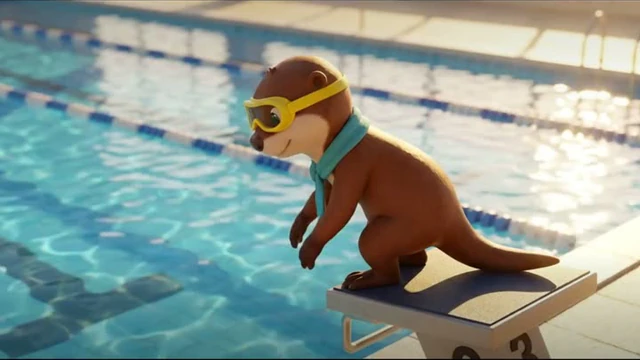
Mascot trailer
Your mascot or character in a cinematic trailer, looking the same in every shot.
Show the prompt
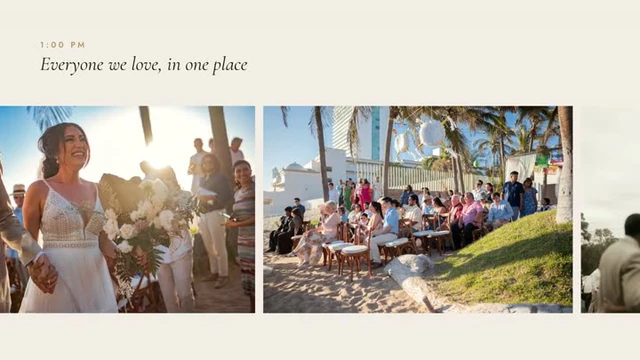
Make a [38]-second 16:9 trailer starring [character], [one line about them]. Brand kit [brand kit name / None]; if none, colors [hex] and fonts [names]. Story: 9 scenes, no voice-over: 1) black title card '[line 1]', words in from 0.1 s (3 s); 2) an establishing shot of [setting] without the character, with '[brand] presents' (5 s); 3) the character's entrance (5 s); 4-6) three action shots ([shot ideas]) (4 s each); 7) black title card '[line 2]' (3 s); 8) the title '[title]' as the biggest moment (5.5 s); 9) '[date or CTA]' with a button and [web address], on screen within 1 second and held to the end (4.5 s). [Cinematic, playful, building] library music. Hard cuts, one fade to black into the second title card (each fade takes 0.5 s off a video without a voice). Music and scene count are fixed once the project is made, so show me the scene plan first. Media: AI images, then AI clips. Use my character images (open the upload box) as references for every AI image, keeping the exact shape, colors and markings, all in [one consistent 3D-animated / photoreal] world, each still the exact shape of the video; then animate each still as the first frame of a silent clip with one camera move and one action, at least as long as its scene. Show me the stills and the AI credit cost and let me pick the models before animating. Text inside the title-safe area. Show me the preview and wait before rendering.Ad from your product photo
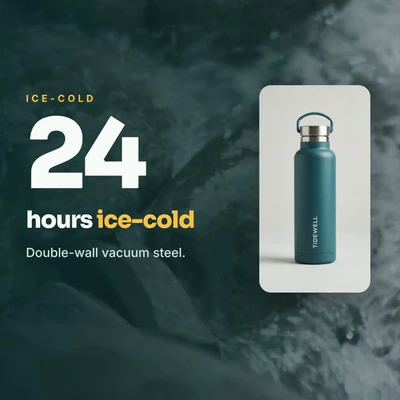
Your product photo as the hero, with a close-up, the price and a call to action.
Show the prompt
Make a [20]-second [1:1 / 9:16 / 16:9] ad for from my product photo [open the upload box / public link]. Brand kit [brand kit name / None]; if none, colors [hex] and fonts [names]. Story: [5] scenes: the headline '[headline]' beside the product within the first second, [benefit 1] over stock clips of [setting] with my photo as a product card, [benefit 2] on a slow close-up of [the detail, e.g. the cap or the label] cropped from my photo, [price and offer] over stock clips of [setting] with the product card, then '[CTA]' with [brand name] and [web address], fully on screen within 1 second and held to the end. No voice-over, words on screen only; [mood] library music. Script, music and scene count are fixed once the project is made, so show me them first. Use my photo as it is: slow push-ins only, no AI clips, no new text or logos on the product. Match the scene background to the photo's background and feather the photo's edge so the product sits in the scene. Headlines beside the product, never across it or its label. Keep words 6% in from the sides and out of the bottom tenth. Fade between scenes, with each scene's words already arriving as the fade begins, and make the ad exactly [20] seconds. Show me the preview and wait before rendering.Narrated video from slides or a PDF
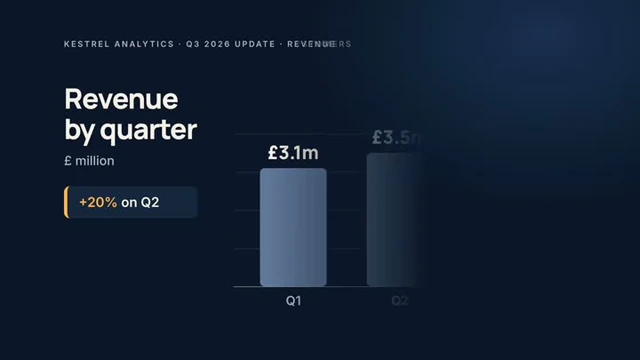
Each slide becomes an animated scene with a voice-over in your words.
Show the prompt
Turn my [deck / PDF] ([attached / pasted below]) into a [16:9] narrated video, one scene per slide for slides [1-5]. Brand kit [brand kit name / None]; if none, use the deck's colors and fonts. Story: open with the deck's main point in the first 3 seconds, then one scene per slide voiced in [2-3 sentences per slide in my words / the speaker notes], and end on '[CTA]', fully on screen within 1 second and held to the end. Use only what is on the slides and my numbers exactly (no added claims). Write about [25] words per slide (the voice reads about 3 words a second) and show me the script per slide to approve. Voice: [voice name]. [Corporate] library music low under the voice. Script, voice, music and scene count are fixed once the project is made, so show me them first. Media: rebuild each slide as animated type, charts and diagrams [or use my slide images (open the upload box)]. Bars grow and numbers count up on the word that says them; no more than 3 lines of text a scene; words inside the 10% title-safe margin. Smooth-left transitions. Show me the preview and wait before rendering.Personal trip video for every traveler
One short video per traveler, made from a list of names, destinations and dates.
Show the prompt
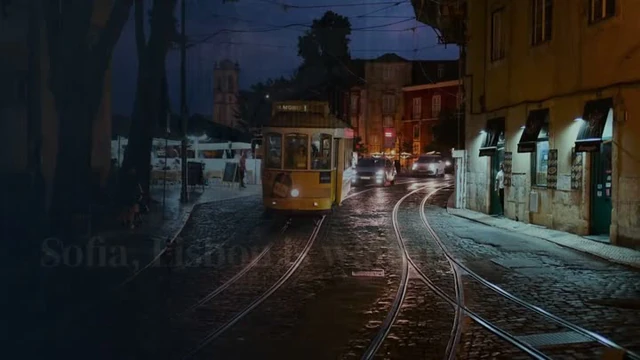
Make one [11]-second [16:9 / 9:16] trip video per traveler from these rows: [first name, destination, dates, one highlight, e.g. Sofia, Lisbon, 12–16 May 2027, An evening ride on Tram 28 through Alfama]. Same design for all: brand kit [None / your brand kit name]; if none, colors [navy #0E2A47, sand #F4EBDD, sunset orange #FF7A45] with [DM Serif Display] and [Inter]. Story, 3 scenes of 4 seconds each with fades: 1) '[Name], [destination] is waiting.' over stock footage of the destination, in the first 2 seconds. 2) 'You fly [dates]' and 'Don't miss: [highlight]' over a second clip that shows that highlight. 3) 'Make it [destination], your way.', a '[CTA, e.g. Add a city tour]' button, '[web address]' and my logo, over the first clip darkened, held for 3 seconds, then a short fade. No voice-over, [uplifting travel] library music, the same track for everyone. Music and scene count are fixed once each project is made, so show me the scene plan first, then the first traveler's scenes and the 2 clips you chose for each destination (the best-looking, not the first result). Media: stock clips of each destination. One project each, named '[Name] – trip video'. List every preview link in a table. Show me the preview and wait before rendering.Cinematic product film
A short vertical film of your product, cut to music, with almost no words.
Show the prompt
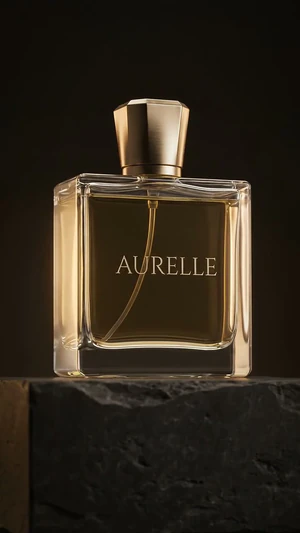
Make an [18]-second 9:16 cinematic product film for , [one line about it]. Use my product photo [open the upload box / public link] as the reference for every AI shot, or make one reference still first if I have none. Keep the product closed and upright, with its exact shape, color and label in every shot, and no other text or logos inside the clips. 4 scenes, no voice-over, hard cuts on the beat of [elegant, slow] library music: 1) macro of the product with one slow push-in, and just the name '[name]' small in the lower middle from 0.15 s; 2) a single band of light sweeping across it, camera still; 3) a slow-motion [liquid / splash / powder] moment around it; 4) end card on the beat drop over the reference still: '[name]', '' and '[web address]', all in by 1.5 s and held at least 3 s. Every scene full-bleed footage, one camera move per clip, no more than 10 words in the whole film, text inside the safe zone. Colors [hex] and fonts [names]. Show me the AI credit cost for the still and clips and let me pick the model before generating, then show me the preview and wait before rendering.Launch film with an exploded view
Your product opens into its parts, shows what is inside and snaps back together.
Show the prompt
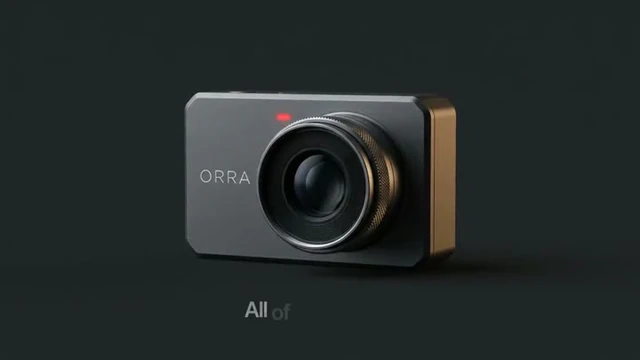
Make a [30]-second 16:9 flagship launch film for , [one line about it]. Use my product photo [open the upload box / public link] as the reference for every AI image and clip, or make one reference still first. Brand kit None; colors [hex]; fonts [names]. Narrated by [voice] with [building, premium] library music, louder on the silent opening. 6 scenes: 1) silent 4.5 s hero macro clip of the product with '[short hook]' fading in; 2) an exploded-view still of the product, parts floating apart on one axis with equal gaps, uniform dark backdrop and no labels in the image, then three callouts with lines drawn to [part 1], [part 2] and [part 3], each appearing as it is spoken; 3) the parts fly back together as rigid layers cut from that still, a flash, and the hero still settles in, with '[payoff line]'; 4) three spec counters that roll to [spec 1], [spec 2] and [spec 3] as they are spoken; 5) a lifestyle clip of [person] using the product with the name and '[tagline]' lighting up word by word; 6) a silent 4.5 s end card on the hero still with the name, '[tagline]', a '[Pre-order now]' button and '[price · web address]', all in by 1 second. Narration: [4 short full sentences]. Keep the product's exact shape, color and logo in every AI shot, one camera move per clip, no text inside the images. Show me the AI credit cost and let me pick the models before generating, then show me the preview and wait before rendering.Highlights reel or event recap
Your event clips cut into a vertical recap reel set to music.
Show the prompt
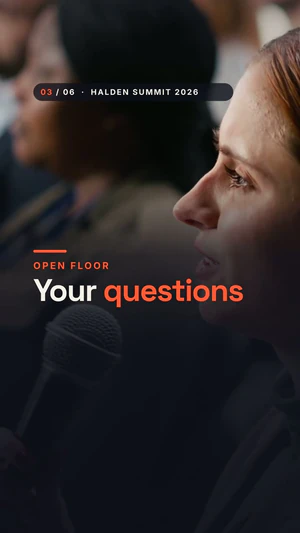
Make a [30]-second [9:16] highlights reel of [event name, year] from my clips (open the upload box). Brand kit [brand kit name / None]; if none, colors [hex] and fonts [names]. Story: [9] scenes: '[event name] [year]' over my best clip, fully on screen within 1 second; then [6] quick moments of 2.5 seconds each, one per clip, each playing from the moment I give ([clip 1 from 0:02, clip 2 from 0:01, ...]) with a short kicker and a 2–4 word title ([e.g. 'Day 1 · Main stage' / 'The keynote']); a numbers scene ('[1,200 guests · 24 speakers · 18 workshops]'); then '[See you in 2027]' with [date] and [link], fully on screen within 1 second and held to the end. No voice-over. [Energetic] library music. Music and scene count are fixed once the project is made, so show me the scene plan first. Media: my clips only (they play without their own sound). Text between 15% and 65% of the height with 120 px side margins, never over a face; a dark fade behind the words so they read on any clip. Hard cuts between the moments, each scene's words in within 0.2 seconds, and one fade into the end card (it takes 0.5 s off a video without a voice, so add 0.5 s to the numbers scene). Use my numbers exactly. Show me the preview and wait before rendering.Long photo film from lots of photos
A long film made from 100 or more photos, with chapters, captions and music.
Show the prompt
Make a [5]-minute 16:9 photo film of [our wedding / Mum's 70th / a celebration of Dad's life] from my [110] photos. Brand kit [None]; if none, ivory, ink and champagne gold, [Cormorant Garamond] italic titles and [Outfit] small capitals. No voice-over. Music-led: [2] library tracks, [gentle piano] for [the morning and the ceremony], then [joyful acoustic] from [the confetti] to the end, changing on a chapter card. Story: an opener with '[Ffion & Sam]' and '[20 June 2026 · Hartwell Barn]'; chapter cards [The morning, The ceremony, Golden hour, The celebration]; inside each chapter mix full-frame photos with slow Ken Burns, two- and three-photo rows, album spreads of 4–5 photos, 3×3 and 4×3 grids and one scrolling strip, each with a small time stamp and a short italic caption ([9:15 am · Ffion, nearly ready] …); one quote card '[I choose you, today and every day after.]', [Sam, from his vows]; a big '[Married.]' moment; a recap mosaic of 24 favorite photos with our names; an end card '[Thank you for being part of our day.]' and '[Film by …]'. Use only my photos (open the upload box or use these links: [links]) and tell me if any shows readable names, signs or logos. Hard cuts between scenes with the softness inside each scene, and plan each music track to the scene durations so the track changes exactly on the chapter card. Show me the scene plan first, then the preview, and wait before rendering.UGC-style ad with an AI creator
A creator-style 9:16 ad: an AI creator with your product, a voice-over and bold captions.
Show the prompt
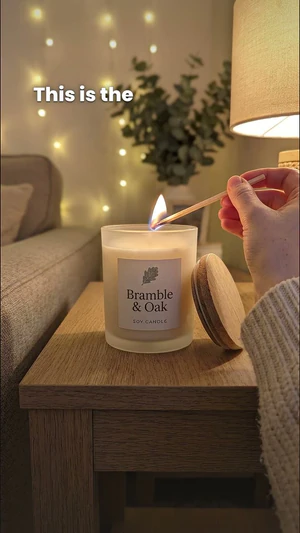
Make a [25]-second 9:16 UGC-style ad for , [one line on what it is]. Brand kit [brand kit name / None]; if none, colors [hex] and fonts [names]. Story: 5 scenes, hard cuts. Scene 1: the hook '[hook, e.g. My flat smells like a spa now]' as the first words, on screen within the first second. Scene 2: [the problem, one or two short sentences]. Scene 3: the creator using ([the action, e.g. lighting it]). Scene 4: [the result and one exact number], then the offer '[offer]'. Scene 5: no voice, 4 seconds: an end card with my product photo, '[offer]', a '[CTA]' button and [web address], all on screen within 1 second and held to the end. Voice: [voice name that suits a [age] [accent] creator], relaxed and chatty, short full sentences ending in full stops. [Light, warm] library music low under the voice. Bold captions in short phrases (2 to 4 words) timed to the voice, between 55% and 65% of the height, never over the face or the product. Script, voice, music and scene count are fixed once the project is made, so show me them first. Media: AI images and silent AI clips. First make one AI image of the creator holding my product up beside their face ([age, look, setting, phone-camera look]), using my product photo (open the upload box) as the reference; and one AI image of in use in the same room ([e.g. on a side table, a hand lighting it]). Then use those images as first frames for 4 silent clips, one per creator scene, each at least as long as its scene: one simple action each, handheld, natural light, mouth closed (the clips play without sound, so no talking to camera). The product keeps its exact shape, colors and label. Show me the AI credit cost and let me pick the models first. Show me the preview and wait before rendering.
Set up
Set up Pictory MCP in Claude, ChatGPT, Perplexity, Cursor or VS Code
Every assistant uses the same server address, https://mcp.pictory.ai/mcp, and your Pictory sign-in (email and password, or Google). There is no API key.
Choose your AI assistant: ClaudeChatGPTPerplexityCursorVS Code
Claude
On the web, desktop and mobile
Needs a Claude plan that supports custom connectors. On Team and Enterprise plans an admin adds it first.
- Open Settings, then Connectors
- Choose Add, then Add custom connector
- Name it Pictory MCP Connector and paste https://mcp.pictory.ai/mcp
- Accept the sign-in Claude detects
- Select Connect
- Choose Continue connecting in the browser
- Sign in to Pictory
Then open a new chat, switch Pictory on in the tools menu and paste this prompt. It checks the connection, then asks what you want to make.
Show the prompt
Connect Pictory to this chat, then make me a video. Keep every message short. No recaps.

FORMAT: write every message in Markdown. Questions in bold. Every list is a numbered list with one item per line and a blank line before it. Never run options together in one paragraph.

FIRST: do you already have Pictory's tools (check_motion_graphics_eligibility, get_quota, search_media)?
YES → go to VERIFY.
NO → STEP 1.

STEP 1: SHOW ME HOW TO CONNECT, THEN STOP
The connector is added in my settings, so your first message is the text between the message tags, nothing before or after. Do not print the tags.
<message>
**Connect Pictory**

1. Settings → Connectors → Add → Add custom connector
2. Name: `Pictory MCP Connector`
3. URL: `https://mcp.pictory.ai/mcp`
4. Continue → Add → Connect → Continue connecting
5. Sign in with Google or your Pictory email and password

Leave every other field blank: no API key, no client ID.

No Pictory account yet? [Start a free trial](https://app.pictory.ai/signup).

Then open a new chat, switch Pictory on in the tools menu, paste this prompt again and say "done".
</message>

Then wait. Never ask what I see on my screen.
If I say I can't find it, reply once: "Custom connectors need a Claude plan that supports them. On a Team or Enterprise plan, an admin adds the connector first." Nothing more.

VERIFY: call check_motion_graphics_eligibility. Don't narrate it.
OK → "Connected. You have <creditsAvailable> AI credits." The account decides the video type, so never ask me to choose one.
Sign-in error (401) → "Sign-in didn't finish. Click Connect on the Pictory connector again."
Any other error → follow the tool's own retry rules.

FIRST VIDEO: send the text between the message tags, then wait. Do not print the tags.
<message>
**What do you want to make first?**

1. A topic or idea
2. A script I already have
3. An article or web page link
4. A recording (podcast, talk, voice memo)
5. My own images or clips

Reply with a number.
</message>
Offer option 4 only on a Pictory 3 account where the upload panel opens. Then ask once for the input. For files, open media_upload_widget.

RULES
- Follow the Pictory tool instructions for this account's video type. On a Pictory 2 account, Pictory designs it.
- Ask one question at a time, as multiple choice: 2 to 4 short options, the recommended one first, each on its own line. Use your multiple-choice question tool if you have one. Otherwise write a Markdown numbered list (the bold question, a blank line, then 1. 2. 3. one per line) and tell me to reply with a number. Never ask an open question when options exist.
- Offer voices from list_voices as a short list of 3 or 4, and brand kits from list_motion_brand_kits with None as an option.
- Default to 16:9. Keep the first video short, 30 to 45 seconds.
- Show a preview first. Before any render, show the AI credit cost and wait for my yes.
- Send the preview link, then the final link. No check-ins after each scene.
- Tell me only what the Pictory tools require you to.
FALLBACKS: no upload panel → for images or clips, ask once for a public link. No input at all → build from my description and say so in one line.
Claude Code
Add the server, sign in, then check it is listed. Port 3118 is required.
claude mcp add --transport http --callback-port 3118 pictory-ai-video https://mcp.pictory.ai/mcp
claude mcp login pictory-ai-video
claude mcp listChatGPT
Pictory works in ChatGPT as a custom MCP server, added as a plugin.
Needs a ChatGPT account that can add custom MCP servers. In a work or school workspace an admin may need to allow them.
- In the left sidebar, select the Plugins icon (an @ sign).
- On the Customize page, select the Personal tab, then Add, then Add custom MCP server.
- Name it Pictory. Under Connection choose Server URL and paste https://mcp.pictory.ai/mcp (not Tunnel). Under Authentication choose OAuth and leave the advanced settings alone.
- Tick I understand and want to continue, then select Create as a plugin.
- Select Connect Pictory and sign in to Pictory.
- In a chat, type @Pictory and choose Pictory at the top of the list.
Choose Pictory, not “Pictory GPT for Videos” under Custom GPTs. That is a separate GPT.
Then start a new chat with the Pictory plugin and paste this prompt. It checks the connection, then asks what you want to make.
Show the prompt
Connect Pictory to this chat, then make me a video. Keep every message short. No recaps.

FORMAT: write every message in Markdown. Questions in bold. Every list is a numbered list with one item per line and a blank line before it. Never run options together in one paragraph.

FIRST: do you already have Pictory's tools (check_motion_graphics_eligibility, get_quota, search_media)?
YES → go to VERIFY.
NO → STEP 1.

STEP 1: SHOW ME HOW TO CONNECT, THEN STOP
The plugin is added in my settings, so your first message is the text between the message tags, nothing before or after. Do not print the tags.
<message>
**Connect Pictory**

1. Left sidebar → Plugins icon (the @ sign) → Personal tab
2. Add → Add custom MCP server
3. Name: `Pictory`
4. Connection: Server URL, `https://mcp.pictory.ai/mcp` (not Tunnel)
5. Authentication: OAuth. Leave the advanced settings alone.
6. Tick "I understand and want to continue" → Create as a plugin
7. Connect Pictory → sign in with Google or your Pictory email and password

Choose the Pictory plugin, not the "Pictory GPT for Videos" custom GPT.

No Pictory account yet? [Start a free trial](https://app.pictory.ai/signup).

Then start a new chat with Pictory, paste this prompt again and say "done".
</message>

Then wait. Never ask what I see on my screen.
If I say I can't find it, reply once: "Custom MCP servers need a ChatGPT plan that allows them. In a work or school workspace, an admin may need to switch them on." Nothing more.

VERIFY: call check_motion_graphics_eligibility. Don't narrate it.
OK → "Connected. You have <creditsAvailable> AI credits." The account decides the video type, so never ask me to choose one.
Sign-in error (401) → "Sign-in didn't finish. Select Connect Pictory again."
Any other error → follow the tool's own retry rules.

FIRST VIDEO: send the text between the message tags, then wait. Do not print the tags.
<message>
**What do you want to make first?**

1. A topic or idea
2. A script I already have
3. An article or web page link
4. A recording (podcast, talk, voice memo)
5. My own images or clips

Reply with a number.
</message>
Offer option 4 only on a Pictory 3 account where the upload panel opens. Then ask once for the input. For files, open media_upload_widget.

RULES
- Follow the Pictory tool instructions for this account's video type. On a Pictory 2 account, Pictory designs it.
- Ask one question at a time, as multiple choice: 2 to 4 short options, the recommended one first, each on its own line. Use your multiple-choice question tool if you have one. Otherwise write a Markdown numbered list (the bold question, a blank line, then 1. 2. 3. one per line) and tell me to reply with a number. Never ask an open question when options exist.
- Offer voices from list_voices as a short list of 3 or 4, and brand kits from list_motion_brand_kits with None as an option.
- Default to 16:9. Keep the first video short, 30 to 45 seconds.
- Show a preview first. Before any render, show the AI credit cost and wait for my yes.
- Send the preview link, then the final link. No check-ins after each scene.
- Tell me only what the Pictory tools require you to.
FALLBACKS: no upload panel → for images or clips, ask once for a public link. No input at all → build from my description and say so in one line.Perplexity
Add Pictory to Perplexity as a custom remote connector.
Steps to confirm
Needs a Perplexity plan that supports custom connectors.
- In Perplexity, open Settings, then Connectors.
- Choose to add a custom connector and pick Remote.
- Name it Pictory, paste https://mcp.pictory.ai/mcp, and choose OAuth.
- Sign in to Pictory when asked, then ask for a video in a Perplexity conversation.
Cursor
Use the Pictory MCP server in Cursor with one entry in your MCP settings.
- Open Settings, then MCP, then Add new MCP server. Or edit ~/.cursor/mcp.json (all projects) or .cursor/mcp.json in a project.
- Add the server below. The address is all it needs; there is no API key header.
- When Cursor shows the server as needing authentication, start sign-in and sign in to Pictory in the browser.
- Ask for a video in the Agent.
{
  "mcpServers": {
    "pictory": {
      "url": "https://mcp.pictory.ai/mcp"
    }
  }
}VS Code
Add the Pictory MCP server to VS Code in a .vscode/mcp.json file.
Steps to confirm
- In your workspace add .vscode/mcp.json (or add the server to your user profile).
- Add the server below.
- VS Code opens the browser for the Pictory sign-in the first time it connects.
- Ask for a video in Chat, in agent mode.
{
  "servers": {
    "pictory": {
      "type": "http",
      "url": "https://mcp.pictory.ai/mcp"
    }
  }
}Integrations
Use Pictory MCP with the tools you already use
Connect Pictory MCP and one of these tools to your AI assistant, and the assistant turns what it finds there into a video.
 FigmaDesigns into walkthrough videos.
 NotionPages into explainers.
- SlackThreads into update videos.
- CanvaDesign copy into branded videos.
- Google DriveDocs and decks into narrated videos.
- HubSpotPosts and campaigns into video.
 Jira and ConfluenceRelease notes into what’s-new videos.
- LinearCycles into changelog videos.
- GitHubReleases into release videos.
 StripeYour revenue summary into animated charts.
 ShopifyProducts into short videos.
- WordPressPosts into video.


Examples
What you can ask for
Five requests to start with.
- Pictory 3: “Create a motion graphics explainer about our new product, with animated headlines and diagrams. Show me a preview, then give me the Pictory project link so I can keep editing.”
- Pictory 2: “Make a 60-second explainer about our new expense-tracking feature, professional tone, for YouTube.”
- Pictory 2: “Turn this blog post into a video: example.com/post”
- Pictory 3: “Turn this podcast recording into a motion graphics video.” Upload the recording in the chat.
- Either: “Make the title smaller and swap the clip on scene 2.”
Pictory 3
Pictory 3: what is different
Every new sign-up starts on Pictory 3; existing accounts move over time.
- What your AI assistant makes
- Motion graphics videos: animated text, shapes, charts and diagrams, with optional footage or images
- Where you keep editing
- The saved project opens in the Motion Studio editor in Pictory 3
- Brand kits
- Brand Kit 2.0, or none
- Before it is created
- Settle the narration, narrator, music and scene count; after that, your assistant refines the visual design
- Cost of the finished video
- 200 AI Credits per video minute for the first successful render, on plans that charge render credits; later renders of the project cost nothing more. Enterprise and API Self-Service plans use no AI Credits for it
- What you get back
- A preview link, the editable project link, then watch, share and download links
- Free trial
- Trial videos carry a watermark and a Pictory-branded outro (the outro is not charged)
Before you spend
Preview first, spend second
Your AI assistant shows you a preview before anything is rendered, and before AI media or a render it shows the AI Credits and waits for your go-ahead. You edit the video on the preview you made: change text, swap a clip, adjust timing or music, and your assistant applies it at the same preview link. On Pictory 3 accounts it refines the motion design, and you can open the project in Motion Studio to finish by hand.
 Preview
Uploads
Use your own images, videos and recordings
In Claude on the web and desktop, an upload panel opens in the chat for images and videos up to 100 MB each: scene media, a reference for AI images, or the first frame of an AI clip. On Pictory 3, the same panel takes a recording and your assistant turns it into a video. Connected before uploads arrived? Remove the connector and add it again.
Media
Stock, AI or your own media
Library footage, images and music use no AI Credits. AI images and clips do: your assistant shows the cost first and offers cheaper models.
 Scene 3
Behind the scenes
What your AI assistant uses behind the scenes
Your assistant works through Pictory’s tools in four groups, so you never write requests yourself: motion graphics, standard videos, finding assets and your account.
- Create: from a topic, a script or an article link; Motion Graphics on Pictory 3; audio to video on Pictory 3
- Preview: a storyboard preview in 2 to 5 minutes
- Edit: the preview, in place
- Render: credits shown first; 5 to 15 minutes for a standard video
- Media: stock footage and music, AI images and clips, and your own files
- Account: credits, minutes, voices and brand kits
Last verified: to come
Which one?
MCP server or API?
The MCP server supercharges your AI assistant’s video making; the Pictory API is for developers building applications. The Claude Code Text-to-Video skill needs an API key and an API subscription.
| Pictory MCP server | Pictory API | |
|---|---|---|
| Who it is for | You, making videos in your AI assistant | Developers building applications integrated with Pictory |
| How you sign in | Your Pictory account | An API key and an API subscription |
| Plans | Any Pictory plan, including the free trial | The API plans |
| Where it works | Claude, ChatGPT, Perplexity, Cursor and VS Code | Any tool that can call a REST API |
| How you use it | Describe the video in a conversation | Send requests from your own code, at scale |
Use cases
Who is using Pictory MCP?
 Creators and marketers
Explainers and social clips from a chat
Describe the clip, check the preview, download it.
- Product teams
A launch note or a blog post as a video
Paste the note or the link for a narrated explainer.
- Educators and trainers
A lesson outline as a narrated video
An outline in, a narrated video with music out.
- Developers
Prototyping video in Claude Code, Cursor or VS Code
Try a video idea before you build it on the API.
More AI video features
Your complete AI video generation tool
AI avatars
Add a talking presenter, or a digital twin of you.
Captions
Accurate, synced captions in your brand style.
Translation
Captions and voiceover for every market.
Text editing
Edit the transcript to edit the video.
Team workspaces
Share projects and brand kits with your team.
API
Generate branded videos from your own product.



Why Pictory
Loved by creators, trusted by enterprise teams
From solo creators to global marketing teams. Read the case studies
4.6 / 5
Average rating on G2, plus Capterra’s Best Ease of Use award for 2025.
20,000+
companies and institutions creating video with Pictory.
SOC 2
and GDPR compliant, ready for enterprise security reviews

 GDPR





Case studies
Teams that scaled video with Pictory

“Pictory is the easiest, most efficient way to get from an idea in text to multimedia imagery on the screen. It’s the critical component to get us out of death by PowerPoint.”
Read the Whirlybird Labs case study“Pictory helps us consistently deliver the high-quality videos we’re known for, content we’re proud of and our clients are proud to use. They always get a five-star response.”
Read the VRC case study“82% of our 10,000+ partners keep coming back to our training videos even though they aren’t mandatory courses. That’s how we know the content’s working.”
Read the AppDirect case study“It increased subscriber growth by 78% and cut my video creation time from a couple of hours to a few minutes. It’s been a godsend.”
Read the NetRock case study“Through Pictory videos, leads up by 500%, video production costs are down 90%.”
Read the Online Super Tutors case study“We only launched our new app a few months ago and already have over 500 subscribers. People come back regularly to watch more videos made with Pictory.”
Read the Game of Yield case study


Pictory is a video MCP server for Claude, ChatGPT, Perplexity, Cursor and VS Code. In Claude it works on the web, desktop and mobile, and in Claude Code with three commands (Claude Code guide). Each one uses the same server address and your Pictory sign-in.
No. The plugin is the MCP connection to your own Pictory account, so ChatGPT makes the video in Pictory. The Pictory GPT is a separate GPT in the GPT Store.
No. You sign in with your Pictory account through Pictory’s own sign-in, and there is no API subscription to buy. The API key is only for the Pictory API.
Any Pictory plan works, including the free trial, and your plan sets the usage. Free trial videos carry Pictory branding.
Your account decides. On Pictory 3, your assistant makes motion graphics videos that open in Motion Studio; on Pictory 2, standard videos with footage, narration and music.
There is no price per minute: it depends on what you create and which model you use. The free trial gives you 300 credits; stock media and music use none, and your assistant shows the credits before it generates or renders. See pricing.
Yes, the one you are making. Edit the preview in place (text, clips, timing or music) and your assistant applies the changes at the same link before it renders. On Pictory 3 your assistant refines the motion design, and you can open the project in Motion Studio; for hands-on changes, use the Pictory editor.
Yes. In Claude on the web and desktop, an upload panel opens in the chat for images and videos up to 100 MB each.
Yes, on Pictory 3. Upload one recording (MP3, WAV, M4A, AAC or WebM, up to 200 MB, from 5 seconds to 50 minutes) in the upload panel in Claude on the web or desktop. Your recording is the narration, and your assistant plans the scenes and shows the AI Credits before it renders.
No. The MCP server is for making videos in your AI assistant with your Pictory sign-in. The Pictory API is for developers building applications, and needs an API key and an API subscription.
Not Just an MCP Server
Explore our AI Generative Tools and Other Features