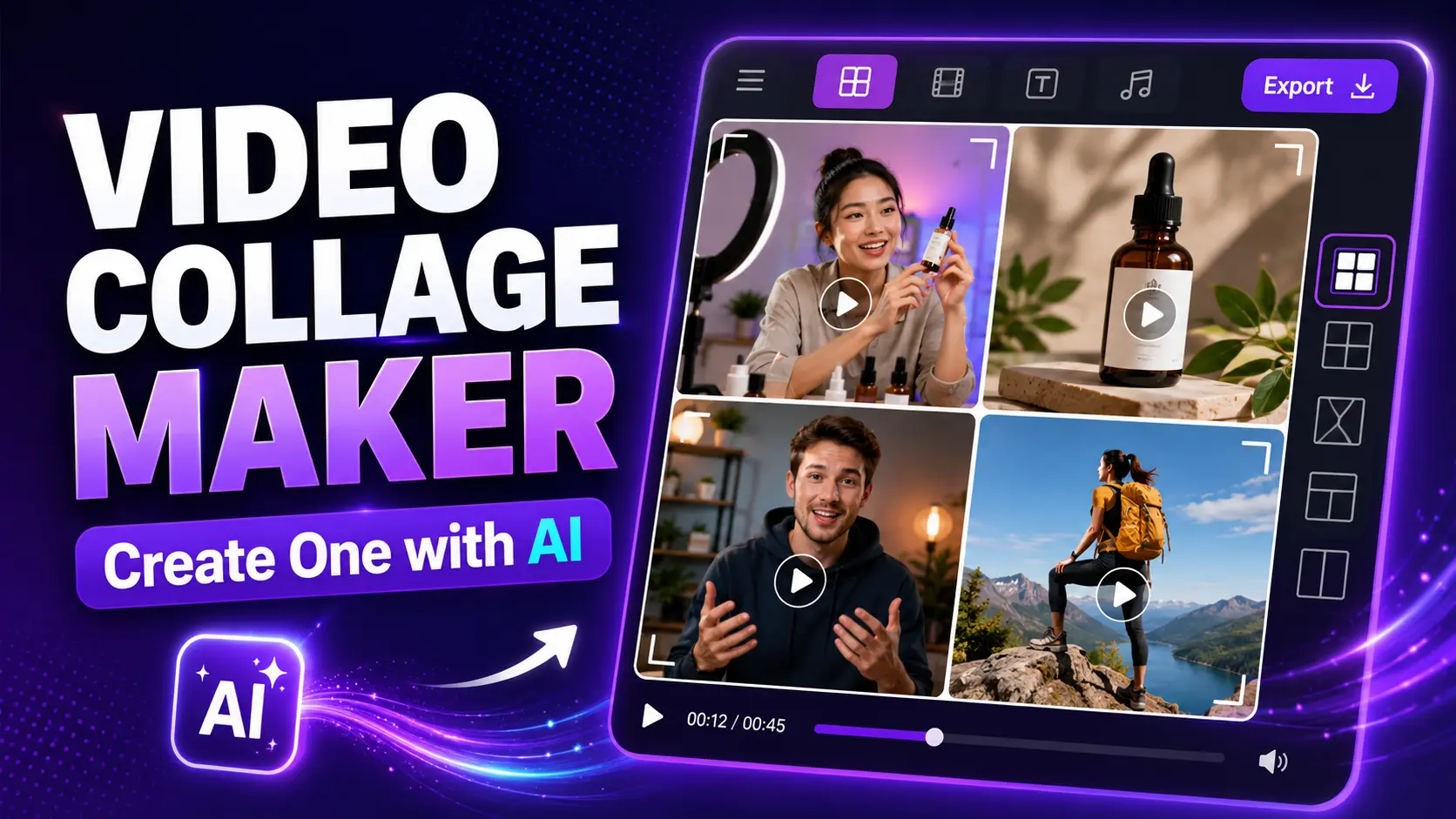
A video collage combines multiple clips or photos into a single frame, so you can show more in less time, and Pictory builds one for you without a timeline or editing background. Video already makes up more than 60% of total social media consumption globally, so a collage that catches attention in the first second matters. Here’s how to build one with AI, step by step, from upload to export.
TL;DR
A video collage combines multiple clips or photos into one framed video, arranged as a grid, split screen, or picture-in-picture layout. With Pictory, you upload your clips, pick a layout, add music and captions, and export in the right size for TikTok, Instagram, or YouTube. No editing background needed, and it takes minutes, not hours.
What is a video collage?
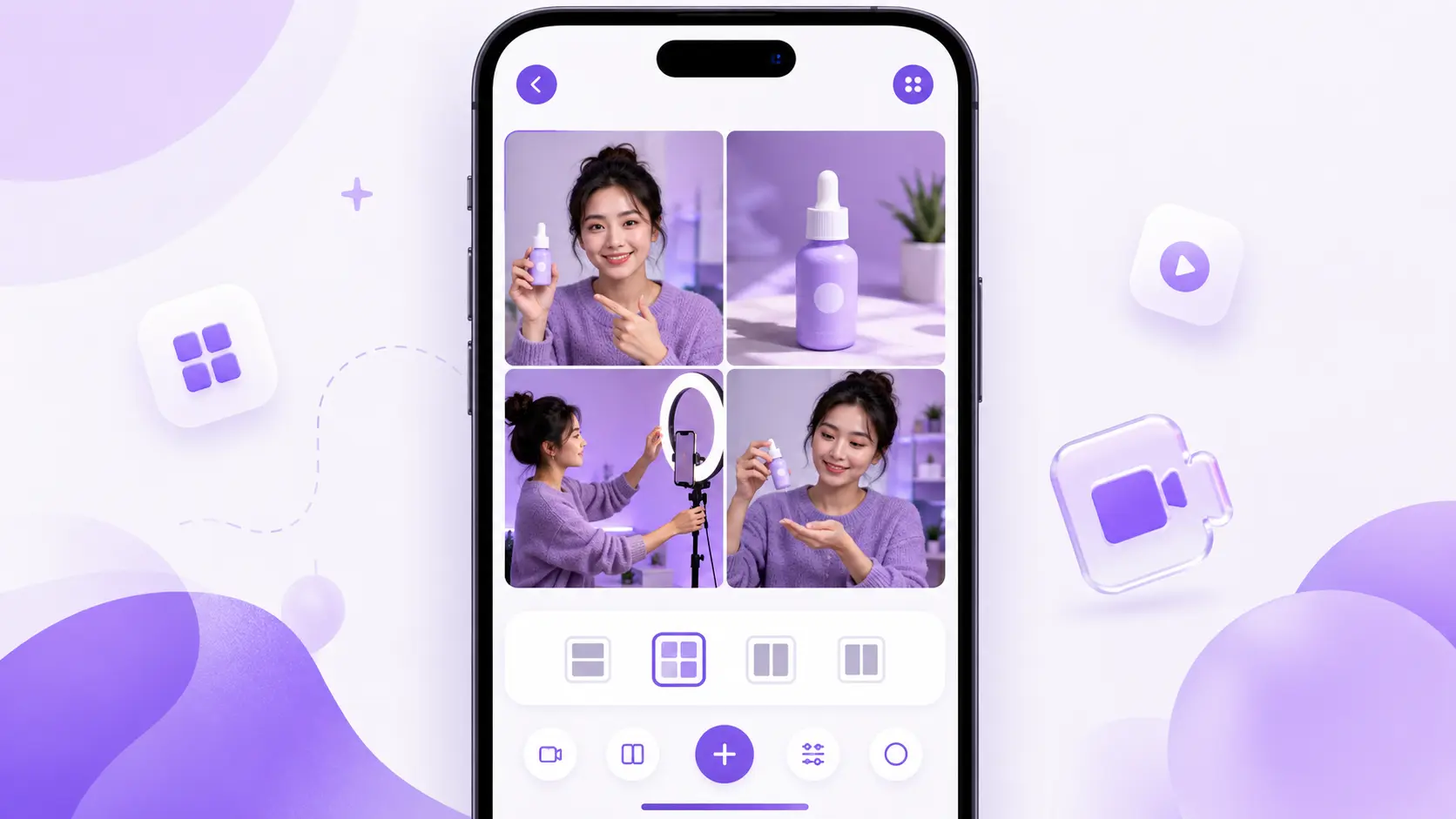
A video collage combines two or more video clips or photos into one frame, arranged in a grid, split screen, or picture-in-picture layout. It’s a fast way to show multiple moments, angles, or products together, without stitching separate videos into one long timeline.
Think of it as a photo collage, but with motion. You might pair a before-and-after clip, stack four product angles in a grid, or drop a reaction cam in the corner of a tutorial. A video collage maker handles the layout and syncing, so you don’t need to line up frames by hand.
How do you make a video collage?
You don’t need editing experience to combine videos into one clip. Pictory’s AI video editor walks you through the whole process, from raw clips to a finished, platform-ready collage.
Upload your clips or photos
Drop in your video files, photos, or a mix of both. Pictory pulls them straight into your project so you can start arranging them right away.
Choose a collage layout
Pick a grid, split screen, or picture-in-picture template. Each one fits a different story, so choose based on what you want viewers to notice first.
Arrange and trim your clips
Drag clips into place, trim the dead space, and match up timing so each frame plays in sync with the others.
Add music and captions
Drop in a soundtrack and auto-generate captions so your collage works with sound on or off.
Export for your platform
Pick the size that matches where you’re posting, then export and upload. Your collage is ready to publish in minutes.
Which layout should you use for your video collage?
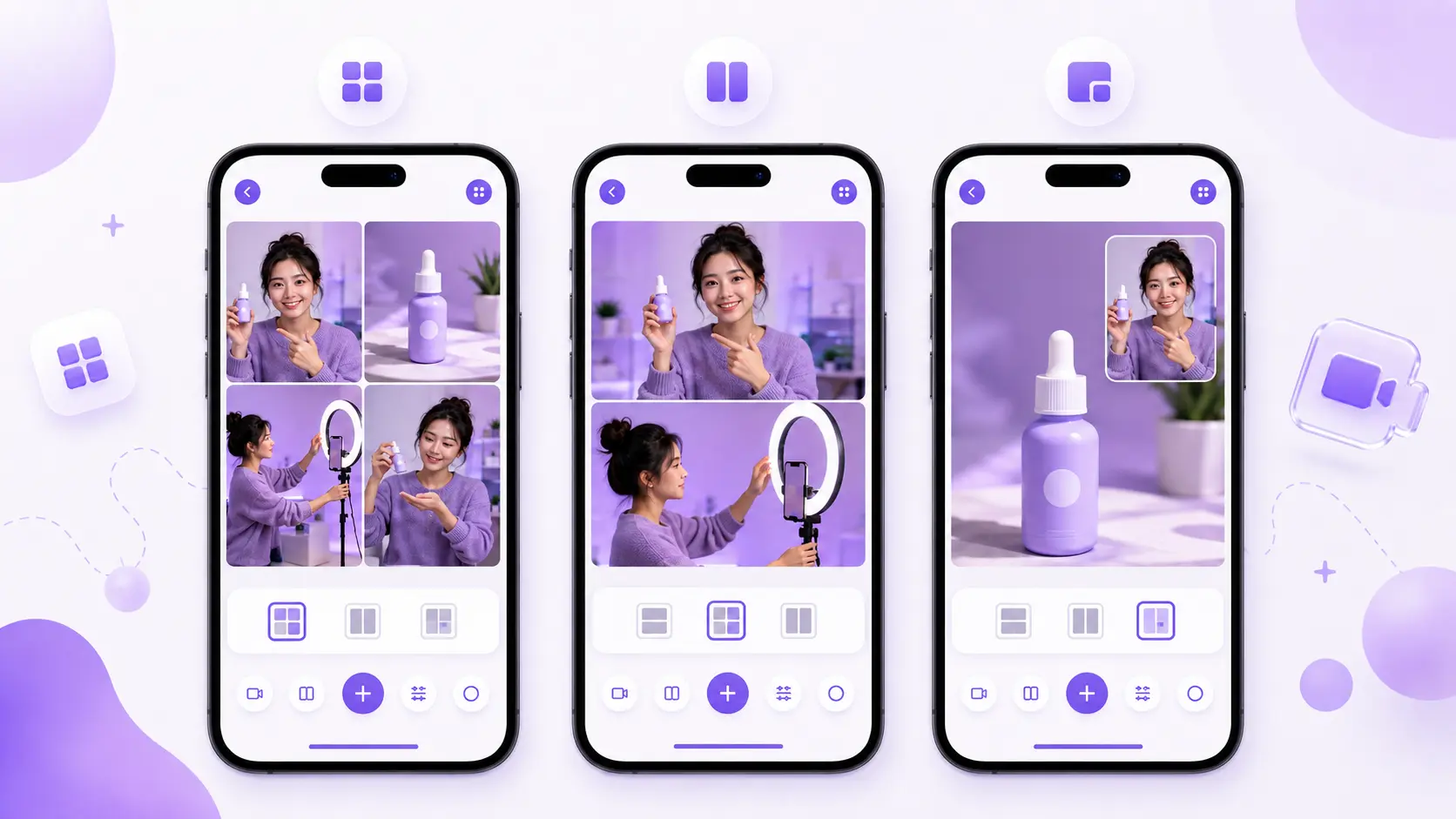
Use a grid to show several product angles or moments at once, a split screen for before-and-after or side-by-side comparisons, and picture-in-picture when you want a reaction or commentary clip layered over the main footage. Match the layout to what you want your viewer to compare or notice first.
A grid layout works well on Instagram feed posts, where viewers scan several frames at once. Split screens suit TikTok and Reels, where a quick left-right or top-bottom comparison grabs attention fast. Picture-in-picture fits tutorials and reaction videos, where the main clip stays large and a smaller clip sits in the corner.
How to size a video collage for each platform
Sizing your collage for the platform matters as much as the layout. A collage cropped wrong loses faces, captions, or key details at the edges. Use these three formats as your baseline.
9:16 (vertical): Use this for TikTok, Instagram Reels, and YouTube Shorts. Short-form video already gets 2.5 times more engagement than long-form video, so a vertical collage built for these feeds tends to hold attention longer.
1:1 (square): Use this for Instagram and Facebook feed posts. A square frame fits neatly in-feed on mobile and desktop without cropping.
16:9 (widescreen): Use this for YouTube and most desktop viewing. It gives you more horizontal space, which suits grid layouts with four or more clips.
Pictory’s social media video maker resizes your collage for each platform automatically, so you don’t have to rebuild it from scratch every time you post somewhere new.

How do you add music and captions to a collage?
Sound and text carry a collage as much as the visuals do. Once your clips are arranged, add a soundtrack that matches the pace of your cuts. Pictory’s add music to video tool lets you drop in a track and adjust volume against your original clip audio, so nothing gets drowned out.
Captions matter just as much, since most viewers scroll with sound off. Pictory’s caption generator transcribes your audio automatically and styles the text to match your brand. Place captions along the bottom of the frame so they don’t overlap with any secondary clips in a picture-in-picture layout.
Video collage ideas that work
Video already anchors most marketing plans: 91% of businesses now use video as a marketing tool. A collage format gives you more ways to put that video to work without filming new footage every time.
Testimonials: Stack three or four customer clips in a grid so viewers hear multiple voices back the same point in one post.
Before-and-after: Use a split screen to show a transformation side by side, whether that’s a renovation, a fitness result, or a design revamp.
Product angles: Show a product from four sides in one grid, so shoppers get a full view without swiping through separate posts.
Event recaps: Combine highlight clips from a conference, webinar, or launch into one collage that sums up the day. This also pairs well with repurposing existing footage into new social posts, so old recordings keep earning views.
Build your first video collage today
Upload your clips, pick a layout, and export in minutes.
Is a video collage maker right for you?
If you’re posting to TikTok, Instagram, or YouTube on a regular schedule and don’t have a dedicated editor on staff, a video collage maker fits your workflow well. Marketers juggling several campaigns and educators building training recaps both get the same benefit: more finished posts, less time spent stitching clips by hand.
It’s not built for frame-by-frame color grading or feature-length edits. If your project needs that level of control, a full desktop editor still fits better for that specific job. For social clips, recaps, and product shots, though, a collage tool covers the work you actually need done.
For most marketers and educators, Pictory covers the whole job: upload, layout, music, captions, and export, all in one pass.
Turn your next batch of clips into a collage worth sharing
No credit card required to start.
FAQ: Video Collage Maker
What is the best layout for a video collage?
The best layout depends on your goal. Use a grid to show multiple angles or moments, a split screen for direct comparisons like before-and-after, and picture-in-picture for tutorials with a reaction clip. Match the layout to what you want viewers to compare first.
Can you combine videos into one clip for free?
Yes. Pictory lets you try a video collage maker free, no credit card required. You can upload clips, choose a layout, add music and captions, and export a finished collage before deciding on a paid plan.
What size should a video collage be for TikTok or Reels?
Use a 9:16 vertical frame for TikTok, Instagram Reels, and YouTube Shorts. This format fills the mobile screen and matches how most viewers hold their phones, which keeps your collage from getting cropped at the edges.
Do I need editing experience to make a video collage?
No. AI tools like Pictory guide you through uploading clips, picking a layout, and adding music and captions with no manual timeline work. Most people finish a collage in minutes, without any prior editing background.
How many clips can you fit in one video collage?
Most layouts work best with two to four clips. A grid can hold four comfortably, a split screen suits two, and picture-in-picture works with a main clip plus one smaller overlay. Adding more clips than the layout supports can crowd the frame.
Related Posts
![[Article] Promo Video: How to Make One That Converts](https://pictory.ai/wp-content/uploads/2026/09/blog-video-promo-300x169.webp)