
Digital content teams are expected to publish more video across more channels with fewer resources. With Pictory, you can convert scripts and internal messaging into brand-consistent videos using AI scene creation, captions, voiceovers, and an editor built for speed and reuse.
This guide shows enterprise-ready workflows to turn text into professional video at scale using Pictory’s Text to Video generator inside AI Studio, plus the fastest ways to apply brand kits, standardize layouts, and streamline approvals.
Why enterprise teams use AI text to video for production at scale
Using a text to video AI workflow helps teams produce consistent, on-message video without relying on specialized editing resources for every request. Instead of starting from scratch each time, you standardize inputs and automate the first draft.
Speed: Turn scripts into storyboard drafts in minutes using an AI text to video generator.
Consistency: Apply Brand Kits, styles, fonts, and logos for brand-safe output across teams.
Efficiency: Repurpose existing scripts and documentation into video for internal communication, training, and enablement.
Scale: Create multiple versions for different platforms and aspect ratios without rebuilding the project.
If your source content starts as a web page or knowledge article, you may also prefer URL to Video for faster first drafts. If it starts in slides, use PPT to Video to keep structure intact.
Plan your text to video generation workflow for digital content teams
Before you generate, align on inputs and standards so the AI can produce predictable results. This is the difference between one-off videos and repeatable AI video production at scale.
Script format: Keep sentences short, one idea per sentence where possible, and include a clear call to action.
Scene strategy: Decide whether your team prefers scenes based on sentences or line breaks.
Brand requirements: Identify the correct Brand Kit, logo variant, and approved fonts.
Channel requirements: Define platform and aspect ratio needs early (16:9, 9:16, 1:1).
Approval path: Decide who reviews script, who reviews visuals, and who exports final.
For teams that need transcript-based editing and fast removal of filler words or silences, consider pairing this workflow with the AI Video Editor for video-to-text transcription and editing.
How to create an AI text to video draft in Pictory (step-by-step)
Step 1: Start a new Text to Video project in AI Studio
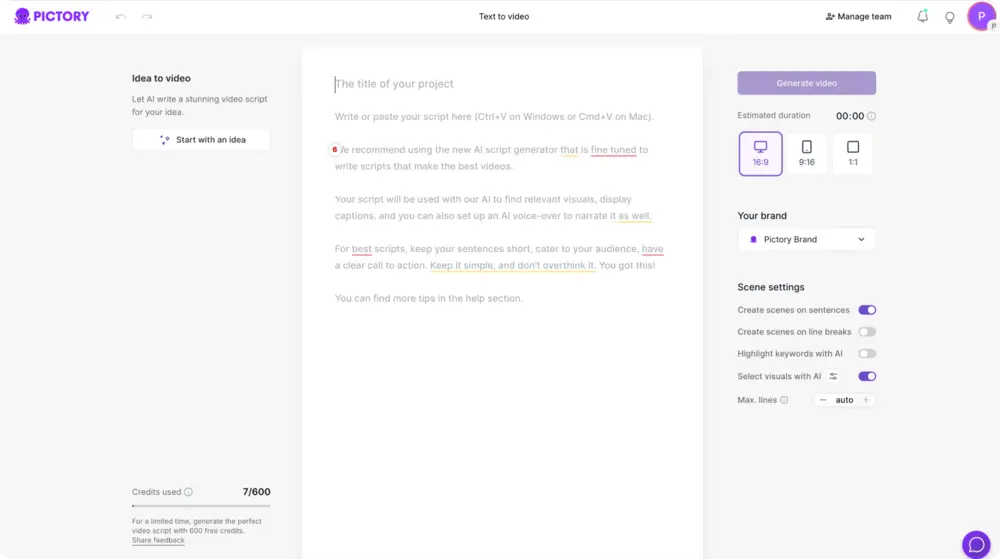
Open AI Studio and select the Text to Video generator from the home screen. This workflow is designed for converting text to video quickly, while keeping creative control in the editor.
Step 2: Paste or write your script (or generate one from an idea)
Paste your approved script into the input field. If you are starting from a topic, use the optional “Idea to Video” flow to generate a draft, then refine it in the Script Editor using Ask AI controls like optimize, rephrase, shorten, lengthen, or change tone.

Tip for enterprise content: use consistent structure for repeatable output, such as Problem, Impact, Solution, Proof, CTA.
Step 3: Configure scene settings for reliable text to video generation
In the Script Editor right panel, set your defaults for scalable production:
Select aspect ratio: 16:9, 9:16, or 1:1
Choose a Brand Kit for logos, fonts, and colors
Enable scene creation rules: sentence-based scenes or line-break scenes
Set max lines per scene for readable captions
Enable keyword highlighting if desired for emphasis
Turn on “select visuals with AI” to accelerate the first draft
Step 4: Choose a theme and generate the storyboard
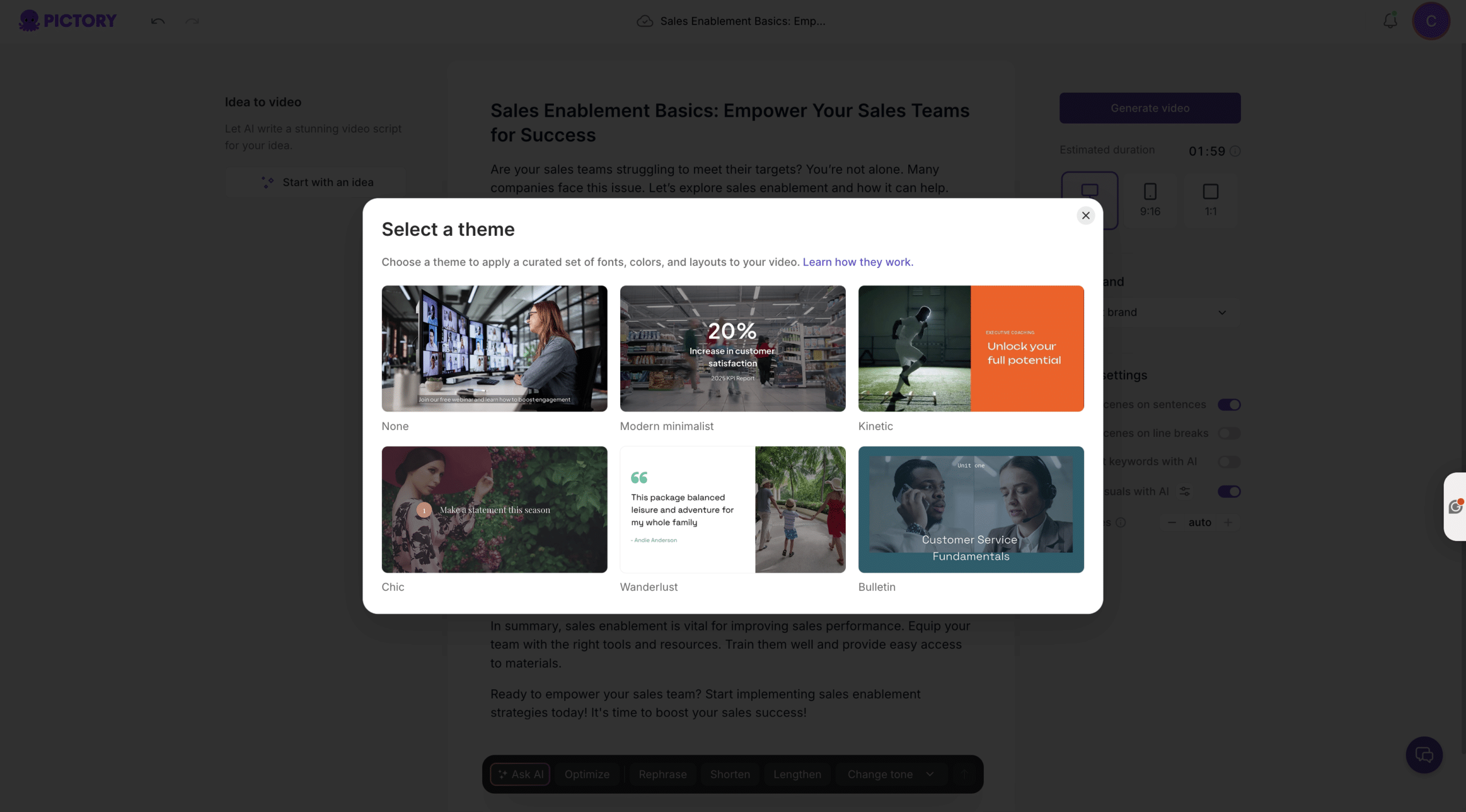
Click “Generate video,” then select a theme such as Modern Minimalist, Kinetic, Chic, or Bulletin. Pictory will create scenes and generate a storyboard. You will see a “Creating scenes” progress bar as the AI builds visuals and captions from your script.
Edit and refine visuals, captions, and audio in the AI Video Editor
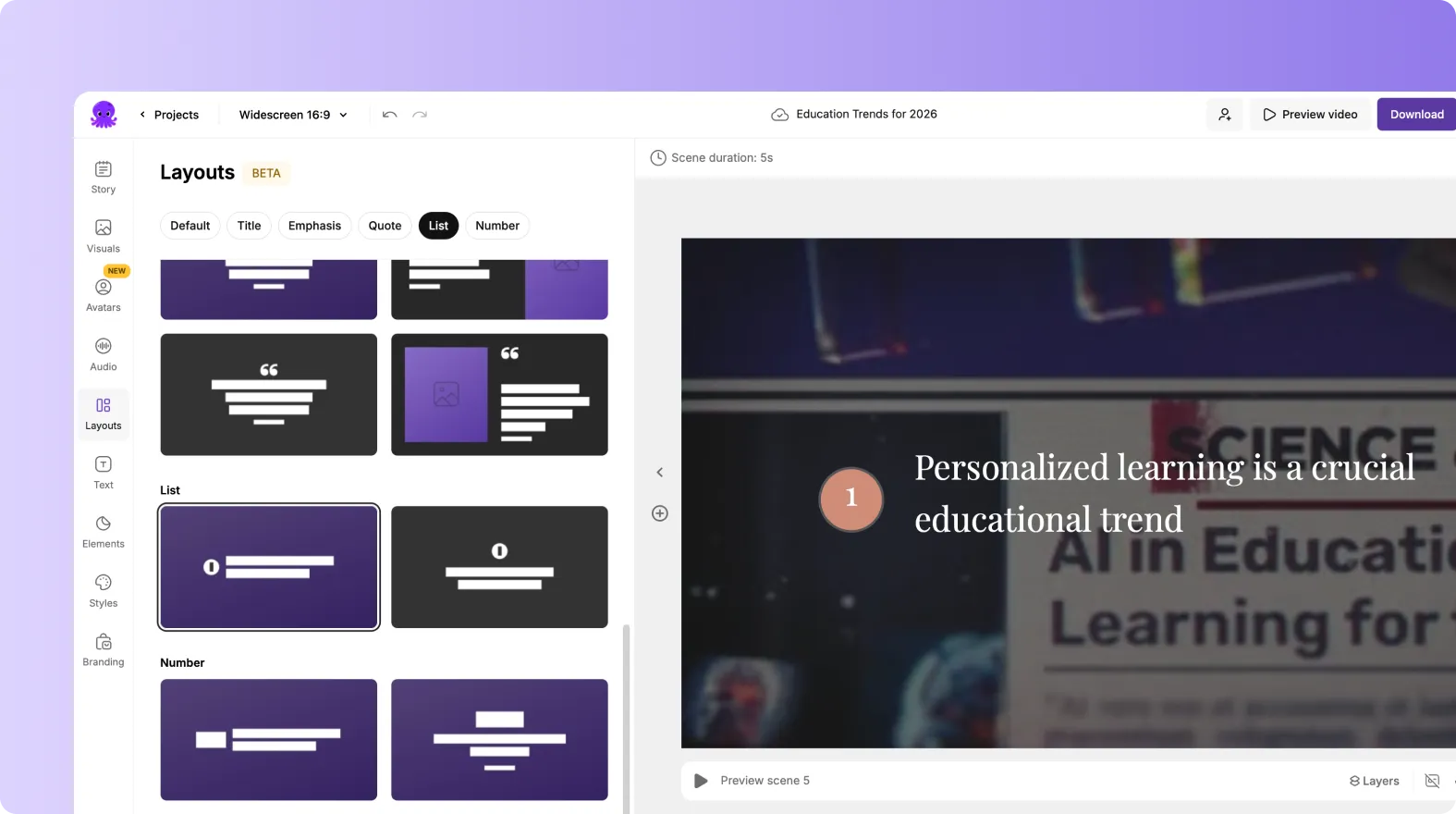
After storyboard creation, you will land in the editor with scenes on the left, preview on the right, and a timeline of thumbnails at the bottom. This is where digital content teams make the output production-ready.
Story: Edit scene text, adjust pacing, and refine captions per scene.
Visuals: Replace stock footage, use uploads, or generate brand-friendly creative using the AI Studio tab inside Visuals.
Audio: Add AI voiceover, background music, or upload narration. Preview voices and confirm tone consistency.
Layouts and Styles: Apply consistent formatting across scenes using layout templates and style themes.
Branding: Re-apply the right Brand Kit to ensure logos, fonts, and colors match enterprise standards.
If your workflow includes recording product demos or tutorials first, use Smart Screen Recorder, then bring the file into the editor for AI-assisted transcription, highlight creation, and rapid updates.
Use AI-generated visuals and avatars to scale enterprise content production
To scale content without increasing creative workload, use AI for first drafts while keeping brand control.
Generate visuals from prompts inside the editor
Open Visuals, then select the AI Studio tab to generate AI Images or AI Videos for the current scene. You can generate from a prompt, request prompt suggestions for the scene, and then add approved assets into your project or save them to Uploads for reuse.
Add AI presenter avatars for consistent delivery
Open the Avatars tab in the editor to add an AI presenter. Choose an avatar, pick an AI voice, and apply the avatar across scenes to standardize delivery for training, internal communication, sales enablement, and compliance messaging. Avatar usage consumes credits, so align usage guidelines across the team.
Standardize on-screen text with animations
Select a text layer, then use the Animate Text option in the top toolbar to apply entry and exit animations like Fade, Typewriter, Wipe, or Text Reveal. Keep animation choices consistent across a series so the program feels cohesive.
Brand consistency and governance for AI video production at scale
Enterprise scale requires governance. Pictory supports this with Brand Kits and repeatable editor controls so different contributors can produce consistent output.
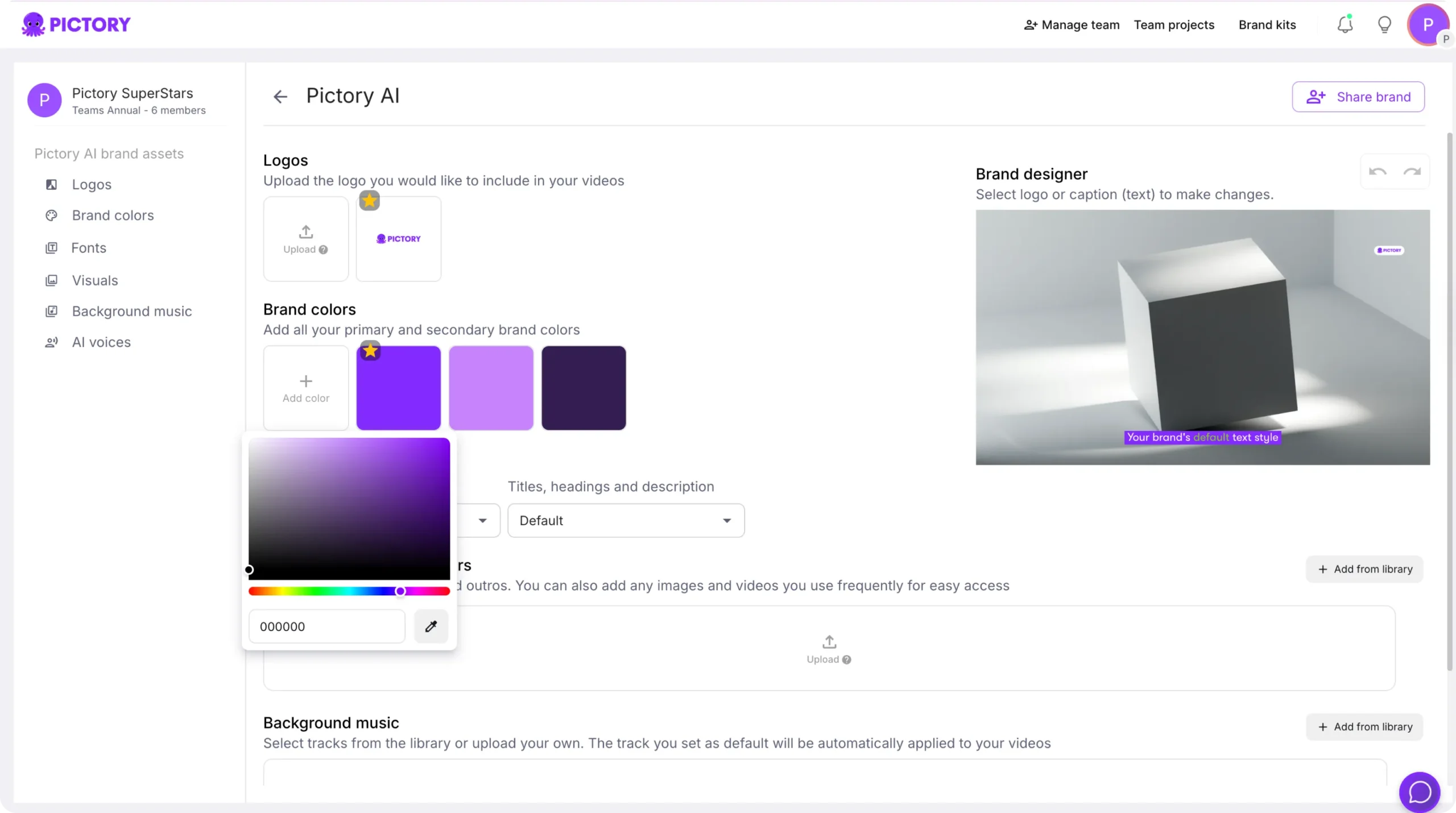
Build Brand Kits: Set logo, color palette, and brand font so every project starts aligned.
Use palette shuffle for testing: Quickly preview alternate brand color combinations while keeping brand consistency.
Create reusable templates: Standardize layouts, text styles, and scene structure for recurring video types.
Set caption rules: Use max lines per subtitle for readability and accessibility.
When you need to convert existing media assets into consistent branded video quickly, you can also support this workflow with Image to Video for campaigns, event recaps, and internal updates built from approved images and b-roll.
Export, share previews, and manage projects for team collaboration
Once edits are complete, use Preview to review pacing and transitions, then Download Video for final export. In the editor, you can also use the Share preview option to streamline feedback loops without waiting for final renders.
For ongoing production, organize work through Projects:
Use the Projects page to search, sort by latest, and manage high-volume output.
Open Project Details to track whether videos or text have been generated yet.
Use team collaboration prompts to share projects, brands, and media so teams can build on the same standardized assets.
FAQ: Text to Video for Digital Content Teams: AI Video Production at Scale
What is the fastest way to convert text to video for a content team?
Use the Text to Video generator in AI Studio, paste an approved script, set scene rules (sentences or line breaks), apply a Brand Kit, then click Generate video to create an editable storyboard draft.
How do we keep brand consistency across multiple creators using an AI text to video generator?
Use Brand Kits to define logos, fonts, and color palettes, then apply the kit inside the editor’s Branding tab. Standardize layouts and styles for recurring formats, and keep caption rules consistent by setting max lines per subtitle.
Can we create multiple versions for different platforms like 16:9 and 9:16 without rebuilding everything?
Yes. Set your aspect ratio in the Script Editor and adjust as needed for each output. This makes it easier to repurpose one script into multiple platform-ready variants while keeping the same storyboard structure.
How can we speed up visual creation while staying on brand?
In the editor, open Visuals and use the AI Studio tab to generate scene-specific AI Images or AI Videos from prompts, then replace or refine visuals scene-by-scene. Save approved generated assets to Uploads so other team members can reuse them.
Can Pictory help with training and internal communication videos at scale?
Yes. Teams commonly use text to video AI to turn internal documentation into consistent training, onboarding, and change management updates. For tutorials and demos, you can record content with Smart Screen Recorder and then use AI-assisted editing and transcription workflows to keep materials up to date.
What if we already have a blog post, knowledge base page, or website article instead of a script?
Use URL to Video to extract content and generate a script draft automatically, then edit and generate the storyboard. This is often faster than manual copy-paste when repurposing existing web content.
Can we add AI presenter avatars to enterprise videos?
Yes. Use the Avatars tab in the editor to choose an avatar, select an AI voice, and apply it across scenes for consistent delivery. This is useful for training, compliance, and sales enablement videos where a consistent presenter helps standardize messaging.


