
Scenes are the building blocks of your video. Adding new scenes lets you expand your message, while deleting scenes helps you remove anything unnecessary. Pictory AI gives you simple controls to manage your scene structure at any point in the editing process.
This guide shows you how to add or delete scenes inside Pictory AI.
Why Managing Scenes Matters
Controlling the number and order of scenes helps you:
• Improve clarity
• Adjust pacing
• Fix content gaps
• Remove mistakes
• Shorten long videos
• Update message flow
• Build cleaner storytelling
Being able to add or delete scenes gives you full flexibility during editing.
Step 1: Open the Story Tab
Enter your project and click the Story tab on the left side of the editor.
The Story tab displays every scene in a clean vertical list. Each scene includes text, a thumbnail, and timing.

This is where you control your overall structure.
Step 2: Add a New Scene
To add a scene:
- Select any scene in the list
- Click Add Scene
- A new blank scene appears below the currently selected scene
- Type or paste your text into the new scene
- Pictory generates visuals automatically based on the text
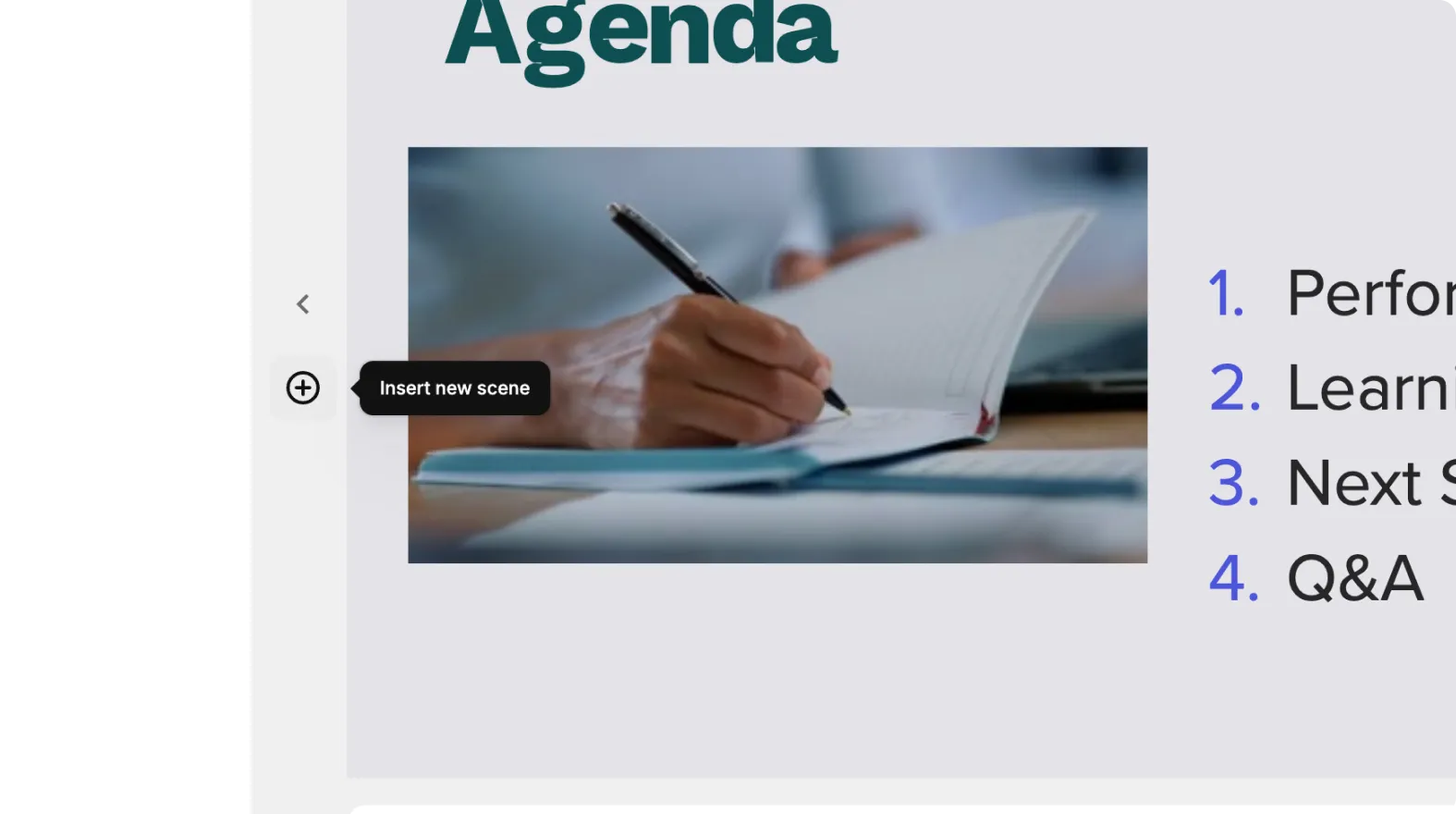
You can add as many new scenes as needed to complete your message.
Step 3: Insert a Scene Between Existing Scenes
If a new idea belongs in the middle of your video:
- Select the scene after which you want the new one to appear
- Click Add Scene
- Rearrange the new scene if needed by dragging it into place
This helps you refine your sequence without rebuilding the video.
Step 4: Delete a Scene You No Longer Need
To remove a scene completely:
- Select the scene you want to delete
- Click the Delete icon
- Confirm the removal
- The scene disappears instantly from your project

Deleting scenes is useful for removing repeated content, outdated sections, long pauses, or information that no longer fits your message.
Step 5: Customize New Scenes
New scenes automatically match your current Style and Brand Kit. Make adjustments such as:
• Replacing visuals in the Visuals tab
• Changing text formatting in the Text tab
• Adding elements or stickers
• Adjusting layout for readability
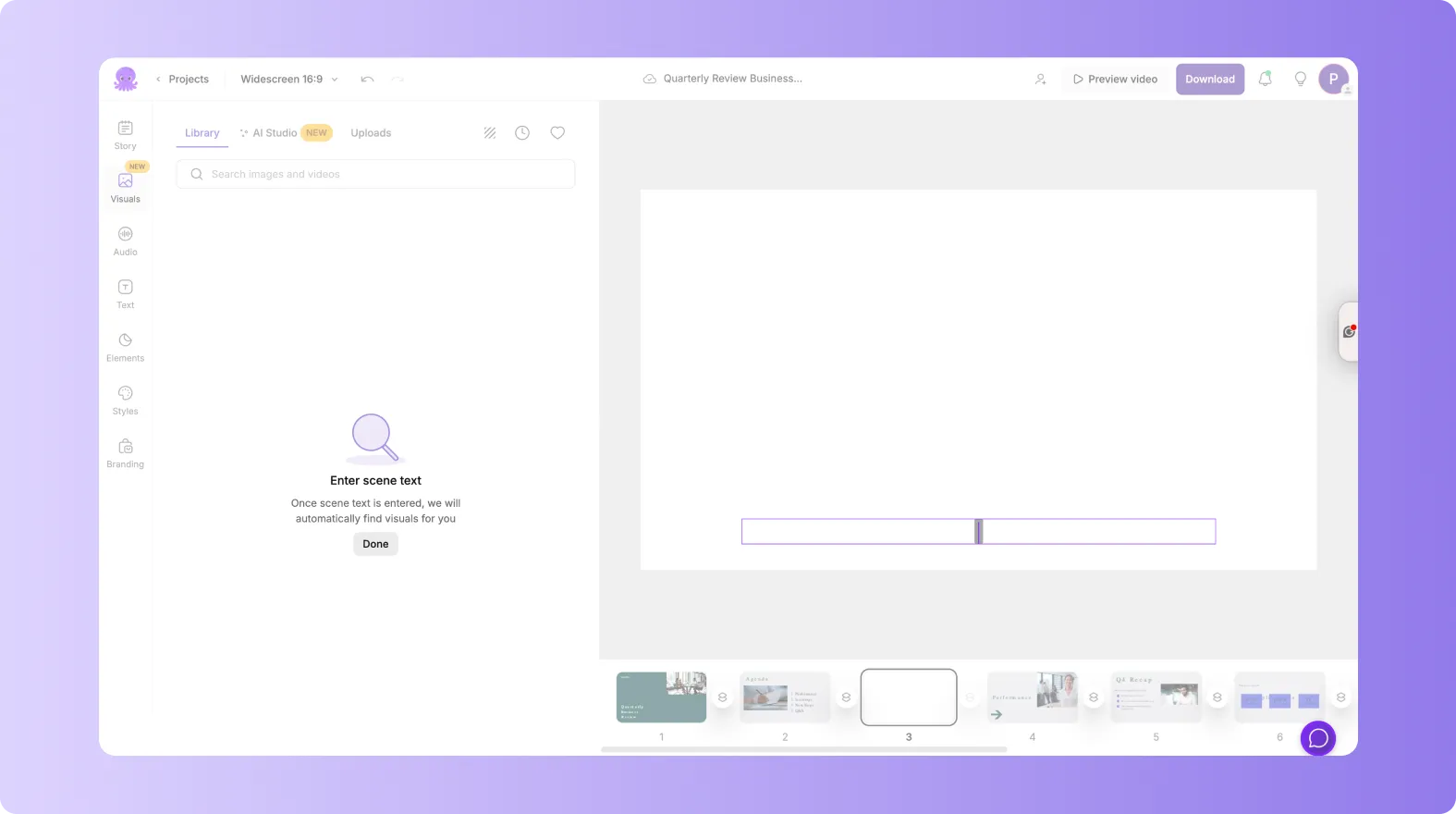
This keeps your new scenes consistent with the rest of your video.
Step 6: Preview and Export Your Updated Video
Before exporting your final version:
- Click Preview Video
- Watch transitions between scenes
- Confirm pacing and clarity
- Make final edits if necessary
- Export your finished video
Your exported file reflects all scene additions and deletions.
Build a Stronger Video Story by Adding or Deleting Scenes in Pictory AI
Adding and deleting scenes gives you full control over your narrative. You can refine your message, improve pacing, and customize your video structure with simple tools. Whether you are creating tutorials, marketing videos, or training content, scene management helps you produce a polished final video.
Start adjusting your scenes today using the Story tab in Pictory AI.


